
How to Make a Slow-Motion Video Smoother?
with tutotial

Nowadays, slow motion video is widely used in various fields, from shocking sports event replay to beautiful art creation, it can bring us unique visual enjoyment. However, in order to truly realize the charm of slow motion video, it is necessary to solve the problem of its smoothness. So, how to create a smoother slow motion video? In this article, we'll explore how to make slow-motion videos smoother, ensuring that your visual work has unforgettable charm.
Part 1: The Key to Slow-Motion Video is High Frame Rate Recording
Frame rate (FPS, Frames Per Second) refers to the number of image frames captured per second, and is an important indicator of video smoothness. Under normal playback, common frame rates are 24FPS, 30FPS and 60FPS, which can ensure the natural smoothness of the video.
However, to achieve a satisfactory slow motion effect, the required frame rate is usually much higher than these standards. Generally speaking, to create slow-motion videos, the frame rate typically needs to be at least twice the normal playback speed or higher to ensure a clear and smooth image when the footage is slowed down.
For example, when a video recorded at 120 FPS is played at 30 FPS, the video is actually slowed down four times, meaning that one second of playback will actually show four seconds of content, which is the effect of slow motion. This makes fast action such as sports, dancing or natural phenomena appear more vivid and detailed. Videos recorded at low frame rates tend to have problems when slowed down compared to high frame rate videos. Due to the low number of frames captured per second, these types of videos are prone to image lag when slowed down, giving the viewer a poor viewing experience.
Part 2: Three Steps to Smooth Slow-Motion Videos with AVCLabs Video Enhancer AI
If a video is shot at a low frame rate and you want to convert it into a slow-motion video in post-production, you can use AI frame interpolation technology to overcome the frame rate limitations.
AVCLabs Video Enhancer AI utilizes AI algorithms to automatically predict the motion trajectories between two frames, generating additional frames to transform low frame rate videos into high frame rate ones. This effectively compensates for the lack of frames, resulting in smoother and more natural slow-motion videos.
Key Features of AVCLabs Video Enhancer AI
- Upscales videos to HD, 4K, and 8K using AI technology
- Restores old footage for enhanced clarity and detail
- Automatically colorizes black-and-white videos
- Generates extra frames for smoother playback
- Reduces noise to improve overall video quality
How to Make Slow Motion Videos Smoother Using AVCLabs Video Enhancer AI
Step 1 Import Slow Motion Videos
Open the program and import the video you want to process. AVCLabs Video Enhancer AI supports batch import processing and batch export.

Step 2 AI Frame Interpolation
In the upper right corner of Video, you can set the frame rate you want to increase. Remember that adjusting the frame rate may necessitate re-encoding the video, which can affect both its file size and overall quality.
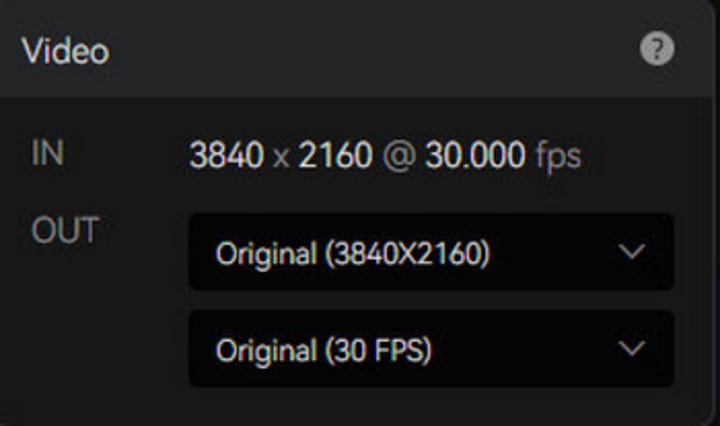
If you are not sure how many frames are needed, you can move to the Feature List in the lower bar, turn on the Motion Compensation option, select the speed you want to slow down the playback, and let AI automatically solve the frame rate problem for you. AVCLabs Video Enhancer AI supports 2x to 16x slow motion frame compensation.

Step 3 Preview and Export Videos
Click preview in the lower right corner of the video to preview the effect of 1-10 seconds. According to the preview effect, you can adjust the frame rate and speed twice to make the slow motion achieve the best effect.

If the effect is satisfactory, click "Start (All) Processing" in the lower right corner to export the video.

FAQs About Slow-Motion Videos
Read more: avclabs.com
About the Creator
Keep reading
More stories from Madeline and writers in Photography and other communities.
How to Get More Views on TikTok?
Up until April 2024, TikTok has witnessed over 4.92 billion downloads and has a monthly active user count exceeding 1.58 billion, which positions it as the fifth most favored social app across the globe. As an increasing number of individuals are utilizing TikTok for amusement, creative pursuits, and the dissemination of information, its impact on global social media and digital marketing is on the rise. Moreover, this huge user community has transformed TikTok into a crucial platform for brands and advertising agencies.
By Madelineabout a year ago in Photography
Leavie Scott
ORDER HERE Chicago – A Radiant Urban Masterpiece by Leavie Scott Arts & Culture Review – Feature Story In his striking new work Chicago, photographer Leavie Scott captures the soul of the Windy City with a level of vibrancy and emotional resonance that is impossible to ignore. The image immerses viewers in a dazzling skyline bathed in mesmerizing tones of purple, pink, and gold—a palette rarely seen in traditional urban photography and one that instantly distinguishes Scott’s artistic voice.
By Organic Products about 17 hours ago in Photography
No Word Comes Near Enough
The English language has its limits. I learned this when I became a student of the Bible and looked up the Greek and Hebrew definitions behind the Scriptures I loved. Some languages have so much more depth and power than the one I use to convey my thoughts. But, even so, I don't think any word could ever come close to describing this void and pain I am journeying through. I don't know how to swim through its murky waters.
By Shirley Belk7 days ago in Poets



Comments
There are no comments for this story
Be the first to respond and start the conversation.