
Discover Three Techniques to Blur Out Details in Your Screen Recordings
From AI-Powered Automation to Manual Mastery: Ensuring Privacy and Enhancing Aesthetics in Your Recorded Videos

Screen recording has emerged as a vital instrument for diverse purposes, such as producing instructional guides, showcasing software functionalities, and recording virtual conferences. However, you may want to blur your screen recording to hide some sensitive or personal information such as passcodes, email IDs, or contact numbers. It is in such scenarios that the capacity to selectively blur sections of your screen capture proves indispensable. This article will walk you through an array of techniques for blurring screen recordings, encompassing specialized screen capture programs, AI-driven automated blurring, and hands-on editing strategies.
Part 1: Why Blur A Screen Recording?
You may have various motives for obscuring elements in your screen recording. On occasion, the act of capturing the screen unavoidably captures confidential details, such as login credentials, personal information, financial data, and so forth. Applying blurs allows us to maintain anonymity and safeguard our privacy. This is particularly important when you are recording the screens of others or documenting online events like meetings and interviews, ensuring that you uphold privacy standards.
Furthermore, blur can enhance the professional look of your recording. By eliminating distracting details and focusing on what's important, you improve the viewing experience and effectively direct your audience's attention. In some cases, obscurity can also protect intellectual property by hiding proprietary information or sensitive design elements.
Part 2: Automatic Blurring the Screen Recording With AI - AVCLabs Video Blur AI
If you're looking for the easiest way to blur screen recording in a few clicks. Then AVCLabs Video Blur AI must be a product you can't miss. No need to manually choose to block blurred areas or use complex plug-ins, AVCLabs Video Blur AI uses artificial intelligence technology to automatically detect and track the areas of your screen recording that you want to blur, such as faces, license plates, backgrounds, specific areas, or other sensitive information. You can also adjust blur intensity, shape, and duration using simple sliders, providing high precision and flexibility for video anonymization.
Key Features of AVCLabs Video Blur AI
- Seamlessly blur specific areas of video, keeping the focus on what matters most
- Blur the detected faces selectively for single face or multiple faces in a video
- Automatically detect and track license plate in videos
- AI-automated solutions for face, background, object and license plates blurring
Steps to Blur the Screen Recording with AVCLabs Video Blur AI
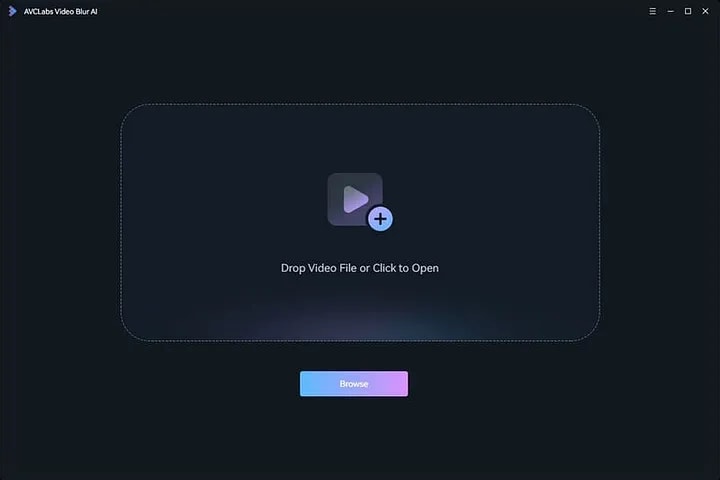
Step 1: Install AVCLabs Video Blur AI and Import Screen Recording Video
Download and run the installation package of AVCLabs Video Blur AI. Then click the “Browse” button or drag and drop to import the screen recording.
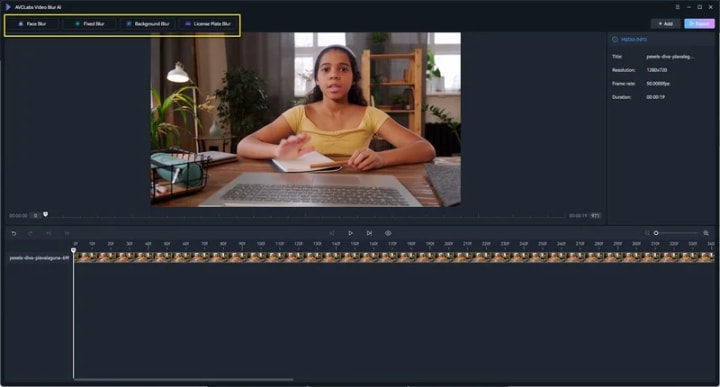
Step 2: Select Blur Model
Choose the blur mode from the top of the interface. You can choose from four modes: Face Blur, Background Blur, Fixed Blur, and License Plate Blur.
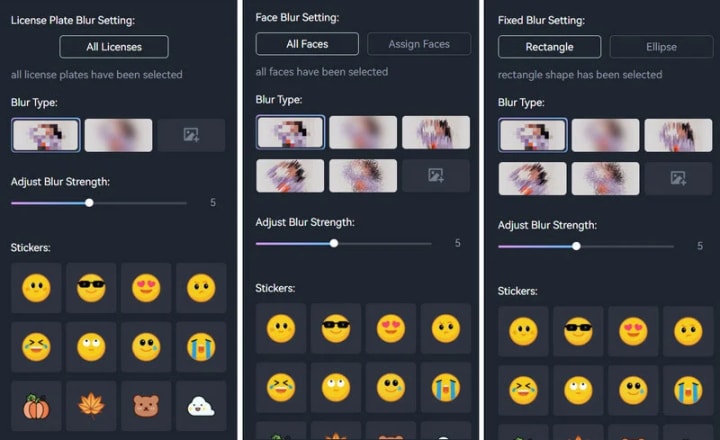
Step 3: Select Blur Type and Adjust Strength
There are 5 different blur types available: Mosaic, Standard Blur, Longitudinal Blur, Blique Blur, and Particle Blur. Moreover, you can also upload a custom image from your computer. Then you can adjust the blur strength by dragging the slider.
Step 4: Start Blurring Screen Recording
If you are satisfied with your blurred video, just click on the "Export" button to save it to your computer. You can choose the output format, output path, encoder and bitrate of your video.
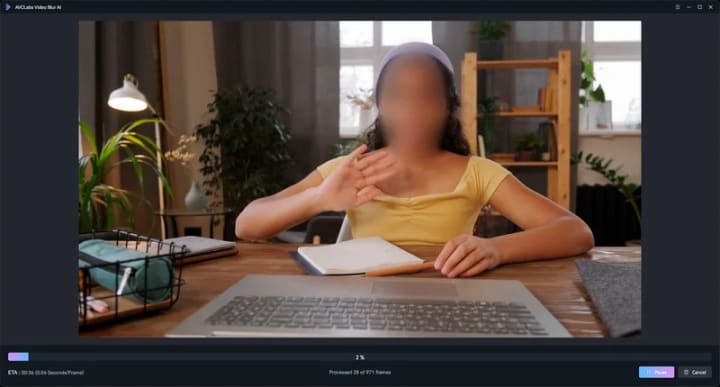
- Blur Faces in Screen Recording
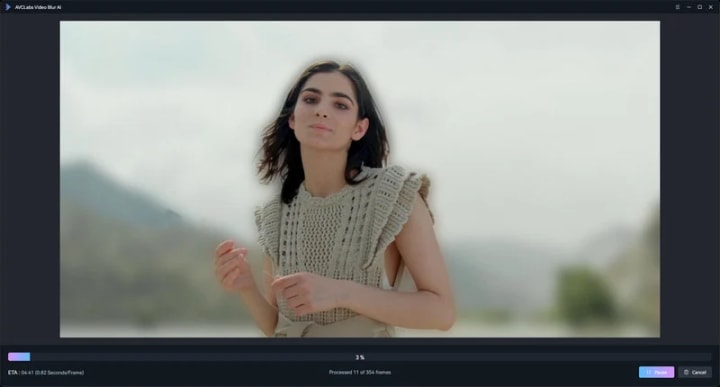
- Blur Background in Screen Recording
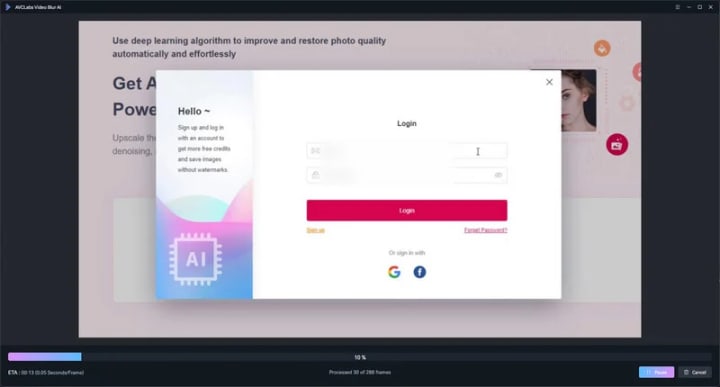
- Blur Private Information in Screen Recording
Part 3: Using Dedicated Software to Blur A Screen Recording - Camtasia
Camtasia is a professional screen recording and video editing software with a wide range of features that allow you to record screen, camera and audio, and add customizable blur effects to create professional-quality videos. After the screen recording is completed, just drag and drop the blur area effect onto the canvas or timeline, and then adjust the size and position directly on the screen. With its powerful blur capabilities and intuitive interface, Camtasia enables both beginners and experienced users to protect sensitive information, enhance privacy, and improve the visual style of their recordings for professional results with ease.
Read more: avclabs.com
About the Creator
Keep reading
More stories from Madeline and writers in Photography and other communities.
How to Change Background Color on Instagram Story?
Looking to enhance the allure of your Instagram stories? Whether you’re capturing moments of your everyday life or advertising your business, a custom background color can add a captivating touch to your posts. This guide will provide a step-by-step process on how to modify the background color in Instagram Stories, offering multiple easy techniques to ensure your visuals grab viewers’ attention.
By Madeline2 years ago in Photography
The Photographer's Code
You decide to visit your local park. You have become a close confidant to the homeless people who gather there most days. While talking to Cleo and Reed, you notice a new face in the crowd. It belongs to a stick-thin, middle-aged woman. She has her hand on her forehead as if taking her temperature.
By Paul Aaron Domenick7 days ago in Photography



Comments (2)
Thanks for sharing
Excellent written