
Create Your Tier List with PhotoCut
Create Your Tier List with PhotoCut

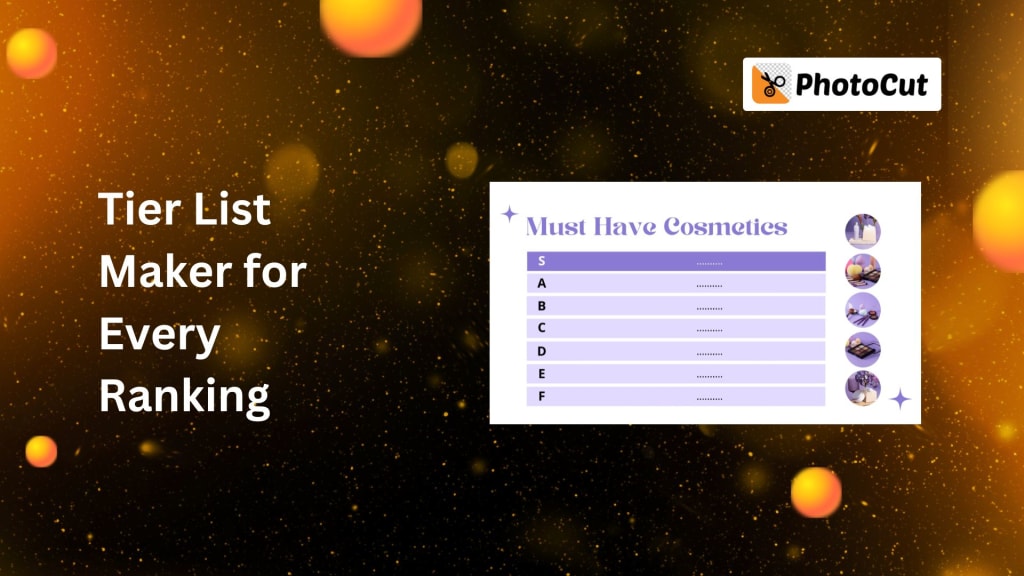
Since it rates everything, including video games, your favorite movies, and restaurants, making a tier list is enjoyable. Comparing what you have by contrasting your alternatives is made easier by the ability to arrange anything based on quality, importance, or personal taste. Whether you’re a gamer wanting to rank your favorite characters or a movie lover looking to rank your top films, PhotoCut makes it easy to create a custom tier list in no time!
What is a Tier List?
A tier list is a rating system for the assignment of goods, characters, or elements into different tiers according to predetermined standards. Tiers are usually applied to classify items, with "S-tier" being the best and "D-tier" being the worst. Even though tier lists are commonly seen in video games ranking characters or weapons, you can use them for anything! Here are some examples:
- Video Game Characters: Rate your favorite game characters according to how powerful or practical they are.
- Movies or Shows: Rate your favorite movies or shows in terms of quality, story, or performance.
- Sports Teams: Rank teams based on their performance.
- Restaurants: Rank your favorite restaurants or food places by how good they are.
- Websites: Rank websites based on usability, design, or features.
You can make a collage of your tier lists.
Why Use PhotoCut to Create a Tier List?
The design, organization, and addition of proper images and text can be tedious work when making tier lists. Worry not because PhotoCut's free online tier list maker allows you to create the perfect design without spending hours. Here's why you should use PhotoCut:
- Variety of templates: PhotoCut offers multiple templates to create tier lists in a jiffy. With this many templates, sizes, and designs, you will surely find a template that will fit your needs.
- Simple user interface: Regardless of whether you have prior knowledge or not, you will find no difficulty in creating your tier list.
- Customizable: PhotoCut goes beyond choosing a simple template; it allows you to personalize your tier list in any color, caption, image, sticker, and other elements that you may consider fun.
- Professional-looking results: This feature makes your tier list look polished and ready to share with friends or on social media.
- No installation required: PhotoCut's tier list maker is free and will work directly within your browser. In addition, the service is also accessible via a mobile or computer.
How to Create Your Tier List with PhotoCut
Now that we know why PhotoCut is perfect for making our tier list, let's know how to proceed. It is pretty easy; within minutes you will have that professional-looking tier list.
Step 1: Start by Clicking “Create Tier List Now”
To begin, visit the PhotoCut website and click the “Create Tier List Now” button. This will open the tier list maker where you can start customizing your list.
Step 2: Choose a Template
PhotoCut gives you many template options designed specifically to create visually appealing tier lists. Browsing through these will provide one that’s well-suited to your needs, whether ranking the characters of your favorite game or listing off favorite movies.
You can use a range of different layouts and grid-style templates where each item gets its box and creative templates with images or icons.
Step 3: Customize Your Tier List
Once you’ve selected a template, it’s time to customize it! You can add:
- Colors: Change the background colors or the colors of each tier to make your list pop. You can match the colors to your theme or choose what looks best.
- Captions: Edit the text to name each tier. For example, you might have tiers named “S-Tier” for the best items, “A-Tier” for great items, etc.
- Images: Upload images for the items you’re ranking. You can use screenshots, logos, or photos to represent each option. If you’re ranking video game characters, upload their images for a visual touch.
- Stickers: To improve your design, you may include stickers or other images. To add personality to your tier list, you may utilize PhotoCut's vast variety of entertaining and imaginative stickers.
- Icons: Use icons or symbols to present your tiers or items.
Step 4: Add Your Rankings
Once you have a design, it's time to add your rankings. Drag and drop items into their appropriate tier. You can rank items S-tier (top) through D-tier (bottom), or use custom tiers based on your needs.
For instance, you can rank your favorite video game characters and move the least preferred characters to the lower tiers while placing the most preferred ones in the top tier. The drag-and-drop interface will make it all easy and quick!
Step 5: Final Adjustments
Take a moment to review your tier list and ensure everything looks good. You can adjust the size of your images, move items between tiers, or tweak the text to make everything neat and organized.
Step 6: Download and Share
Once you're happy with your tier list, click on "Download" to download the tier list of your choice, JPG, PNG, or PDF. Your tier list can then be used in a blog post or website or even shared across social media channels and sent off to friends.
Use PhotoCut for More Than Just Tier Lists
PhotoCut isn’t just great for creating tier lists, it’s also a fantastic tool for other image and design projects. After making your tier list, you can use PhotoCut’s other features to:
- Make Custom Graphics: Create banners, logos, and more with PhotoCut's intuitive design tools.
- Edit Images: Utilize the photo editing feature of PhotoCut and adjust images, cut out the background from pictures, or apply filters before uploading them to your tier list.
You can also change your eye color in portraits.
- Make Memes: Create funny memes by combining images with texts using a meme generator.
- Design Social Media Posts: Design great-looking posts for Instagram, Facebook, Twitter, etc. with PhotoCut's templates or other options.
Conclusion
Making a tier list is simpler than ever using PhotoCut's free online tier list maker. From ranking games and movies to the next thing that intrigues you, PhotoCut has a versatile tool that allows creating professional-looking tier lists within minutes. Use colors, images, stickers, etc. to personalize your tier list.
Express love for your family with the best family tattoo ideas.
FAQs
Q1. What is a Tier List?
Ans. A tier list is a tool that allows you to rank items into different tiers or levels, depending on how well they perform, their quality, and more. It's not only good for ranking video game characters, but it can also be used to rank films, restaurants, sports teams, and much more.
Q2. How Do I Delete a Tier List on PhotoCut?
Ans. If you want to start fresh, you can easily delete your tier list or clear all the content by clicking the delete button on PhotoCut’s online tier list maker. You can also select a new template and start over.
Q3. How Can I Customize My Tier List?
Ans. PhotoCut allows you to customize your tier list in many ways. You can change the colors, and captions, and add images or stickers to your list. Get creative and make your tier list as unique as possible!
Q4. Can I Create Tier Lists for Anything?
Ans. Yes! You can create tier lists for anything. Whether you’re ranking video game characters, favorite movies, or food, PhotoCut's tier list maker gives you the freedom to create lists for any category you choose.
Q5. Can I Share My Tier List Online?
Ans. Absolutely! From there, when you have your tier list, you are ready to download and share your list on social media like Instagram, Twitter, Facebook, or a blog or your website.
About the Creator
PhotoCut
AI Photo Editing Tool - Remove or Change your Background & Enhance Product Photos
Keep reading
More stories from PhotoCut and writers in Photography and other communities.
5 Simple Ways to Add Multiple Pictures to Your Instagram Story
Perhaps, you all are wondering how to make their Instagram stories more active by adding multiple pictures. Wonderful way to involve followers, display different moments, and tell a fuller story of your day by sharing several images in one story. There are many creative ways of sharing on Instagram and uploading multiple images into your stories the procedure is really simple. So if you are an iPhone or Android user or want to go the extra mile using the design tools we have something for you. In this guide, we will take you through five easy methods on how to put multiple pictures into your Instagram story.
By PhotoCutabout a year ago in Photography
Gold Chrysotype Photography Is Back and the Colours Are Breathtaking
There is a moment when a chrysotype print is lifted from its chemical bath and held up to the light stops people mid-breath. The colours that bloom across the surface — soft dusty pinks fading into deep magenta, rich cyans pooling at the edges, velvety blacks settling into the grain of the paper — look less like a photograph and more like something pulled from a dream.
By CurlsAndCommas3 days ago in Photography




Comments
There are no comments for this story
Be the first to respond and start the conversation.