
6 Ways to Add Stickers to Photos on an iPhone in 2025
6 Ways to Add Stickers to Photos on an iPhone in 2025


This makes your pictures special and creative through fun stickers. Maybe you want a smiley face, a cute animal, or a funny quote on your image. Adding those simple elements would make an image interesting. Although your iPhone has no default feature directly within the built-in Photos app, to add stickers to your photos, several apps and approaches can be found. Here in this guide, we are going to explain the six easy steps on how you can add a sticker to the photos using your iPhone in the year 2025. So, let us start each approach step by step.
1. Use the Camera in the Messages App
You may add stickers to images using your iPhone's Messages app before sending them to friends or relatives. It is incredibly easy to use and provides no additional third-party programs. It is also free. Here's how you can apply stickers with the Messages app:
- Open the Messages app and compose a new conversation or open a current one.
- Tap the Camera icon next to the text input field. Now you will get a camera view.
- Use the camera roll to select a picture, or press the shutter button at the bottom of the screen to snap one.
- Then hit the Effects icon, which has a star icon on top of the screen.
- Among the effects shown to you select "Emoji Stickers".
- Tap on the sticker you want to put in your photo. You can drag and place it where you want and also increase or decrease the size by pinching with two fingers.
- To move a sticker's position or resize, long press the sticker and move the sticker according.
- Once the sticker placement is perfect, long-press the photo to save it to your iPhone. After that, select Save Image to add it to your collection.
2. Use the Photos App with Markup (iOS 17 and Later)
If you are using iOS 17 or later, there is an even easier method. You can access the option for adding stickers using the Photos app from within Markup on your Photos. This option doesn't need installation since it's already embedded within the iPhone. Here's how to use Photos to add a sticker:
- If you haven't already, update to iOS 17 on your iPhone.
- Launch the Photos app, choose the image you want to edit, and then select "Edit" located in the upper-right corner of the screen.
- Press the Markup button, which is a pen inside a circle, after the photo editing panel has opened.
- Now a toolbar will appear. Tap the "+": you add elements to your photo with this one.
- Then, from your menu, pick the "Add Sticker" option.
- Browse through the sticker library, pick one, and drag it onto the photo. You can adjust its size and rotate it using two fingers.
- If you want to copy, paste, replicate, or remove, tap the three dots.
- To save the altered photo, tap "Done" if you are happy with the sticker's positioning and dimensions.
Find the best tattoo design apps to create unique tattoo designs.
3. Use PhotoCut App
If you need more stickers and more customization tools, PhotoCut is another third-party app from which you can add stickers to photos. You will find thousands of stickers and other photo tools there. Here is how to do it with PhotoCut to add the stickers:
- If you haven't already, open the App Store and download the PhotoCut app.
- Open the application, then select the desired image from your camera roll.
- Press the "Edit" symbol to begin adjusting the image.
- Swipe over to the "Sticker" icon at the bottom of the screen. It is represented by a sticker icon.
- Select a sticker from the library provided. PhotoCut has many kinds of stickers available, such as emojis, decorations, and fun designs.
- Drag the selected sticker to your photo and place it wherever you prefer. You can resize, rotate, and make the sticker more transparent according to your photo's needs.
- Once you are satisfied with the outcome, tap the Checkmark icon to save the photo with the sticker.
PhotoCut also lets you crop, brighten, and contrast your photo, so it's a pretty good all-around photo editor with lots of options for customization.
4. Use WhatsApp to Add Stickers
WhatsApp isn't just about sending messages, it can also let you add some fun stickers on the pictures that you will share with your friends or even in a group. Let's learn how to add stickers to your photos to share using WhatsApp.
- Open the WhatsApp and find the chat wherein you would like to share the picture.
- Tap the '+' icon next to the text field, and click "Photo and Video Library."
- Choose the photo that you would like to edit.
- Tap the Emoji from the top right of your screen. Open your sticker option
- Explore through sticker packs, then select the one that you'd want to attach and tap.
- The added sticker is repositionable by resizing or rotating on the selected photo.
- Add the sticker and either send the photo or save it to your iPhone by tapping Share and selecting "Save."
This is convenient in case you wish to share with your friends in a short period or through social media.
Learn to draw a dragon with ease using AI.
5. Use Pixlr App
Pixlr is an even more powerful photo editing application through which you can apply stickers to your photos to make them even more creative. Here is how you can add stickers with Pixlr:
- Download Pixlr from the App Store and open the application.
- Tap the frame icon at the bottom of the display screen where it will ask you to select a photo from the camera roll.
- Once your picture is open, scroll down and tap "Sticker" for various sticker packs.
- Select any sticker pack that you like, and then tap a sticker that you want to put on the picture.
- Using the tools given, you can resize and adjust your sticker. Then position it just where you would like it to be in your picture.
- Then, when done, tap "Done" and save your photo in your camera roll.
Pixlr offers a very wide range of customization options, which makes it suitable for those who want to go creative with photo edits.
6. Use PicsArt App
Known for offering numerous stickers, filters, and other creative tools, PicsArt is one of the popular photo-altering applications. Apply stickers to your photos, if you're seeking feature-rich software, then PicsArt is an ideal option for you. Using PicsArt, follow these steps to apply stickers:
- Install PicsArt by downloading it from the App Store.
- To edit, open the app and choose a picture from your camera roll.
- Swipe from the bottom-up of the screen to browse hundreds of the most amazing stickers.
- Tap on one that you'll like and superimpose the sticker onto a photo.
- Choose how much, where, or with how you want the sticker to appear resized, rotated, and moved around so it appears like just the right picture for you.
- When satisfied tap "Done".
PicsArt also includes drawing tools, overlays with text, and filters, amongst others. As such, PicsArt is an all-inclusive photo editor for iPhone users.
Explore the perfect weekend captions and post templates for your photos.
Conclusion
Another easy and fun way to personalize your images is by adding stickers to them. Whether you use in-built iPhone features or third-party applications, you will find plenty of them to help improve your photos with such stickers. Using apps like the Messages app, Photos app, PhotoCut, WhatsApp, Pixlr, and PicsArt, there is never a dearth of ways and means to make such photos stand out.
Using the instructions given below, you will easily and quickly add a sticker to your photos, which enables you to share unusual and interesting pictures with your friends and family. Try out different stickers, position them, change their sizes, and let your creativity be on fire!
Now you can create customized Pokemon characters using PhotoCut’s AI Pokemon character generator.
FAQs
Q1. How do I add stickers to my photos on an iPhone?
Ans. Use Markup in Photos, Messages, or any other applications, including PicsArt, Pixlr, PhotoCut, or even WhatsApp to overlay the sticker images onto your photograph. Choose and then open an image. Open and place a sticker on the picture in the application.
Q2. Can I use custom stickers on my iPhone photos?
Ans. You can use your custom stickers by downloading a sticker pack from the App Store or by using apps such as Bitmoji or Giphy to make your own. After downloading, you'll find the available stickers within various photo editing apps.
Q3. How do I remove a sticker from a photo on my iPhone?
Ans. Tapping the application from the application in the Edit photo view inside the Photos view to delete or remove a picture is the option by tapping into it, swiping, and dropping a copy into Trash.
Q4. Can I add animated stickers to my iPhone photos?
Ans. The Photos application installed on the iPhones does not allow animated stickers directly. Animated stickers can still be added through the third-party app, for instance, Giphy.
Q5. Can I save stickers to use later on my iPhone?
Ans. Stickers are usually associated with the app where they were created. You can, however, store custom stickers in your camera roll, and you can use them later on apps like Bitmoji.
About the Creator
PhotoCut
AI Photo Editing Tool - Remove or Change your Background & Enhance Product Photos
Keep reading
More stories from PhotoCut and writers in Photography and other communities.
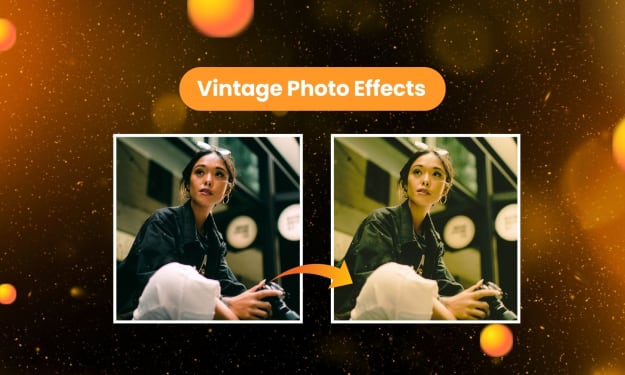
Vintage Photo Effects for Vintage Aesthetic
Sometimes, we miss the old-world charm and warmth of older photographs in this world of digital photography. If you are someone who loves the vintage look and wants your photos to resemble photographs from another era, then PhotoCut is your go-to tool for it. With this vintage photo editor, you can add a touch of retro effects to your photographs with ease. Whether it is to recreate the golden days of photography or add a flair to your snaps, vintage photo effects from PhotoCut will give your images a nostalgic and timeless look.
By PhotoCut12 months ago in Photography
Why Printed Photographs Still Matter: The Art and Value of Preserving Memories in Print
In a world where most photographs live on phones, laptops, and cloud storage, it is easy to assume that printing pictures is a thing of the past. Yet something meaningful gets lost when memories stay locked inside a device. A photograph printed on high quality paper carries a weight and warmth that no screen can fully replicate. It can be held, shared, framed, and passed down through generations.
By The Iconabout 9 hours ago in Photography



Comments
There are no comments for this story
Be the first to respond and start the conversation.