
4 Easiest Ways to Add Emojis to Your Photos
4 Easiest Ways to Add Emojis to Your Photos

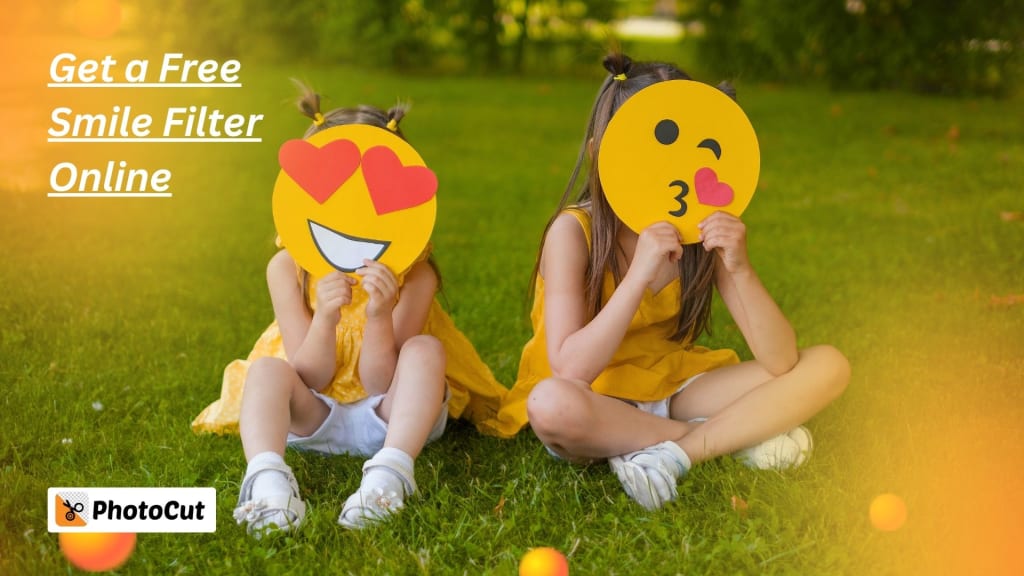
With emojis as a modern expression of feelings and ideas in digital communication, which is faster and more enjoyable to express and to react with simplicity, today people use them a lot for communicating through sending a text message or commenting on any post, even sharing their story. And then, why limit it just to messages? Now you can use them on photos as well. Adding emojis to your photos can add fun, creativity, and interactivity to the images.
Let's find the easiest ways to add emojis to your photos via different platforms, and apps, which include Instagram, and Snapchat, through your iPhone or Android device, and even a basic online photo editor like PhotoCut. By the end, you will have at least a dozen ways to beautify your image with the colorful and expressive powers of emojis.
What is an Emoji?
An emoji is a small digital image or icon used to represent emotions, objects, animals, weather, places, and much more. Emojis add flavor and taste to writing communication by visually describing feelings or ideas that might otherwise be lost in text alone. They range from facial expressions to animals, food, transportation, and even famous landmarks. Frequently utilized in messaging apps, social media posts, and emails, emojis create humor, provide context, or add personal flair.
For instance, if you are sending a message saying that you are eager to try something, you would insert a smiling face with heart eyes. You could add a cloud with rain when talking about a rainy day. Emojis may be simple icons or complex symbols and are very versatile; for this reason alone, they have become a global phenomenon in modern language use.
This will add a further vibrant touch to your photographs and more likely make people relate to your images. Use them to spice up your social media posts, amuse your friends with some funny content, or just enhance your photos with a creative twist. Adding emojis is an awesome way to personalize your images.
Create cartoon avatars for free online using PhotoCut’s AI Cartoon Avatar Maker.
1. How to Add Emojis to Photos on iPhone & Android
Both iPhone and Android smartphones provide simple ways to include emojis in a photo straight from an application, or the use of third-party apps. These processes are fast, easy, and do not require anything technical. Below are the procedures on how to add emojis to your photos on both iPhone and Android devices.
Add Emoji to Photo on Instagram
Instagram is one of the most widely used media-sharing websites, particularly for its friendly design and visual content. One reason why Instagram is a unique self-expression platform is that it allows users to easily and effectively add emoticons to their images. Here's how to do it:
- Open the Instagram app from your phone. Obtain it from Google Play if you have an Android, or if you're an iPhone user, get it from the App Store. If you don't have it yet, you'll need to download it.
- Tap the "+ " symbol on the top screen to choose an existing photo or snap a new one.
- Tap the smiling sticker icon on the editing screen once you've chosen the picture. You will see available emojis and other stickers. To find a specific emoji, you can use the search bar or explore the list of available emojis.
- Drag that emoji around the photo to where you want it, and you may also zoom with your fingers as you pinch out or spread open the emoji to scale.
- After positioning the emoji as you like, tap "Done" to save the picture. You may either download the picture to your collection or share it with your Instagram followers.
Adding an emoji can make your Instagram picture fun and personalized. So, even if you are posting a selfie, product photo, or scenic shot adding emojis can help represent your emotions and personality through your images.
Add Emoji to Photo on Snapchat
Another popular software that can enhance your photos with funny stickers and emoticons is Snapchat. Using the available filters, stickers, and a collection of various emojis in the library, you can customize and improve your photos. Here's how to insert emoticons into your Snapchat photos:
- Open the Snapchat app on your Android or iPhone device. If you do not have it already download it from Google Play or the App Store.
- You have two options: swipe up to use an existing photograph from your Camera Roll, or hit the shutter button to capture a new one.
- Now that your image is fully open, touch the icon of a sticker on the right side of the screen. This unlocks the sticker library where you will have a diversified variety of emojis.
- Drag your chosen emoji to the desired location on your photo. To make your emoji bigger or smaller, pinch.
- When you're happy with how your emojis are positioned, press the download icon to save the picture to your device or email it to pals via Snapchat.
If you appreciate sharing amusing material with your friends, Snapchat is a fun app that lets you add emoticons to your images in the most inventive and entertaining ways.
2. Add Emojis to Photos without Apps
While most apps give you the ability to insert emojis into your pictures, you may prefer a more straightforward approach that does not install anything additional. And if you have an iPhone, you can insert emojis from your photo library without using a third-party app.
Convert your image files from MB to KB using PhotoCut’s Image File Size Converter.
Add Emoji to Photo Using iPhone’s Native Tools
- Open your Photo Library. Choose the image you want to edit.
- To start modifying the picture, tap the "Edit" button located in the upper-right corner of the screen.
- To add text to your image, tap on Text.
- On the keyboard type/type in an emoji that you wish to insert into the image: scroll through categories such as smileys, animals, food, etc.
- Place the emoji you have chosen where you want the text box in your photo and resize it, just like adjusting the size of a text box.
- Tap the "Done" button to save your edited picture once you like how it has turned out.
This is also good if you are looking to have a convenient way to attach emojis to the pictures without any third-party applications.
3. How to Add Emojis to Photos Using Online Photo Editors
If you are looking for something more convenient and flexible that would allow adding emojis to photos, then photo editors like PhotoCut can offer an easy way. These editors can be reached via your browser without installing something on your gadget, and also, they also allow using a vast range of emojis adding and modifying options on photos.
Add Emojis to Photos with PhotoCut
- Go to the PhotoCut website, then upload the picture you want edited. Even beginners may utilize the interface effectively since it is very user-friendly.
- Find the "Elements" tool in the editor after uploading your photo. To get a variety of emoji stickers, put "emoji" into the search box.
- Browse through the emojis in the options and then select one that you like. Drag it on your photo; you can place it wherever you want.
- You can resize an emoji, rotate it, or change the position so that it will not crowd into the photo.
- You may further alter your emojis to make your design appear unique. For example, you may apply various effects or alter the emoji's color to make it stand out.
- After you are happy with your design, you can download your photo and use it in presentations, post it on social media, or save it for your collection.
- You may save your photo to your collection, post it on social media, or use it in a presentation.
Because you can add fun components like stickers, text, and frames to your photos in addition to emojis, an online photo editor like PhotoCut allows you to be much more creative.
4. How to Customize Emojis with PhotoCut
Besides adding emojis to your photos, one unique feature that comes with using PhotoCut is the ability to customize them. Rather than using a regular emoji, you can adjust to what you desire for your look or theme. Here is how you can achieve this:
- Once you have pasted an emoji into your photo, click on it to select it.
- It will include a color block on the toolbar. You can change the color of the emoji. It gives you the option to have personal emojis for your photo or a personalized theme.
- Experiment with the emoji in size, color, and position. This is how you can have an image that is personal to you and reflects your idea.
Learn how to use PhotoCut’s Background Removal API.
Conclusion
Adding emojis to your photos is one of the most entertaining and simple ways you can be creative with your pictures and enhance them. Whether you are using all the popular applications like Instagram and Snapchat or you just want to upload your snaps online by using a user-friendly online editor for photos such as PhotoCut, there are always means to bring these emojis to your pictures. Using emojis makes your pictures more personal, funny, and stylish.
So the next time you look to give that little extra something to your photographs, experiment with emojis. You are either on social media or perhaps producing material for your company, or perhaps just messing about with personal snaps. Whatever, the use of emojis can prove the ideal accessory to bring life and a dash of interesting visual flair into your pictures.
Discover the best APIs to automate image optimization.
FAQs
Q1. Can I Add a Sticker to My Photos for Free?
Ans. Yes, PhotoCut provides you with an extensive range of free stickers, which include emojis and much more. It is up to you which sticker to use or even try different combinations as per your requirement.
Q2. How do You Put Stickers on iPhone Pictures?
Ans. This is how one can add stick-on stickers to the iPhone's pictures by getting the PhotoCut app, uploading the chosen picture, getting the stickers chosen, adjusting if necessary, and saving the photograph. This app is a cool way to take your photos beyond the ordinary or mundane.
About the Creator
PhotoCut
AI Photo Editing Tool - Remove or Change your Background & Enhance Product Photos
Keep reading
More stories from PhotoCut and writers in Photography and other communities.
Design Your Cards for Free with PhotoCut
Whether it is a special occasion, business event, or simply because PhotoCut's card maker streamlines making it fun. Anyone can design a personalized card in just a few minutes without experiencing any requirement for required design skills. If you are looking to create unique cards, then you're in the right place using PhotoCut's card maker!
By PhotoCut11 months ago in Photography
Gold Chrysotype Photography Is Back and the Colours Are Breathtaking
There is a moment when a chrysotype print is lifted from its chemical bath and held up to the light stops people mid-breath. The colours that bloom across the surface — soft dusty pinks fading into deep magenta, rich cyans pooling at the edges, velvety blacks settling into the grain of the paper — look less like a photograph and more like something pulled from a dream.
By CurlsAndCommas4 days ago in Photography




Comments
There are no comments for this story
Be the first to respond and start the conversation.