
Garmin Fenix 8 - Software 13.35 breaks touchscreen functionality
A workaround exists

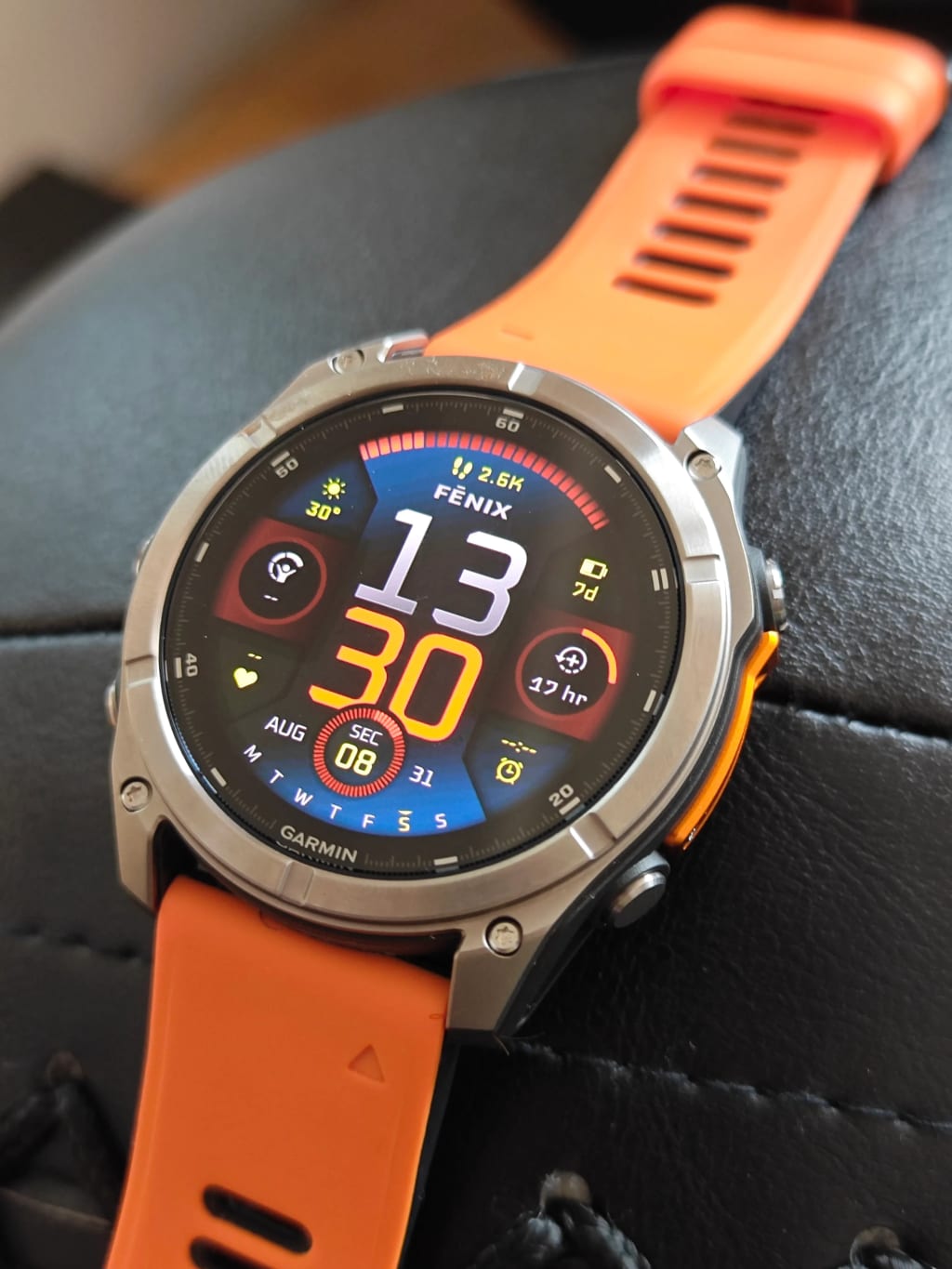
Garmin has quietly rolled out software update 13.35, and unlike previous beta versions, this is an official release. However, for some users—including myself—this update has brought unexpected issues. This morning, I was convinced that my Garmin Fenix 8 51mm AMOLED’s touchscreen had completely stopped working.
The Issue: A Non-Responsive Touchscreen
I woke up at 6:30 AM, not by choice—my kid decided it was time to start the day. As part of my morning routine, I disabled Sleep Mode and started checking my Morning Report. That’s when I noticed something unusual: the touchscreen wasn’t responding at all.
At first, I thought I had accidentally disabled the touch function. I used the button shortcut to manually enable touch, only to find that it was already enabled. Just to be sure, I toggled it off and back on again—but nothing changed. The screen was still unresponsive.
Next, I restarted the watch, hoping that a quick reboot would fix the issue. No luck. At this point, I started to think I might have a defective unit. My initial reaction? At least it’s still under warranty. But then, I remembered something important: I had installed the 13.35 update just yesterday afternoon. Could this be the culprit?
Searching for Answers
A quick Google search led me to a Garmin forum thread discussing similar touchscreen problems. It seemed I wasn’t alone. However, I ran into another obstacle: the Garmin forums were down. I had to wait nearly 30 minutes before the website came back online due to an unexpected outage between 7 AM and 8 AM CET. Just my luck!
Once I finally accessed the forums, I found multiple users reporting the same issue—confirming my suspicion that update 13.35 was to blame. However, there was no official acknowledgment from Garmin yet, leaving affected users scrambling for solutions.
The Workaround: How to Fix the Touchscreen Issue
After some trial and error, I discovered a temporary workaround. If you wake up before your Focus Mode Sleep time ends, the touchscreen may become unresponsive. The fix? Manually adjust the Sleep Mode end time so that it ends before the current time.
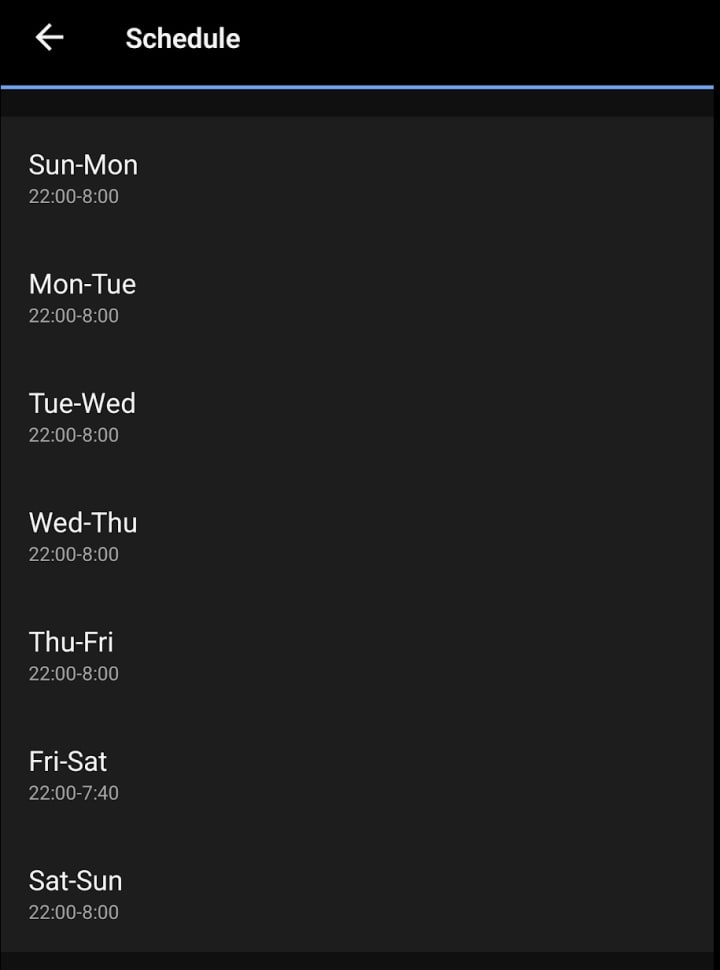
Here’s how to do it:
- Go to your Sleep Mode settings.
- Adjust the end time to a point that is already in the past.
- Restart your watch—this step is crucial, as the fix won’t work without it.
And just like that, the touchscreen should start working again!
Some users have reported an alternative solution that works without restarting the watch. According to them, simply pressing the upper left button (which controls the backlight) restores touch functionality. Unfortunately, this didn’t work for me, but it’s worth trying if you encounter the same issue.
Is Garmin Aware of the Issue?
As of now, Garmin has yet to acknowledge or provide an official fix for this problem. This leaves users in a frustrating position, especially those who rely on the touchscreen for navigation and workouts.
Given that the problem seems to be linked to the Sleep Mode settings, it’s likely that Garmin will need to issue a firmware/software update to properly resolve the bug. Until then, affected users will have to rely on the workaround mentioned above.
Final Thoughts
If you’ve installed Garmin update 13.35 and are experiencing touchscreen issues, don’t panic—your watch isn’t broken, and there’s no need to rush to customer support just yet. While it’s frustrating and inconvenient, manually adjusting your Sleep Mode settings and performing a restart should temporarily restore functionality until an official fix is available.
Hopefully, Garmin will acknowledge the problem and release a software patch soon to address the issue permanently. In the meantime, if you come across any additional fixes, alternative workarounds, or troubleshooting steps that worked for you, be sure to share them with the community. The more information we can gather, the better!
Have you encountered this issue? What has your experience been like? Let me know in the comments!
About the Creator
Keep reading
More stories from Aleš Sušnik and writers in Longevity and other communities.
Day 4 of Quitting
If this is how sobriety feels, maybe it’s better to go through life a little buzzed… this, along with other hits like, I want to kill myself, I wish I was dead, and I’m going to throw myself off a bridge have been the only thoughts on rotation these past few days. I promise myself that if, in a month, I still feel like this (‘this’ meaning despondent, full of rage, and simultaneously numb) I can go back to smoking. Until mid-February though? Nicotine is off the table.
By sleepy drafts19 days ago in Longevity
Cold Wave Tightens Grip in South Korea as Temperatures Hit Minus 24°C
South Korea is currently experiencing a severe cold wave, with temperatures plunging to as low as minus 24 degrees Celsius in some regions. This extreme weather has triggered alerts from authorities, disrupted daily life, and created dangerous conditions for residents, particularly the elderly and those living in rural areas. Meteorologists warn that the cold snap could continue for several days, and citizens are being urged to take precautions to protect their health and property. Record-Low Temperatures Sweep Across the Country The Korean Meteorological Administration (KMA) has reported record-low temperatures in northern and central regions, including areas such as Gangwon Province and Seoul. Frostbite and hypothermia risks are high as the bitter cold lingers, especially during the early morning hours. Residents have reported frozen pipes, heavy snow accumulation in some areas, and icy roads, making commuting and travel hazardous. Government Response and Safety Measures South Korean authorities have issued a range of emergency warnings and advisories to minimize the impact of the cold wave: Schools: Some schools have delayed opening or switched to online classes in affected areas. Transportation: Road authorities have warned drivers about icy roads and advised the use of snow tires and caution while driving. Public Services: Emergency shelters and warming centers have been opened for vulnerable populations. Utilities: Local governments are monitoring heating and electricity supplies to prevent outages. Officials are urging citizens to dress warmly, limit outdoor activities, and check on elderly neighbors or relatives. Health Risks Associated With Extreme Cold The extreme temperatures pose serious health risks, particularly for certain groups: Elderly people are more susceptible to hypothermia and cardiovascular problems. Children can experience cold-related illnesses such as frostbite. Outdoor workers face higher exposure to cold stress, requiring protective gear and frequent breaks. Medical professionals recommend layered clothing, staying indoors when possible, and maintaining proper hydration. Additionally, avoiding alcohol and smoking can help the body regulate temperature more effectively. Disruption to Daily Life The cold wave has already begun to affect daily routines and infrastructure: Transportation delays: Trains, buses, and flights have faced cancellations due to icy conditions. School closures: In some provinces, students are attending virtual classes to avoid travel in unsafe conditions. Economic impact: Small businesses, especially street vendors and markets, are reporting lower customer turnout and disruption of supply chains. Experts warn that prolonged cold waves could have a more significant economic effect, especially if essential services are interrupted. Meteorological Causes of the Cold Wave Meteorologists explain that the extreme cold in South Korea is being caused by a combination of factors: Arctic air mass: Cold air from Siberia has moved southward, bringing frigid temperatures. High-pressure system: A stable high-pressure system over East Asia has allowed cold air to settle and remain in place. Low sunlight hours: Short winter days reduce the warming effect of the sun, intensifying the cold. These conditions are expected to continue for several days, with some forecasts warning of temperatures remaining below minus 20°C in northern regions. Advice for Travelers and Residents Authorities and experts have issued several practical tips for staying safe during the cold wave: Stay indoors whenever possible, especially during early mornings and evenings. Wear layers of clothing, covering hands, feet, and head. Check heating systems at home and ensure proper ventilation for safety. Avoid driving on icy roads unless absolutely necessary. Keep emergency kits ready, including blankets, food, and water. Travelers in South Korea are advised to monitor local weather updates and plan their journeys accordingly. Broader Implications of Severe Cold This cold wave highlights the vulnerability of urban and rural populations to extreme weather events. Experts point out that climate variations can lead to: Increased energy consumption for heating Greater pressure on healthcare services Infrastructure challenges, such as frozen pipes and road hazards Residents are encouraged to prepare in advance and for policymakers to consider long-term strategies for cold-weather resilience. Conclusion As South Korea faces one of its harshest cold waves in recent years, temperatures hitting minus 24°C have raised alarms across the country. While authorities continue to provide guidance and emergency services, residents are urged to take personal precautions seriously to avoid health risks and accidents. This cold spell serves as a reminder of how extreme weather can disrupt daily life, affect health, and challenge infrastructure. With proper awareness, preparation, and caution, South Koreans can navigate this severe winter safely.
By Fiaz Ahmed 4 days ago in Longevity



Comments
There are no comments for this story
Be the first to respond and start the conversation.