
Where Are Spotify Music Downloads Stored?
In this article, you will know where to find Spotify downloads and how to offline play the downloaded songs on Spotify.

Spotify is an online music streaming platform that has revolutionized the way people access and listen to music. With its vast library of songs, playlists, and podcasts, Spotify provides easy access to virtually any type of music or audio content imaginable. The platform eliminates the need for downloading music, giving users instant access to their favorite songs without taking up any storage space on their respective devices. This makes switching between songs, albums, and playlists a breeze for users.
Despite the convenience of streaming, there are still those who prefer to download their music so they can listen to it offline. Fortunately, Spotify allows users to do just that. By using the "Download" function on its desktop application, users can save their favorite songs, albums, and playlists for later playback without needing an internet connection.
If you have a Spotify Premium account and you have downloaded music from it, you may be wondering how to find your downloaded songs and enjoy offline playback. In this article, you will know where to find Spotify downloads and how to offline play the downloaded songs on Spotify. Furthermore, through this post, you will get knowledge of how to permanently move the downloaded Spotify songs, playlists, and albums to any device for free playback.
✅ Part 1: Where to Find Downloaded Songs on Spotify for PC & Mobile Devices?
✅ Part 2: Where Are Spotify Downloads Stored on PC & Mobile Devices?
✅ Part 3: How to Remove DRM from Spotify Downloaded Songs
✅ Part 4: More Tips About Spotify Downloads
Now, let's have a look at more details.
✅ Part 1: Where to Find Downloaded Songs on Spotify for PC & Mobile Devices?
Spotify permits Premium users in downloading music offline. This feature is especially useful for those who may not have reliable internet access or wish to make better use of their data plan by avoiding streaming. With Spotify's convenient download option, users no longer need to worry about missing out on their favorite songs even when there is no network connection. But how do you locate the downloaded songs on Spotify and offline play them if needed? There are several steps that can be your guidance.
⇢ For iOS &Android Users: Play the Downloaded Songs on Spotify
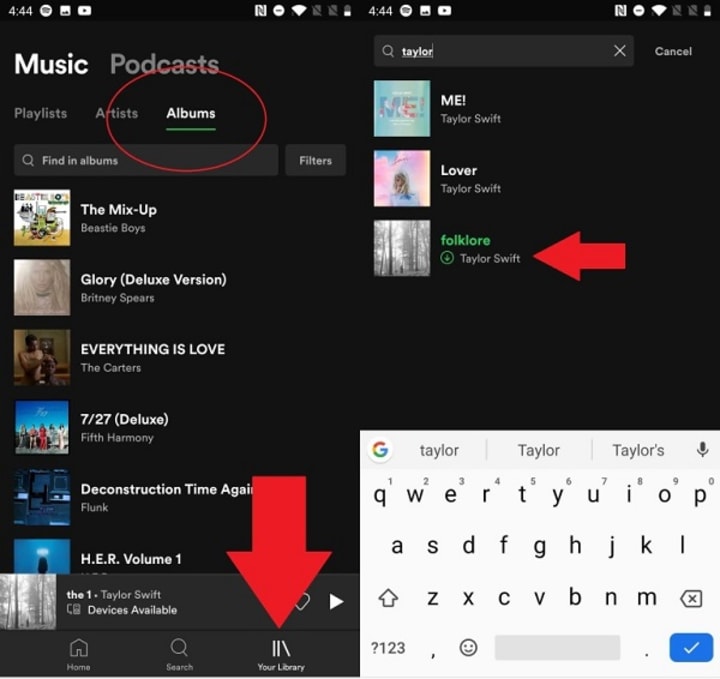
Step 1: Unlock your device and start Spotify. Then on the main interface, navigate to "Your Library > Music".
Step 2: Here you can see a "green download icon" next to the downloaded playlists or albums. Now, you can play them when you are offline.
Step 3: If you want to listen to music without consuming any data, you can turn on the offline mode. Go to the main interface of Spotify, under the "Home" column, click on "Settings" and then choose "Playback". Then you can switch "Offline" on. After that, when you are playing songs on Spotify, the songs you haven't downloaded will be grayed out.
⇢ For Mac &Windows PC Users: Play the Downloaded Songs on Spotify
There is no such option for you to filter the downloaded songs on the Spotify desktop app, but you can locate the Spotify downloads via offline mode.
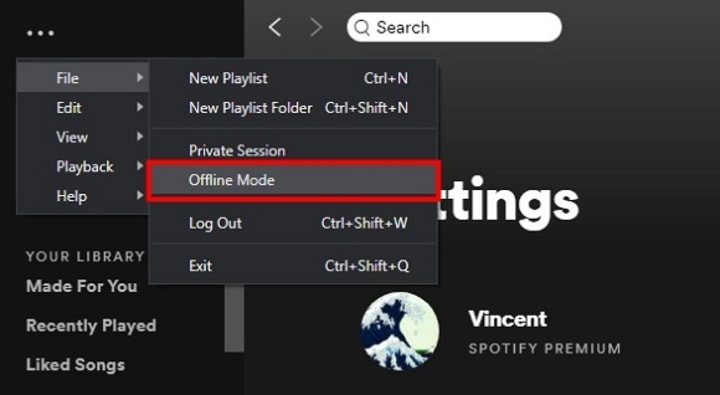
Step 1: On your computer, start the Spotify app. Then go to the upper left, and click on the "three dots".
Step 2: In the pull-down list, choose File > Offline Mode. Then you can go to choose a playlist on the left sidebar to play offline. The songs you haven't downloaded will be unavailable.
Read more details: Where Are Spotify Music Downloads Stored?
About the Creator
How to Hire a Quality Painting Team in Sydney Without the Job Dragging On
A repaint is meant to be a tidy upgrade: cleaner lines, brighter rooms, a place that feels looked-after again. Yet plenty of paint projects in Sydney turn into a slow-motion inconvenience—rooms half usable, dates sliding, and that lingering sense the finish isn’t quite right.
By Evelyn Heard6 days ago in Lifehack




Comments
There are no comments for this story
Be the first to respond and start the conversation.