
Thrive Architect review- Is Thrive Architect really a good web page builder?
In this article, I’m going to review Thrive Architect page builder WordPress plugin and my experience since am using it, and why you should also use Thrive Architect!


Thrive Architect Review: Thrive Architect is a wordpress based page builder plugin that lets you create outstanding, stylish and beautiful Homepages, landing pages, funnels and any other type of page you want to create or customise.
With the help of Thrive Architect wordpress plugin you can even edit your posts and give them whatever the look you want to.
This tool was previously introduced to us as Thrive content builder but later in 2017 when the company launched 2.0 version, they changed its name to Thrive Architect as we now know for branding purposes and I personally like this name.
I have been using Thrive Architect + other thrive products from few years and it helped me to create beautiful pages and posts to give my users a better user experience and high conversion.
When it’s launched there were many problems and errors in this page builder but with every update it becomes more and more better and smoother.
And currently this plugin is so important for me as website designer that almost all my sites have it.
Even some of my client’s sites were designed by Thrive Architect page builder.
I am also using Thrive architect in Semclouds along with Elementor and my most of posts created with help of Thrive Architect.
And there are reasons why I and many others like Thrive Architect so much over any other page builders, let me reveal one by one.
User Interface
If you used any other page builder before then there will be no problem you have to face using Thrive architect elements and features, that’s simple and easy to use it’s interface.
But if you are a newbie and just installed Thrive architect in your wordpress blog, still using this tool and understanding its features just take a while until you try them first time.
Compared to older versions and other page builders, Thrive Architect UI is much more simpler, neat and clean.
All the elements are available on the right that you can explore by clicking on the “+” icon.
And left side selected elements features will appear that you can customize as your please.

In the middle screen part, your page or post content layout will show in real time (whatever changing or customization you will do appears on the screen instantly)
In the middle screen part, your page or post content layout will show in real-time (whatever changing or customization you will do appears on the screen instantly).
Now let’s go to its elements and how you can use them.
Thrive Architect: Elements
As I told you above in the user interface section that for exploring thrive architect elements, all you have to do is click on the ‘+’ icon.
After that you can drag and drop or simply click on whatever the element you want to use.

You can also move used elements up and down by holding the drag option of the element and then place it anywhere you like. So you don’t have to delete and recreate that section.
Here are all the elements which are available to use and customization in Thrive Architect,
All elements divided under 2 sections
Foundation Elements
Paragraph
Heading
Image
Button
Columns
Background section
Content box
Content template and symbols (similar to Elementor’s Global widgets)
Block Elements
WordPress content
Thrive Leads integration
Click to Tweet
Table
Content Reveal
Countdown
Countdown Evergreen
Credit Card
Custom HTML
Custom Menu
Disqus Comments
Star Rating
Tabs
Testimonial
Toggle
Pricing table
Divider
Facebook Comments
Fill Counter
Google Map
Icon
Lead Generation
Post Grid
Progress Bar
Styled List
Table of Contents
Video
There are also various ready made content block templates under the ‘Blocks’ element that you can use almost for every type of content building.
All content type blocks under Blocks elements,
Problem & Solution
Product Highlight
Steps
Product Rating
Pros & Cons
Resource List
Product Review List
Call to Action
Lead Generation
Benefits & Features
Testimonials
Subscribe to Podcast
Team
Illustrated List
With every update, Thrive Architect Team adds more prebuilt content blocks for its users to use.
Thrive Architect Features: Setting Options & Template Setup
Element’s Setting options
For every selected element there are many setting options appear in the sidebar, with help you can almost customize the element as you please.
Like adding or changing text, font, type and size, layout, adding shadows, animation, borders etc

Plus with Responsive option you can enable or disable elements appearance for different screen size formats.
And if you want to have some hover effects on elements (when mouse cursor goes above elements) like changing color, text or effect, there’s also a ‘Hover’ setting that you can use.
Just switch element’s setting Normal to Hover

This shows with thrive architect page builder, you can almost control every aspect of your webpage in real time.
Template Setting options
There are also some settings that you need to be aware,
These are available below the elements ‘+’ icon
Central Style Panel
This section is only available to use when you are customizing either a smart landing page or Thrive Theme Builder.
With this section you can easily change colors and styles of all used elements to your brand’s color and style in just few clicks.
Change Template
Building pages from scratch or want to import pre-built designed pages from Thrive Architect Cloud Library, then this is the section that comes into play.
When you will click on Change Template icon there will two options appear

Normal Page: Used for creating content pages that should look like other content on your site.
These pages use theme templates and are useful for creating content-rich company pages (about us, services, pricing etc.).
Pre-Built Landing Page: Choose from Thrive Architect Library which has over 200 pre-built landing pages.
This is mostly useful if you want to build a marketing page but don’t want the hassle of designing it yourself.
Simply choose a design you like and modify to fit your needs.
Settings
When you clicks on Gear icon, you access the settings of Thrive Architect, where many options available like,
Advance Setting: In advance settings, you can view source codes, add custom CSS codes, and turn off save notifications.
Import Landing Page: With this option, you can import a landing page if you have any or downloaded it from somewhere.
Save as Template: Suppose you want to use your created page somewhere in your site again so what you will do, make it again from scratch or what?
That’s why Thrive architect added this option for users to save their designed pages as templates so they can use them again whenever they want just in a single click.
Thrive Architect Library: 100s of pre-built landing Page Templates
Actually, this is the feature that I like most of Thrive Architect page builder, no matter what type of landing page you want to create no matter its sales page, offer page, squeeze page, lead generation or video sales page.
You can import it in just click click from the Thrive Architect landing page templates library. And then customize its colors and content as your please.
There are currently 88 smart landing page templates and 203 legacy landing page templates for Thrive Architect users to import and use from the library.
Funnels in Thrive Architect
This is something for which you have either spent countless hours for research and designing or spent hundreds of dollars to build.
But in Thrive architect landing page templates library all prebuilt designed to work as funnels, you import them in a bundle.
For example,
When I go to the Library, click on the Legacy landing page under default templates.
Here you can see all the templates have various numbers of pages in them.

But when you select any of these, for instance I selected Flat2.0 for this example purpose.
Here you can see there are 5 pages in it which are actually designed to work as funnels if you carefully observe them.

Here the funnel breakout
Homepage- used to work as offer landing page
Lead generation & Video sales page- Both are split test pages pages to get emails as leads
Confirmation page- showing successfully signed up page or thank you page
Download page- Designed to show download or course page for users from collecting their information like emails (lead).
Like this flat2.0 template bundle, all the landing page templates in the Thrive Architect library are either designed to work as funnels or a/b split tests, if you observe carefully.
And you fully customize these pages as you want like changing colors, text, font, type and size, style, layout, CTAs (call to action), buttons design, add shadow and animations, images etc.
Thrive Architect Pricing
Previously users could Buy Thrive Architect Land Page Builder at sixty seven dollar but from 1 February 2021, they changed their pricing plan.
Thrive Architect WordPress plugin is now available as part of Thrive Suite,
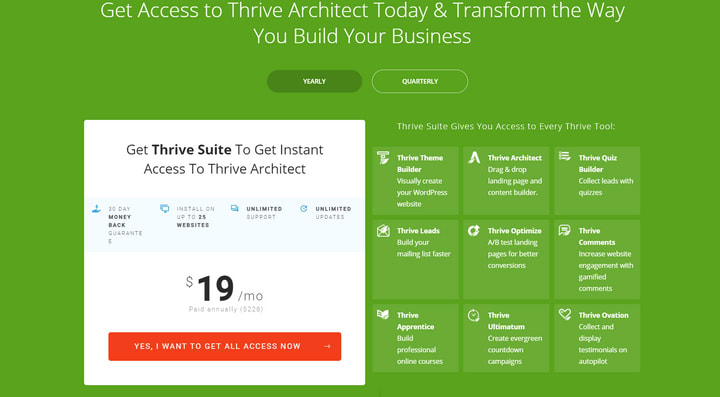
which gives users access to all Thrive Themes products, including some great plugins such as
Thrive Architect- Page Builder
Thrive Leads- best for lead generation or list building
Thrive Optimize- A/B split testing purpose
Thrive Theme Builder- Theme building and customization
Quiz Builder- Boost website engagement through quizzes
Thrive Ovation- Show beautiful testimonials in your site
Thrive comments- Make comments fun and engaging
Thrive Ultimatum- Create beautiful countdown to generate scarcity
Thrive Apprentice- Build and design online courses
When you purchase Thrive Suite, you’re covered by a 30-day money-back guarantee, should you decide this isn’t the best WordPress page builder for you.
Thrive Suite costs $19 per month (when billed annually).
Generally, which means thrive architect plugin price is 19$/month with 8 more thrive plugins.
Thrive Architect Coupon Discounts
There are no Thrive Architect coupons available and Thrive never discounts their products, not even on Black Friday. But hey, its already so low priced compared to all the other options.
Thrive Architect Review: Conclusion
Thrive Architect is one of the best visual landing page builder plugins for wordpress.
I and many more totally love it’s simple user interface yet powerful features for designing beautiful landing pages.
Thrive Architect plugin almost works with any theme you are using on your site.
And if you want to create landing pages for sales, marketing, or lead generation, then this is the plugin you must definitely checkout.
How to install thrive architect on wordpress?
After purchasing Thrive Suite plan, you get download Thrive Architect plugin from your account.
Then login to your WP dashboard and head over,
Plugin>Add new plugin>Upload
Find the select the downloaded Thrive Architect .zip file
Then click on "upload"
After uploading, Click on "activate" button
In the last step, enter your thrive suite license by going Thrive Dashboard>License Manager
thrive architect wordpress plugin review
That's all after these steps, you can successfully use Thrive Architect wordpress plugin.
About the Creator
Basant Kumar
Hi, I'm Basant Kumar, Founder of Saas Guru. Our Blog is one stop to get all secret strategies and actionable steps to grow your Blog 10X faster.
Keep reading
More stories from Basant Kumar and writers in Lifehack and other communities.
Boat Airdopes 131 Sound Quality, Pros and Cons with In-depth review
Boat Airdopes 131 Bluetooth Headset: In this post, we are going to review Boat airdopes 131 tws earbuds, talk about its sound quality features, specifications, pros, and cons to see if it's a good buy or not for our money.
By Basant Kumar5 years ago in Lifehack
Absolutely 100% Free Stuff With No Shipping Costs
In a world where everything seems to come with a price tag—including “free” offers that sneak in unexpected shipping fees—it can feel impossible to get truly free items. But with the right strategies, resources, and platforms, it is completely possible to score legitimate, 100% free stuff with no shipping costs or hidden charges. Whether you're looking to save money, reduce waste, or simply love the thrill of discovering freebies, this guide will walk you through the best ways to find authentic no-cost items online and in your local community.
By Master Binza day ago in Lifehack



Comments
There are no comments for this story
Be the first to respond and start the conversation.