
The Best Project And Task manager On Linux!
Planner is an open-source task and project manager designed for GNU/Linux.

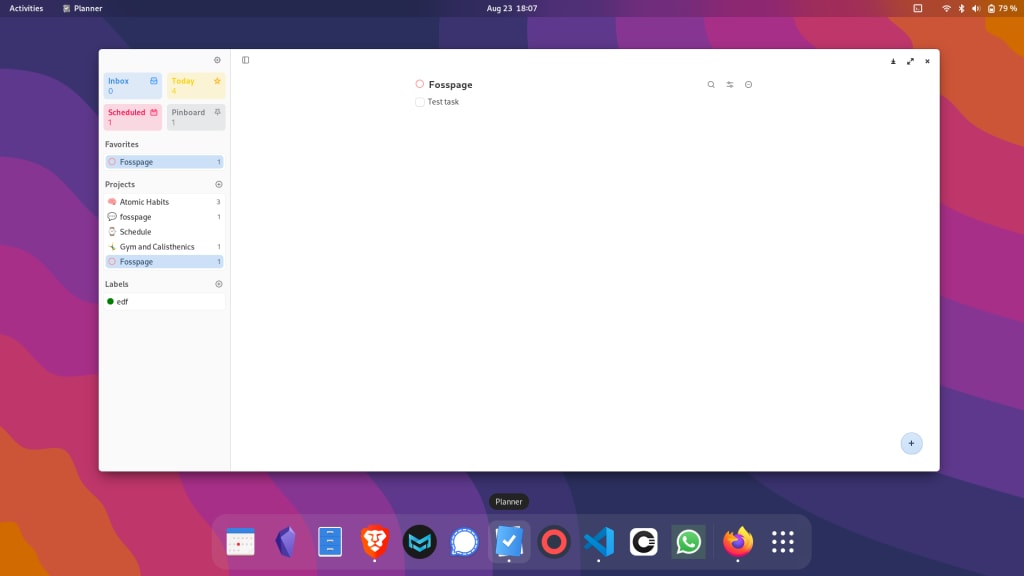
Planner keeps track of all your tasks, projects, and goals in one beautifully simple place.

We all need something to plan our projects, assignments or day to day tasks. There are a lot of apps or software that help us do this, but using too many apps can be frustrating. I have been using Planner daily and maybe it can help you too!
History
Planner was developed as a task manager in 2018 and is now a project manager. It is made by Alain. Planner is an open-source software made for Elementary OS but you can use it on any Linux desktop. I am using Fedora 36 Gnome desktop.
Some of the main highlights are:
Planner is available on Flathub, Elementary OS App Centre, and Arch user repository.
Features
1. You can start by creating named Projects. There are options for selecting colors and emojis for a specific project.
2. You can add specific projects to favorites.
3. You can add a task to a project by pressing the “+” icon on the bottom right, then you can add a title to the task, write a description and add links to it too! Pretty cool right?
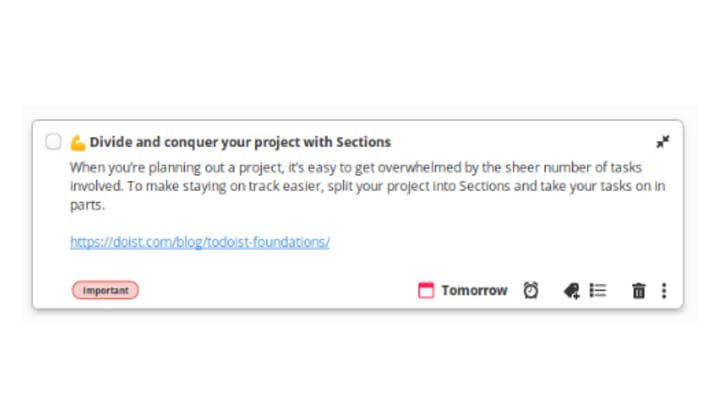
4. The tasks can also be scheduled according to time and date, you can select Today, Tomorrow, or pick any date. Labels can also be added to specific tasks. You can also set a reminder.
5. Marking a task as complete is as simple as marking the checkboxes. There is an option to show completed tasks, when enabled, it will show all the completed tasks below.
6. Split your project into Sections and take your tasks on in parts.
7. You can connect your Calendar app to Planner to see your events and to-dos together in one place. You’ll see events from both personal and shared calendars in Today and Upcoming.
8. Planner has been translated into many languages you can select the preferred language.
9. You can also share projects as markdown or through email.
Categories/ View
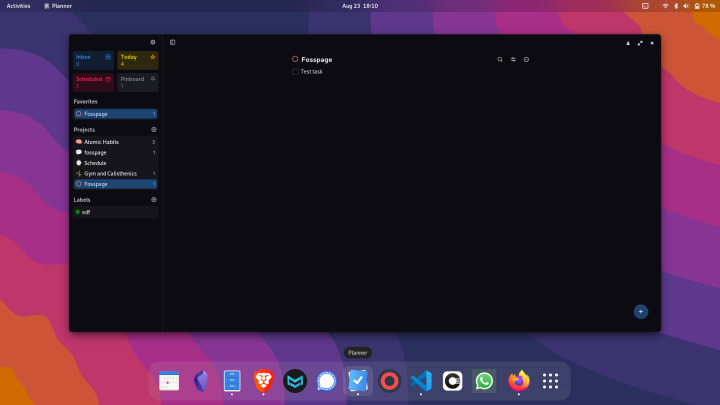
There are four main sections:
- Inbox — You can add tasks without sorting them.
- Today - Contains all tasks scheduled for “Today”
- Pinboard — You can pin some important tasks with high priority, it will show up in this view.
- Scheduled — All the scheduled tasks will show up here.
Below these sections are the Favorites and Projects section.
Settings
There are some simple, minimal but useful settings.
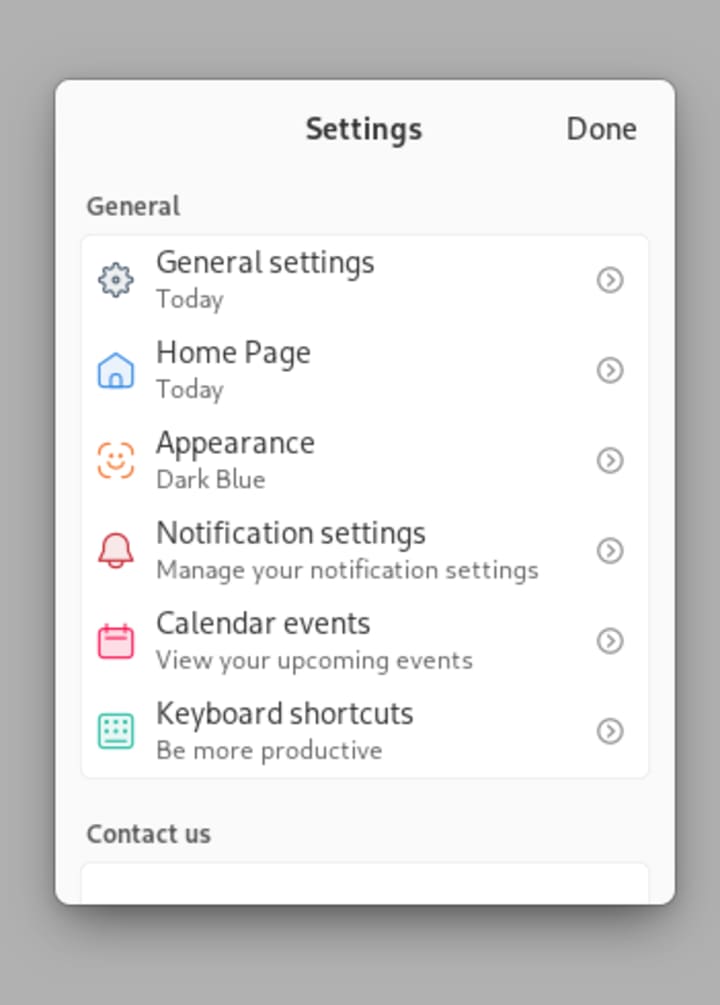
- General Settings — You can sort the order of projects, set the clock format, and set the start of the week.
- Home page — Choose which projects to show on the homescreen.
- Appearance — You can sync Planner’s theme with your system or can turn on dark mode, there are two options, Dark and Dark blue. I like Dark blue.
- Notification Settings — You can set notifications from Inbox or Today or both.
- Calendar Events — Planner can sync birthdays and calendar events from the system.
- Keyboard Shortcuts — This will open a window that shows all shortcuts used in Planner.
Planner is an awesome project which can handle a lot of projects and tasks. The main developer on Planner is Alain, You can check the Github repo here. I use Planner every day and recommend it to everyone.
You can try Planner and support Alain through Patreon or Paypal. Download it from Flathub or AppCenter
Check out my website fosspage.com. You can also follow me on medium.com.
Thank You!
About the Creator
Pratham Dupare
I am Pratham Dupare. I Love, Linux, FOSS, and Android. Minimalist, generalist, and nerd! You can find me fixing my broken system.
Keep reading
More stories from Pratham Dupare and writers in Lifehack and other communities.
How I reduced my Mobile Screen-time to 25 mins/day
People spend about 4 hours a day in front of their smartphones. That's roughly 50 days per year. Your smartphone does everything, anything you can think of. It will fill every boring second of your day and it’s bad for you.
By Pratham Dupare3 years ago in Motivation
Absolutely 100% Free Stuff With No Shipping Costs
In a world where everything seems to come with a price tag—including “free” offers that sneak in unexpected shipping fees—it can feel impossible to get truly free items. But with the right strategies, resources, and platforms, it is completely possible to score legitimate, 100% free stuff with no shipping costs or hidden charges. Whether you're looking to save money, reduce waste, or simply love the thrill of discovering freebies, this guide will walk you through the best ways to find authentic no-cost items online and in your local community.
By Master Binz7 days ago in Lifehack




Comments
There are no comments for this story
Be the first to respond and start the conversation.