
[Solved] 2023 Guide to Fix Seagate External Hard Drive is Read-Only on Mac Computers
Write to Seagate Hard Drive on macOS with No Hassle

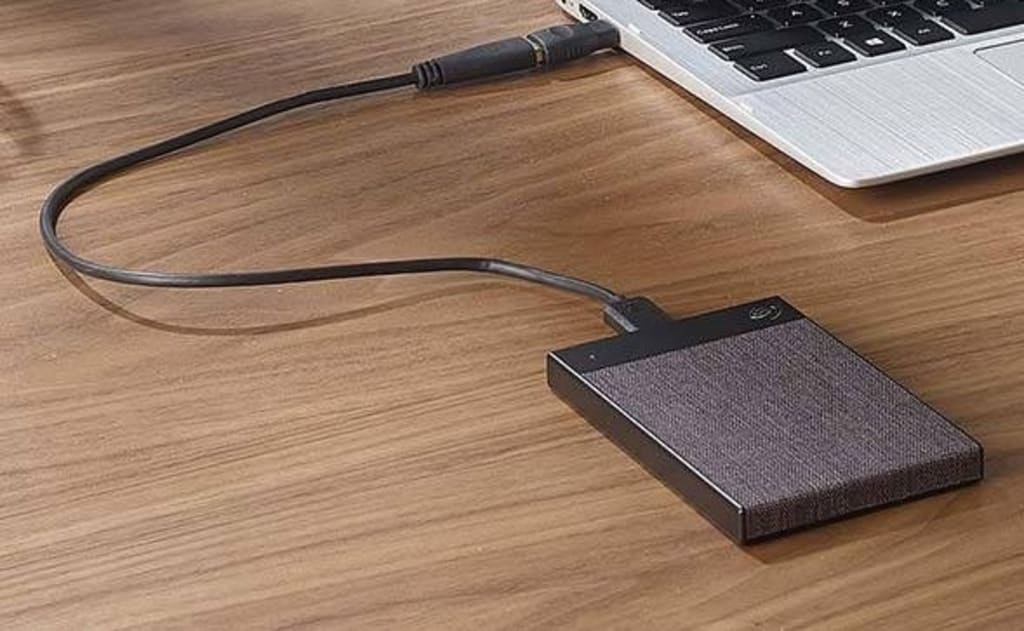
If you are unable to write to your Seagate external hard drive on your Mac, you may be encountering a read-only issue. This can be caused by a variety of factors, including the file system of the drive, permissions issues, or disk errors. In this article, we will explore various methods for you to fix a Seagate external hard drive that is read-only on a Mac. Whether you are dealing with an NTFS-formatted drive, permissions issues, or disk errors, we have a solution that can help. With the right tools and techniques, it is possible to regain full access to your Seagate hard drive and get back to using it as normal.
Part 1. What to do if the Seagate external hard drive is formatted with the NTFS file system
Many Seagate external hard drives are pre-formatted with the Windows NT file system (NTFS) by the manufacturer, which can cause issues when attempting to write to the drive on a Mac. By default, macOS does not support writing to NTFS-formatted drives, which means that any files on the drive will be locked or displayed as read-only. This can be frustrating, as it means you are unable to add, edit, delete, or create files on the Seagate external hard drive using your Mac.
1.1 How to check if your Seagate hard drive is NTFS formatted on Mac?
To determine whether your Seagate hard drive is formatted with the NTFS file system, follow these steps:
- Connect the Seagate hard drive to your Mac, open the Finder and navigate to the "Applications" folder.
- Scroll down and open the "Utilities" folder.
- Double-click on the "Disk Utility" app to open it.
- In the left panel of the Disk Utility window, click on the Seagate hard drive to select it.
Look at the "Format" field in the right panel to determine the file system of the drive. If it is listed as "NTFS," then the drive is formatted with the NTFS file system.
1.2 How to fix: Use NTFS for Mac to write to Seagate external hard drives on Mac
If you want to be able to write to your Seagate hard drive on a Mac but it is formatted with the NTFS file system, you can use a third-party tool like NTFS for Mac to enable read and write access. One such tool is iBoysoft NTFS for Mac, which is a Seagate NTFS driver and disk management tool that allows you to easily manage NTFS-formatted drives on your Mac.
To use iBoysoft NTFS for Mac to write to your Seagate hard drive, follow these steps:
- Download and install iBoysoft NTFS for Mac on your Mac.
- Connect your Seagate hard drive to your Mac.
- Launch iBoysoft NTFS for Mac and wait for the drive to be mounted in read-write mode.
If you are unable to read and write to your NTFS disk after installing the software, a pop-up will appear asking you to install an NTFS driver by iBoysoft and enable System Extensions. Once this is done, the NTFS volumes will be mounted in read-write mode.
In addition to being a Seagate NTFS driver that allows for read and write access to NTFS-formatted drives on a Mac, iBoysoft NTFS also allows users to natively and seamlessly open, mount, repair, and erase NTFS drives on a Mac.
Part 2: If you don't have permission to access the Seagate external hard drive
If your Seagate hard drive denies your write access or restricts you to read-only activities, there is likely a permission issue. Being a multiuser operating system, macOS sets up access permissions for all files and folders on the system, including external drives.
Facing this, you can change permission on Seagate external hard drive on Mac manually.
2.1 How to fix: Change permissions on Seagate's external hard drive
To change the permissions on your Seagate hard drive and regain full access, follow these steps:
Step 1: Select the Seagate hard drive on your desktop or in the Finder sidebar, and then press Command + I to get information about the drive.
Step 2: Scroll to the bottom of the list and click on the triangle on the left side of the Sharing & Permissions tab.
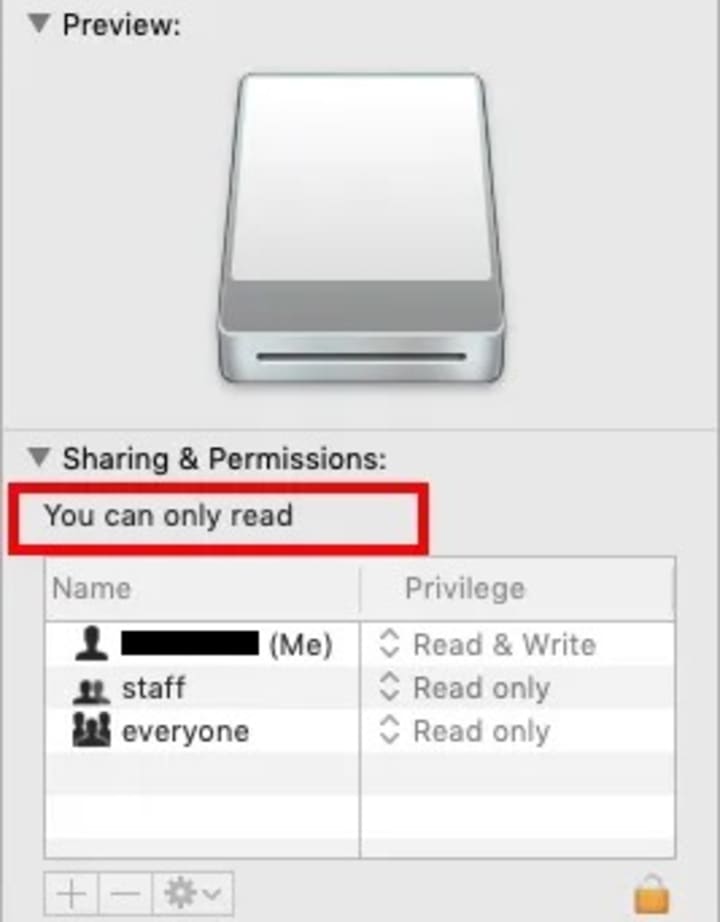
Step 3: Click the padlock icon and enter the admin account password to unlock this tab.
Step 4: Check the box to "Ignore ownership on this volume," or toggle it off and then on if it is already enabled.
Step 5: Click the gear button and choose "Apply to enclosed items" to save your changes.
If you are still unable to access your Seagate hard drive after changing the permissions, it is possible that the drive is locked by certain programs. This is often the case with Seagate Backup Plus Ultra Touch drives. In this case, you will need to use Seagate Secure software to unlock the password protection or hardware encryption on the drive in order to regain access.
Part 3: If the Seagate external hard drive has some disk errors
If your Seagate external hard drive becomes read-only and it is not due to the issues discussed in the previous sections, it is possible that there are disk errors present on the drive. These errors can sometimes be caused by formatting issues, which can result in the drive being mounted in read-only mode.
Method 1: Fix read-only Seagate external hard drive in Disk Utility
To check for and fix minor disk errors, you can use the built-in First Aid tool in Disk Utility. This tool can be used to repair logical disk problems that may be causing your Seagate external hard drive to become read-only.
To use First Aid to fix a read-only Seagate external hard drive, follow these steps:
- Open Disk Utility on your Mac.
- Select the read-only Seagate external hard drive in the left panel of the Disk Utility window.
- Click "First Aid" in the top center of the window and choose "Run" to repair your Seagate hard drive.
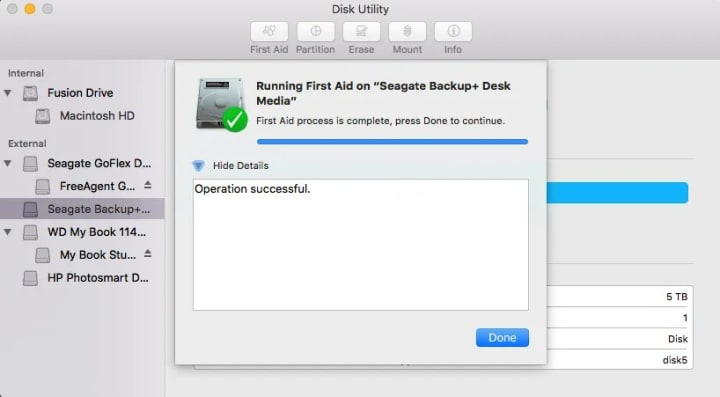
If First Aid is unable to repair the disk, you will receive a notification stating that "Disk Utility can't repair this disk." In this case, you may need to recover the files on the drive and reformat it for future use.
Method 2: Reformat your Seagate external hard drive
If using First Aid is unable to fix the read-only Seagate external hard drive, you can try reformatting the drive as a final step. Reformatting will assign a new file system to the drive, which may resolve the issue. However, it is important to note that reformatting will erase all of the data on the drive, so it is important to make sure you have a backup of your files before proceeding.
If you have a backup of your data, you can reformat the Seagate external hard drive by following these steps:
Step 1: Open Disk Utility on your Mac, select the read-only Seagate external hard drive in the left panel of the Disk Utility window.
Step 2: Click the "Erase" button in the top center of the window.
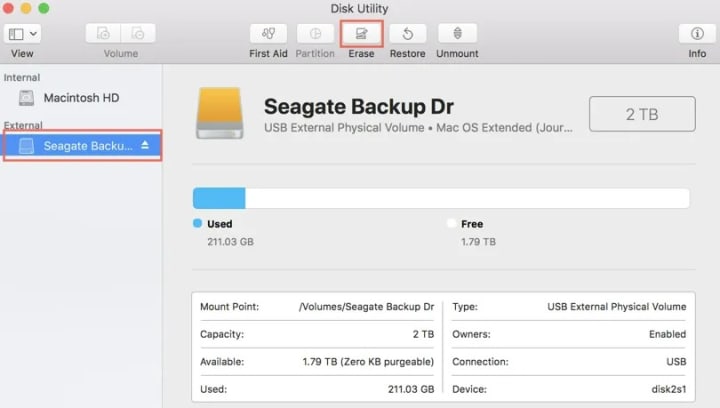
Step 3: Rename your disk and choose "APFS" as the format and "GUID Partition Map" as the scheme.
Step 4. Click "Erase" to confirm the operations.
After reformatting, you will have an APFS-formatted Seagate external hard drive that allows for seamless and native read and write access.


Comments
There are no comments for this story
Be the first to respond and start the conversation.