
How to Solve the Alexa Red Ring Issue
Alexa Red Ring
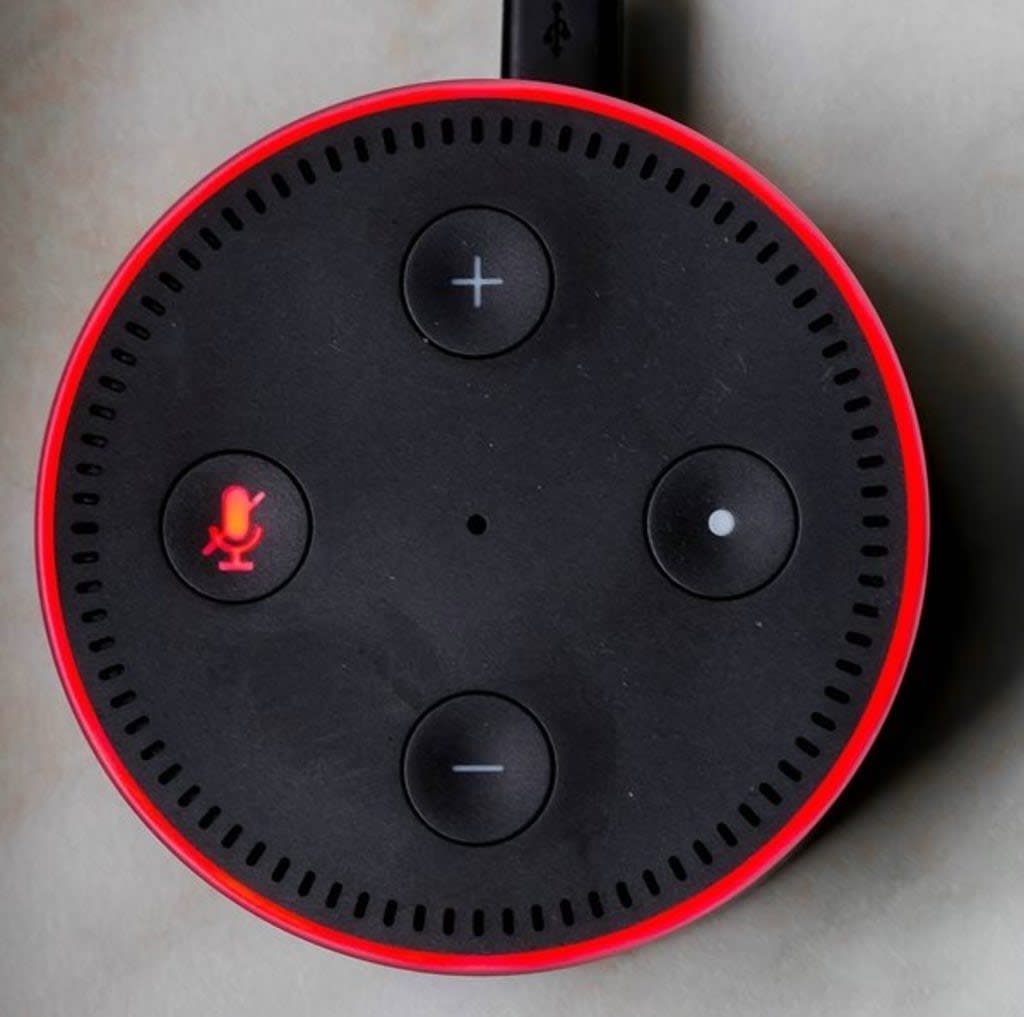
So, your amazon echo dot device shows a red ring which neither won`t send and recieve commands popularly known as Alexa Red Ring Of Deathor is telling you “I am having trouble connecting to the internet. Take a look at the help section in your Alexa app” with a Red light Ring emitting on the top of your device when giving commands to it. Wondering why?
Well, in a nutshell your alexa device has lost the internet connection and is no longer connected to your wifi or may be your device is on mute mode. But don’t feel like you are only a victim of this Alexa Red Ring Issue as this problem is encountered by wide number of amazon echo device users but following our simple troubleshooting guide they have been able to resolve this issue quickly within a short span of time.
So keep reading the blog till the last to fix and turn off red ring on Alexa easily.
Why does my Alexa have a Red ring? Reasons behind it:-
Amazon has brought a revolution in the smart speakers technology with the introduction of its intelligent voice assistant Alexa and Echo devices which perform various tasks for you and control various systems. Its a perfect smart device to convert your home into a smart home instantly. The most important feature which differentiate the Echo devices from its counterparts are its various attractive light ring colors through which it communicates with its users and denotes its status.
Every light ring on echo device has its own significance. Some of the them are friendly like Blue and green and some are really confusing and annoying like red, purple, yellow, white etc. Let us understand the importance of each and every light ring color in detail.
Blue Light : It means Alexa has heard you and is going to process your request
Orange Light : Orange light means your device is in setup mode and is trying to connect to your internet
Purple light : Purple light means that your device encountered an error during WI-FI setup process or do not disturb (DND) mode is on
Yellow light : Yellow light means that you have notification
Green Light: It means you have an incoming call
White light: It emits when you are adjusting the volume or when Alexa guard mode is on
But when your amazon Alexa echo device is flashing:-
Pulsing Red Ring Light: It means Alexa is having trouble understanding you due to wifi connectivity issues. Sometimes faulty internet connection ,weakWifi signals can lead to Alexa flashing red ring. Other reasons could be the alexa device outdated firmware. In case of echo show device showing red light it means device camera and microphone button is disabled. Solid Red Ring which is quite frustrating indicates that the device is not listening and is on mute mode or the microphone button has been disabled which leads to Alexa Echo Red Ring Of Death.
How to Fix Alexa Red Ring Issue? Troubleshooting Steps
There are several ways to deal with the Alexa Red Ring Issue depending on the kind of issue you got. Therefore, we are sharing you the most easiest and effective ways to fix Alexa red ring issue. So lets dive right in and find the solution to solve this problem.
1. Turn the Microphone Button On : The most easiest way to fix this issue is by turning on the microphone button on your Alexa echo device. Most of the time echo device users press the microphone button accidentally which in returns lead to Alexa flashing red ring and not responding to any voice commands. So locate the microphone button on your device and enable it. Now check if the red ring disappears.
2. Reset the Alexa device: If the above mentioned step does not resolve this problem then factory reset your Alexa Echo device. In order to do the reset open the Alexa app on your mobile/tablet, under the option devices < select your device name < scroll down and tap factory reset and confirm to proceed. Once you do that an orange light would start spinning around your echo device which means it has entered setup mode and its ready for setup. Now you can proceed with the setup process again and check if that helps you to fix this red ring issue.
3. Check the Firmware updates: Sometimes running on the older version of the Alexa software can cause technical glitches and red ring on the Alexa. So if you haven’t updated the software since long time then update it to the latest software version by going to your Alexa app and selecting the option settings<then select device and <tap about. This will help you to fix this issue.
If you have any trouble updating it then you can get in touch with the experts at Alexa Helpline.
4. Try Reconnecting your Alexa to wifi : Alexa echo device requires an active internet connection to work properly. Check if your internet is up and running by verifying on your mobile/tablet device and ensure that there shall be no disruption in the internet. If that is the case just turn the modem/router off for 10 seconds and then turn it back on and check if your device is connected again or not. You can even kill unwanted connections from your router as network congestion lead to weak internet connection resulting in Alexa red ring issue. Verify by going to the router admin panel and check the settings of the Echo device as well. Make sure Echo`s Ip address should not be blocked.
5. Relocate your Alexa Echo Device: If your Alexa device is far away from the wireless router then change the location of your device and move it closer near the router. Echo Device should be within the range of 30 feets from the router position. Make sure it is not positioned along with any electronic device such as microwaves, baby monitors etc as these electronic devices cause interference between the echo device and the router resulting in weak wifi signal therefore leading to Alexa red ring issue.
CONCLUSION
Hopefully using the above mentioned steps, you will be able to fix Alexa Red Ring Issue easily on your own. However, if the issue still persists then you can contact Alexa professionals by dialing Alexa Helpline number for an instant solution.
About the Creator
Keep reading
More stories from Alexahelpline and writers in Lifehack and other communities.
Fix Echo Dot Offline or Alexa Device Issues in Easy Ways?
Have you encountered Echo Dot offline issue? Is your Amazon Alexa device showing as offline in the Alexa App? Does your Alexa currently say “Sorry, this device is offline”?. If you’re encountering such a problem, then this post is for you. And don’t worry, you are not the only one who is a victim of this offline error there are many others as well who face this same problem.
By Alexahelpline4 years ago in Lifehack


Comments
There are no comments for this story
Be the first to respond and start the conversation.