
How to Migrate Entourage Mailbox to MS Outlook (.pst) in 2025
In this article, we mentioned the best technique to migrate Entourage Mailbox to MS Outlook.

Summary: Entourage saves data files in MBOX format. On the other hand, Outlook saves files in PST format. Users are switching to Outlook because of its superior capabilities. In this blog, we will talk about how to transfer all your Entourage data to MS Outlook.
Entourage, a Mac email client application, was first introduced in 2000. Its purpose is to allow users to send and receive email as well as exchange information. It saves data in MBOX file format. However, Entourage was stopped in 2008 owing to inconsistencies and is now unavailable. Users move from Entourage to Outlook to increase compatibility and performance.
Outlook is a popular and well-liked email program. It provides a number of advanced and intelligent features to increase functionality. However, because these two email services employ distinct file formats, it is impossible to transmit data between them.
Reasons Behind Switching from Entourage to MS Outlook
There are various reasons for users to shift from Entourage to Microsoft Outlook. Let's discuss a few of them:
- Compatibility: Outlook is more compatible than Entourage.
- More Advanced Features: Outlook is a fully feature-loaded mail client with brilliant updated features for better performance.
- Enhanced Security: Security was never an issue with Entourage; it's just that it was unprotected and old. However, Outlook has secured its web interface and is one of the most secure email clients to use to protect your emails.
Techniques to Migrate Entourage Mailbox to MS Outlook
Here is no way to directly import emails from Entourage to Outlook, so you need to complete this process in three parts. All three parts are discussed below.
Part 1. Extract Entourage Mailbox (MBOX)
If you want to move your Entourage mailbox to Outlook, you must first create a copy of the data or extract the files to be exported. Follow the instructions below carefully:
- Click the file option at the top to open Entourage on your computer.
- Select the option to export the file.
- Select each data item you want to import at this point. Look at each box and select it. Select the next icon to "Export items to Entourage archive"
- Choose whether to delete cached items when the tool prompts you to. You must select an option. "Move items to Entourage after canceling collection"
- The next step is to choose where you want to save the archive on your computer. Click the Save button to continue.
A copy of Entourage emails will be stored on your computer this way.
Part 2. Convert Extracted Entourage Mailbox into Outlook (PST)
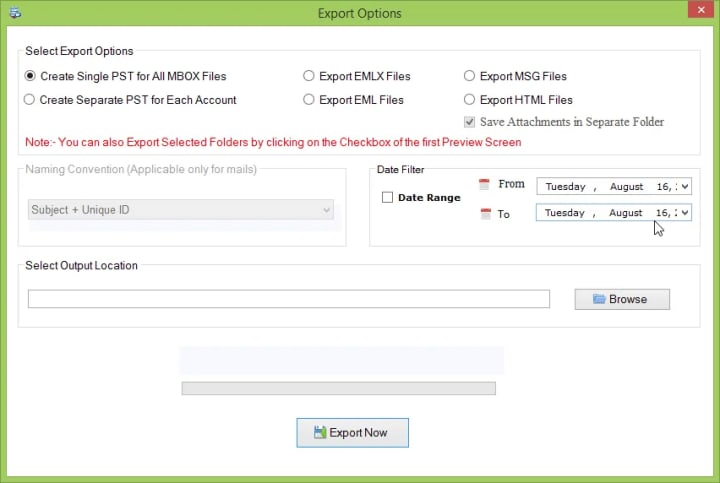
After extracting the MBOX file from Entourage, now you need to convert it to PST format. This can only be done using professional equipment. We recommend using Softaken Entourage to Outlook Converter Software for smooth conversion of Entourage MBOX files to Outlook PST file format. This advanced Entourage to MS Outlook Conversion Tool is not only fast and easy to use. It also gives users more ability to explore. This tool allows us to monitor the conversion process:
- Start the tool on your computer. Then select the Choose File option in the top left corner.
- Click Browse to add the MBOX file. Click Finish after adding the file.
- Select the PST (MS Outlook) file and click Next.
- Apply the necessary filters to the data in the MBOX file and click Next.
- Select Browse to specify where to save the data, then select Finish.
- When finished recording the software will display the location of the PST file. Click OK to end the process.
Part 3. Upload PST file to MS Outlook
Now you need to convert the MBOX file to PST format and import it into Outlook. Follow the steps below.
- Start Outlook on your computer. Then select the file option.
- Select Open and Export and select Import/Export.
- Select the Import from another program or file option and click Next.
- Proceed by selecting the Outlook Data File (.pst) and clicking Next.
- Click Browse to select the file you want to import.
- To add files Select the file and click Open.
- Now click Next and then click Finish in the window that follows.
Conclusion
There are three steps involved in importing Entourage emails into Outlook because it is not a straightforward process. All of the processes and techniques required to migrate Entourage data to Outlook have been efficiently provided in this article. Furthermore, only a specialized solution like Softaken Converter for Entourage can convert Entourage MBOX files to Outlook PST.




Comments
There are no comments for this story
Be the first to respond and start the conversation.