
How to Manually Convert WMV Files to MP4 Format?
Read the free methods to convert WMV to MP4 format using VLC Player. To bulk convert WMV files to MP4, go for the professional solution discussed in this post.

Windows OS users are friendly with Windows Media Video (WMV) files. Microsoft creates these files to work seamlessly with the Windows OS. However, they do not work smoothly on other OS like Mac or Linux. So, if you need to open & view WMV files on different OS or mobile devices, you need to convert them to another file format, like MP4.
Through this write-up, we will explore how you can convert WMV to MP4 video format. Before proceeding, let us gather some information about WMV & MP4 file formats.
Understand WMV and MP4 Files
WMV: WMV or Windows Media Video files are introduced by Microsoft. The WMV compressed video container format is introduced for Windows Media Framework. WMV format is mainly employed for moving video content to various platforms or increasing online sales, as it is capable of being encoded with Digital Rights Management (DRM) protection.
MP4: MP4 or MPEG-4 format is a highly popular video format for downloading & streaming videos over the web. This file format is known as an international digital multimedia container format. The MP4 format can store various types of media together, like audio, subtitles, graphics, etc. One major benefit of the MP4 format is that it compresses files well and helps in reducing file size.
The MP4 format is highly recognized by many video players, including VLC, MKV Player, and Windows Media Player. But if the MP4 file gets corrupted or damaged, it won’t work. In this scenario, you need to repair the file.
Now, let's move on to the process of converting WMV files to MP4 format.
Techniques to Convert WMV to MP4 Format
There are not many techniques to convert WMV files to MP4 format. However, you can use VLC player or an online free video converter to transfer WMV file data to MP4 format.
Technique 1. By using VLC Media Player
VLC Media Player application allows playing video files, and is helpful for videos to repair corrupt video files and converting to video file formats. Let us find the steps to using VLC Player:
- Download the newer version of VLC Player and install it successfully on your system.
- From the opened screen, hit the Media option and pick Convert/Save
- In the new wizard, hit the Add button and upload the WMV file for conversion. Then, press the Convert button.
- Now, choose the desired video output to Video H.264+MP4, and use the Browse button to save the converted file. Then, name the file & hit the Start button.
This will commence converting the WMV file to MP4. After its completion, you can see the MP4 file at the saving location.
If you have corrupt WMV files, then you can’t convert them using VLC Player, so first repair them using video repair tools.
Technique 2. By using Free Online Video Converter
This is another free technique to convert WMV files to MP4 format. Here, you can use a free online video conversion tool that enables you to convert video files without installing any software on your system. Here are the detailed steps to convert a video file using an online converter:
- Visit the online website of the online video converter application
- Browse your WMV file for conversion.
- Once you upload the file, hit the Convert button to start the process.
- Once you receive the MP4 file, download it to your computer.
These two techniques provide exact & timely results. Also, these online converters impose file size restrictions. You must ensure the safety & security of your database while uploading the video file to the website.
So, to overcome these issues, you can use the professional software to easily & safely convert any video file regardless of file size.
Professionally Convert WMV Files to MP4 Format
In case you don’t want to take a risk of data loss, then you can go for professional tools like Softaken Audio Video Converter. This is a powerful application to convert any video file of any size to the preferred format. This user-friendly program allows easy conversion of WMV files to MP4 & other formats. Without affecting the actual quality of the video, the app completes the conversion process.
The Conversion Process Involves The listed Steps:
- Download and open the software on your system for WMV to MP4 conversion.
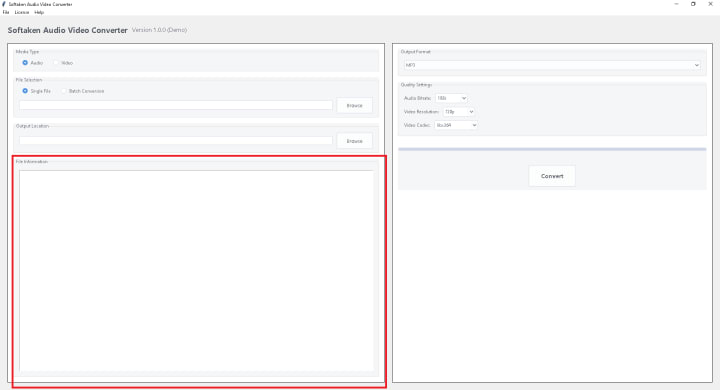
- Now, add the WMV file for conversion.

- Preview the added WMV file.
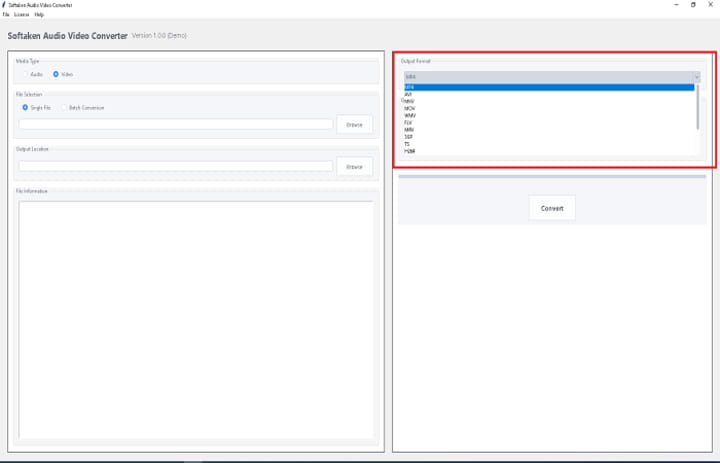
- Pick the output format MP4.
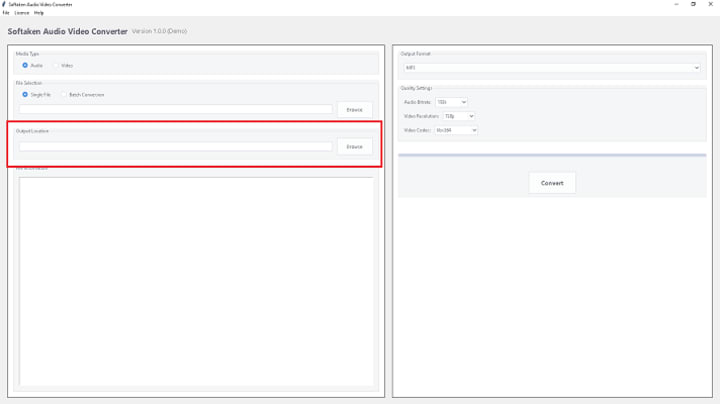
- Mention the location to save the converted MP4 files.
- Press the ‘Convert’ button to get the output.

That’s how the software smoothly converts WMV or any video file to MP4 or the preferred format.
Conclusion:
Users generally convert WMV to MP4 format to access the file on operating systems other than Windows. Through this write-up, we have discovered both manual techniques and a professional solution for completing this task. Among them, experts suggest professional solutions as they are completely safe & reliable. To try the software for free, install the trial version and then pay for the license version.
About the Creator
Keep reading
More stories from Robert Thoms and writers in Lifehack and other communities.
How to Automate Image Conversion and Save Hours of Work
If you work with photos a lot, as for web design, eCommerce, marketing, or photography, you've definitely spent a lot of time changing, resizing, or renaming them by hand. Doing this by hand is boring, makes mistakes, and takes a long time.
By Robert Thoms5 months ago in Lifehack




Comments
There are no comments for this story
Be the first to respond and start the conversation.