
How to make and put a cover in Instagram Reels
In the article we will tell you how to make a cover for Reels, how to put it on and why you need it at all.

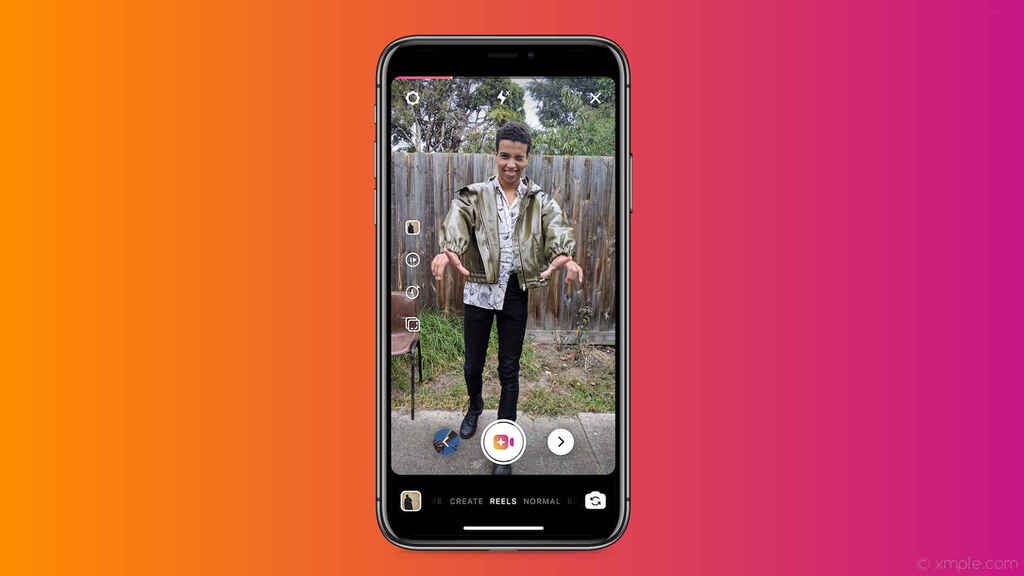
Reels are short videos that have recently become available to Instagram. Analogue and main competitor of Tik-Tok. They have a similar editor and both allow you to put covers on videos.
Why do you need a cover for Reels?
Reels are shown in the main grid (if you select this option when publishing) along with posts and in a separate Reels tab on the profile page. There is also a button for videos on Instagram* (with recommendations) + videos can get into the general feed of posts and into the feed of recommendations, and attract followers to your account.
In the Reels section and in the general feed, videos are launched automatically, and in the grid with posts, the user must click on the video to view it.
To make it look beautiful, it is better to make covers. In addition to beauty, clickability plays an important role. If it is not clear what is on the frame (for example, a blurry frame), the user is unlikely to click on the video.
An example of an account with covers - horizontal covers on the left in the Reels tab, and on the right they are the same, but in the profile grid (cropped):
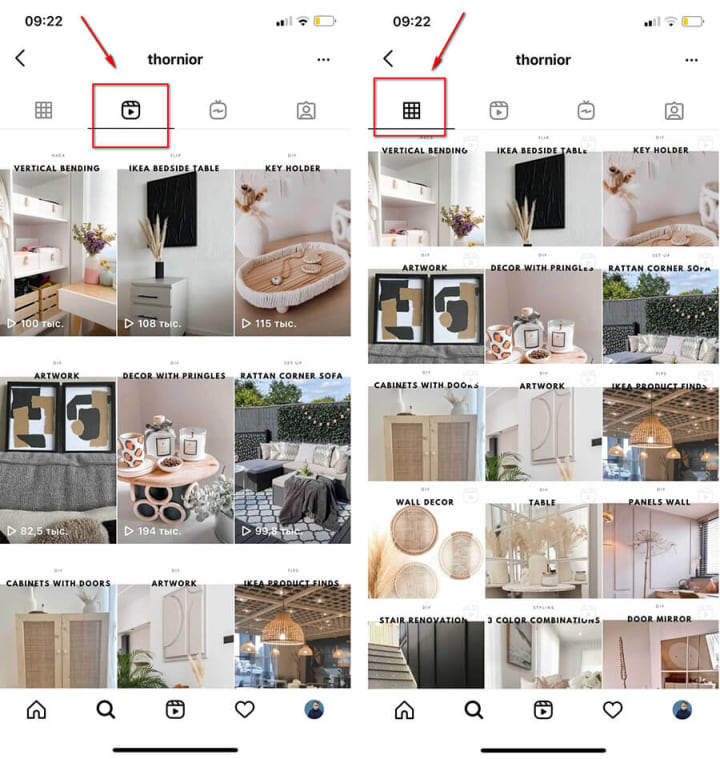
An example without special covers - just frames from the video.
The first option is more preferable, as it gives users additional information.
Cover sizes for Reels
The size of the cover display depends on where we will place Reels - in the main feed or in the Reels tab.
How the cover is displayed depending on the placement:
- In the grid of posts: aspect ratio 1:1, size 1080 x 1080 px.
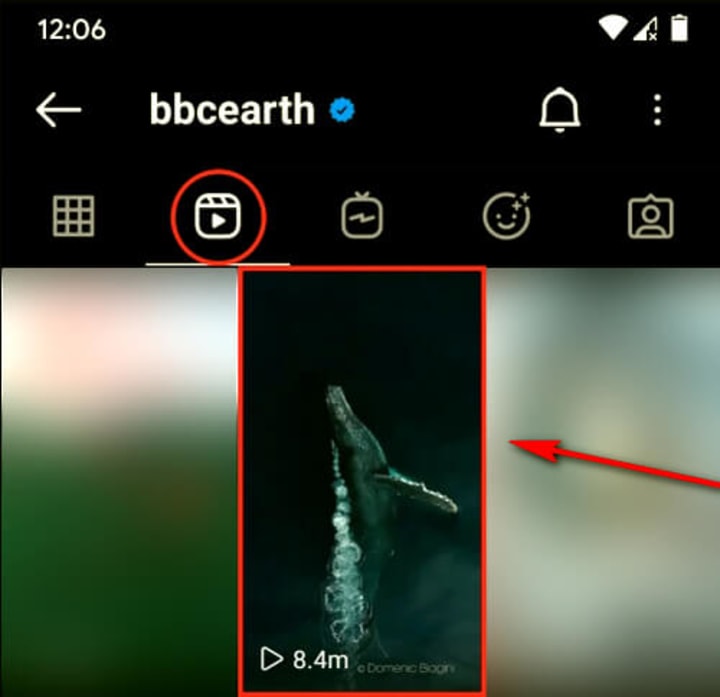
- In the Reels tab: aspect ratio: 9:16, size 1080 x 1920 px (maximum), 600 x 1067 px (minimum). It is better to take the maximum size, since the account can be accessed from a computer.
- In the general feed (if it gets there): aspect ratio 4:5, size 1,080 x 1,350 px.
Basically, you should focus on the size of the cover for the grid of posts and the Reels tab. In order not to worry about how it will look in the Instagram feed *, just do not place important elements too quickly towards the edges of the square.
Here it is important to decide whether Reels will be in the main grid with posts or not. If there are, then we do all the main content in the center, since the cover is cut off during publication.
An example of what the cover looks like in the Reels tab (vertical):
And here it is in the general grid of profile posts (square):
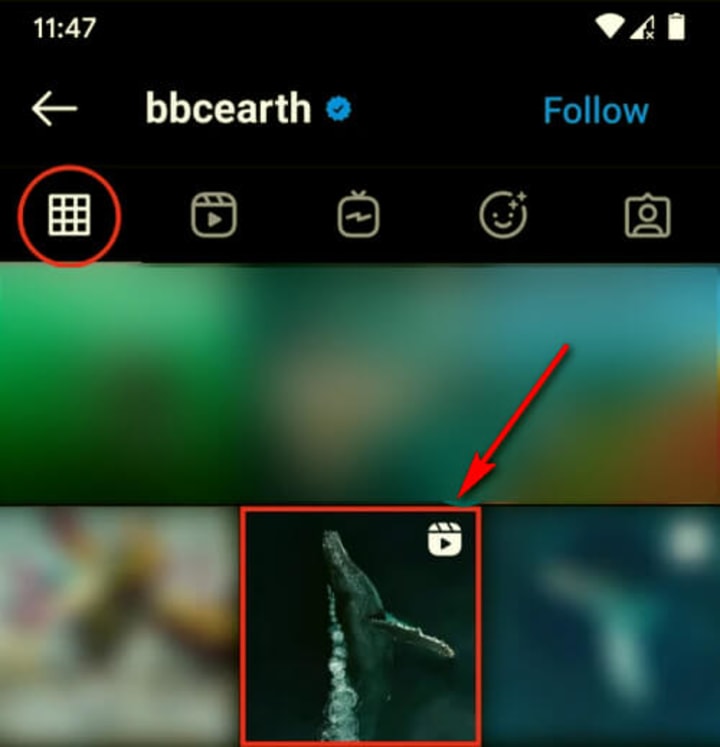
To summarize: the total size can be made 1,080 x 1,920 px, but the main elements are placed so that when published in the feed, the most important details do not go beyond the boundaries of the square.
How to Create a Cover for Instagram Reels
The cover can be a frame from the video, but it is better to create your own unique cover. This can be done in the Canva online editor.
Let's say you are a wedding photographer. And in Reels you upload frames from a photo shoot.
Step 1. Go to Canva.com. Next, write the size 1,080 x 1,920 px, or simply select the story format.
Step 2. Set a frame from a video or a photo as a background (you can also just a picture, but it will be more natural). The frame can be obtained by taking a screenshot from the video or using a third-party video editor.
If you are a blogger and shoot Reels about yourself, then you can set any of your photos as a background image.
In our example, we have a wedding photo shoot, so we put the appropriate photo.
Step 3. If necessary, put a plate with the text. Just do not need the text to occupy the entire square - the photo should also be visible. We take the text in the “Text” tool, make a plate from the “Square” shape in the “Elements” section.
Download the finished cover.
P.S. You can make a template with a square for yourself in advance in the same Canva and then overlay it on top of the covers, increasing the transparency. This will help ensure that all elements are within the square.
How to put a Reels cover
The cover is added at the stage of publishing the video.
- We reach the moment where you need to indicate the caption for the video and click on the picture with the inscription "Cover". In the same place, you can immediately move the slider to the ON position at the point about adding Reels to the Instagram feed.
- Next, you can select a frame from the video as a cover or upload a picture from the gallery. For the second, click on the "Add from film" button.
- To crop the cover while publishing a video, you need to click on "Crop profile photo". The cropping borders can be moved. That is, the square itself may not be in the center of the entire cover, but, say, at the bottom. We just make sure that everything else does not go beyond it (for example, text).
If the cover is upside down, try saving it on your phone with a different orientation.
Conclusion
Create unique and memorable Reels covers to get more views and organize your feed.
About the Creator
Jack Wave
How to Survive as a Broke Student
There are times as a student when you check your account balance, see nothing there, and suddenly even the smallest bills feel overwhelming. In those moments, it can feel like your life is about to fall apart. The feeling of helplessness can be suffocating, as if no matter what you do, there’s no way forward.
By Millicent Chisom4 days ago in Lifehack
Rachel Reviews: The Spiral Archive by Pieter Hendrik
It's difficult for me to know where to start with a review of this book as it was, for me, an entirely unique experience and one that I'll probably never have again. I don't want that to be interpreted as unenjoyable but it has left me scratching my head a little and ruminating on its content, its themes and its characters.
By Rachel Deemingabout 19 hours ago in BookClub




Comments
There are no comments for this story
Be the first to respond and start the conversation.