
How To Import OLM To Gmail Account - 2025 (Expert Guide)
Complete step-by-step guide on how to import OLM to Gmail easily in 2025 without any hassle or issue

Introduction
A few months back, I was cleaning up my old MacBook and realised I had years of emails stuck inside an OLM file from Outlook for Mac. At first, I didn’t think much about it — until I needed some old project files and conversations while working on my new Windows laptop.
That’s when I hit a major hurdle. Windows Outlook couldn’t open the OLM file, and Gmail couldn’t handle it directly either. I wanted all my emails in one place so I could easily access my data from anywhere—whether I was on my phone, office PC, or travelling. Let’s be honest, nothing beats the simplicity of Gmail.
Honestly, figuring out how to import OLM to Gmail was a bit confusing at first. I want to share what I learned and the approach I took, so hopefully, it saves you some hassle. Let's start with knowing about the OLM file.
What is an OLM File?
If you’ve used Outlook on Mac, you’ve probably come across OLM files. Simply put:
OLM = Outlook for Mac Archive File
It stores all your emails, contacts, calendars, etc, in one big file.
Think of it like a “backup box” of your Outlook data — but the problem is, only Mac Outlook can open it.
Why Import OLM to Gmail in 2025?
So, why go through all this trouble instead of just sticking with Outlook? Here are the reasons that convinced me:
- Access anywhere – I can check Gmail from my phone, office PC, or even a friend’s laptop.
- Cross-platform – Works on Mac, Windows, Linux, Android, iOS — doesn’t matter.
- Safer backup – Google keeps everything online, so I don’t have to worry about my Mac crashing.
- Career flexibility – When you change jobs, companies usually don’t give you Outlook backups, but if you keep things in Gmail, it’s always with you.
Methods to Import OLM files to Gmail Account
There are two main ways I discovered to Import OLM into Gmail:
1. Manual Method: Sync Gmail with Outlook Mac
This is the free way, but honestly, it’s not very user-friendly. The process goes like this:
- In Gmail settings, enable IMAP.
- Add your Gmail account to Outlook for Mac.
- Drag and drop your emails from OLM folders into Gmail folders inside Outlook.
- Outlook will then sync them online to your Gmail account.
The problem? It’s slow, attachments may not sync properly, and large OLM files (like mine, which was 7GB) can break the process.
2. Using a Professional Tool to Import OLM file to Gmail - Directly
This is the method that saved me hours of frustration. Instead of relying on IMAP sync, I used a smart tool like Softaken OLM to IMAP Migration Software. The tool basically acts as a bridge: it reads the OLM file and directly uploads everything into your Gmail account or IMAP Server Account without facing any trouble.
Here’s How it Works Step by Step:
- Launch the software on your Windows PC.
- Add your OLM file of Outlook Mac 2011, 2016 & 2019.
- Select Gmail as the saving option.
- Enter your Gmail login.
- Hit Start Migration.
- Once done, log in to Gmail, and boom, all your old Mac Outlook emails appear in your Gmail inbox.
In my case, it moved over 20,000 emails with attachments in under a few minutes. That would have taken days with the manual method.
My Experience with OLM to Gmail Migration
When I first tried the manual IMAP sync method, I gave up halfway. Folders weren’t syncing correctly, and I lost patience after waiting 3 hours for just a few hundred emails.
Switching to a migration tool was a game-changer. For example, I had an OLM folder called “Client Contracts” that was about 2GB. With the tool, it appeared in Gmail exactly as it was — all emails, attachments, and formatting intact.
It honestly felt like I was still using my old Mac Outlook, but inside Gmail.
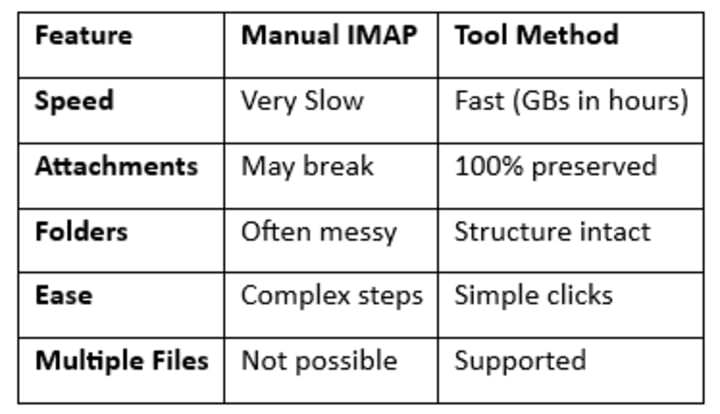
If you have just a few hundred emails, a manual may work. But if you’re like me and have years of data, go with a tool — you’ll thank yourself later.
Tips Before You Start
Here are a few lessons I learned the hard way:
- Backup your OLM first – Always keep a copy in case something goes wrong.
- Enable IMAP in Gmail – If you’re trying the manual method, IMAP must be turned on.
- Use App Passwords – If you have 2FA on Gmail, you’ll need this for login.
- Check Gmail storage – Make sure you have enough space, especially if your OLM file is huge.
Conclusion
Moving from Outlook for Mac to Gmail in 2025 doesn’t have to be a nightmare. I wasted hours with the manual method before realising that a dedicated OLM to Gmail migration tool is the smarter route.
Now, all my years of work data are safely stored in my Gmail Account, and I can access them anywhere. If you’re planning to switch Mac Outlook to Mail, my advice is simple: don’t overcomplicate things. Backup your OLM file, pick the right method, and move everything in one go.
FAQs on OLM to Gmail Migration
1. Can I Import OLM to Gmail without Outlook for Mac?
Yes — if you already have the OLM file, you can use a migration tool directly on Windows.
2. Will Attachments also Move to Gmail?
Yes, with a professional tool, they move safely. Manual sync sometimes breaks them.
3. Can I Import OLM to a Google Workspace Account?
Yes — the process is the same. Just use your Workspace login instead of Gmail.
You Can Also Read: How to Import OLM to Office 365


Comments
There are no comments for this story
Be the first to respond and start the conversation.