
How to Export Video Files to Audio Format with Complete Guide?
Export Video Files to Audio Format with Complete Guide with Top 5 Method

In a world where content is king, it's smart to use multimedia in new ways. One of the most popular and beneficial things to do is change video files into audio files. Learning how to export video files to audio formats can save you time and help you get more done. For example, you can pluck conversation from a video for transcription, save a music video as an MP3, or extract a podcast from a YouTube video.
This article will tell you all you need to know, including why this is useful, how to use different tools step by step, and how to keep your audio quality high.
Why Do You Want to Turn Video Files into Audio?
It's helpful to know the why before you go into the how:
- Podcasting and repurposing content: You can make podcast episodes or downloadable audio from video interviews, lessons, or seminars.
- Extracting music and sound: Get soundtracks or musical content from videos so you can listen to them offline or use them in other projects.
- Transcription and accessibility: Pull audio to make it easier to transcribe or to give audio-only content to people who can't see.
- Audio files are smaller and easier to share or keep, which saves space and bandwidth.
- An explanation of common audio formats
Think About the Audio format Require Before Exporting:
- MP3: Very popular and works with practically all devices and software.
- WAV: Higher quality audio that isn't compressed, but the file size is bigger.
- AAC: Apple devices use this format, which gives greater quality at lower bitrates.
- OGG: is an open-source format that is often used for gaming and streaming.
The 5 Best Ways to Convert Video Files to Audio
Method 1: Use VLC Media Player
VLC is a robust open-source media player that lets you extract audio as well.
How to Use this Method
- Download and install VLC from videolan.org.
- Open VLC and click on "Media" and then "Convert / Save."
- To choose your video file, click Add and then Convert / Save.
- Pick the Audio - MP3 profile (or another audio format) in the following window.
- Choose the name of the destination file and the extension you want (for example, .mp3).
- Press Start. VLC will work on the file and make a version that just has audio.
Method 2: Using online Tools
If you don't want to download software, online converters are a quick and easy way to do it. You can use well-known programs like Convertio (convertio.co), Cloud Convert (cloudconvert.com), and Online Audio Converter (online-audio-converter.com).
Steps to Use this Method:
- Go to the website.
- Put your video file to the internet.
- Choose the audio format, like MP3 or WAV.
- Click "Convert" and wait for the procedure to finish.
- Get the audio file that has been changed.
Method 3: Use Adobe Premiere Pro
Adobe Premiere Pro has powerful audio export options for people who edit video for a living.
How to Use this Method
- Open your project or bring in the video file.
- Put the video in the timeline by dragging it.
- Click on File, then Export, then Media.
- Change the Format in the export settings to MP3 or WAV.
- Pick the audio parameters and bitrate you want.
- Choose the name and location for the output, and then click Export.
Method 4: Using Free Audio Editor
You can't import video straight into Audacity, but you can get audio from it if you have FFmpeg installed.
How to Use this Method
- Get Audacity and install the FFmpeg plugin.
- Start Audacity and click on File > Import > Audio.
- Choose your video file; FFmpeg will take care of the audio.
- If you need to, make changes and then go to File > Export and pick the format you want.
Method 5: Using the Best Audio and Video Converter Tool
The Softaken Audio Video Converter Tool is a special program for users who often need to change video files into audio files without losing quality. Because it has a simple interface, works quickly, and works with a wide range of file types, it's very helpful for users who aren't tech-savvy. This software can easily export any size of files without limitation or restriction. Users can export any format of video files to audio format without any technical issues. This application will support all audio and video files. Users can convert audio files as well.
Key Features of This Software
- You can convert more than one video file to audio at the same time, which saves time and work.
- Before converting, listen to a preview to make sure the proper part and quality.
- Made for people who are just starting out, with easy-to-understand buttons and a short learning curve.
- Designed to convert quickly, even with big files.
- It can play videos in MP4, AVI, MOV, FLV, MKV, WMV, and more formats.
- It can play audio files in MP3, WAV, AAC, M4A, WMA, OGG, and more formats.
- Support all Windows OS including Windows 11, 10, 8.1, 8, 7, XP, and Vista.
How to Use This Tool:
- Get the Audio Video Converter Tool. Put it on your Windows computer.
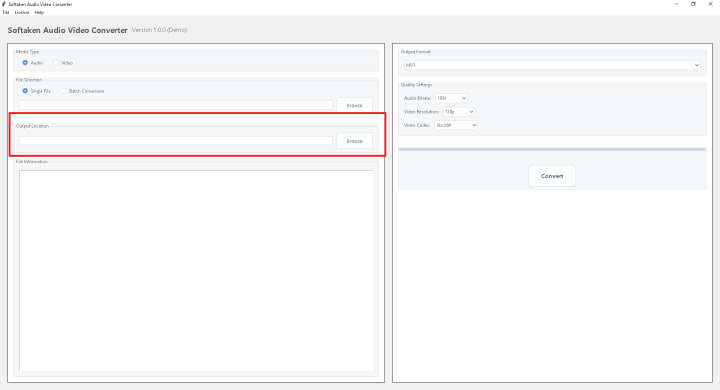
- To add one or more video files, click on "Add Files" or "Add Folder." If you're converting a playlist or a group of videos, the batch option is the best choice.
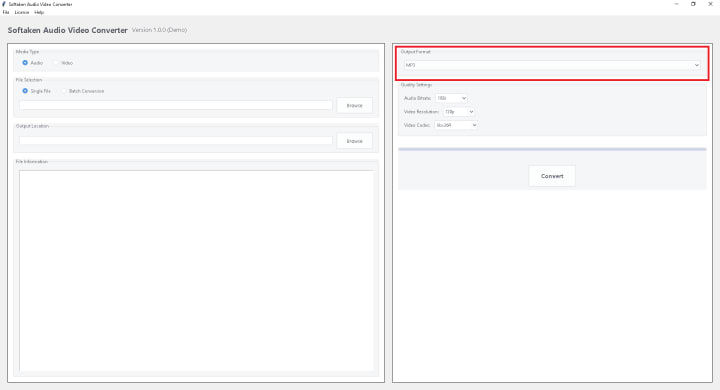
- Choose the audio format you want from the list that is available (for example, MP3, WAV, M4A).
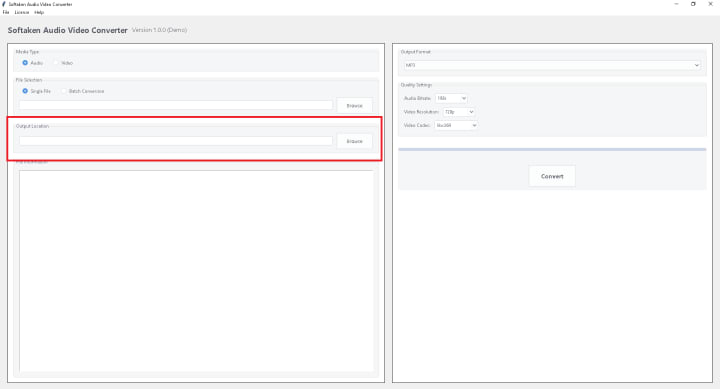
- Choose where on your computer you wish the audio files that have been changed to be saved.
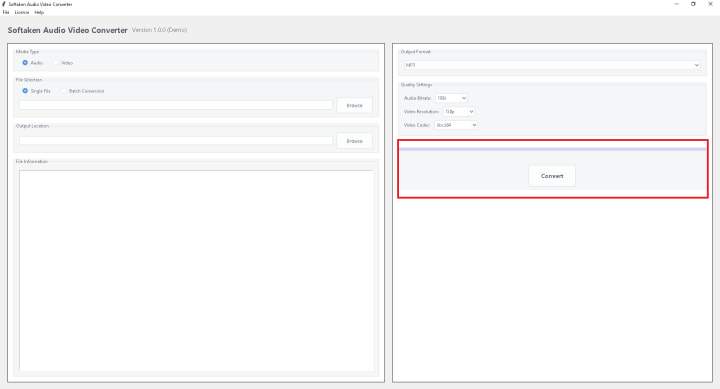
- Press "Convert Now." The tool will start working on the files and sending the audio out.
Conclusion:
Being able to export video files to audio formats is a useful ability that makes material more accessible and flexible. If you know how to accomplish this, you can do a lot of things, including listening on the move or using content in new ways. This is true whether you're a content provider, a student, or just a casual consumer. You can choose the way that works best for you and your level of technical familiarity from a range of options, including free applications like VLC and Audacity, professional-grade options like Adobe Premiere Pro, and rapid internet converters. Make your work easy with the Audio Video Converter Tool to export video files to the audio format in just a few seconds.
About the Creator
Keep reading
More stories from Robert Thoms and writers in Lifehack and other communities.
What is the Best Image Files Converter for Windows 11/10?
Image file formats are very important for how pictures are saved, shared, and shown in today's digital world. PNG (Portable Network Graphics) is one of the most popular formats because it doesn't lose any quality when compressed and has transparent backgrounds. But there are times when you need to change PNG files into other formats like JPG, BMP, GIF, or TIFF. This could be to make the file smaller, make sure it works with other files, or fulfill certain editing or publishing needs.
By Robert Thoms7 months ago in Lifehack
What to Expect From Mobile App Development Teams in Miami?
Miami’s tech ecosystem grew fast and unevenly. According to Statista, Florida’s digital economy expanded by over 17 percent between 2022 and 2025, pulling in agencies, freelancers, boutique firms, and offshore-linked teams at very different maturity levels.
By Mike Pichai4 days ago in Lifehack
The Guardian Geofence: Creating Dynamic Safe Zones for School, Sports, and Travel
The Guardian Geofence: Creating Dynamic Safe Zones Geofencing—creating virtual boundaries that trigger alerts—is one of the most powerful yet underutilized features of modern family safety. Moving beyond a single home alert, you can create a dynamic system of "safe zones" that automatically keeps you informed during daily routines and special trips.
By Olivia Martinez2 days ago in Lifehack
Affection and Healing for Yourself
During the night of the last quarter moon, I gathered my ritual supplies. I carefully handled the chunk of black tourmaline that would protect me from your overall negative and narcissistic energy. I carefully walked the house with my stick of selenite in hand, asking the universe to cleanse our working space.
By Alisha Wilkins ✒️🦋🖋️3 days ago in Fiction




Comments
There are no comments for this story
Be the first to respond and start the conversation.