
How to Convert Apple Mail Emails into MS Outlook PST Format
Convert Apple Mail Emails into MS Outlook PST

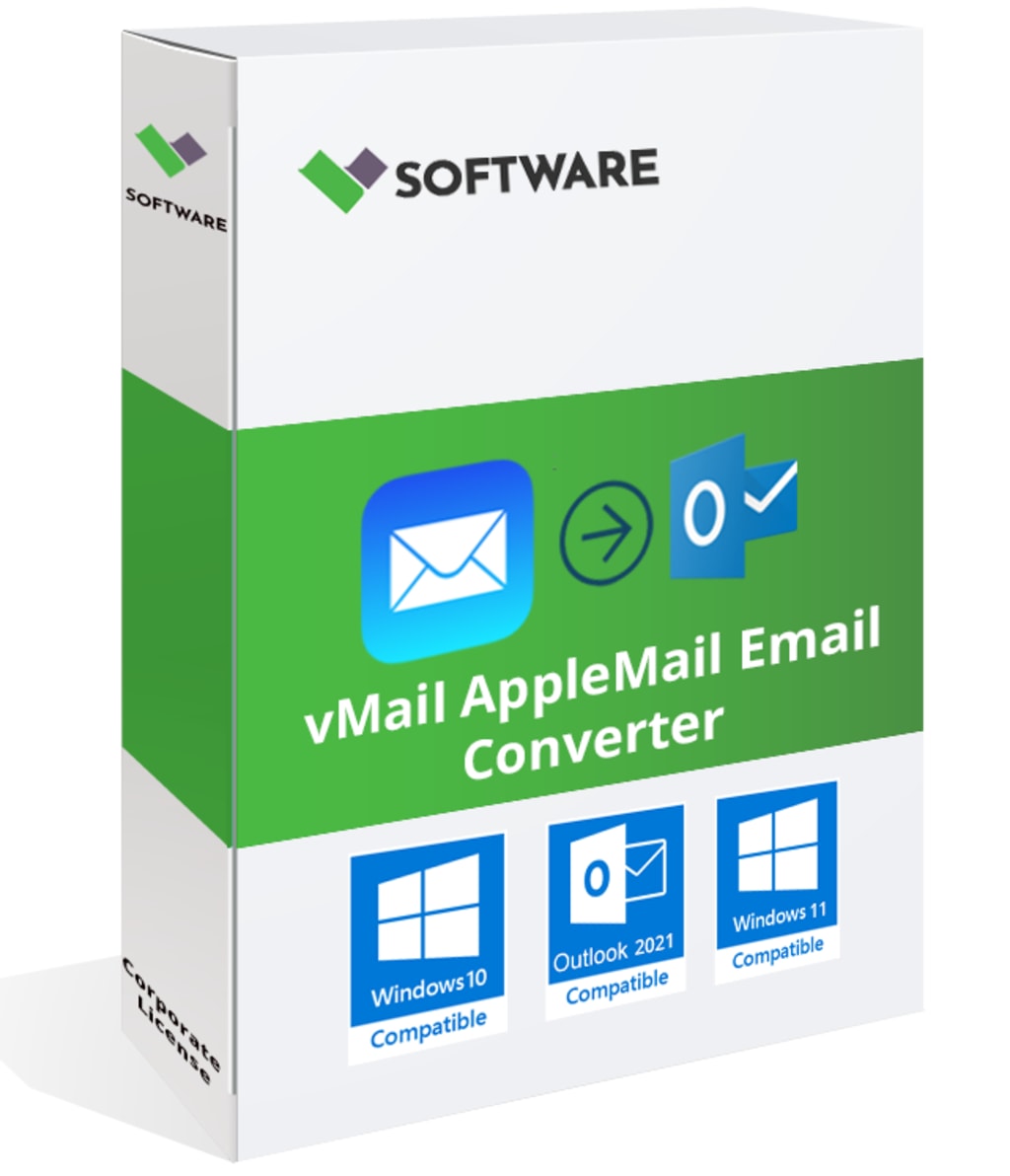
Apple Mail and Microsoft Outlook are the most used email clients both by individuals and organizations. But sometimes, changing between them is not easy due to their file format differences. Emails in Apple Mail are saved in MBOX format, while in MS Outlook, they are saved in PST, or Personal Storage Table, format. Therefore, if you're switching from Apple Mail to Outlook, converting your emails to PST format is required. In this tutorial, we will go through the process of how one can do the conversion in a most efficient way.
Why Convert Apple Mail Emails to PST?
1. Platform Compatibility: Microsoft Outlook doesn't support MBOX files and hence requires the conversion for the smooth migration.
2. Professional Requirements: Organizations using Outlook require employees to maintain PST files.
3. Backup and Storage: PST format allows better email management and storage capabilities.
4. Feature-Rich Environment: Outlook provides advanced email management features which are not there in Apple Mail.
Conversion Procedures of Apple Mail Emails to Outlook PST Format
There are manual and automated processes through which it can be performed. Below is the most viable procedures.
Procedure 1: Using an IMAP Email Account (Manual Method)
This involves synchronizing Apple Mail emails into an IMAP-based email provider (such as Gmail) before importing them to Outlook.
Step 1: Add IMAP Account to Apple Mail
1. Open Apple Mail, navigate to Mail > Preferences > Accounts.
2. Add an email account by clicking the + and then choose an IMAP-enabled service such as Gmail.
3. Input login credentials and IMAP settings
4. Drag and drop emails from Apple Mail into the newly created IMAP account
5. Wait for a while for the emails to sync
Step 2: Access Emails in Outlook
1. Open Microsoft Outlook and click on File > Add Account
2. Input IMAP account details and allow synchronization.
3. Once the emails are imported, drag them into your Outlook Inbox or specific folders.
Limitations:
• Time-consuming process for large mailboxes.
• Loss of metadata or email formatting may occur.
• Active internet connection is required.
Method 2: Using a Third-Party MBOX to PST Converter (Automated Method)
Using third-party tools is highly recommended for a more efficient and hassle-free conversion. These tools directly convert MBOX files from Apple Mail into PST format without data loss.
Instructions for Converting Apple Mail Emails using a Third-Party Tool
Export Apple Mail Emails to MBOX Format:
• Launch Apple Mail.
• Choose the mailbox or folders you want to export002E
• Click Mailbox > Export Mailbox and save the file in MBOX format.
Use MBOX to PST Converter:
• Install and launch a trusted MBOX to PST converter.
• Load your MBOX file into the software.
• Choose the destination to PST format.
• Tap Convert to start the process.
Import PST File to Outlook:
• Open Outlook and go to File > Open & Export > Import/Export.
• Select Import from another program or file and then select PST.
• Select the converted PST file from your location.
• Select a location in Outlook where the emails will be imported.
Advantages:
• Attachments, metadata, and formatting of emails are preserved.
• Faster and more efficient than manual methods.
• Multiple MBOX files can be converted at once.
How to Choose the Best MBOX to PST Converter?
When choosing a third-party converter, the following features must be considered:
• Accuracy & Data Integrity: Ensures no data loss or corruption.
• Batch Processing Capability: Converts multiple MBOX files at a time.
• User-Friendly Interface: Makes the process easy.
• Compatibility: Supports all Outlook versions from 2019, 2016, 2013, etc.
• Free Trial Version: It provides the facility to test before purchasing.
Final Thoughts
Migrating emails from Apple Mail to MS Outlook might seem impossible due to different file formats, but with the correct approach, it can be easily migrated. Since the IMAP is available for free, but it consumes a lot of time and labor, switching to an vMail MBOX to PST converter can ensure more productive and reliable approaches to transferring emails without losing any crucial data.
If you often change email clients or have to migrate large amounts of data, it is worth spending money on a professional conversion tool. This guide will help you to smoothly convert from Apple Mail to Outlook PST format, so you can keep in touch and manage your e-mails without problems.
About the Creator
vSoftware Email Recovery Software
The power of vMail Email Recovery Software – your ultimate solution for seamless email data retrieval. Whether you've accidentally deleted crucial messages or encountered a system crash, vMail ensures swift and efficient recovery,
Keep reading
More stories from vSoftware Email Recovery Software and writers in Lifehack and other communities.
Recover Lost PDF Password on Windows/Mac: A Comprehensive Guide
PDF is one of the most used file formats to share and store documents, mainly because it's flexible and secure. Still, one of the problems people encounter is when they lose or forget their password for a protected PDF file. Whether it is a work document, an e-book, or personal records, being locked out is frustrating. This guide offers practical solutions to recover a lost PDF password on both Windows and Mac systems, but always focusing on legal and ethical practices.
By vSoftware Email Recovery Softwareabout a year ago in Lifehack
10 Simple Habits for Strong Teeth and Healthy Gums
Maintaining good oral health is essential not only for a bright smile but also for overall well-being. Your mouth is the gateway to your body, and poor oral hygiene can lead to various health problems such as gum disease, tooth decay, and even infections that may affect other parts of the body. Fortunately, taking care of your teeth and gums does not require complicated routines. With a few simple daily habits, you can keep your mouth healthy for years.
By Nenci Gajera 5 days ago in Lifehack



Comments
There are no comments for this story
Be the first to respond and start the conversation.