
How to Connect AirPods to Roku TV: 3 Methods for Private Listening
Learn how to connect your AirPods to Roku TV with 3 easy methods for private listening. No phone or app required. Enjoy seamless audio today!
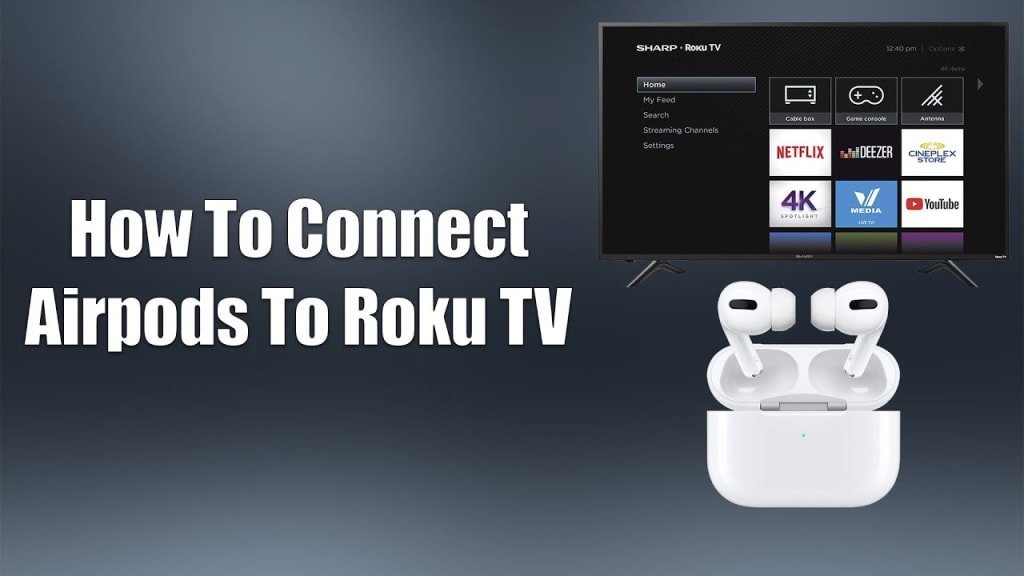
If you’ve ever wondered how to connect AirPods to Roku TV for a more private listening experience, you’re not alone. While Roku TVs don’t support Bluetooth audio out of the box, there are still several ways to easily get your AirPods connected. In this guide, we’ll walk you through three simple methods to connect your AirPods to Roku TV, whether you want to use your phone, a Bluetooth transmitter, or a Bluetooth soundbar. Let’s check out!
Method 1: Use the Roku Mobile App for Private Listening
The easiest way to connect AirPods to Roku TV is through the Roku mobile app. This method is quick and works on all Roku TV models. Here’s how you can set it up:
Steps:
Pair Your AirPods with Your Phone: Make sure your AirPods are connected to your phone via Bluetooth. This works on both iOS and Android devices.
Download the Roku App: If you don’t already have it, download the Roku mobile app from the App Store (for iOS) or Google Play Store (for Android).
Connect the Roku App to Your TV: Open the Roku app and ensure your phone is on the same Wi-Fi network as your Roku TV. Select your Roku TV from the list in the app.
Activate Private Listening: Once your Roku TV is connected to the app, tap the headphone icon on the Roku app to turn on Private Listening. This will send the audio directly to your AirPods.
Why It’s Great:
Quick Setup: No extra devices needed. If you have a smartphone, you’re ready to go.
Free: The Roku app is free to download and use.
Perfect for Mobile Users: If you’re already using a phone with Bluetooth, this method is super convenient.
Downsides:
Requires Your Phone: You need your phone to be connected to the TV, which might not be ideal for everyone.
Wi-Fi Usage: This method uses Wi-Fi, which might affect streaming speed if you have a slower internet connection.
Method 2: Use a Bluetooth Transmitter (No Phone Required)
If you prefer not to use your phone, another option is to use a Bluetooth transmitter. This device connects directly to your Roku TV, allowing you to pair your AirPods without needing a phone or app. See how to connect Airpods to Roku TV easily:
Steps:
Get a Bluetooth Transmitter: Purchase a Bluetooth transmitter that supports either a 3.5mm headphone jack or optical audio output, depending on your Roku TV’s ports. These devices are available online or at electronics stores.
Connect the Transmitter to Your Roku TV: Plug the Bluetooth transmitter into your Roku TV’s audio output. If you’re using a 3.5mm jack, simply plug it into the headphone port on your TV. If you’re using optical output, connect the transmitter via the optical audio port.
Pair Your AirPods: Follow the instructions that come with the Bluetooth transmitter to put it in pairing mode. Then, put your AirPods in pairing mode by holding the button on the back of the case until the LED flashes white. Your AirPods should connect to the transmitter.
Why It’s Great:
No Phone or App Needed: Once set up, you don’t need your phone to listen to audio through your AirPods.
Reliable Connection: Bluetooth transmitters provide a stable connection, making them ideal for uninterrupted private listening.
Downsides:
Requires Purchase: Bluetooth transmitters typically cost between $20-$50.
Additional Setup: You’ll need to configure the transmitter and make sure it's compatible with your TV.
Method 3: Use a Bluetooth-Enabled Soundbar or Audio Receiver
If you already have a Bluetooth-enabled soundbar or audio receiver, you can use it as a middleman to connect your AirPods to your Roku TV. This method is perfect for those who already own a sound system and want to avoid extra purchases.
Steps:
Connect the Soundbar to Your Roku TV: Make sure your Roku TV is connected to a Bluetooth-enabled soundbar or audio receiver. You can connect the soundbar either wirelessly via Bluetooth or through a wired connection like HDMI ARC or optical audio.
Pair Your AirPods to the Soundbar: Once the soundbar or receiver is set up, enable Bluetooth pairing mode on it. Then, put your AirPods into pairing mode and connect them to the soundbar, just like you would with any other Bluetooth device.
Why It’s Great:
High-Quality Audio: Using a Bluetooth soundbar often results in better audio quality than other methods.
Stable Connection: Bluetooth-enabled soundbars can provide a solid, lag-free connection.
Downsides:
Requires Additional Equipment: If you don’t already have a Bluetooth soundbar or receiver, you’ll need to purchase one.
Compatibility Issues: Not all soundbars support audio output to multiple devices simultaneously, so check your model’s specs before setting this up.
How to Connect AirPods to Philips Roku TV & TCL Models
TCL Roku TVs
For TCL Roku TVs, you can follow the same steps as above. The Roku app’s Private Listening feature works on all TCL models, and no extra setup is needed. Just make sure your AirPods are paired with your phone and follow the app instructions.
Philips Roku TVs
On Philips Roku TVs, the process is very similar. Use the Roku app to enable Private Listening and connect your AirPods. If you encounter any issues, double-check that your phone and TV are connected to the same Wi-Fi network.
TIP:
The Roku app works universally across most Roku TV models, including TCL and Philips, making it the easiest method for connecting AirPods.
Troubleshooting Common Issues
1. Audio Sync Issues
If you notice a delay between video and audio, try these fixes:
Restart the Roku App: Close and reopen the Roku app to reset the connection.
Reduce Wi-Fi Congestion: Disconnect other devices that might be using a lot of bandwidth.
Adjust Audio Settings: Some Roku apps allow you to tweak latency settings to fix sync issues.
2. Connection Problems
If your AirPods aren’t connecting:
Check Wi-Fi: Ensure both your phone and Roku TV are on the same network.
Restart Devices: Restart both the Roku TV and your phone to resolve any glitches.
Update the Roku App: Ensure you're using the latest version of the Roku app for optimal performance.
TIPS: BestNextGen is your go-to source for the latest tech tips and tutorials. Whether you're looking for simple guides to enhance your streaming experience or exploring new ways to optimize your devices, we've got you covered. Stay tuned for more expert advice and easy-to-follow instructions that help you get the most out of your tech setup.
Final Thoughts
Connecting AirPods to your Roku TV is totally possible, even though Roku TVs don’t offer native Bluetooth support. Whether you use the Roku mobile app, a Bluetooth transmitter, or a Bluetooth soundbar, each method provides a way to enjoy private listening with your AirPods. Choose the one that fits your setup, and start enjoying a seamless, personal viewing experience today!
About the Creator
Keep reading
More stories from Morris Joy and writers in Lifehack and other communities.
PS5 Randomly Turning Off? 8 Common Causes & Easy Fixes
If your PS5 randomly turning off, you're not alone. This issue can be frustrating, especially if it happens during an intense gaming session. Fortunately, there are several reasons why this could be happening, and most of them are easy to fix. In this guide, we’ll cover the most common causes and provide step-by-step solutions to get your PS5 back up and running smoothly.
By Morris Joyabout a year ago in Gamers
Common Mistakes to Avoid When Using Whey Protein Powder
Whey protein looks simple. Mix it, shake it, and drink it done. Yet a lot of people use it the wrong way and then wonder why they don’t see results. Whey isn’t magic. It’s a supplement. When you use it properly, it supports strength, recovery, and lean muscle growth. When you misuse it, it becomes expensive flavoured milk.
By Lakshay Gulati8 days ago in Lifehack
Babbling Dixie
The short form of tomorrow is never the whole story. Abbreviations mean nothing when we are born to die and we all are aren't we? Being spoken for before birth is something we're not supposed to remember like some kind of karma after effect. Still here we are spending our lives looking for each other.
By Canuck Scriber Lisa Lachapelleabout 6 hours ago in Fiction




Comments (1)
Hello, just wanna let you know that we have to choose the "AI-Generated" tag before publishing when we publish AI-Generated content 😊