
Complete Guide to Wi-Fi Password Recovery & Protection
Understanding Wi-Fi Security in 2026

Understanding Wi-Fi Security
Forgetting your Wi-Fi password is a common frustration in our connected world. This comprehensive guide explores legitimate methods to recover lost Wi-Fi credentials while emphasizing network security best practices. Whether you're a homeowner locked out of your network or an IT professional assisting users, this article provides ethical solutions while reinforcing the importance of protecting wireless networks from unauthorized access.
Ethical Methods to Find a Wi-Fi Password
1.Recovering A Wi-Fi Password
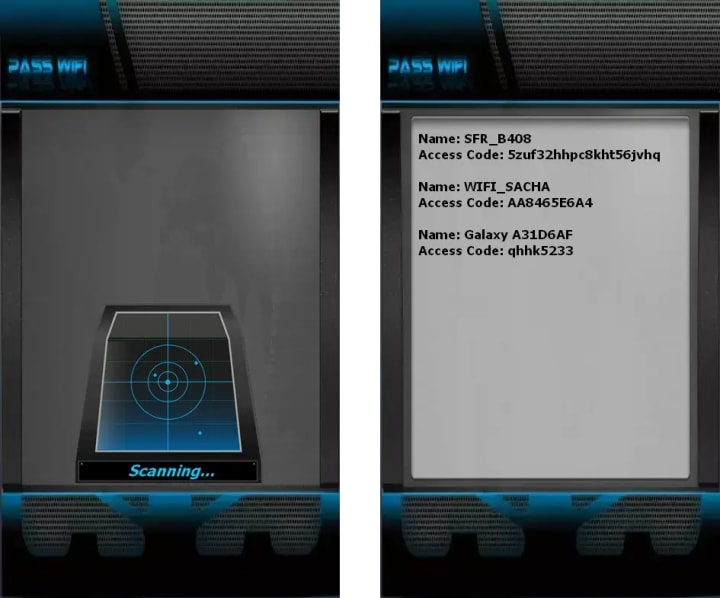
PASS WIFI is an ISO-certified, AI-powered hacking application. It offers free access to wireless communication protocols by analyzing network connections to obtain WiFi passwords, enabling a connection. The app is compatible with numerous security protocols like WEP, WPA, WPA2, WPA3, and others.
It works by using an algorithm to scan wireless protocol communications and analyze connectivity patterns within encryption protocols. An AI-powered decryption engine to decode protected data to reveal the network password.
You can download PASS WIFI from its official website: https://www.passwordrevelator.net/en/passwifi
2. Check Connected Devices
- Windows PC: Access Network and Sharing Center → Wireless Properties → Security tab → Show characters
- macOS: Open Keychain Access → search for your network name → check "Show password"
- Android: Requires root access (not recommended for average users)
- iOS: Settings → Wi-Fi → tap the (i) icon → Password (requires authentication)
3. Access Your Router Directly
- Locate router's IP address (typically 192.168.0.1 or 192.168.1.1)
- Enter credentials (often "admin/admin" or "admin/password" on default devices)
- Navigate to Wireless or Security section to view or reset password
Important: Change default router login credentials immediately after setup
4. Physical Inspection
- Check router label for default network name (SSID) and password
- Look for any documentation from your Internet Service Provider
- Some ISPs print credentials on modem/router installation materials
5. Using Command Line Tools (Advanced)
# Windows - Show current profile password
netsh wlan show profile name="NETWORK_NAME" key=clear
# Linux (requires sudo)
sudo cat /etc/NetworkManager/system-connections/NETWORK_NAME.nmconnection
Note: These methods only work for networks previously connected to the device.

Security Techniques to Protect Your Wi-Fi Network
1. Strong Password Fundamentals
- Use minimum 12-character passwords mixing uppercase, lowercase, numbers, and symbols
- Avoid dictionary words, personal information, or common patterns
- Consider passphrases: "BlueCoffeeTable$2024!" instead of "password123"
2. Router Security Best Practices
- Change default admin credentials: First step after router setup
- Update firmware regularly: Check for security patches monthly
- Enable WPA3 encryption: Use WPA2 if WPA3 unavailable
- Disable WPS: This feature contains vulnerabilities
- Create guest network: Isolate visitors from primary devices
3. Advanced Protection Measures
- MAC address filtering: Restrict network to known devices
- Network segmentation: Separate IoT devices from computers
- Disable remote administration: Prevent external access to router settings
- Regular password rotation: Change every 3-6 months for sensitive networks
Legal & Ethical Considerations
What's Legal:
- Recovering your own forgotten password
- Assisting family members with their network
- Professional IT work with explicit authorization
What's Illegal (Computer Fraud and Abuse Act):
- Accessing networks without authorization
- Bypassing security of others' networks
- Using others' bandwidth without permission
- Distributing tools specifically designed for unauthorized access
Penalties for unauthorized access can include fines and imprisonment, emphasizing why this guide focuses strictly on legitimate recovery methods.
Frequently Asked Questions (FAQ)
Q1: Can I recover a Wi-Fi password without being connected to the network?
A: No. You need physical access to a previously connected device or the router itself. Remote password recovery is impossible through legitimate means.
Q2: Are password-cracking tools legal to use?
A: Only on your own network for security testing. Using such tools on others' networks violates federal and international laws. Security professionals must obtain written authorization for penetration testing.
Q3: How often should I change my Wi-Fi password?
A: For home use, every 6-12 months is sufficient unless you suspect compromise. For businesses, every 90 days is recommended. Always change passwords immediately if devices are lost or stolen.
Q4: What's the difference between WPA2 and WPA3?
A: WPA3 provides stronger encryption, protects against brute-force attacks, and secures public networks. Upgrade to WPA3-compatible hardware when possible.
Q5: Can someone see my internet activity if they have my Wi-Fi password?
A: Yes. Anyone with network access can potentially monitor unencrypted traffic. Use HTTPS websites, VPNs, and ensure your router has client isolation enabled if sharing access.
Conclusion: Balancing Convenience and Security
Wi-Fi password recovery should always align with legal and ethical boundaries. By implementing the security measures outlined above—strong unique passwords, regular updates, and proper network segmentation—you can maintain both accessibility and protection. Remember that network security is an ongoing process, not a one-time setup.
For professional network security assessments, consult certified cybersecurity professionals who can perform authorized testing and provide tailored recommendations for your specific environment.
Disclaimer: This article is for educational purposes only. The author and publisher disclaim any liability for unauthorized network access attempts. Always ensure you have explicit permission before accessing any network system.
About the Creator
Alexander Hoffmann
Passionate cybersecurity expert with 15+ years securing corporate realms. Ethical hacker, password guardian. Committed to fortifying users' digital safety.
Keep reading
More stories from Alexander Hoffmann and writers in Lifehack and other communities.
The Real Methods of Hacking: How X (Twitter) Accounts Are Hijacked and Fortified
When Your Digital Voice Gets Stolen Your X account isn't just a social profile—it's your public voice, professional network, and personal brand all rolled into one. Yet this visibility makes it a prime target for digital intruders. Beyond simple password guessing, today's attackers deploy sophisticated psychological and technical tactics that exploit both platform features and human nature. This guide exposes the actual breach methods threatening X accounts, details the protective measures that genuinely work, and provides a realistic roadmap to securing your social presence.
By Alexander Hoffmann11 days ago in Lifehack
Crucial Health and Safety Practices Every Employer Must Enforce
Creating a safe workplace isn't just about meeting legal obligations—it’s about building a sustainable, ethical, and high-performing business. When companies prioritize employee well-being, they reduce the risk of injuries, legal consequences, and operational disruptions. OSHA and other regulatory bodies have laid down clear guidelines to help employers maintain secure environments. These rules are designed to prevent accidents and illnesses, but their real value lies in protecting the people who keep businesses running.
By Dr. Todd Young5 days ago in Lifehack
The Truth in My Lab Report: How I Slashed My Triglycerides and Changed My Cholesterol for Good
My Lipid Wake-Up Call: How Untangling Triglycerides vs. Cholesterol Changed My Health (And Probably Saved Me) Let’s be real. For years, the words from my doctor’s office just washed over me. A mumbled monologue about “lipid panels,” “numbers,” and “cardiovascular risk.” I’d nod, see a few flagged results on my printout—usually something about triglycerides and LDL—feel a pinch of worry, and then… life would happen. I’d grab a quick sandwich, skip the gym because I was tired, and tell myself I’d deal with it later. The confusion itself was a comfort zone. If I didn’t truly understand it, I couldn’t be fully responsible for fixing it, right?
By John Arthor4 days ago in Lifehack




Comments
There are no comments for this story
Be the first to respond and start the conversation.