
Beginner Python Project: Automatically Organize Photo Files by Date
Clean up messy photo libraries with a Python app that uses file metadata to sort media.


Beginner Python Project: Automatically Organize Photo Files by Date
Have you ever looked at a giant folder full of randomly named photos and videos and wished they could be neatly organized by date—without doing it manually?
With just a little Python code, you can automate that task—and even turn it into a simple app you can run anytime.
This beginner-friendly guide walks you through a real example that:
- Requires no prior coding experience
- Solves a practical, everyday problem
- Teaches you Python step-by-step
- Produces a tool you can share or use yourself
Why Learn Python?
Python is one of the most beginner-friendly programming languages available today. It’s:
- Simple to read and write (it looks almost like plain English)
- Widely used for automation, data analysis, machine learning, and more
- Supported by a large community and countless free tools
One of the best ways to learn Python is by building something practical. This project is a great first step.
What You’ll Build
A simple Python app that automatically organizes your photos and videos into folders based on the date they were taken. The app:
- Scans a folder for photos and videos
- Reads the “date taken” metadata from each file
- Creates folders like 2024/03 or 2024/03/15
- Moves each file into the correct folder
- Handles files with duplicate names
- Offers a graphical interface (no command line needed)
What Is Metadata?
When you take a photo or video, your phone or camera saves extra information inside the file—such as the date, time, and sometimes even location. This data is called metadata.
For images, this metadata is often stored in a format called EXIF. This project reads that information to figure out when each photo or video was taken.
Step 1: Install Python (Recommended: Anaconda)
To get started, we recommend using Anaconda, which includes Python and many useful packages for beginners.
- Go to anaconda.com and download the latest version.
- Install it using the default settings.
- Open Anaconda Prompt (you can find it by searching in your Start menu).
Step 2: Install Required Python Packages
With Anaconda Prompt open, install the two required packages by running:
pip install pymediainfo pillow
- pillow allows the app to read image metadata
- pymediainfo reads metadata from video files
Step 3: How the Tool Works
The tool is split into four Python files:
- Github repository: https://github.com/TimeMoneyCode/sort_media_by_date

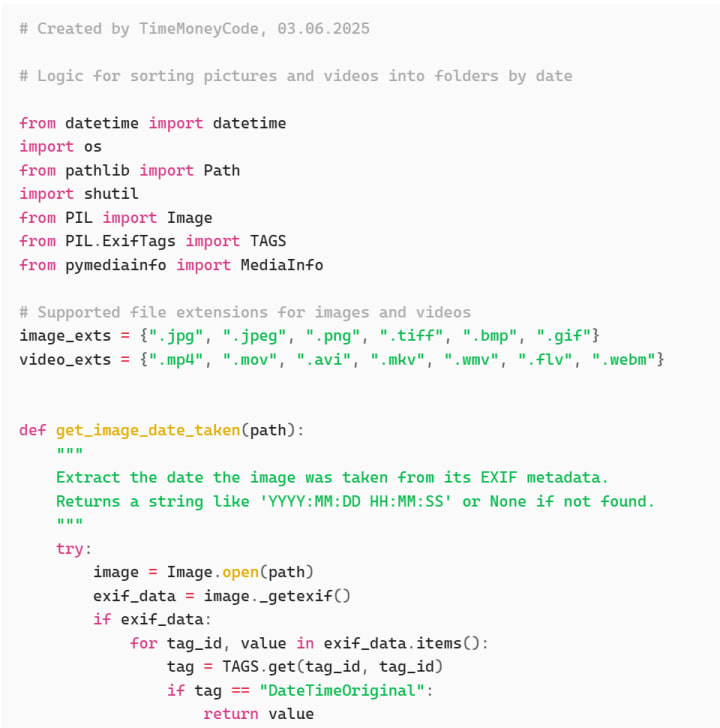
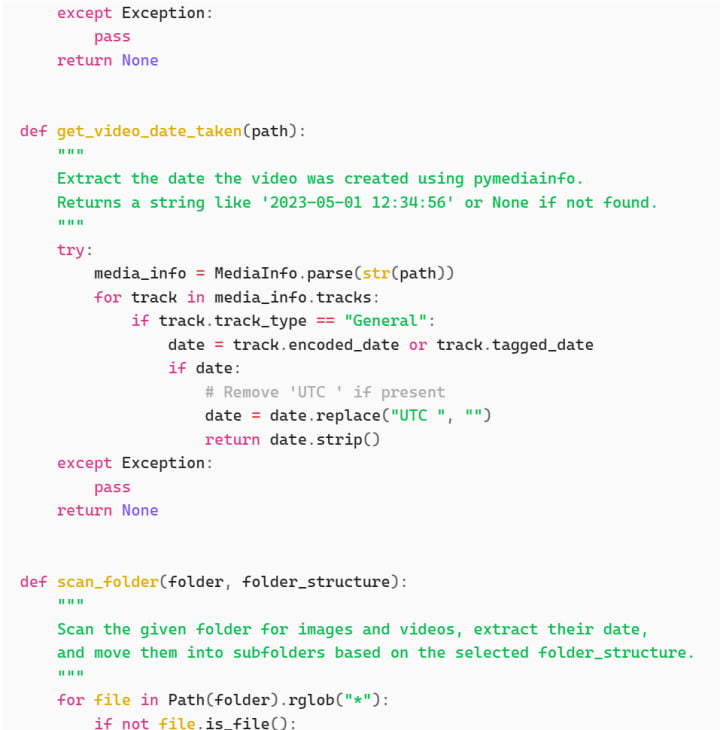
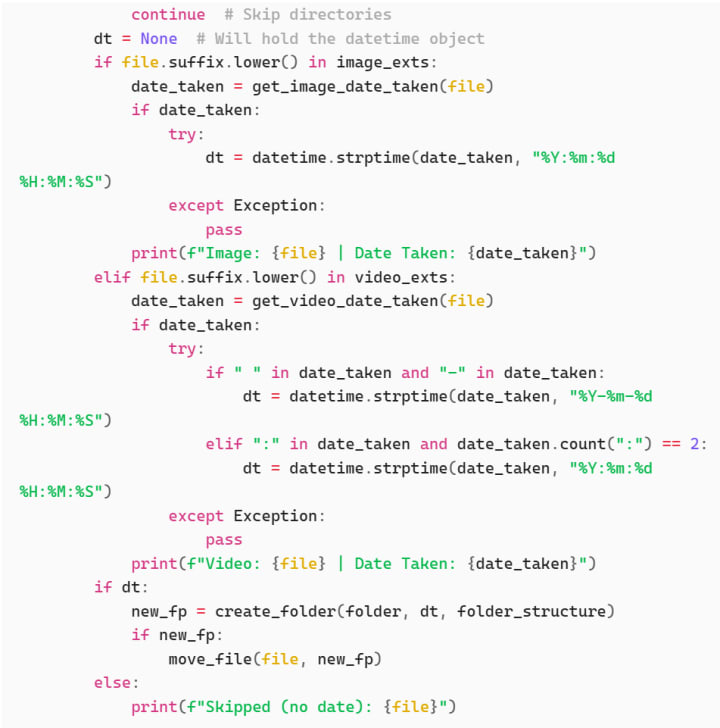
sort_pics.py - The Core Logic
- Scans through a folder to find photo and video files
- reads "date taken" metadata from each file ( EXIF for images, media info for videos)
- Creates folders based on the file's creation date
- Moves each file into the appropriate folder
- Handles duplicates by renaming them (e.g., IMG_1234_1.jpg)
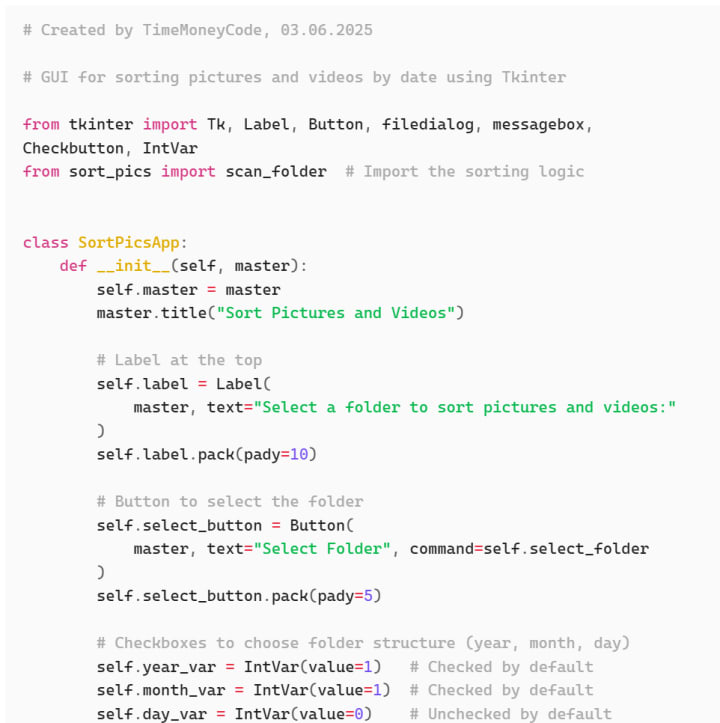
gui.py - The Graphical User Interface
- This file is run to launch the app. It creates a very basic window using Python's tkinter module
- Select a folder containing all your media you want to sort
- Choose how you want your files organized (by year, month or day)
- Click a button to start the sorting process
- This file calls functions from sort_pics.py to actually process your files
utils.py - Helper Functions
- contains small utility helper functions
- Log messages
- Checks if folder paths are valid
- Returns list of supported file types (image and video formats)
By separating logic, user interface and helper functions you help organizing your code across multiple files keeping your code neat, similar to different chapters and headlines in an article or a book.
Step 4: Run the App
To run the tool:
- Open Anaconda Prompt
- Navigate to the folder containing your project in terminal:
cd "C:\\Users\\TimeMoneyCode\\Documents\\Python\\Sort_Pics"
- Launch the app in terminal:
python gui.py
In the window that opens:
- Click “Select Folder” and choose the folder with your unsorted files
- Choose how you'd like them organized:
- Year → 2024
- Year + Month → 2024/03
- Year + Month + Day → 2024/03/15
- Click “Sort Files”
The tool will move the photos and videos into the appropriate folders.
Example
Before:
Unsorted/
├── IMG_1234.jpg
├── vacation.mov
├── birthday.png
After:
Unsorted/
├── 2024/
│ └── 03/
│ ├── IMG_1234.jpg
│ ├── vacation.mov
│ └── birthday.png
If two files have the same name, the tool automatically renames them (e.g., IMG_1234_1.jpg).
Step 5: Turn It into a Standalone App
To make the app easier to run on any Windows computer (without needing Python), you can turn it into an .exe file using PyInstaller.
How to Build It:
- Install PyInstaller using anaconda prompt:
pip install pyinstaller
- Go to the folder containing your script:
cd "C:\\Users\\TimeMoneyCode\\Documents\\Python\\Sort_Pics"
- Build the app:
pyinstaller --onefile --windowed gui.py
After a short time, you’ll find the executable here:
C:\Users\TimeMoneyCode\Documents\Python\Sort_Pics\dist\gui.exe
You can now run the app directly without needing Python installed on that machine.
Why This Is a Great First Project
This project teaches you how to:
- Work with files and folders in Python
- Extract and use real-world data (photo/video metadata)
- Build a graphical interface
- Automate a common, everyday task
- Package your code into a shareable app
It’s small, useful, and achievable—exactly the kind of project that builds confidence when learning Python.
Ideas to Expand This Project
Once you’re comfortable with the basics, consider adding:
- A progress bar to show sorting progress
- A preview of images before sorting
- An option to copy instead of move files
- More organization options using more meta data information (e.g., by file type or camera model)
- A drag-and-drop interface
Final Thoughts

Learning Python doesn’t have to start with long courses or thick textbooks. It can start by solving a small, real-world problem.
This project shows that with a few lines of Python, you can take control of messy folders and save yourself time—all while learning one of the most in-demand skills today.
Whether you’re learning to automate tasks, organize your digital life, or just explore programming, this is a practical and rewarding first step.
Python Scripts
- Github repository: https://github.com/TimeMoneyCode/sort_media_by_date
sort_pics.py:


gui.py


utils.py

__main__.py

About the Creator
Time Money Code
Content creator exploring the intersection of time, money, and code. Sharing Python tools, automation hacks, and productivity systems to help you work smarter, earn more, and build efficiently.
https://timemoneycode.vercel.app
Keep reading
More stories from Time Money Code and writers in Lifehack and other communities.
The Developer's Guide to Financial Stability
Introduction: Why Tech Workers Still Worry About Money If you work in tech — whether coding from a startup loft, contracting from a home office, or bouncing between roles — you’ve likely heard this at some point: “Developers earn great money, so why worry about finances?”
By Time Money Code8 months ago in Lifehack
How to Get Promoted in a Remote Job
Remote work changed how we get hired. It also changed how we get promoted. In a traditional office, visibility is automatic. You’re seen walking in early. You’re seen staying late. You’re in meetings. You’re in the hallway conversations.
By Bahati Mulishi2 days ago in Lifehack



Comments
There are no comments for this story
Be the first to respond and start the conversation.