
🔋 Reclaiming Your Charge: Essential Tips to Fix Battery Drain After the iOS 26.1 Update
Decoding the post-update slump: Understanding why your iPhone feels hot and battery life dips, and the step-by-step methods to restore optimal performance.

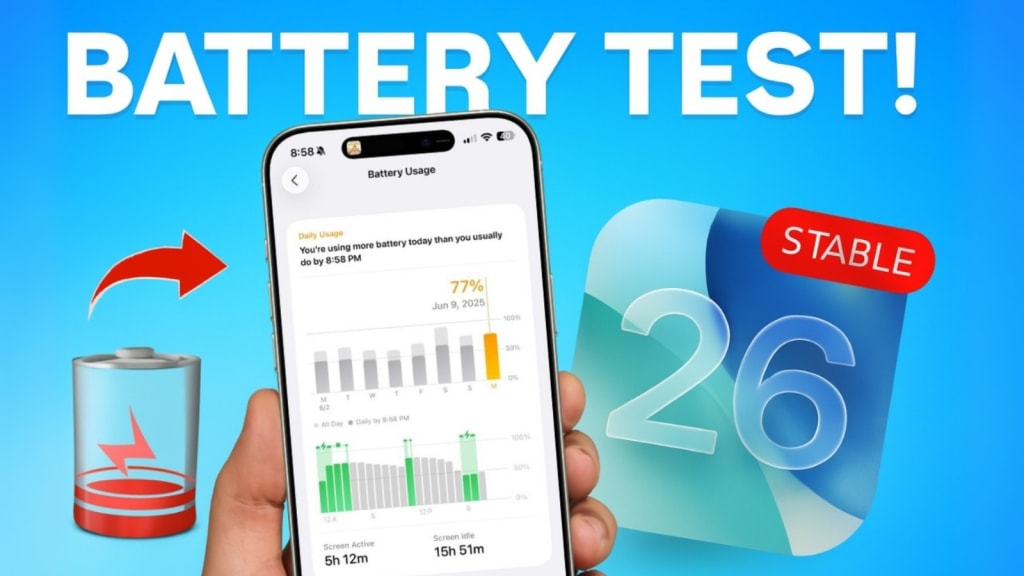
The scenario is a familiar one to seasoned iPhone users: a brand new iOS update drops, promising exciting features and security enhancements, but for the first few days, the device feels sluggish, runs warm, and the battery life seems to fall off a cliff. The recent rollout of iOS 26.1 has triggered these exact complaints, with many users reporting unexpected heat generation and significantly reduced screen-on time.
This phenomenon is not necessarily a bug but a demanding, temporary side effect of the operating system performing crucial, invisible background tasks. However, waiting it out isn't the only solution. By applying a few simple, proven tips, you can stabilize your iPhone’s performance and restore battery longevity quickly.
Understanding the Initial Drain: The "Indexing" Period
Before diving into solutions, it's essential to understand why the initial battery drain occurs after a major iOS update like 26.1: Indexing and Optimization.
When a new operating system is installed, the iPhone spends the first 24 to 72 hours running intensive background tasks:
Spotlight Indexing: The OS re-indexes all your files, photos, messages, and application data to ensure that the Spotlight Search feature is fast and accurate under the new code.
App Optimization: Apps designed for the previous iOS version must be re-optimized to work perfectly with the new 26.1 architecture.
Photo Library Scanning: The Photos app rescans your entire library to detect new faces, objects, and scenes for improved AI search functionality, which is a significant power drain.
During this period, the CPU runs at a higher, sustained load, generating heat and rapidly consuming the battery. If the drain persists beyond three days, however, manual intervention is needed.
I. Immediate Software Stabilizers
These steps can force the iPhone to complete background tasks or reduce unnecessary CPU load quickly.
1. Review and Disable Background App Refresh (BAR)
Many apps quietly consume resources even when you're not using them, pulling data for updates.
Go to Settings > General > Background App Refresh.
Instead of disabling it entirely (which can affect core app functionality), switch BAR to "Wi-Fi" only, or go through the list and disable it for non-essential apps (e.g., social media, shopping apps). Keep it on for apps like messaging or weather where real-time data is crucial.
2. Manage Location Services and System Services
Location tracking is a major battery hog. Many system services use location data without your knowledge.
Go to Settings > Privacy & Security > Location Services.
Set non-essential apps to "While Using" or "Never."
Scroll all the way down to System Services. Here, disable non-critical items like Location-Based Alerts, Location-Based Apple Ads, and Improve Maps. Keep Find My iPhone and Emergency SOS enabled.
3. Check Battery Health and Usage
If the battery drain is sudden, check the status of your internal battery health.
Go to Settings > Battery > Battery Health & Charging. Ensure the Maximum Capacity is above 80%.
On the main Battery screen, check the Battery Usage section. Look for any single app that shows abnormal usage percentages in the last 24 hours (e.g., a photo editor showing 40% usage when you only used it for 10 minutes). If you find a culprit, force-quit or uninstall the app and reinstall it, as it may be stuck in a draining loop.
II. Display and Visual Optimization
The screen is the single largest power consumer on any smartphone. Adjusting these settings yields immediate savings.
4. Limit Visual Effects and Motion
Apple’s smooth animations require GPU cycles. Reducing them saves power.
Go to Settings > Accessibility > Motion. Enable "Reduce Motion." This replaces fancy zoom effects and parallax scrolling with simple fades, reducing the GPU load.
Check Settings > Accessibility > Display & Text Size. Enable "Reduce White Point." This dims bright colors without affecting overall brightness, saving power on OLED displays.
5. Utilize Dark Mode and Auto-Brightness
If your iPhone has an OLED screen (iPhone X and newer), enable Dark Mode (Settings > Display & Brightness). OLED screens display pure black by turning pixels off, saving substantial power compared to displaying white backgrounds.
Ensure Auto-Brightness is enabled. This allows the phone to adjust the screen intensity based on ambient light, preventing the screen from being unnecessarily bright indoors.
III. Last Resort and Network Settings
If all else fails, the issue might be related to network connectivity or a minor software glitch requiring a reset.
6. Reset Network Settings
Sometimes, a faulty configuration in the network settings from the previous iOS version can cause the modem to work overtime, searching for a signal.
Go to Settings > General > Transfer or Reset iPhone > Reset > Reset Network Settings. (Note: This will erase all saved Wi-Fi passwords and cellular settings). This often resolves abnormal battery drain caused by excessive modem activity.
7. Limit 5G Usage (If Applicable)
While 5G is faster, it can be a massive power drain, especially if the signal is weak.
Go to Settings > Cellular > Cellular Data Options > Voice & Data. Change the setting from "5G Auto" or "5G On" to "LTE." Unless you absolutely need the fastest speeds, LTE is stable and significantly more power-efficient.
By following these stabilization and optimization steps, you should see your iPhone's battery life return to its expected performance levels, allowing you to fully enjoy the new features of iOS 26.1 without the worry of constant recharging.
About the Creator
Author’s Advice
If you would’ve asked me 20 years ago did I know I’d become a writer and an author, I would’ve said “nope, ain’t happening”. As fate would have it I did become an author and I can honestly say I’m loving it so far. It really does feel good to be a writer. I’ve learned a lot on this journey and I feel like with even me being as new to this world as I am, there’s some wisdom I need to share with every other aspiring author.
By Joe Patterson5 days ago in Journal




Comments
There are no comments for this story
Be the first to respond and start the conversation.