
Nested Ifs and Data Validation
Uncommon Excel Uses: You can easily create a data validation field based on the data in another cell populated from data validation! Did you know?!

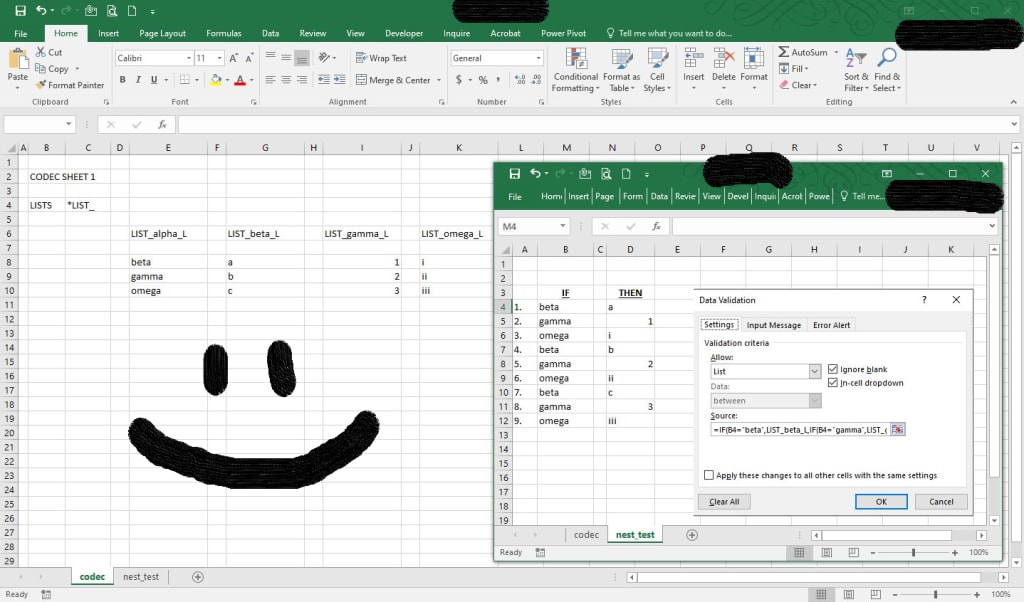
Nested Ifs and Data Validation (an uncommon Excel trick)
By: The ADHD Accountant – Krid
Do you ever just make something try to work, try to fit, and just generally try to do something that seems like it should be easy, but somehow isn’t? I faced this challenge years ago with Excel where I wanted to create a fillable form with strict adherence to certain proscribed categories and items. Basically, IF this field is from this list THEN this field should be based on what is in the IF field.
At the time the best example I had was an online form at Canada Post where you could find a postal code (yes, kind of like a Zip Code) by putting in the address. You put in the Province (it’s like a State), then based on the Province a list of cities would become available, etc…, etc…, through to the rest of the house address whereupon you were provided the postal code. Simple… right?
Let us be clear; I love Excel. It is a great program and I spend hours a day working with it, in it, on it. I tutor people and develop solutions. It’s a huge component of my life. It can do some truly amazing things. BUT, it can be really, really stupid. AND, limited by it’s programming/design. It is, after all, not as much a database as a spreadsheet.
I, however, am stubborn. I also had a vision; a vision where people couldn’t screw up my solution to the problem, and that the solution could be, would be, good for this year, the next year, and going into the future.
For you youngsters; the internet and applications have changed a LOT in just 10 years. You’ve probably heard this often. It’s true. You’ll see. In ten years who knows what we will be able to do that we can’t today.
I chased answers down in the interwebs and researched forums and articles. I revised my search based on learned terms and further finagled pages of data into a remarkably simple solution; nested ifs in data validation, and named ranges.
This isn’t the only way – one of the amazing things about programming is that there are often several solutions, but this is the one I developed for this project. And I can tell you it is still in use today. This method requires a fair bit of setup and is best used on a limited first field.
FIRST -> You need to determine what lists you will need. In this case we will simply call two fields “IF” and “THEN.”
SECOND -> Populate each list. I create a header for each list that is based on what I will name the range, and use “LIST_” to start each header. This is important as Excel has inherent names that you don’t want to confuse.
THIRD -> I name each range. I usually sort low to high and keep a few cells extra on the bottom.
FOURTH -> I apply data validation in the list to the IF field.
FIFTH -> In the THEN field I develop the “Nested If” formula. Nested formula just mean that you use another formula to resolve another criteria in the formula. Using a formula in a formula. This may be the second piece of uncommon knowledge. Excel just keeps on giving.
SIXTH -> Copy the text of the formula into the list field for the data validation of the cell. You cannot do a range as you did with the IF field. As this formula uses a combination of referenced coordinates and absolute (named) coordinates you have to account for referencing.
SEVENTH -> Using copy or drag to fill you can copy this cell and its characteristics, including the referenced data validation, to the end of the THEN field you wish to populate.
DONE! FINI!
Now you have data validation data dependent lists, where the options for the THEN field are changed based on the IF field selection!
WHY DO THIS?! Well my reader, you do it to PIVOT TABLE EVERYTHING! Seriously, Pivot Tables are a great method to organize, sort and/or filter data sets. But that is whole other topic that I may go into later.
Enjoy spreadsheeting!
<< END SONG: ROGERS & TUTTLE: EXCEL FUNC >>
About the Creator
ADHD Accountant
I enjoy writing, fountain pens, excel, and helping people.
Keep reading
More stories from ADHD Accountant and writers in Journal and other communities.
A Letter of Intent
Letter of Intent (that was never sent) by: the ADHD Accountant - Krid A take to provide some material for my partner, and to remind her how I see her. Obviously this does not meet her school's format and requirements. Of which, in my opinion, are neither sufficiently clear nor informed by an adequate example. Post graduate work shouldn't be guesswork as to what format you are looking for. So, I just wrote some stuff off the cuff (and from the heart) to cheer her up. If some of this meagre prose is useful then great.
By ADHD Accountant4 years ago in Journal


Comments
There are no comments for this story
Be the first to respond and start the conversation.