
How to Recover Files from Deleted or Corrupted Partitions on Windows?
Recover Files from Deleted Partitions on Windows
Losing important files can be a nightmare. Whether it’s due to accidental deletion, corruption of your hard drive, or partition failure, the result is the same: precious data gone. If you are using Windows, there are several ways you can attempt to recover files from deleted or corrupted partitions without having to pay for expensive data recovery services. In this blog post, we’ll guide you through the process of recovering files from a deleted or corrupted partition step by step.
What is a Partition?
Before diving into the recovery methods, let’s first understand what a partition is. A partition is a division of your hard drive or storage device into separate sections, which makes it easier to manage data. Each partition can hold a different file system, such as NTFS or FAT32, and appears as a separate drive in Windows.
When a partition is deleted or corrupted, the data stored in it becomes inaccessible, but it’s not always lost. This is because the data often remains intact on the disk until it’s overwritten by new data.
Common Reasons for Partition Loss or Corruption
Partitions can get deleted or corrupted due to a variety of reasons:
- Accidental Deletion: You may have accidentally deleted a partition.
- File System Corruption: Windows may fail to recognize the partition if the file system is corrupted.
- Virus or Malware Attack: These can damage or delete partitions.
- Hard Drive Failure: Mechanical failures in the drive may result in partition corruption.
- Power Outages: Sudden power loss during writing data to the partition can cause corruption.
Regardless of the cause, there are ways to try and recover your data.
How to Recover Files from Deleted or Corrupted Partitions
1. Check the Recycle Bin
Before going to advanced recovery methods, always check your Recycle Bin. Files you’ve deleted might still be sitting there, waiting to be restored. To check:
- Open the Recycle Bin by double-clicking the icon on your desktop.
- Browse through the files and folders. If you find the ones you need, simply right-click on them and select Restore.
If the partition itself is missing and not just deleted files, skip this step.
2. Use Windows Built-In Tools
Windows comes with several built-in tools to help recover lost files, even from corrupted partitions. Here are a couple of tools you can use:
Check Disk Utility (CHKDSK)
The CHKDSK tool can help you scan for errors in the file system and fix them. Sometimes, corrupted partitions can be restored simply by running this utility.
To use CHKDSK:
- Open Command Prompt as an administrator.
- Type cmd in the Start menu search bar, right-click on Command Prompt, and choose Run as administrator.
- In the Command Prompt window, type the following command (replace X with your partition letter):
chkdsk X: /f
- Press Enter. CHKDSK will start scanning the partition for errors and attempt to fix them.
- Once the process is complete, restart your computer and check if the partition is accessible again.
Disk Management Tool
You can use the Disk Management tool in Windows to see the status of your partitions. If your partition shows up as Unallocated, it might be recoverable. Here’s how to access it:
- Right-click on the Start Menu and select Disk Management.
- Look for the missing partition. If it is unallocated, you may be able to right-click and select New Simple Volume to create a new partition.
However, creating a new partition will erase the data on that space, so this method should only be used if you're planning to format the drive.
3. Use Third-Party File Recovery Software
If the built-in tools don’t work, you can turn to third-party file recovery software. These tools can help recover permanently deleted data from hard drive NTFS and FAT partitions without data loss.
The software is one of the easiest and most effective file recovery tools. It has a user-friendly interface and can recover deleted files from hard drives, memory cards, and even corrupted data. It also offers a preview feature so you can see the files before recovering them.
How to work this Software?
- Download and install Hard drive Data Recovery Wizard.
- Open the software and select the partition or drive you want to recover data from.
- Click Scan. The tool will search for deleted files.
- Once the scan finishes, preview the files and select the ones you wish to recover.
- Click on the Save button to save your files.
Professional Best Data Recovery Toolkit
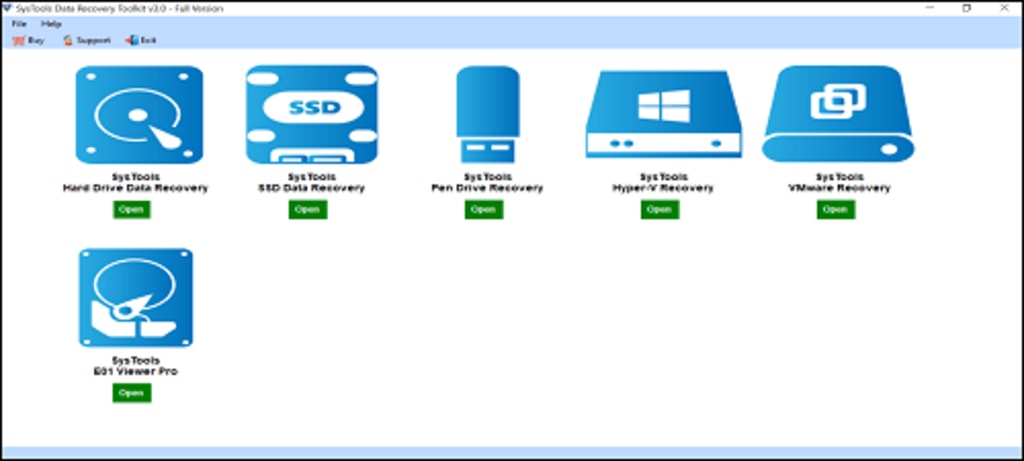
If all else fails, and you are unable to recover your data using software solutions, professional services might be your last resort. The toolkit can recover data from a wide range of storage devices, including hard drives, SSDs, USB drives, memory cards, and virtual environments such as VMware and Hyper-V. This versatility eliminates the need for multiple tools, offering a comprehensive solution.
Regardless of the type of storage device you use, the recovery toolkit can help you recover your lost files. It even supports E01 forensic image files. It doesn't matter whether the data was deleted normally or permanently, or whether the drive was formatted or reformatted. In any case, the SysTools data recovery toolkit is the perfect choice.
Best Practices to Avoid Data Loss
Prevention is always better than cure. Here are a few tips to avoid future data loss:
- Back Up Regularly: Always have an updated backup of your important files. Use cloud storage services like Google Drive, OneDrive, or Dropbox, or invest in an external hard drive.
- Use Disk Imaging Tools: Tools like Macrium Reflect can create exact copies of your partitions, allowing you to restore them if things go wrong.
- Install Antivirus Software: Protect your computer from viruses and malware that can corrupt or delete partitions.
- Keep Your System Updated: Regular system updates can help protect your files from known bugs and security threats.
Conclusion
Recovering files from deleted or corrupted partitions on Windows is possible, even if the situation seems dire. Whether you choose to use Windows built-in tools, third-party recovery software, or a bootable USB drive, there are several ways to try and recover your lost data. Always remember to back up your data regularly to minimize the chances of data loss in the future. If all else fails, professional recovery services can be a costly but effective last resort.
About the Creator
Keep reading
More stories from Elle Stephen and writers in Journal and other communities.
How Do I Export All My Contacts to CSV?
Whether you're moving to a new phone, setting up a new email account, or simply backing up your contacts, exporting your contacts to a CSV file is a great way to ensure that you can easily transfer or store your data. A CSV (Comma Separated Values) file is a simple text-based file format that can be opened with spreadsheet software like Microsoft Excel or Google Sheets. In this blog post, we will walk you through the steps for exporting contacts from popular platforms such as Google Contacts, iCloud, and Outlook.
By Elle Stephen11 months ago in Journal


Comments
There are no comments for this story
Be the first to respond and start the conversation.