
How Do I Export All My Contacts to CSV?
Export All My Contacts to CSV
Whether you're moving to a new phone, setting up a new email account, or simply backing up your contacts, exporting your contacts to a CSV file is a great way to ensure that you can easily transfer or store your data. A CSV (Comma Separated Values) file is a simple text-based file format that can be opened with spreadsheet software like Microsoft Excel or Google Sheets. In this blog post, we will walk you through the steps for exporting contacts from popular platforms such as Google Contacts, iCloud, and Outlook.
Why Export Contacts to CSV?
Before diving into the methods, it’s helpful to understand why you might want to export all my contacts to CSV. Here are a few reasons:
- Backup: You can store your contacts as a CSV to ensure you have a backup if you lose your phone or account access.
- Migrate to a New Account: If you’re switching to a new email service or platform, exporting to CSV allows for a smooth transfer of your contacts.
- Organize Contacts: A CSV file makes it easier to sort, manage, and edit contacts in bulk using tools like Google Sheets or Excel.
- Share with Others: You can share your contacts with others by sending the CSV file.
Now, let’s explore how to export contacts to a CSV from manual and automatic Solutions.
1. Exporting Contacts from Google Contacts to CSV
Google Contacts is one of the most commonly used contact management systems, especially for users with Gmail accounts. Here’s how you can export all your contacts to a CSV file from Google Contacts:
Step-by-Step Guide:
- Open your browser and go to Google Contacts.
- Sign in using your Google account credentials if you aren’t already logged in.
- On the left side of the screen, click on “Contacts” or “Other contacts” (depending on what you want to export). If you want to export all of your contacts, make sure you have selected all of them.
- Click on the “More” button (three vertical dots) located at the top of your contact list, then click on “Export”.
- In the pop-up window, you’ll be asked to choose the export format. Choose the “Google CSV” option if you want to convert your contacts to a CSV that is compatible with Google Contacts.
- Alternatively, you can select “Outlook CSV” if you plan to import them into Microsoft Outlook.
Download the CSV File:
- Click the “Export” option to download the CSV to your computer. The file will be saved to your default downloads folder.
- Now, you have a CSV file containing all of your Google Contacts, which can be opened with Excel or Google Sheets.
2. Exporting Contacts from iCloud to CSV
If you use an Apple device, your contacts are likely synced to iCloud. To export your iCloud contacts to CSV, follow these steps:
Step-by-Step Guide:
- Go to iCloud.com on your web browser and sign in with your Apple ID.
- Click on the “Contacts” icon to view your iCloud contacts.
- To export all your contacts, press Ctrl + A (Windows) or Cmd + A (Mac) to select all contacts. Alternatively, you can select individual contacts by clicking on them.
- Click the gear icon (settings) in the lower-left corner of the screen and select “Export vCard.” This will download your contacts in a vCard (.vcf) format, which is not the same as CSV but can still be imported into most contact management software.
3. Exporting Contacts from Outlook to CSV
For those who use Microsoft Outlook for managing their contacts, exporting them to a CSV file is easy. Here's how:
Step-by-Step Guide:
- Launch Microsoft Outlook and sign in to your account.
- In the navigation pane, click on the “People” or “Contacts” icon to view your contacts.
- In the MS Outlook desktop app, Select the File tab in the top left corner. Then, select “Open & Export” and select “Import/Export.”
- In the Import and Export wizard, choose the option “Export to a file” and click Next. Then, select “Microsoft Excel” or “Comma Separated Values” (depending on your version of Outlook) and click Next.
- Select the Contacts folder (or any other folder where your contacts are stored) and click Next.
- Choose where you want to save the CSV file and give it a name. Click the Next and then Finish to export your contacts.
- If you are exporting calendar events or specific date ranges, you can set this in the next step.
- Once the export is complete, you can open the CSV file in Excel or Google Sheets to view and manage your contacts.
4. Exporting Contacts from Android to CSV
If you have an Android device and want to export your contacts, here's how to do it:
Step-by-Step Guide:
Open the Contacts App:
- Launch the Contacts app on your Android phone.
- Tap the three vertical dots (menu) in the upper-right corner and select Settings.
Export Contacts:
In the settings, scroll down and select Export. This will export your contacts to a .vcf (vCard) file.
Transfer vCard to Computer:
You can email this vCard file to yourself or transfer it to your computer. From there, you can use an online tool to convert the vCard file into CSV format.
5. Exporting Contacts from iPhone to CSV
For iPhone users, there isn't a built-in way to directly export contacts to CSV, but you can still do it with a few extra steps:
Step-by-Step Guide:
- Make sure your contacts are synced to iCloud.
- As with the iCloud method mentioned earlier, go to iCloud.com, sign in, and export your contacts as a vCard.
- Use an online vCard to CSV converter to convert the exported file into a CSV format. Once converted, download the CSV file to your device.
Automatically Solution to Export All Your Contacts to CSV
If you have contacts stored in a VCF (vCard) file and need to convert them into a CSV file format for easier management and accessibility, SysTools VCF to CSV Converter is a great tool to help you accomplish this task.
This tool is designed to convert multiple VCF files into CSV format quickly and easily. Here’s a detailed guide on how to export all your contacts to CSV using VCF to CSV Converter.
Quick Working Steps to Export All Contacts to CSV
Before starting the conversion process, you'll need to download and install the SysTools vCard to CSV Converter Software on your system. Follow these steps:
- Now that the software is open, the next step is to add the VCF files you want to convert into the software.
- Once you’ve selected the VCF file(s), click the “Open” button to add them to the software.
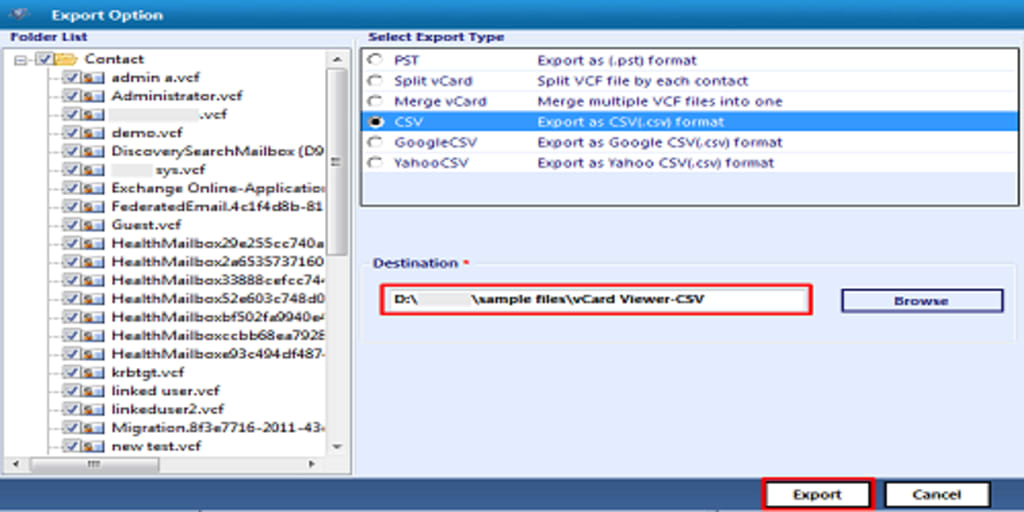
- Select the CSV export option
- Once you’ve set your destination and reviewed your options, you’re ready to Export the VCF file to CSV.
- This will start the process of converting all the VCF contacts into a CSV format.
- Once the conversion is finished, navigate to the destination folder you selected earlier. You should find your newly created CSV file there.
- Double-click the CSV file to open it in a spreadsheet program such as Microsoft Excel or Google Sheets.
Sum Up
Exporting your contacts to a CSV file is a great way to back them up, migrate to a new platform, or organize them. Using tools like VCF to CSV Converter, you can easily convert your VCF contacts into CSV format with just a few simple steps. Whether you're working with Google Contacts, iCloud, or VCF files, the process is straightforward and ensures your contact information is safely stored and easily accessible.
About the Creator
Keep reading
More stories from Elle Stephen and writers in Journal and other communities.
How Do I Remove Write Protection from a USB Drive in Windows?
USB drives are one of the most convenient and portable ways to store and transfer data. However, sometimes users encounter the frustrating problem of being unable to write or modify files on their USB drives due to "write protection." This can happen for various reasons, and it often leads to confusion and stress. The good news is that there are several methods to remove write protection from a USB drive on Windows. In this blog post, we will guide you through some simple and effective ways to disable write protection on your USB drive.
By Elle Stephen12 months ago in Journal
Why Most Startups Struggle With Technical Decisions Early On
In the early stages, making startup technical decisions often feels like juggling flaming swords in the dark. The swords are frameworks, and architectural choices. The darkness is ambiguity about product-market fit and long-term strategy. What makes these decisions so painful isn’t always that they’re wrong, but that they’re made with incomplete context, without a clear owner of their consequences, and under intense pressure to deliver outcomes yesterday. As a result, issues tend to surface not during the decision itselfю They come out later, when releases drag, features break, or the product is inexplicably stuck in development. These experiences are part of the broader early-stage startup challenges that trap many teams before they even start gaining traction.
By Dariya Lopukhina3 days ago in Journal



Comments
There are no comments for this story
Be the first to respond and start the conversation.