
How to Install and Set Up Arlo Cameras in 2025: A Complete Walkthrough
Install and Set Up Arlo Cameras

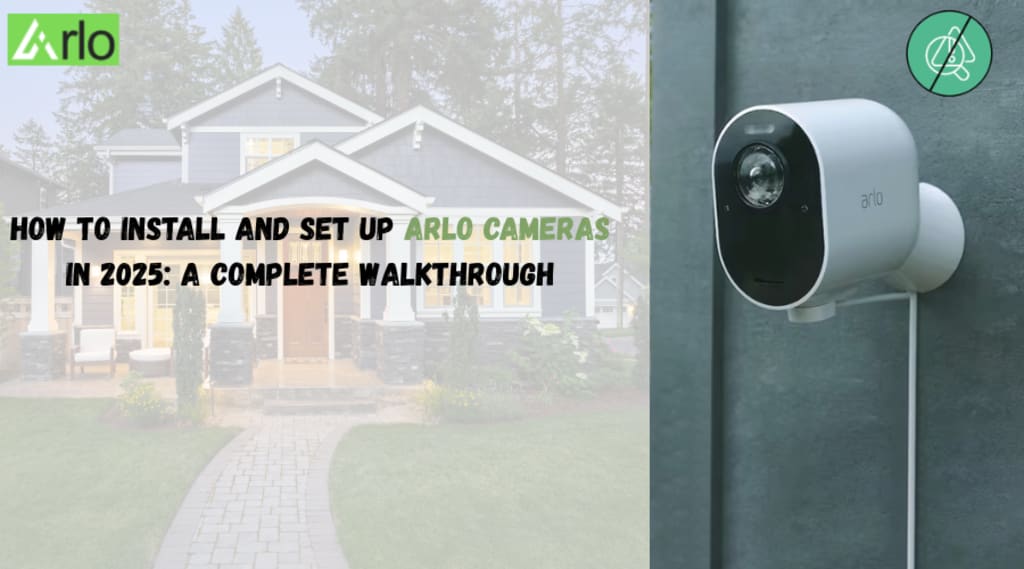
Arlo cameras continue to be a top choice for smart home security in 2025, thanks to their easy installation, wireless capabilities, and advanced features like 2K/4K video resolution, night vision, and AI-based detection. Whether you’ve just bought a new Arlo Pro 5S, Arlo Ultra 2, or the latest Essential series, setting up your system properly is the first step to ensuring your home or office is protected 24/7.
In this walkthrough, we’ll guide you step-by-step through the installation and setup process so you can get your Arlo cameras up and running with minimal hassle.
What You’ll Need Before You Begin
Before starting the setup process, make sure you have the following:
- A fully charged Arlo camera battery or a connected power source (depending on your model)
- A compatible smartphone or tablet (iOS or Android)
- A stable Wi-Fi connection (2.4GHz for most models, though some support 5GHz)
- The Arlo Secure app installed on your device
- Your Arlo login credentials (create an account if you’re new)
Step-by-Step Installation Guide
1. Charge or Plug in the Camera
For wireless models, insert the battery and charge it using the USB cable provided. If your camera is wired, plug it into a nearby power outlet. The LED on the front of the device should begin to flash, indicating it's powered and ready for pairing.
2. Download and Launch the Arlo App
Go to the App Store or Google Play and search for “Arlo Secure.” Once downloaded, open the app and either sign in or create a new account.
3. Add a New Device
In the Arlo app:
- Tap "Add New Device."
- Choose your camera model from the list.
- Follow the on-screen prompts to connect the camera to your Wi-Fi network. You may need to scan a QR code shown on your screen using the camera’s lens.
4. Sync the Camera
Once the QR code is scanned successfully, your camera should emit a chime and connect to the app. You may see a live preview from the camera once it's connected.
5. Customize Settings
After syncing:
- Name your camera (e.g., “Front Door” or “Garage”).
- Choose your recording preferences—whether to record continuously, on motion, or based on a schedule.
- Set up notifications, zones, and AI detection features (such as person or package detection).
6. Mount the Camera
With everything set up, it’s time to place your camera. Use the included mounting brackets or magnetic mounts. Ensure the area has a strong Wi-Fi signal and offers a clear view of your monitoring zone.
Common Troubleshooting Tips
If you’re wondering, how do I setup my Arlo cameras without hiccups, here are a few common issues and their fixes:
- Camera won’t connect to Wi-Fi: Make sure you're using the correct Wi-Fi band (2.4GHz is usually preferred) and that the camera is within range of your router.
- App not recognizing the camera: Try resetting the camera by holding the sync button for 10 seconds until the LED blinks amber, then attempt the setup again.
- Low battery warning: Charge your battery fully before initial setup to avoid disconnections during the pairing process.
Best Practices After Installation
Once your camera is up and running, consider these tips:
- Enable automatic firmware updates in the app.
- Periodically clean the lens for a clear picture.
- Check battery status weekly (for wireless models).
- Review video clips regularly and adjust sensitivity settings to reduce false alerts.
Need Help with Advanced Configuration?
If you're still stuck thinking, how do I setup my Arlo cameras for multi-device sync, base station connection, or SmartHub pairing, it’s best to consult a reliable source. For clear guides, detailed configurations, and camera optimization tips, visit arlosmartlog. The site offers comprehensive walkthroughs tailored to different Arlo models and setups.
About the Creator
Josephine Macleod
For the last 10 years I have been a content writer. My specialty niches are technology, education, games, home services, and recipes.
Keep reading
More stories from Josephine Macleod and writers in Journal and other communities.
2025 Guide: How to Connect Brother Printer to WiFi
In today's fast-paced digital world, wireless printing has become a must-have feature in both homes & offices. Brother printers, known for their reliability & affordability, offer various models that support seamless WiFi connectivity. Whether you're setting up a brand new printer or reconnecting an existing one, this comprehensive 2025 guide will walk you through how to connect Brother printer to WiFi effortlessly.
By Josephine Macleod10 months ago in Journal
Author’s Advice
If you would’ve asked me 20 years ago did I know I’d become a writer and an author, I would’ve said “nope, ain’t happening”. As fate would have it I did become an author and I can honestly say I’m loving it so far. It really does feel good to be a writer. I’ve learned a lot on this journey and I feel like with even me being as new to this world as I am, there’s some wisdom I need to share with every other aspiring author.
By Joe Patterson2 days ago in Journal



Comments
There are no comments for this story
Be the first to respond and start the conversation.