
2025 Guide: How to Connect Brother Printer to WiFi
Connect Brother Printer to WiFi

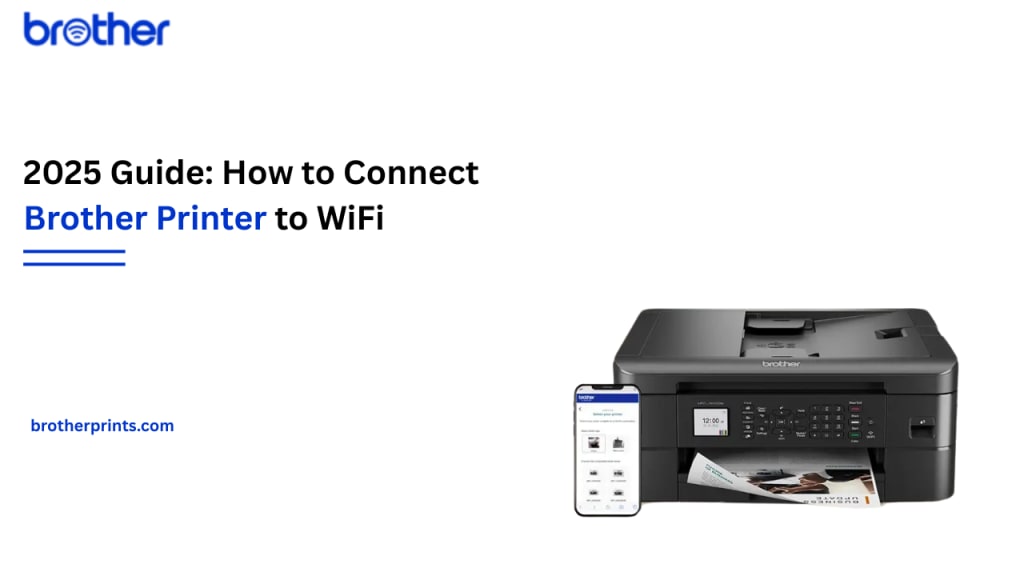
In today's fast-paced digital world, wireless printing has become a must-have feature in both homes & offices. Brother printers, known for their reliability & affordability, offer various models that support seamless WiFi connectivity. Whether you're setting up a brand new printer or reconnecting an existing one, this comprehensive 2025 guide will walk you through how to connect Brother printer to WiFi effortlessly.
Why Connect Your Brother Printer to WiFi?
Connecting your Brother printer to WiFi has multiple benefits:
Convenience: Print from anywhere within your network range using your smartphone, tablet, or laptop.
Efficiency: No more tangled cords or limited placement options.
Compatibility: Easily integrate with cloud services like Google Drive, Dropbox, and AirPrint.
Now, let’s dive into the step-by-step process to help you set up your Brother printer on a wireless network.
Pre-Setup Checklist
Before you begin, make sure the following are ready:
- A working wireless network (WiFi router)
- Network name (SSID) & password
- A powered-on Brother printer that supports wireless connectivity
- A computer or smartphone connected to the same WiFi network
Method 1: Using the Control Panel (For Printers with LCD Screen)
This is the easiest & most direct method if your printer has a touchscreen or control panel.
Step-by-Step Instructions:
- Power on your Brother printer.
- On the printer’s control panel, navigate to:
- Menu > Network > WLAN > Setup Wizard
- When prompted, select "Enable WLAN".
- The printer will search for available networks. Select your WiFi network (SSID).
- Enter your WiFi password using the touchscreen keypad.
- Once connected, the printer will display a "Connected" message and print a confirmation page if configured to do so.
Tip: If your WiFi SSID is hidden, you may need to manually enter the network name.
Method 2: WPS (WiFi Protected Setup)
If your router & Brother printer both support WPS, this is a quick way to connect without entering any credentials.
Here’s how to do it:
- Press the WPS button on your router (usually located at the back or side).
- Within 2 minutes, press & hold the WPS or WiFi button on your Brother printer.
- Wait until the connection is established. A successful link is usually indicated by a stable WiFi LED light on the printer.
Method 3: Brother iPrint&Scan App (Mobile Devices)
Brother’s free mobile app makes it easy to connect & manage your printer.
Steps:
- Download Brother iPrint&Scan from the App Store or Google Play Store.
- Open the app & go to Printer Settings.
- Tap "Add a Printer" and select your Brother model.
- Follow the in-app instructions to connect the printer to your WiFi network.
This method is especially useful for users who rely on mobile devices for printing.
Method 4: Wireless Setup Using a USB Cable (Windows)
If your printer does not have a touchscreen, or if you're having trouble connecting via the above methods, try the USB-assisted setup.
Follow these steps:
- Connect your Brother printer to your PC using a USB cable.
- Visit the official Brother website & download the Full Driver & Software Package for your model.
- Launch the installer & select "Wireless Network Connection" during setup.
- The software will detect available WiFi networks. Choose your network & enter the password.
- Once setup is complete, disconnect the USB cable.
Troubleshooting Tips
Even with the best setup instructions, things can go wrong. Here are common issues and their fixes:
- Incorrect WiFi Password: Double-check the password for typos or case sensitivity.
- Outdated Firmware: Visit Brother’s support website & ensure your printer has the latest firmware.
- WiFi Signal Issues: Place the printer closer to the router or use a WiFi extender.
- Firewall Blocking Connection: Temporarily disable firewall or antivirus software during setup.
If all else fails, resetting the network settings on your printer & starting the process from scratch can help.
How to Confirm the Connection
Once your Brother printer is connected, you can confirm by:
- Printing a Network Configuration Report from the printer's menu.
- Checking your router's connected devices list.
- Sending a test print from your computer or phone.
Final Thoughts
Learning how to connect Brother printer to WiFi is simpler than ever in 2025, thanks to user-friendly interfaces, apps, and smarter routers. Whether you’re using a touchscreen, a mobile device, or a computer, there's a method that suits your setup needs. A WiFi-connected printer not only increases your productivity but also makes your workspace neater & more efficient.
For more detailed guides, driver downloads, and model-specific instructions, check out brotherprints.com simplified guide.
About the Creator
Josephine Macleod
For the last 10 years I have been a content writer. My specialty niches are technology, education, games, home services, and recipes.
Keep reading
More stories from Josephine Macleod and writers in Journal and other communities.
A Quick Troubleshooting Guide on Hikvision IP Cameras Not Working Echo Show!
Hikvision cameras are globally recognized for their high-quality surveillance features, advanced AI integration, and reliable outdoor and indoor security solutions. Among their most popular models is the Hikvision AcuSense DS-2CD2683G2-IZS 8MP Outdoor Camera, which offers impressive image quality and motion detection capabilities. Despite their excellence in security and surveillance, many users experience difficulties when attempting to integrate Hikvision IP cameras with smart home devices—specifically, the Amazon Alexa Echo Show.
By Josephine Macleod11 months ago in Journal
When Writing a Resume What Tense Should Be Used? (Complete Guide)
Writing a resume may seem simple, but even small grammar mistakes can significantly affect your chances of landing an interview. One of the most common questions job seekers ask is: when writing a resume what tense should be used?
By Ramsha Riaz7 days ago in Journal


Comments
There are no comments for this story
Be the first to respond and start the conversation.