
How to Improve and Sharpen iPhone Videos After Recording
Simple Tips and AI-Powered Solutions
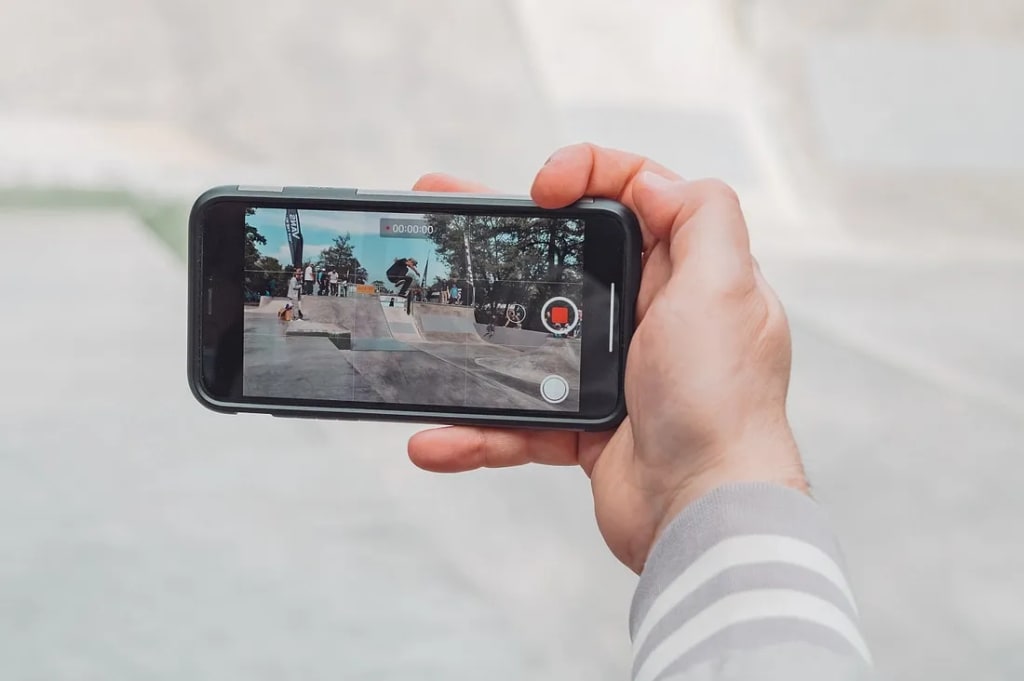
The iPhone is renowned for its exceptional video recording capabilities, allowing users to capture stunning moments with ease. However, even with the best hardware, sometimes the footage may not turn out as sharp, stable, or visually appealing as you might hope. Fortunately, there are various ways to improve video quality after recording—whether you want to upscale resolution, stabilize shaky clips, or refine brightness and color balance. This guide explores different methods, ranging from built-in iPhone tools to cutting-edge AI-powered video enhancers like AVCLabs Video Enhancer AI.
Method 1: Disable iCloud Photo Library Optimization
If you've noticed that your videos appear blurry or lack clarity, one of the culprits might be iCloud's optimization settings. When the "Optimize iPhone Storage" option is enabled, iCloud replaces full-resolution videos with compressed, lower-quality versions to save storage space on your device. To ensure your videos remain in their original, high-quality resolution:
1. Go to: Settings > Tap your Apple ID > iCloud > Photos.
2. Disable: Optimize iPhone Storage to ensure that your videos are stored in their full resolution on your device.
This simple change can help prevent quality loss from iCloud’s automatic compression, ensuring that the videos you capture are always at their best resolution.
Method 2: Enhance Video Quality with iMovie
If you’re looking for an easy-to-use solution to improve video quality, Apple’s iMovie app provides a variety of basic yet powerful enhancement tools. iMovie allows you to adjust brightness, fine-tune colors, and stabilize shaky footage. You can also export your video in higher resolutions, which can make a significant difference in the final result.
How to enhance video quality in iMovie:
1. Open iMovie and create a new project.
2. Import your recorded video.
3. Apply enhancements, such as stabilization and color correction.
4. Tap the Share button > Save Video > Choose your preferred resolution (e.g., 4K, 1080p, or 720p).
Limitations: While iMovie is great for general editing, it cannot truly upscale low-resolution videos to higher resolutions like 4K. It’s more suited for fine-tuning existing footage rather than improving its underlying resolution.
Method 3: AI-Powered Video Enhancement with AVCLabs
If you’re working with grainy, blurry, or low-resolution video, AI-powered tools like AVCLabs Video Enhancer AI can make a world of difference. Unlike traditional editing software that adjusts existing settings, AVCLabs uses advanced artificial intelligence to restore fine details, reduce noise, and upscale videos to higher resolutions, such as HD, 4K, or even 8K.
Why choose AI-powered video enhancement:
Resolution Upscaling: AI tools can convert low-res videos into high-quality 4K or even 8K resolution.
Detail Restoration: Grainy or blurry footage can be enhanced to bring back sharpness and clarity.
Noise Reduction: AI algorithms work to remove unwanted visual noise that may be present in the video, improving the overall aesthetic.
For content creators or anyone who needs to deliver top-quality videos, AI-powered enhancement is a game-changer. With AVCLabs, you can transform your iPhone recordings into professional-grade visuals with just a few clicks.
Method 4: Adjust Video Quality in the Photos App
For those who need to make quick, on-the-go adjustments, the Photos app on your iPhone provides a simple way to refine video quality. While it won’t increase resolution, it allows you to make adjustments that can greatly enhance your video's clarity and visual appeal.
How to refine video quality in the Photos app:
1. Open the Photos app and select the video you want to edit.
2. Tap Edit to bring up editing options.
3. Adjust brightness, contrast, or color to fine-tune the look of your video.
4. Tap Done to save the changes.
This is a great option for minor tweaks such as improving exposure or correcting color balance, and it works well for videos that don’t need significant resolution upgrades. While not as robust as other editing software, it’s perfect for quick edits on the go.
Conclusion: Pick the Best Method for Your Needs
Whether you’re looking to quickly adjust brightness, stabilize shaky clips, or upscale your video to 4K or beyond, there are a variety of tools at your disposal. The iPhone’s built-in iMovie and Photos app are perfect for basic enhancements and edits, while advanced AI-powered solutions like AVCLabs Video Enhancer AI offer professional-level upgrades to help take your content to the next level.
Choose the Right Tool for Your Project
For quick edits: iMovie and the Photos app are easy to use and offer essential features for improving video quality.
For professional-grade enhancements: AVCLabs Video Enhancer AI is your best bet for upscaling resolution and restoring sharp details to your footage.
No matter the type of content you’re creating, these tools will help you ensure that your videos always look their best. Capture every moment in crystal-clear quality and impress your audience with stunning visuals!
About the Creator
EveWilliams
Youtuber
Keep reading
More stories from EveWilliams and writers in Journal and other communities.
How to Find Out If an Employee Is Moonlighting
As the gig economy continues to grow and living costs soar, more employees are picking up side jobs — a trend that’s fast becoming a norm rather than an exception. According to recent data, the proportion of U.S. workers holding multiple jobs rose from 6.8% in 1996 to 7.8% in 2018, and nearly half of employees globally report having a “side hustle.” By 2024, the global side-hustle economy was estimated at around US$556.7 billion.
By EveWilliams2 months ago in Journal


Comments (1)
Nice work… I enjoyed this article. Keep up the good work .