
How to Fix WD External Hard Drive Not Mounting on Mac
Fix WD External Hard Drive
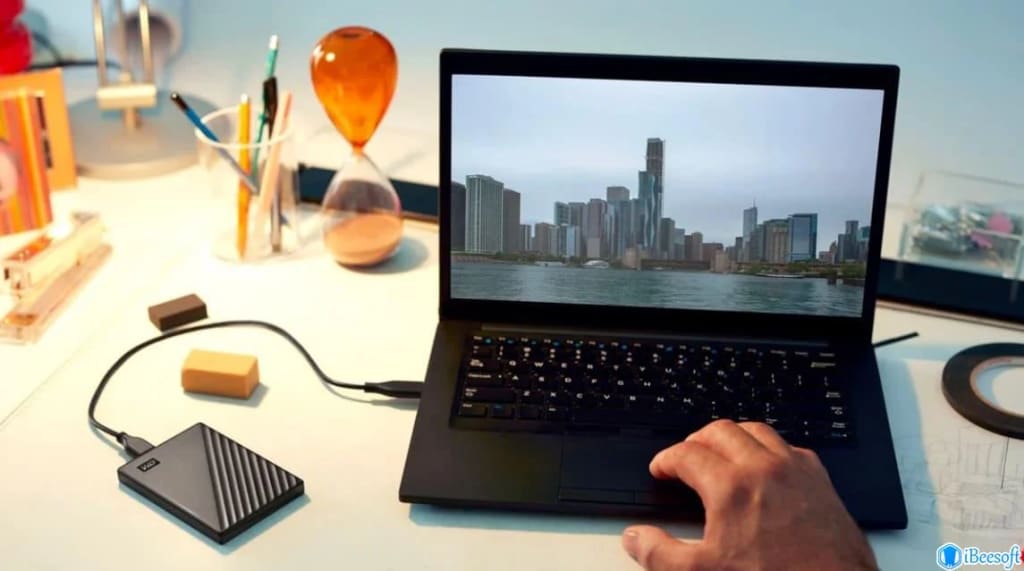
If your WD external hard drive isn’t mounting on your Mac, don’t panic. There are several troubleshooting steps you can take to resolve the issue. If the problem persists, you can use built-in macOS tools like Disk Utility and Terminal to diagnose and repair the drive.
However, if your drive is unresponsive and contains important files, use a reliable Free Recovery Software for Mac to recover lost data before attempting further fixes. Below, we outline the steps to troubleshoot and potentially resolve the issue.
Methods to Fix WD External Hard Drive Not Mounting on Mac
Here are several effective methods to troubleshoot and resolve issues preventing your WD external hard drive from mounting on your Mac
1. Basic Checks
Restart Your Mac
A simple restart can often fix minor software glitches that prevent the external hard drive from mounting. Shut down your Mac completely, wait a few seconds, and then turn it back on. Once restarted, check if the drive appears in Finder or Disk Utility.
Check Connections
Ensure that the USB cable is securely connected to both the drive and your Mac. If the drive is still not recognized:
· Try using a different USB port.
· Swap out the USB cable with a known working one.
· If your WD drive requires an external power adapter, ensure that it is plugged into a power source.
2. Use Disk Utility
If the drive is connected but not appearing in Finder, Disk Utility can help diagnose and repair issues.
Open Disk Utility
Navigate to Applications > Utilities > Disk Utility.
Look for your WD drive in the left sidebar.
Mount the Drive
If your drive appears in the list but is not mounted, select it and click "Mount".
· If successful, your drive should now be accessible in Finder.
First Aid (Repair the Disk)
If the drive appears but does not mount, click “First Aid”.
First Aid will scan and attempt to repair disk errors. Let the process complete and check if the drive is now accessible.
Erase the Drive (if necessary)
If First Aid fails or the drive is not recognized, formatting may be required:
Select the drive, and click "Erase".
Choose APFS or exFAT as the file system.
Give the drive a name and proceed.
Important: Formatting will erase all data, so use iBeesoft Data Recovery before proceeding to recover any critical files.
3. Use Terminal (Advanced Troubleshooting)
For advanced users, Terminal provides a way to diagnose and repair drive issues manually.
Open Terminal
Navigate to Applications > Utilities > Terminal.
List Connected Drives
Type diskutil list and press Enter.
Identify your WD drive from the list of connected disks.
Verify and Repair the Disk
To check for issues, type: diskutil verifyDisk /dev/diskX (replace diskX with the actual disk identifier) and press Enter.
If errors are detected, type: diskutil repairDisk /dev/diskX and press Enter to attempt a fix.
4. Other Considerations
If your drive is still not mounting, additional steps may be required.
Firmware and Driver Updates
Check the WD website for the latest firmware or driver updates for your specific model.
Try a Different Mac or PC
Connect the drive to another Mac or Windows PC to determine whether the issue is with the drive or your Mac.
Check for macOS Updates
Outdated macOS versions can cause compatibility issues. Update macOS by going to System Preferences > Software Update and installing the latest version.
Adjust Finder Settings
Go to Finder > Preferences > Sidebar.
Ensure “External Disks” is checked so the drive is visible in Finder.
5. If All Else Fails
If none of the above solutions work, you may need to take further action.
Data Recovery
If your WD external hard drive is still unresponsive but contains important files, consider using a professional data recovery tool like iBeesoft Data Recovery to recover lost files before reformatting or replacing the drive.
Drive Replacement
If the drive is physically damaged or experiencing critical hardware failure, replacing it may be the best option. Contact WD support to check if your drive is under warranty for a possible replacement.
Conclusion
A WD external hard drive that won’t mount can be frustrating, but hopefully, one of these steps will help you fix the issue. If the problem persists, data recovery software can be a life saver, as they can help recover important files before considering more drastic measures.
About the Creator
8 Things You Should Do Now to Prepare for War or Major Global Conflict
War is something many people assume will always happen somewhere else. But recent global tensions — from cyber warfare to drone attacks and escalating geopolitical conflicts — have made many people wonder how prepared ordinary civilians really are.
By Navigating the Worldabout 6 hours ago in Journal
Achieving Excellence in Rehabilitation Services
Introduction Excellence in rehabilitation services is achieved when organizations provide high-quality care that promotes patient recovery, independence, and long-term well-being. Rehabilitation programs support individuals recovering from substance use disorders, physical injuries, or mental health challenges through structured treatment plans, therapy, and skill-building activities. Achieving excellence requires a combination of skilled staff, evidence-based treatment approaches, robust operational practices, and a patient-centered philosophy. Organizations that prioritize quality care, continuous improvement, and measurable outcomes create environments where patients can thrive while meeting regulatory standards and accreditation requirements. Focusing on excellence ensures both clinical effectiveness and organizational sustainability.
By Abdul Mueedabout 11 hours ago in Journal
Worth the Wait: Puerto Viejo, Costa Rica
Beach bumming in a small Caribbean beach town sounded like a perfect way to end our 6-month trip through Mexico and Central America. Or so we thought. The foul, fishy stench of rotten seaweed hit our nostrils as we stepped from the cramped bus and looked out at a rather depressing, empty, and underwhelming black sand beach. It was pouring with rain, and we had to quickly fish out our ponchos. We thought, this couldn’t be it, could it?
By Sh*t Happens - Lost Girl Travel7 days ago in Wander


Comments
There are no comments for this story
Be the first to respond and start the conversation.