
How to Convert CSV to iPhone-Compatible VCF Format – Step-by-Step Tutorial
CSV to VCF Conversion
If you have a CSV (Comma-Separated Values) file with a list of contacts and want to move them to your iPhone, you should know that the iPhone cannot directly import contacts from CSV files. iPhones, on the other hand, need contacts in VCF (vCard) format. You need to convert your CSV file into a VCF file in order to obtain your CSV contacts onto your iPhone.
There are two ways to do it that this guide will show you-
- The manual method using your computer’s built-in apps.
- A much simpler automated technique utilizing a specific CSV to VCF conversion tool.
Why You Need to Convert CSV to VCF?
CSV files are like spreadsheets, but they include contact information like names, phone numbers, and email addresses in rows and columns. But iPhones and a lot of contact apps like VCF format better. This format was designed to contain contact information in a way that is easy for phone operating systems to understand.
Your iPhone will not be able to find or import your contacts accurately if you fail to convert CSV contacts to VCF.
Manual Method- Converting CSV to VCF
If you have a Windows or Mac computer and don't want to use any third-party applications, this manual technique works perfectly.
Step 1- Prepare Your CSV File
- Use Microsoft Excel, Google Sheets, or any other spreadsheet software to open your CSV file.
- Make sure the columns are clearly labeled with contact details like Name, Phone Number, Email, Address, etc.
- Make sure you save your file correctly so that the data is clean and consistent.
Step 2- Import CSV into Contacts App
- On Windows-
- Type "Contacts" into the Start menu search box to open the "Contacts" app.
- Use the "Import" button to add your CSV file to Windows Contacts.
- When you import, you might have to match CSV columns to contact fields.
- On Mac-
- The Mac Contacts app does not support direct CSV import.
- You will need to use AppleScript, Automator, or an online converter to first convert CSV to VCF. Alternatively, you can import CSV into Google Contacts and export as VCF (covered below).
Step 3- Export Contacts as VCF
- Choose all of your contacts after they show up in the Contacts app on Windows or Mac.
- To export them as a VCF file, use the "Export" or "Save As" option.
- Your iPhone will be able to read this VCF file, which has all of your contacts in it.
Step 4- Transfer the VCF File to Your iPhone
- Email the VCF file to yourself and open the email in your iPhone.
- Tap the VCF file that is attached, and then tap "Add All Contacts" to import it.
- You can also upload the VCF to iCloud by going to iCloud.com > Contacts > Settings > Import vCard. After that, the contacts will automatically sync with your iPhone.
Alternative Manual Method Using Google Contacts
If the above method sounds complex, you can use Google Contacts as a middle step-
- Open Google Contacts and sign in to your Google account.
- Put your CSV contacts into Google Contacts (Google lets you import CSV files).
- After importing the contacts, use Google Contacts Export feature to export them as a VCF file.
- Send the VCF file you exported to your iPhone or upload it to iCloud so that it can sync.
Why Manual Methods Can Be Difficult
To import CSV files and export VCF files manually, you need to know how to do a few things.
- Many Mac users have trouble with direct CSV import because the Contacts software does not support it.
- It can be hard to figure out how to map CSV columns accurately when you import them.
- You could lose data or get problems if your CSV file is too big or not well-formatted.
Easy and Reliable Way- Use a CSV to VCF Converter Tool
Using an expert CSV to VCF converter software is the easiest option to convert your contacts because it saves time and avoids technical problems. The WholeClear CSV to VCF Converter and other tools make it simple and accurate to convert CSV files to vCard. It manage a lot of contacts and make sure that all of the information, including names, phone numbers, and emails, is accurately mapped and saved. This makes a clean VCF file that works with iPhones and is ready to be imported or synced with your iPhone Contacts or iCloud. This method is ideal for anyone who needs to quickly and safely convert CSV contacts to VCF format because it cuts down on mistakes and speeds up the process.
This is how it helps—
Convert hundreds or thousands of contacts at once without manual work.
- You can easily map the right contact fields in a CSV file, like Name, Phone, and Email, so you don't lose or forget any data.
- Works well with CSV files that you export from Outlook, Gmail, Excel, and other applications.
- You don't need to be highly technically proficient.
- Secures contact information during the process.
Using such a tool reduces the chances of errors and saves you hours of manual work.
How to Use WholeClear CSV to VCF Converter
- Launch the tool on your computer.
- Select and upload your CSV file.
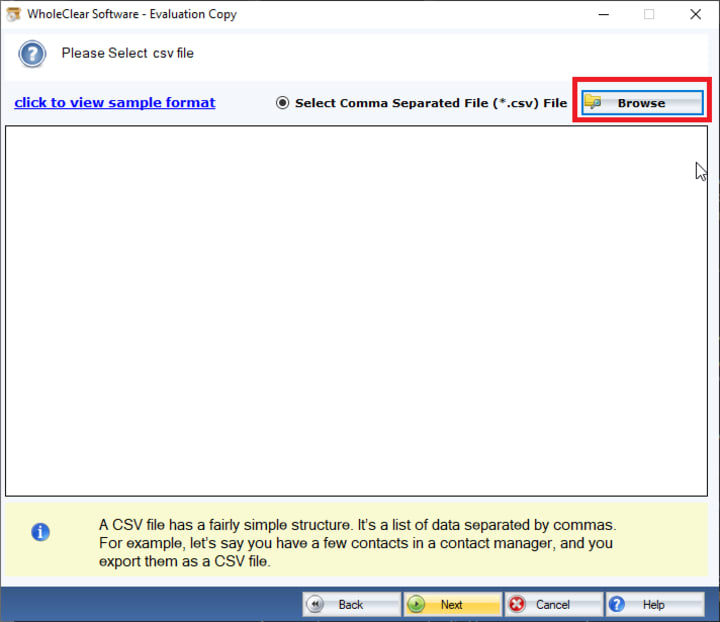
- Choose a location for the resulting file.
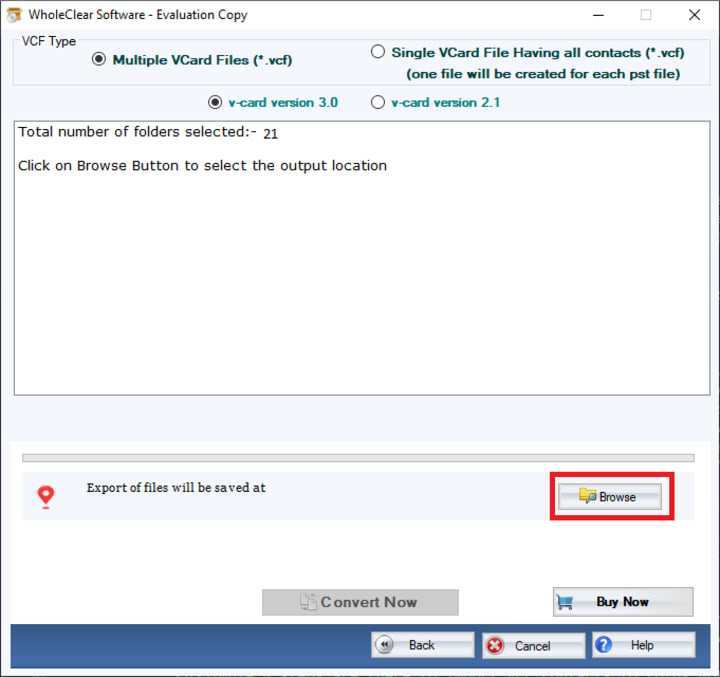
- Click Convert to generate a VCF file compatible with iPhone.
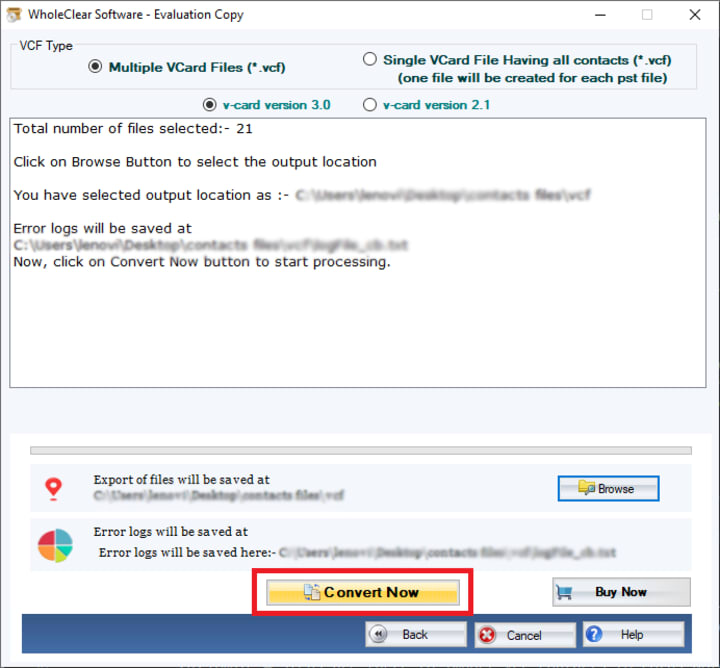
- Transfer the generated VCF to your iPhone by email or iCloud.
In conclusion
To get to your contacts on your iPhone, you need to convert CSV files to VCF files. You can do this manually or with a converter that works on its own. Manual approaches work, but they could be hard and take a long time for people who are not very good with technology. A dependable converter like WholeClear CSV to VCF Converter makes the whole process easier and faster by making sure that the conversion is swift, accurate, and problem-free.
This way, you can effortlessly keep track of and carry all of your key contacts on your iPhone without having to worry about files not working together.
About the Creator
Keep reading
More stories from Alla crook and writers in Journal and other communities.
How to Turn a CRM CSV Export into a Ready-to-Import VCF File Online – Completely Free
Managing contacts across platforms is part of everyday business. Whether you are switching devices, integrating with Google Contacts, or simply moving CRM contact data to a phone, you will quickly discover one big hurdle- CRM tools export contacts as CSV files, but many platforms only accept VCF (vCard) files. That is why learning how to turn a CRM CSV export into a ready-to-import VCF file online completely free has become essential.
By Alla crook9 months ago in Journal
Author’s Advice
If you would’ve asked me 20 years ago did I know I’d become a writer and an author, I would’ve said “nope, ain’t happening”. As fate would have it I did become an author and I can honestly say I’m loving it so far. It really does feel good to be a writer. I’ve learned a lot on this journey and I feel like with even me being as new to this world as I am, there’s some wisdom I need to share with every other aspiring author.
By Joe Patterson4 days ago in Journal




Comments
There are no comments for this story
Be the first to respond and start the conversation.