
How to Turn a CRM CSV Export into a Ready-to-Import VCF File Online – Completely Free
Migrate CRM CSV to VCF
Managing contacts across platforms is part of everyday business. Whether you are switching devices, integrating with Google Contacts, or simply moving CRM contact data to a phone, you will quickly discover one big hurdle- CRM tools export contacts as CSV files, but many platforms only accept VCF (vCard) files. That is why learning how to turn a CRM CSV export into a ready-to-import VCF file online completely free has become essential.
In this blog, you will learn-
Why this conversion matters
The simplest free methods to do it online
Key tips for preserving your contact data
And, finally, a professional solution for perfect results using a reliable CRM CSV to ready-to-import VCF file converter
Why Convert CSV to VCF?
CSV files are simple and great for spreadsheets, but they don’t carry over all contact data formats properly. They are just plain text, often lacking the structure needed for platforms like Google Contacts, Outlook, iPhone, or Android.
On the other hand, VCF (Virtual Contact File) — also known as vCard — is a more structured format that supports names, phone numbers, emails, addresses, photos, and even notes. It is the preferred format for importing contacts into phones and many desktop applications.
Converting CSV to VCF becomes crucial when-
- You are migrating from a CRM to a phone contact list
- You want to share contact cards individually
- You need better compatibility with Google, iCloud, or Outlook
- You want to retain detailed contact metadata
Now, let us explore how to perform this conversion — free and online.
Step-by-Step- Convert CRM CSV Export to VCF File for Free Online
There are several online tools that claim to convert CSV to VCF, but not all of them work well for CRM exports, which may contain many fields and custom data. Here's a carefully tested process that works with most CRM CSV exports.
Step 1-Save CRM Contacts as a CSV File
Every CRM platform — whether HubSpot, Salesforce, Zoho, Pipedrive, or others — offers a contact export option. Here’s how to get started-
- Go to your CRM’s contact dashboard.
- Choose the option to export or download all of your contacts.
- Select CSV as the file format.
- Make sure to include all fields- names, phone numbers, email addresses, job titles, and custom fields if available.
- Save the exported file and double-check it in Excel or Google Sheets.
Step 2- Clean and Prepare the CSV File
Before converting your CRM file online, make sure it is well organized-
- Use a header row (first row) with simple column names like First Name, Last Name, Phone, Email, etc.
- Remove unnecessary rows or columns.
- Standardize phone number formats.
- Avoid special characters or emojis that could cause conversion errors.
- Save your changes again in CSV format.
This step may seem small, but it makes the online conversion much smoother and more accurate.
Step 3- Use a Free Online CSV to VCF Converter
Now that your file is ready, it is time to convert it. Below are completely free online tools that work well for CRM contact data and are lesser known — so they are fast, no sign-up is needed, and they often support batch conversion.
ATools CSV to VCF Converter
- Go to the tool's website (search for ATools CSV to VCF).
- Upload your cleaned CSV file.
- Manually map fields such as name, email, and phone.
- Click Convert to generate your VCF file.
Why it works- It has a clear UI and can handle several fields.
Watch out for- Doesn’t support embedded photos or large files.
Tribulant CSV to vCard Online Tool
- Pick your CSV file.
- Give each column a VCF field.
- Choose the version of vCard.
- Export your contacts to a VCF file.
Why it works- field matching is accurate and there is version control.
Watch out for- May miss some custom CRM fields.
MyGeodata Converter (CSV to VCF)
- Upload your file (supports large sizes).
- Change the settings to explain what each column signifies.
- Convert and download your new VCF file.
Why it works- It can handle files that are more complicated.
Watch out for- Slower performance and mostly developed for mapping data
Step 4- Test the VCF File Before Importing
Test the file before you put it on your smartphone or contact manager.
- Open the .vcf file in Notepad or another text editor.
- You should see blocks that look like this—
BEGIN:VCARD
VERSION: 3.0
FN: Jane Smith
TEL-+1234567890
END:VCARD
- Scroll down to make sure all of your contacts are there and the information is correct.
- To see whether they work together, try importing some contacts into Google Contacts or Outlook.
Common Issues & Fixes
Here are some useful suggestions to help you prevent glitches-
- File Too Large? Break your CSV into smaller parts.
- Special Characters? Replace or delete emojis and symbols in Excel.
- Field Mismatch? Use simple, universal labels like Name, Email, and Phone.
- Wrong vCard Version? For Android use vCard 2.1; for iPhone, use 3.0 or 4.0.
Following these tips ensures your final VCF file is truly ready to import into any system.
When Free Tools Aren’t Enough
Although online tools do a decent work, they often fall short in certain situations-
- Many online tools crash when you upload thousands of records.
- If your CRM has tags, notes, or company info, those fields may get ignored.
- Free tools might not handle non-English characters well.
- Field mismatches may cause data to be lost or misplaced.
If you are handling critical contact information — or need regular conversions — you’ll need something more precise and dependable.
A Professional Option – Best CRM CSV to Ready-to-Import VCF File Converter
When it comes to accuracy, speed, and preserving all fields, a trusted offline utility offers a reliable way to convert CSV to VCF format. One such solution is WholeClear CSV to vCard Converter — a reliable CRM CSV to ready-to-import VCF file converter that ensures every contact detail stays intact across platforms like Google Contacts, iCloud, Android, iPhone, and Outlook.
This is how it works, step by step-
- Launch the tool and choose the CSV file that your CRM exported.
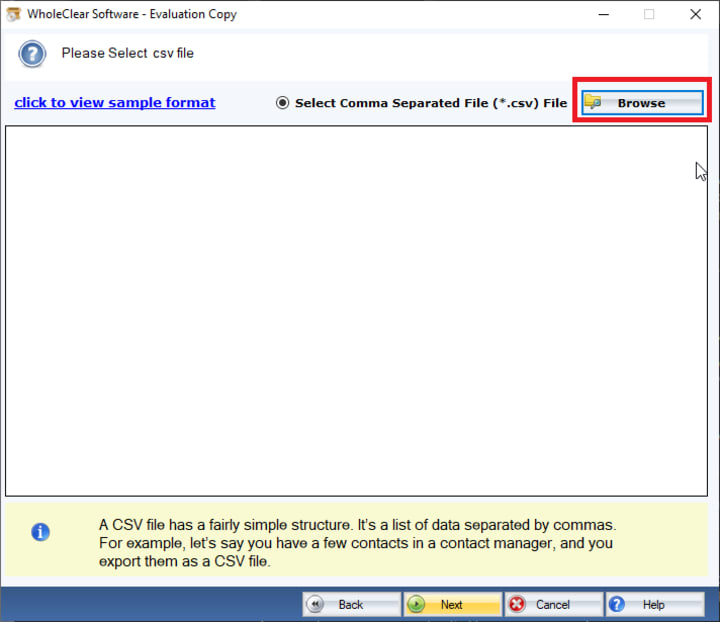
- It automatically reads every contact and shows all fields — including custom ones.
- Use the built-in interface to map each CSV column to its correct vCard field.
- Pick your destination folder and click Convert.
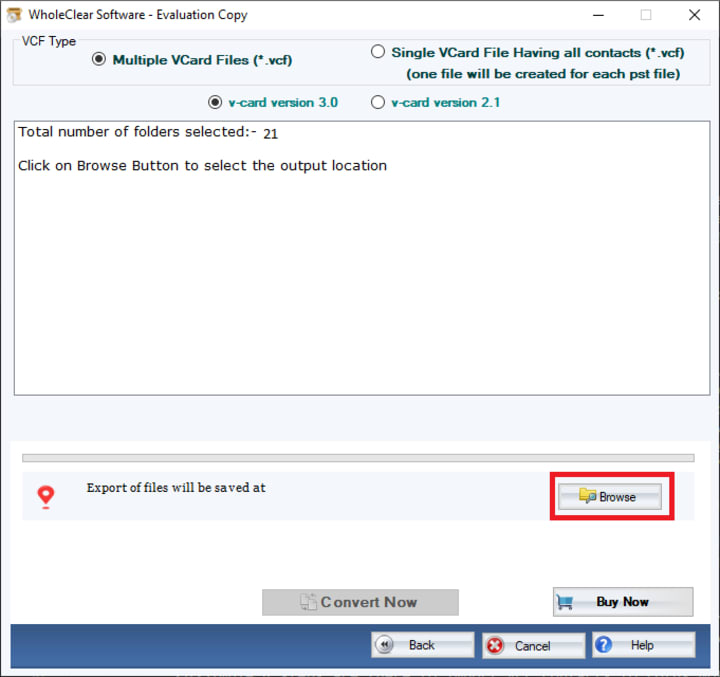
- Instantly get a clean VCF file — with all contacts neatly structured and no missing data.
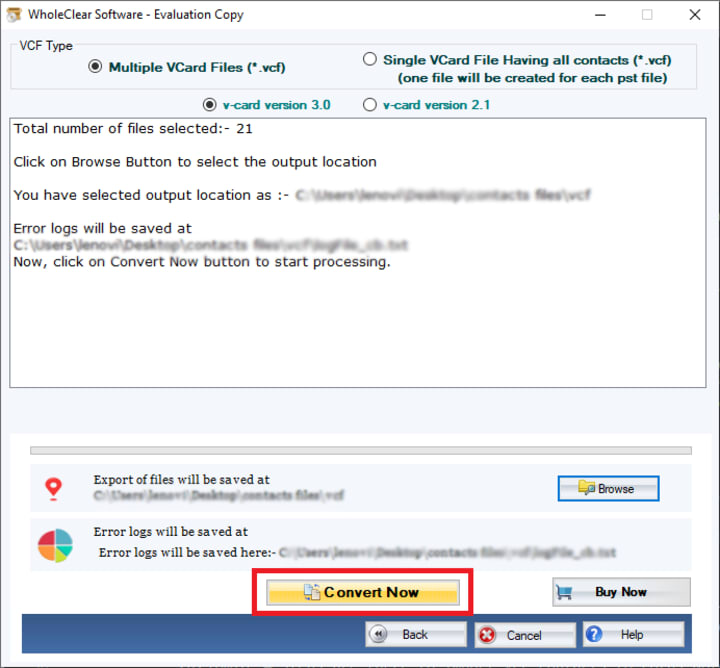
The tool supports batch conversion, and preserves all details like addresses, secondary numbers, and notes — making it ideal for users who can’t afford to lose data during the conversion.
Also Read- Migrate CSV to VCF
Final Thoughts
Transferring contact data from CRM to devices or cloud platforms doesn’t need to be a hassle. With the right preparation, and by using either trusted free tools or a professional-grade CSV to vCard converter, you can transform your contact list into a ready-to-import VCF file — without losing a single detail.
Start with the online tools shared here if your file is small and straightforward. But if you need something more reliable and scalable, the professional software offers the flexibility and precision you won’t get anywhere else.
About the Creator
Keep reading
More stories from Alla crook and writers in Journal and other communities.
How to Export Excel Contacts as VCF Online for Free in Under 5 Minutes
Managing and sharing contact information across platforms is essential in the digital environment of today. Whether you're importing contacts into an email service, backing up client details, or switching cellphones, Excel will often need to be converted to VCF format—also called vCard. Excel files (.xls or.xlsx) sadly aren't exactly compatible with most contact applications, thus knowing how to export Excel contacts as VCF online for free will save you time and effort.
By Alla crook10 months ago in Journal
Author’s Advice
If you would’ve asked me 20 years ago did I know I’d become a writer and an author, I would’ve said “nope, ain’t happening”. As fate would have it I did become an author and I can honestly say I’m loving it so far. It really does feel good to be a writer. I’ve learned a lot on this journey and I feel like with even me being as new to this world as I am, there’s some wisdom I need to share with every other aspiring author.
By Joe Patterson3 days ago in Journal
How to organise a multi destination journey on the rails across Central Vietnam
Cutting through urban settings and connecting travellers with rural countryside and great cities, train journeys offer an entirely new perspective on a destination. Expect plenty of magic when you engage in this venture. With an abundance of amenities at hand in the carriages and fellow travellers to interact with or the dazzling landscapes you pass by, a rail trip through central Vietnam promises adventure and insights into the heart of the nation.
By Jeewanthi Armstrong2 days ago in Journal




Comments
There are no comments for this story
Be the first to respond and start the conversation.