
How to Add Custom Theme in Blogger | Step by Step Guide
Looking for how to add a custom theme? Check out Here!!!


In the previous article, you've learned that how to create a free blog and if you have not created it yet. Then quickly go to this guide
👉 "How to create a free blog with no money " 👈 and create your blog.
After creating a blog, the next step is to choose the design and layout for a blog. Theme or template are used for this purpose. The design and layout are depending upon your niche. For the education blog, you have to choose a different theme and for the entertainment blog, the design and layout are different.
There are two ways to add a theme in a blogger blog.
- Built-in theme
- Custom theme
As blogger is a free blogging platform launched by Google, it also provides you with a free theme that you can use on your blog and these are themes are called built-in theme. But these templates are very simple and has limited features. To add a built theme in your blogger simply log into your blogger dashboard and then go to themes and choose the theme that you want to use and don't forget to click on save.
If you don't want to use built-in themes then a custom theme is a great option. Custom themes come with a variety of features. There are many online websites from where you can get a free theme. Simply search in google or you can directly go to this website. Here you will get lots of custom themes and choose the perfect theme for your blog and just download it.
How to add a Custom theme in Blogger
Follow the below steps to add a custom theme to your blogger blog.
✅ Visit the website to get a free custom theme.
✅ Simply click on the download button and the theme file will start downloading
✅ Then go to the download folder on your laptop or computer.
✅ To unzip the downloaded theme, right-click on the theme folder then click on extract all and it will unzip the folder.

✅ Then go into the sub-folders of unzip theme folder and look for an XML file.

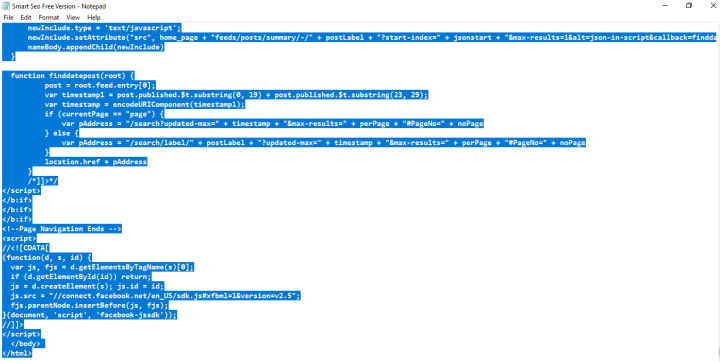
✅ Open the XML file in Notepad and press Ctrl + A to select the entire code and then press Ctrl + C to copy.
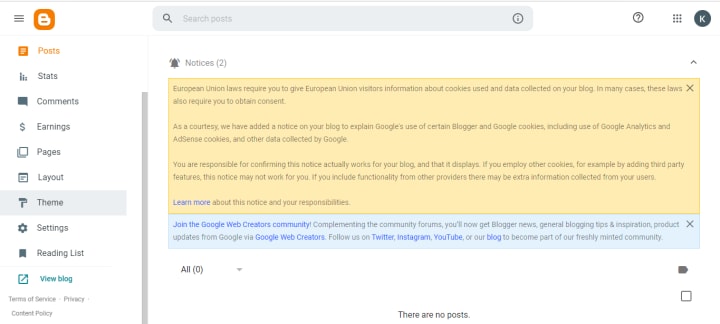
✅ Log into your blogger account.
✅ Select the theme option from the left bar of your blogger dashboard.
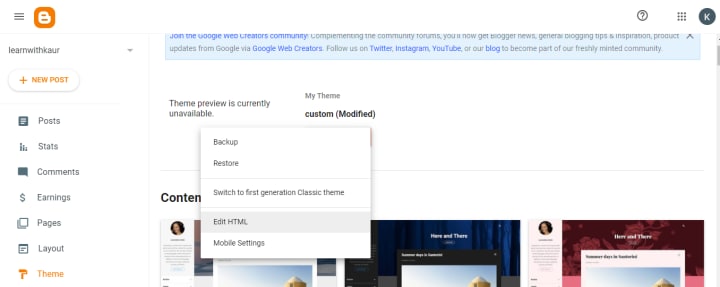
✅ Click on the drop-down menu that is just along with customize button.
✅ Click on the Edit HTML button.
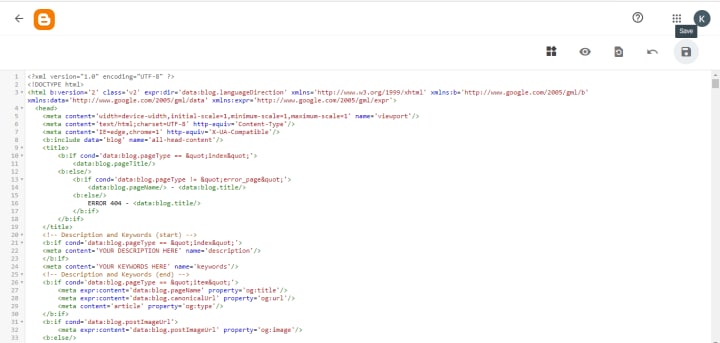
✅ Now remove all the HTML code and press Ctrl + V to paste the code that you have copied from an XML file.
✅ Now, click on the save to button to save changes.
✅ You have successfully added a custom theme into the blogger blog.
✅ To check the theme click on a preview button.
If the theme is not working fine on your blog either you can download another theme or if you know XML language then you can make changes accordingly.
Quick Tip ✏️
Whenever you download any custom theme from the internet. Then it is very necessary to check that them is virus-free or not. If the theme contains a virus it is called a naked or cracked theme. A naked theme can badly affect your website. So never use the cracked or naked theme on your blog. For this, you can go to this website and upload the theme to check for virus. The website will scan the entire theme, if it is free from virus then you can use it on your blog. Otherwise, look for another virus-free theme.
Final Thoughts
I hope now you are ready to add a custom theme to your blogger. After installing a theme, next thing is to customize the theme according to your requirements. In the next guide, you will learn that how to customize a blogger theme.
See you in the next article! ✌️
About the Creator
Kamaljeet Kaur
I am a digital marketer with robust designing and WordPress skills and proven experience in creating and designing fresh and unique content. Founder of digitalnoteshub.
Keep reading
More stories from Kamaljeet Kaur and writers in Journal and other communities.
How to Start a Free blog with No Money | Learn Here
Do you want to start a free blog with no investment? Then you're in right place. Yes! It is possible to create a blog without spending any money at all. In this article, you are going to learn that how to create a free blog with no money. Moreover, if you are a beginner no need to worry here you will learn step by step by procedure to create a free blog.
By Kamaljeet Kaur5 years ago in Journal
My New Book is Finally Here
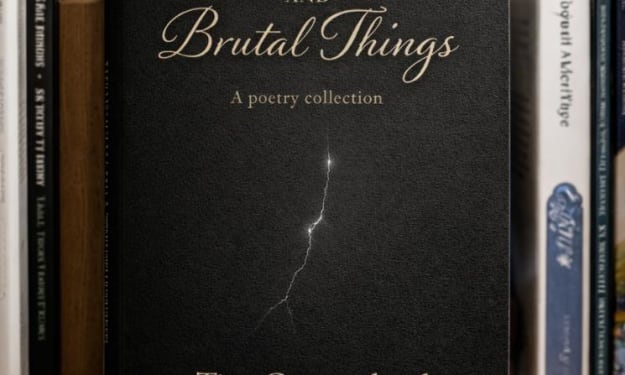
My poetry collection Beautiful and Brutal Things is done. It's actually done and finally published over 270 pages. Over a year of my life went into this book. More than a year, really. Long days at my computer, sometimes seven days a week because I couldn't stop even when I probably should have. Then two months of editing that felt harder than the writing itself. But it's finished, and I'm still standing, and the book is real.
By Tim Carmichael4 days ago in BookClub


Comments
There are no comments for this story
Be the first to respond and start the conversation.