
Best Methods to Convert Excel Spreadsheet to vCard in 2025
Best Methods to Convert Excel Spreadsheet to vCard in 2025
One of the most important responsibilities for professionals and businesses nowadays is contact management. Having contacts in a portable and widely recognized format is essential for marketing, communication and CRM integration. Applications like Outlook, iCloud, iPhones and Android smartphones require contacts in vCard format even though Excel spreadsheets are frequently used to store massive quantities of contact information. Because of this converting Excel to VCF is essential for seamless contact import and sharing.
In 2025 there are a number of improved techniques for swiftly and securely converting Excel data into vCard files. The best methods to accomplish this will be discussed in this blog along with a trustworthy expert solution that ensures precision and time savings.
Why Do You Need to Convert Excel to vCard?
Prior to talking about techniques it is essential to comprehend the significance of this transfer. Here are a few typical situations-
- Cross-platform compatibility- the majority of smartphones, Apple devices, Gmail, iCloud and Outlook can all open vCard files.
- Simple sharing- Multiple contacts can be stored in a single VCF file which can be shared across platforms with ease.
- Data management- Assists in keeping contacts arranged and prepared for importation into CRM software or other email clients.
- Migration and backup- vCard files ensure a seamless and error-free migration between platforms or devices.
Traditional Manual Method- Convert Excel to vCard
Although it involves multiple steps and technical focus the manual technique can be used. This is how it operates-
1. Get your Excel sheet ready. Ensure that it contains the appropriate columns such as Name, Email, Phone, Address, etc.
2. Since most computers allow CSV as an intermediate format open the Excel sheet and save it in this format.
3. Open the Contacts folder on Windows, select the CSV file and click Import.
4. Export the CSV data as a.vcf file when it has been successfully imported into Contacts.
Limitations of the manual method-
- Time-consuming particularly when dealing with big contact lists.
- The probability of field mismatches is high.
- Unsuitable for those who are not technical.
- If the Excel file is updated regularly the steps must be repeated.
Online Tools for Excel to VCF Conversion
Using free online converters is an additional method. The utility creates a VCF file after you upload an Excel or CSV file. Despite its apparent simplicity this presents important questions-
- Because files are uploaded to servers owned by third parties there are risks to data privacy.
- Many tools have file size constraints.
- Inaccurate field mapping such as multiple phone numbers or addresses.
Because of this online resources are only appropriate for extremely modest and non-sensitive data they are not appropriate for use in business or in the workplace.
Best Professional Way to Convert Excel to vCard
The best option for users seeking security, speed and accuracy is a professional solution. The WholeClear Excel to VCF Converter is a dependable tool made especially for contact migration and it can help with this. It ensures data loss-free conversion of Excel spreadsheets into vCard files that are widely supported. The tool is perfect for professionals and enterprises managing huge data sets because it allows bulk conversion from Excel to VCF.
Key features included-
- It only takes a few clicks to convert Excel files to vCard.
- By accurately mapping every field data integrity is maintained.
- No size restrictions apply when converting contacts in bulk.
- Provides vCard files that work with iOS, Android, Gmail, iCloud and Outlook.
- Easy-to-use interface suitable for novices and experts alike.
Step-by-Step Guide to Convert Excel to VCF Using Professional Software
This is how to use the expert approach-
- Install the tool on your system and launch it.
- Select Browse and upload the Excel file containing your contacts.

- Before converting you can check the data by using the software preview of all the contact details.
- To ensure a correct conversion match the standard vCard fields with the spreadsheet columns.
- Depending on the platform where you want to import contacts choose from vCard versions 2.1, 3.0 or 4.0.
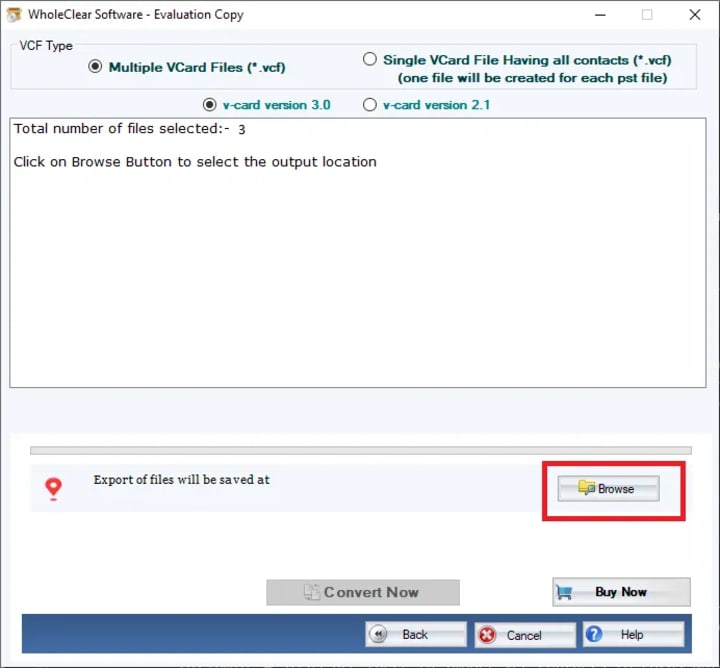
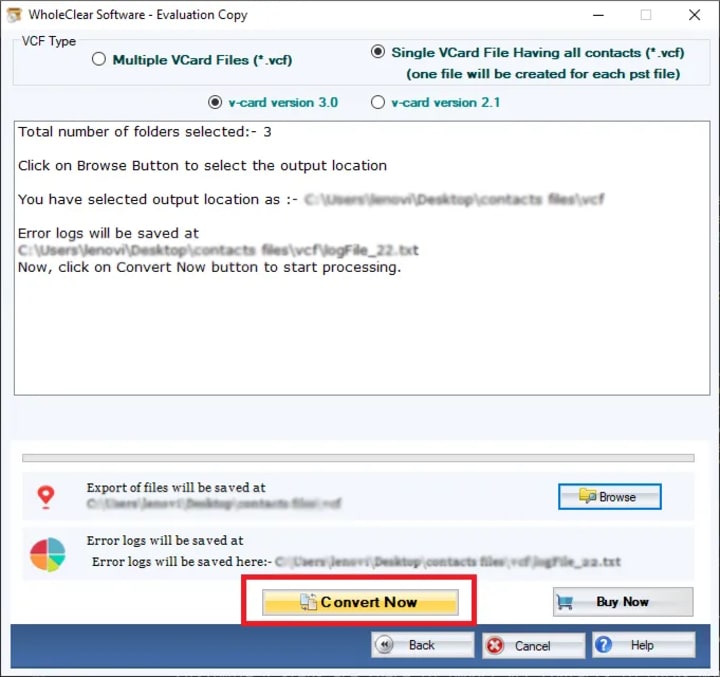
- Click Convert after selecting the output folder. You will have a usable VCF file in a matter of seconds.
Why the Professional Method Stands Out in 2025
- Time Efficiency- It takes only a few minutes to convert thousands of contacts.
- No technical hassle- an easy-to-use UI devoid of intricate procedures.
- Accuracy- Verifies that all information such as numerous phone numbers, email addresses and addresses is mapped accurately.
- Data Security- No data is uploaded to the internet because it operates locally on your computer.
- Scalability- Suitable for small enterprises, large organizations and individual use.
Final Thoughts
Since businesses and professionals depend on vCard files for universal contact exchange and migration the need for Excel to VCF conversion is only expected to increase in 2025. Although online tools and manual procedures are available they have drawbacks in terms of security, accuracy and time.
Using an advanced tool is the best option for anyone searching for a dependable and expert method to convert Excel spreadsheets to vCard without any issues. You can speed up and ease the process by utilizing sophisticated features like multi-version support, bulk conversion and field mapping.
Having the appropriate approach ensures seamless transfer and accessibility across all main platforms regardless of whether you are managing a large corporate database or a personal contact list.
About the Creator
Keep reading
More stories from Alla crook and writers in Journal and other communities.
Advanced CSV Contact Export: Generate vCard (VCF) Files with Field Mapping
Contact information is very important for communication and working together in today's digital age. Having your contacts in a format that everyone can use, like vCard (VCF), might make things easier when you are maintaining client information, synchronizing contacts between devices, or getting ready to move data. One of the most typical problems customers have is converting CSV files to VCF files, especially when it comes to making sure that the fields are mapped correctly so that no data is lost or missing.
By Alla crook8 months ago in Journal
Author’s Advice
If you would’ve asked me 20 years ago did I know I’d become a writer and an author, I would’ve said “nope, ain’t happening”. As fate would have it I did become an author and I can honestly say I’m loving it so far. It really does feel good to be a writer. I’ve learned a lot on this journey and I feel like with even me being as new to this world as I am, there’s some wisdom I need to share with every other aspiring author.
By Joe Patterson3 days ago in Journal




Comments
There are no comments for this story
Be the first to respond and start the conversation.