
A Quick Troubleshooting Guide on Hikvision IP Cameras Not Working Echo Show!
Echo Show Camera Not Working

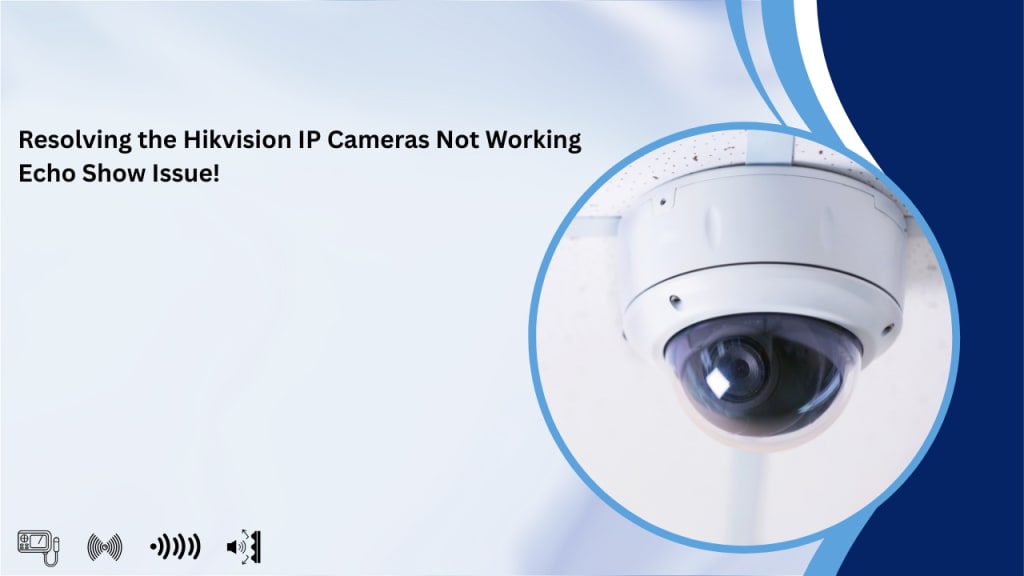
Hikvision cameras are globally recognized for their high-quality surveillance features, advanced AI integration, and reliable outdoor and indoor security solutions. Among their most popular models is the Hikvision AcuSense DS-2CD2683G2-IZS 8MP Outdoor Camera, which offers impressive image quality and motion detection capabilities. Despite their excellence in security and surveillance, many users experience difficulties when attempting to integrate Hikvision IP cameras with smart home devices—specifically, the Amazon Alexa Echo Show.
A recurring issue reported by many users is the Hikvision IP cameras not working on Echo Show, leaving them unable to stream live footage or monitor their premises remotely via voice command. If you're facing this issue, you’re not alone. This guide explains why this might be happening and provides step-by-step troubleshooting methods to help you restore the connection and functionality.
Why Aren’t My Hikvision Cameras Working with Echo Show?
If your Hikvision camera fails to connect or display video on your Echo Show, there could be multiple contributing factors. Here are some of the most common reasons:
- Device Compatibility Issues
Not all Hikvision camera models are compatible with Alexa devices. Some models lack the necessary firmware or streaming protocols needed to connect with Echo Show.
- Connectivity or Network Problems
Poor internet connection, incorrect network settings, or different networks for the Echo Show and Hikvision camera can block successful pairing.
- Incorrect RTSP or IP Configuration
Real-Time Streaming Protocol (RTSP) must be enabled and correctly configured for your Hikvision camera to communicate with Alexa.
- Authentication and Encryption Settings
Alexa requires encrypted communication. If your camera isn’t configured to use encryption or lacks proper authentication settings, the connection might fail.
- Monocle Gateway Issues
Monocle Gateway is a key component for bridging RTSP streams from your IP camera to Alexa. If it’s misconfigured or offline, your Echo Show won't be able to connect to the camera.
- Firmware Incompatibility
Outdated or incompatible firmware can also hinder integration with smart devices.
How to Fix Hikvision IP Camera Not Working with Echo Show
Here are effective troubleshooting steps you can take to resolve the issue and get your Echo Show streaming from your Hikvision camera:
- Verify Compatibility
First, check whether your Hikvision camera model supports Alexa integration. Also, make sure it supports the RTSP protocol, as this is necessary for Echo Show streaming.
- Use Monocle Gateway
If you're not already using the Monocle Gateway service, install and configure it. This service acts as a middleman to securely stream RTSP video feeds to Alexa devices.
- Enable RTSP, Authentication, and Encryption
Log in to your Hikvision camera settings and ensure that RTSP is enabled. Enable both authentication and encryption to comply with Alexa’s security requirements.
- Enter Correct IP and Port Settings
Ensure the IP address and RTSP port number you’ve entered in the Monocle or Alexa setup is accurate. The default RTSP port for most Hikvision cameras is 554.
- Connect to the Same Network
Your Echo Show and the Hikvision camera should be connected to the same local network to ensure smooth integration.
- Update Firmware
Check for the latest firmware updates on the Hikvision website or via the camera interface. Updating to the latest version may resolve compatibility and performance issues.
- Remove Unsupported Firmware Files
Some firmware versions might not support smart home integrations. If applicable, remove or rollback to a supported version.
- Power Cycle Your Devices
Turn off your camera and Echo Show, wait for a few seconds, and power them back on. This can help reset minor bugs and refresh the network connection.
- Set Up a Separate Account for Alexa
Create a dedicated user account on your Hikvision camera with viewing permissions and use that account for Alexa integration to avoid permission conflicts.
- Disable VPNs or Firewalls Temporarily
Security tools such as VPNs, firewalls, or browser extensions can block the necessary ports and services. Temporarily disable these during setup and see if that resolves the issue.
- Delete and Re-add Devices
If the problem persists, try removing the camera from both the Monocle dashboard and the Alexa app, then restart the setup process from scratch.
Final Thoughts
Integrating Hikvision IP cameras with Alexa Echo Show offers the convenience of hands-free monitoring and smart home synergy. However, due to protocol, firmware, and network configurations, it's not always plug-and-play. Hopefully, this detailed guide has helped you identify and fix the issue of Hikvision cameras not working with Echo Show.
If you’ve followed all the troubleshooting tips and the problem still exists, consider reaching out to Hikvision support or consulting a smart home specialist. Your home security deserves seamless functionality—and with the right setup, that’s definitely possible.
About the Creator
Josephine Macleod
For the last 10 years I have been a content writer. My specialty niches are technology, education, games, home services, and recipes.
Keep reading
More stories from Josephine Macleod and writers in Journal and other communities.
Enhancing Sales: Leveraging Forecast Data In Manufacturing Industry
The key to success in the complex world of manufacturing is the ability to estimate future sales with accuracy. Manufacturers always have to figure out how to make just enough products to meet demand without manufacturing excessive quantities, which would tie up resources. In this scenario, forecast data enters the arena to help manufacturing industries.
By Josephine Macleod2 years ago in Journal



Comments
There are no comments for this story
Be the first to respond and start the conversation.