
Best Vertical Monitor
Tested Picks for Coders, Writers, and Multitaskers Who Want Less Scrolling and More Productivity


A few weeks ago, I was buried under a mess of code, long documents, and endless Slack threads. My desk looked fine, but my screen setup? Not so much. I had this one widescreen monitor that made me constantly tilt my head and scroll like a maniac just to read a full page of text. Honestly, it wasn’t just inconvenient it gave me literal neck pain by the end of the day.
That’s when a thought hit me: what if I flipped the way I worked—literally? Enter vertical monitors.
Vertical monitors aren’t just a quirky niche for developers. They’re game-changers for coders, writers, financial analysts, students, and anyone tired of scrolling endlessly. Doctors sometimes even recommend reducing repetitive neck movements to avoid strain. That’s why this isn’t just about productivity it’s about ergonomics and well-being too.
So, I went down the rabbit hole. After testing multiple models (and yes, even getting one as a surprise birthday gift from my sister more on that later), I realized the “best vertical monitor” isn’t one-size-fits-all. Some shine for budget buyers, others for design enthusiasts, and a few for hardcore multitaskers.
This guide isn’t a boring spec dump. I’ll share what worked for me, what didn’t, and which monitors are worth your money.
Quick Tips for Shopping
Before diving into product reviews, here are a few quick tips I wish I knew before buying:
Check rotation flexibility Not every monitor supports true portrait mode.
Panel type matters IPS panels generally give better color and viewing angles.
Think about size 24-inch to 27-inch is the sweet spot for vertical setups.
Connectivity HDMI and DisplayPort are must-haves, USB-C is a nice bonus.
Budget vs. premium Don’t overspend if you’re just experimenting.
Product Reviews
1. Dell UltraSharp U2723QE
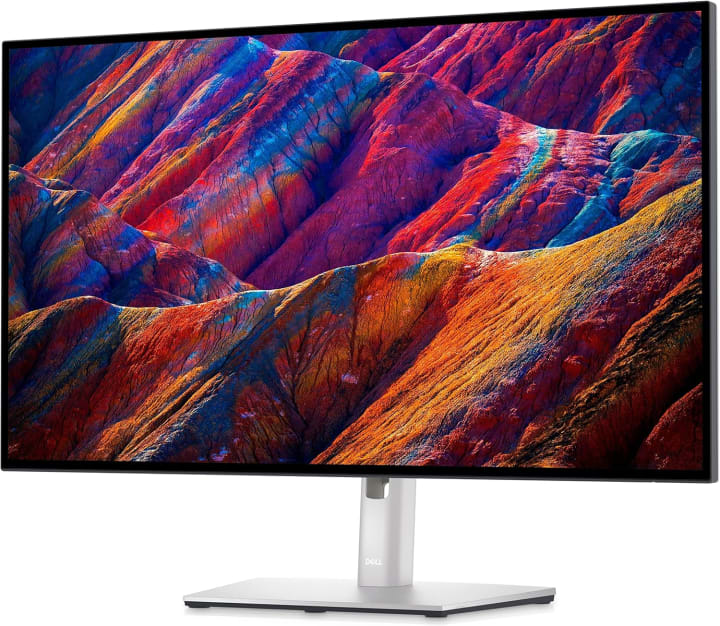
A few months ago, I finally splurged on the Dell UltraSharp U2723QE after hearing nonstop buzz in developer forums. Dell markets this as a premium productivity display, and honestly, it lives up to the hype.
It’s a 27-inch 4K IPS panel with excellent color accuracy. In vertical orientation, you can literally see entire web pages, spreadsheets, or code without needing to scroll every few seconds. The build feels sturdy, with a stand that smoothly rotates 90 degrees. Plus, it has a USB-C hub, so I don’t have to mess with extra dongles for my laptop.
For me, the biggest win is the eye-comfort tech a low blue light mode that didn’t make the screen look washed out (a problem I’ve had with cheaper monitors).
Summary:
If you’re serious about work and want longevity plus pro-level quality, this is the go-to.
Strengths:
Crisp 4K resolution, USB-C hub, excellent ergonomics, great color accuracy.
Weaknesses:
Pricey, maybe overkill if you just browse Reddit.
2. ASUS ProArt Display PA248QV
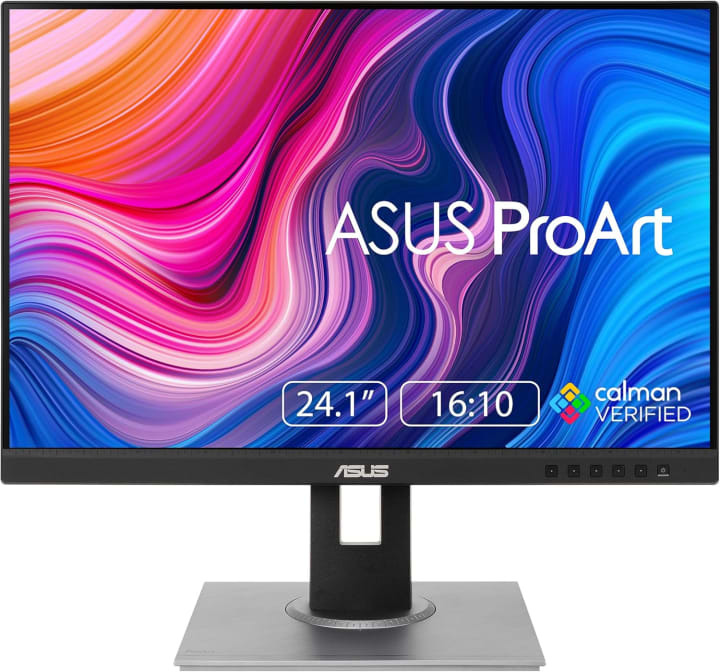
This one actually came to me as a gift from my sister on my birthday, and it’s probably one of the best gifts she’s ever given me. The ASUS ProArt PA248QV is a 24.1-inch monitor designed with creatives in mind. It’s color-calibrated from the factory (∆E < 2), which means designers, editors, and artists can trust what they’re seeing.
When rotated vertically, it feels like a massive reading panel. I used it for reviewing design mockups and even reading research papers, and the detail is just spot-on. It’s also surprisingly affordable for something in the “ProArt” lineup.
The OSD (on-screen display) controls are intuitive, and the stand is among the easiest to rotate that I’ve tested. The only catch? The resolution is 1920x1200, so not quite 4K sharpness but for most people, that’s plenty.
Summary:
A reliable, affordable option that balances creativity and productivity.
Strengths:
Factory-calibrated, ergonomic stand, great for designers, good price point.
Weaknesses:
Not 4K, bezels are a bit chunky compared to sleeker models.
3. LG DualUp 28MQ780-B
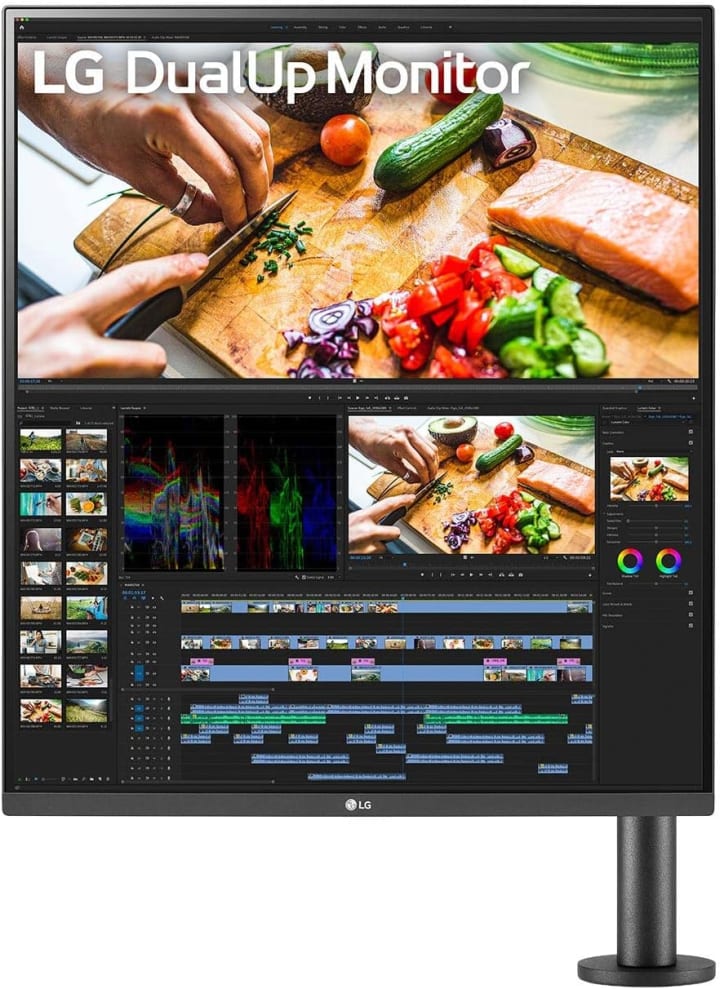
The LG DualUp 28MQ780-B is… different. Honestly, when I first saw it, I thought it was a gimmick. But after testing it, I can confidently say it’s one of the most unique vertical-friendly monitors out there.
Instead of being “wider,” it’s literally taller. The resolution is 2560x2880, giving you a near-square aspect ratio. In practice, this means you can stack multiple documents or code editors on top of each other without feeling cramped. For vertical use, it’s almost like having two monitors in one.
The included ergonomic arm lets you adjust it any way you like—height, swivel, tilt it’s all there. I used it for video calls while keeping notes and browser tabs open below, and it genuinely felt like a productivity boost.
Summary:
Innovative, quirky, and perfect for multitaskers who want something beyond “normal.”
Strengths:
Tall resolution, flexible stand/arm, excellent for multitasking.
Weaknesses: Pricey, not ideal for gaming, takes time to get used to.
Quick Picks
Best Overall: Dell UltraSharp U2723QE unmatched quality and flexibility.
Best Budget-Friendly: ASUS ProArt PA248QV affordable, color-accurate, and ergonomic.
Best Unique Pick: LG DualUp 28MQ780-B creative design for multitasking power users.
FAQs
Q1: Are vertical monitors good for coding?
Yes developers often swear by them because they show more lines of code at once, reducing scrolling fatigue.
Q2: Can I use any monitor vertically?
Not all. The stand must support rotation, or you’ll need a VESA mount. Also, some resolutions look awkward in portrait.
Q3: Are vertical monitors good for gaming?
Depends. They’re not ideal for most games, but some streamers use them as secondary monitors for chat and tools.
Q4: Do vertical monitors help with eye strain?
Indirectly, yes. By reducing constant scrolling and head-turning, you minimize repetitive strain. Look for low-blue-light features, too.
Final Summary
If you’re tired of neck pain, endless scrolling, or feeling cramped on your screen, a vertical monitor setup could change your workflow. After testing multiple options, I’d recommend:
Dell UltraSharp for professionals who want future-proof quality.
ASUS ProArt for budget-conscious creatives.
LG DualUp for multitaskers who want something completely different.
At the end of the day, it’s about matching the monitor to your needs. Don’t overspend if you’re just experimenting, but don’t go too cheap if your career depends on visual clarity and comfort.
Oh, and one more thing if you’re planning to buy, Amazon often has sales, bundle discounts, and pretty quick shipping. Just keep an eye out for seasonal deals.
Disclaimer: This post contains affiliate links. If you buy through my links, I may earn a small commission at no extra cost to you. It helps keep this blog running and supports more in-depth testing like this.

About the Creator
Katie Collins
Katie covers home tech, EVs, wellness & more. She aims to help people make smart buying choices & reach life goals.
Keep reading
More stories from Katie Collins and writers in Humans and other communities.
The 3 Best Work Monitors of 2025
A few weeks ago, I was sitting at my desk, struggling to finish a report that should’ve taken me an hour but it dragged on for almost three. Why? My monitor. It wasn’t that the screen was broken, but the colors looked off, the resolution felt muddy, and the text wasn’t sharp enough. Every 20 minutes I’d find myself leaning in closer, adjusting my posture, and honestly feeling like my eyes were working harder than my brain.
By Katie Collins5 months ago in Humans
Thief In The Night
To the thief in the night that took and replicated what once was mine: Honestly, I feel kind of bad for you. It’s funny, because we hardly know each other. I only know of you through the magazines you’ve written and the broadcasts you have televised in the past — as well as through the public mentions of you from your show business connections there.
By Snarky Lisa6 days ago in Humans
Understanding Soul Contracts and the Difference Between Twin Flames and Karmic Soulmates
Understanding Soul Contracts and the Difference Between Twin Flames and Karmic Soulmates When people first learn about soul contracts or the idea of a soul curriculum, they often make the same mistake: they start interpreting every relationship through the lens of their own personality and their own ego. They assume every person was “brought into their life” to teach them something, as if the contract is one‑sided. But a soul contract is never one‑directional. If someone is part of your curriculum, you are part of theirs. You are learning from them just as much as they are learning from you. This mutuality is the foundation of the curriculum I describe in The Soul’s Curriculum — every soul is both student and teacher, and every interaction is an exchange.
By Julie O'Hara - Author, Poet and Spiritual Warrior7 days ago in Humans




Comments
There are no comments for this story
Be the first to respond and start the conversation.