
How to Cast Tidal to Chromecast
get Tidal on Chromecast
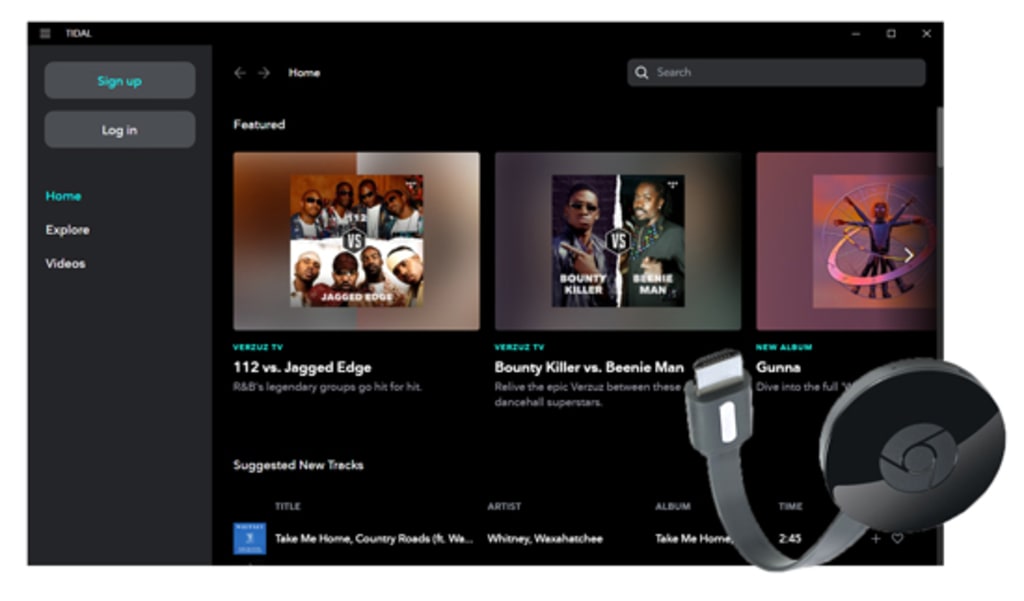
Tidal is a music streaming platform that offers users access to an extensive collection of songs, albums, and playlists. Renowned for its emphasis on high-quality sound, it is particularly favored by audiophiles and music enthusiasts. On the other hand, Chromecast is a device created by Google that enables you to stream content from your smartphone, tablet, or computer to your TV or speakers. It provides a convenient method for casting music, videos, and other media from various apps directly to your TV or speaker system. In this guide, we will demonstrate how to cast Tidal to Chromecast.
When utilizing Tidal with Chromecast, you can effortlessly stream Tidal's high-quality audio from your mobile device or computer to your TV or speakers. This enables you to enjoy Tidal's music library on a larger screen or with an enhanced sound system using a Chromecast-enabled device. Now, let's explore how to stream Tidal to Chromecast.
Step 1: Ensure that your Chromecast and the device with the Tidal app installed are connected to the same WiFi network.
Step 2: Open the Tidal app and begin playing the music you wish to listen to.
Step 3: Navigate to the Now Playing screen and tap on the 'Sound Output' icon. On mobile, it is located at the bottom left corner.
On desktop, it is situated at the bottom right corner.
Step 4: Select the Chromecast device from the available list.
If you wish to cast Tidal to Chromecast without an internet connection, there's a solution. You can utilize DRmare Tidal Music Converter to download Tidal music to formats like MP3, AAC, FLAC, and others supported by Chromecast. Once converted, your Tidal music will be saved as local files on your computer, making it easy to cast them to devices such as Google Play Music and Plex.
Moreover, the tool maintains lossless audio quality and preserves ID3 tags, ensuring high-quality output. What's more, it allows you to download Tidal music without a subscription, enabling you to listen to Tidal music on any device without needing a subscription.
Step 1. After installing DRmare Tidal Music Converter on your computer, open the program. This will automatically launch the Tidal app. From there, you can select the songs you want to stream to Chromecast for playback. Once you've found the songs, click on the "three-dot" icon, choose "Share" > "Copy Playlist Link" to copy the Tidal tracks link. Then, paste the copied link into the search box of the DRmare program and click the "+" button. The DRmare program will then load the Tidal audio files for you.
Step 2. To set the output audio format and other parameters for Tidal music, simply click on the top-right "Menu" icon and then select "Preference" > "Convert" to define the output parameters. You can choose from formats such as MP3, M4A, M4B, WAV, AAC, or FLAC based on your requirements. For high-quality local Tidal audio, it's recommended to set the format as FLAC or WAV.
Additionally, you have the option to customize parameters such as Bit Rate, Sample Rate, and Channel for the desired quality. For FLAC and WAV output formats, you can adjust the "Bit Depth" to 16 bit or 24 bit as per your preference. Once you've made your selections, click "OK" to apply the settings.
Step 3. Once you have finished configuring all the settings, you can click the "Convert" button on the main interface to initiate the conversion process. This will result in the immediate download and conversion of the Tidal audio files. After the conversion is complete, you can click on "History" > "Search" icon to locate and review all the local Tidal files
About the Creator
Keep reading
More stories from writers in Geeks and other communities.
No Other Choice (2025)
It is only February, so other films may well surpass “No Other Choice”, but I think this is the best film I’ve seen so far this year. And that surprises me, because, it is a subtitled film and while I am pretentious enough to choose to watch foreign-language films, I was also very tired and that was an extra commitment from me. But more importantly, let me warn you, this film is gruesome and violent. There were times I had to turn away from the screen to avoid the worst of it (including some self-inflicted dentistry).
By Rachel Robbins3 days ago in Geeks
6 Best Unlikely Duos In The MCU
Despite many fans admitting to low expectations due to limited marketing and the full series dropping at once, Marvel's Wonder Man has proven a surprise hit. Wonder Man's success has largely been credited to the chemistry between the leads, Yahya Abdul-Mateen as Simon Williams and Ben Kingsley as Trevor Slattery. Much of the series chronicles the unlikely friendship that builds between the two as they seek roles in the next big Hollywood film.
By Kristy Anderson3 days ago in Geeks
When True Love Never Questions Your Soul
“And she’s going to learn that this life will hit you, hard, in the face, wait for you to get back up, just so it can kick you in the stomach but getting the wind knocked out of you is the only way to remind your lungs how much they like the taste of air.” — Sarah Kay’s Poem — If I Should Have a Daughter
By Chantal Christie Weiss8 days ago in Humans
The Pride Flag and the Diversion
For nearly a decade, the LGBTQIA Pride Flag rippled in the wind at Christopher Park, a kaleidoscope of color staked into the soil of America’s first national monument to LGBTQIA+ liberation. That flag came down this week. Federal officials, citing new guidance from the Trump Administration, silently lowered the rainbow flag from its pole across the street from the Stonewall Inn. The birthplace of the modern gay rights movement now flies only the United States flag.
By Tim Carmichael4 days ago in Pride



Comments
There are no comments for this story
Be the first to respond and start the conversation.