
How Do Manually Convert OLM to PST?
Manually Convert OLM to PST
Summary: This guide will walk you through a few methods for manually converting OLM to PST. These methods will assist you in converting Mac Outlook emails stored in an OLM file to Outlook importable PST format.
Outlook for Mac exports mailbox items to an OLM file, which Outlook for Windows does not support. As a result, an Outlook for Mac (OLM) file cannot be imported into Windows Outlook. You must convert the Outlook for Mac file or OLM to the Windows Outlook-supported PST (Personal Storage Table) file format if you want to transfer your mailbox from Outlook for Mac to Outlook for Windows.
However, manually converting OLM to PST is a difficult task that requires more time and resources. You may also encounter data inconsistency, sign-in errors, and missing attachments. Furthermore, data corruption and loss are possible.
If you want to avoid these issues when manually converting OLM to PST, you should use an OLM to PST converter tool like Trustvare Converter for OLM. It quickly converts OLM to PST while preserving the original tree structure, attachments, and other mail items.
Methods for Manually Converting OLM to PST
The methods listed below can be used to manually convert OLM to PST. Once converted, you can use the Import/Export Wizard to move your Mac Outlook mailbox to Windows Outlook. The steps are listed at the bottom of the post.
Method 1: Transfer Messages from Outlook for Mac to Windows
Emails can be exported from Outlook for Mac to EML format and then imported into Outlook for Windows. Drag and drop emails from the mailbox folders in Mac Outlook to a local folder on the system storage media to accomplish this. The procedures are as follows:
- Open Outlook on your Mac and select the messages to be converted to PST format.
- Make a new folder on the Desktop and drag and drop selected messages from Mac Outlook to it.
- EML format is used to save the messages. Connect an external drive to your Windows PC and copy these emails to it.
- Launch Outlook on Windows and add a new folder to your Outlook mailbox.
- Drag and drop the EML messages from the external drive into the new folder you created in Outlook for Windows.
After that, launch Outlook for Windows' Import/Export Wizard and export all folders containing copied EML emails to PST format.
Method 2: Transfer Mails from Mac Outlook to Windows Outlook
You sign in to Windows Outlook with the same account that you use for Outlook for Mac in this method. Once signed in, all emails are synchronized from the mailbox server to Outlook on Windows.
After the sync is complete, launch Outlook for Windows and use the Outlook Import/Export Wizard to export the emails to PST format. The PST file should then be imported into your Outlook account.
Method 3: Make use of a Gmail IMAP account.
This is a workaround for manually converting OLM to PST. Using this method, you transfer messages from Outlook for Mac to Outlook for Windows and then export the messages to a PST file using the Outlook Import/Export wizard.
NOTE: Mails larger than 15GB cannot be copied (free Gmail storage). Furthermore, Gmail limits attachments, so emails with missing attachments will be inconsistent.
The following are the steps for using a Gmail IMAP account to convert OLM to PST:
- In your Gmail account, enable IMAP settings.
- Integrate your Gmail account with Outlook for Mac.
- Outlook will sync the Gmail server's messages and folders. Create a new folder in Outlook for your Gmail account.
- Now, right-click and select 'Copy folder...'
- Look for the folder you created in Gmail and select 'Copy.'
- Sign in now and add this Gmail account to Outlook for Windows.
- Wait for all of your Gmail folders to sync.
- Then, using the Outlook Import/Export wizard, export the mail items from the Gmail folder to a PST file.
How to Export a PST File from Outlook for Windows
- Select Export to a file from the File> Open & Export> Import/Export menu.
- Click the 'Next' button.
- Then, from the options, select Outlook data file (.pst) and click 'Next'.
- Select the mail folder containing messages copied or synced from Outlook for Mac and then click 'Include Subfolders'.
- Click the 'Next' button.
- Select a location to save the new PST file and press the 'Finish' button.
- If a password prompt appears, click 'OK' to continue exporting OLM data to the PST file.
Conclusion
All of the methods mentioned in this post can assist you in manually converting Outlook for Mac or OLM to PST. They do, however, require an active Exchange or IMAP email account as well as access to Outlook on both Mac and Windows. Furthermore, depending on the size and number of emails, as well as your internet speed, these methods may take several hours or even days to complete. Data inconsistency and the risk of data corruption and loss are also significant drawbacks of using these manual methods.
If you want to avoid these hassles, or if you don't have access to Outlook on Mac or Windows but have an OLM file, you can use an OLM Converter software like Trustvare Converter for OLM. You can convert multiple OLM files to PST and save them in the location of your choice.
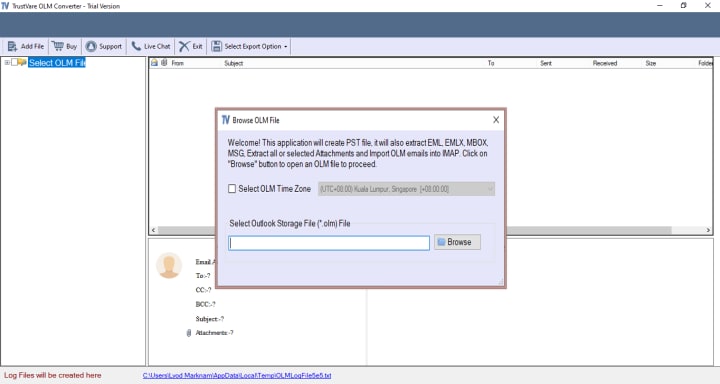
Additionally, you can convert and save the OLM file to other formats, as well as export the OLM mailbox data directly to Office 365.
About the Creator
Keep reading
More stories from James Davis and writers in Geeks and other communities.
Remove Duplicate Emails in Outlook 2013 and 2016
Microsoft Outlook's performance suffers for a variety of reasons. The primary cause is the duplication of emails and other Outlook data items. Users only need to understand how to erase duplicate emails in Outlook for free and safely. Duplicate emails and other data elements are widespread in Outlook.
By James Davis3 years ago in Geeks
Book Review: "Human Monsters: A Horror Anthology" by Various Authors
Yes, it's horror again. I'm feeling kind of down and whenever I'm down I read horror because it makes me feel better. Have you heard about that study that states people who are in depression should watch and read horror in order to make themselves feel better? Yeah, I checked it out some time ago - you should too. Human Monsters is exactly what you think it is, it is about monsters who are human - those who lurk in the normal world, not in the shadows, not in the darkness - they stand right in front of us. They are us. Let's go through my favourite stories in the anthology...
By Annie Kapur23 days ago in Geeks



Comments
There are no comments for this story
Be the first to respond and start the conversation.