

Introduction
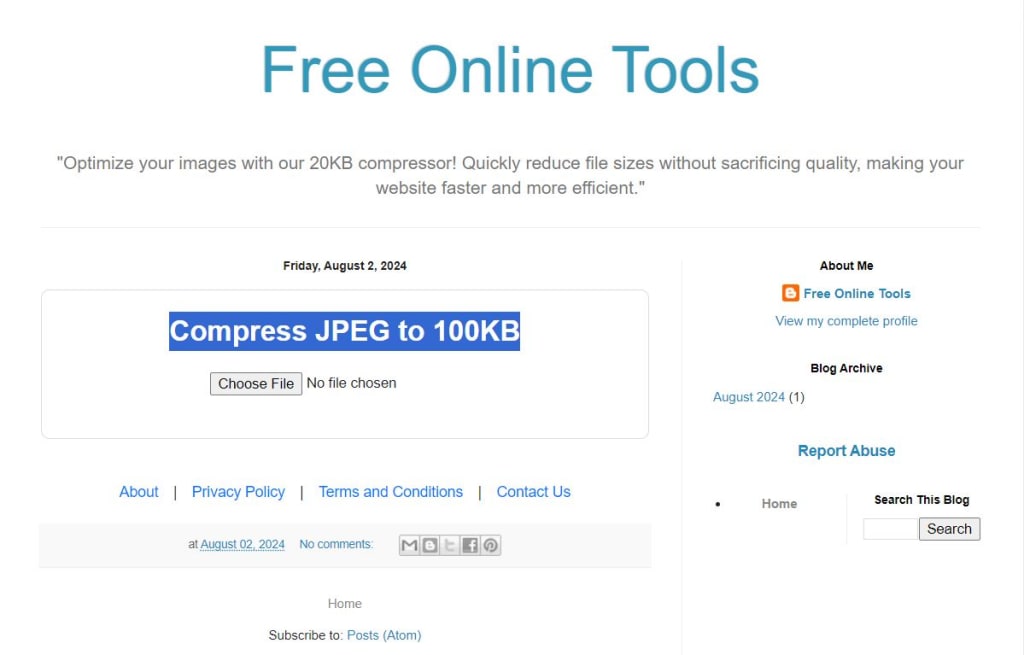
In today's digital world, managing file sizes is crucial, especially when dealing with images. JPEG (Joint Photographic Experts Group) is a popular image format known for its balance between image quality and file size. However, sometimes you may need to compress JPEG images to meet specific file size requirements, such as 100KB. This guide will walk beginners through the process of compressing JPEG files to 100KB, explaining the tools, techniques, and best practices for achieving optimal results without compromising too much on quality.
Understanding JPEG Compression
What is JPEG Compression?
JPEG compression is a method of reducing the file size of an image while retaining as much of its quality as possible. The JPEG format uses lossy compression, which means some of the image data is discarded to reduce the file size. The degree of compression can be adjusted to balance between image quality and file size.
How JPEG Compression Works
JPEG compression works by analyzing the image and reducing the amount of data needed to represent it. The process involves:
Color Space Conversion: Converting the image from RGB to YCbCr color space to separate color information from brightness.
Downsampling: Reducing the resolution of the color components, which is less noticeable to the human eye.
Discrete Cosine Transform (DCT): Transforming blocks of the image into frequency components.
Quantization: Reducing the precision of the frequency components to further compress the data.
Entropy Coding: Encoding the quantized data to produce the final compressed image.
Factors Affecting JPEG Compression
Compression Ratio: The ratio between the original image size and the compressed size. Higher compression ratios result in smaller files but lower quality.
Image Content: Images with lots of details or textures may suffer more from compression artifacts.
Quality Settings: The quality setting chosen during compression affects the balance between file size and image quality.
Tools for Compressing JPEG to 100KB
1. Online Compression Tools
Overview
Online JPEG compression tools are convenient and easy to use for quickly reducing file sizes. These tools often require no installation and can be accessed directly from a web browser.
Recommended Tools
TinyPNG: A popular online tool that compresses JPEG and PNG images efficiently. It uses smart lossy compression techniques to reduce file sizes while maintaining quality.
JPEG-Optimizer: This tool allows users to upload JPEG images and adjust the compression level to achieve the desired file size.
CompressJPEG: A straightforward online tool that lets users compress multiple JPEG images at once with adjustable quality settings.
Best Practices
Upload and Compress: Simply upload your JPEG image to the tool and select the compression level or target file size.
Download and Review: Download the compressed image and review it to ensure the quality meets your expectations.
Adjust Compression Settings: If the file size is not yet 100KB, adjust the compression settings and repeat the process.
2. Desktop Applications
Overview
Desktop applications offer more control and customization for JPEG compression. These tools are often more powerful and can handle batch processing of multiple images.
Recommended Applications
Adobe Photoshop: A professional image editing software with advanced compression settings. Use the "Save for Web" feature to control file size and quality.
GIMP: A free and open-source image editor that provides options for JPEG compression during export.
IrfanView: A lightweight image viewer and editor with basic compression features for JPEG files.
Best Practices
Open and Adjust: Open your JPEG image in the application and access the export or save options.
Select Compression Settings: Adjust the quality slider or enter a target file size to achieve 100KB.
Preview and Save: Use the preview feature to see how compression affects quality before saving the image.
3. Mobile Apps
Overview
Mobile apps are useful for compressing JPEG images on the go. They are ideal for quick adjustments when using smartphones or tablets.
Recommended Apps
Photo Compress & Resize: An app available on Android that offers easy-to-use compression options for JPEG images.
Compress Photos: An iOS app that allows users to compress and resize JPEG images with adjustable settings.
JPEG / PNG Image File Size Reducer: A cross-platform app that supports various image formats and offers batch processing.
Best Practices
Select Image: Choose the JPEG image you want to compress from your mobile device.
Adjust Compression Settings: Set the desired file size or quality level to achieve 100KB.
Review and Save: Check the compressed image to ensure it meets your requirements and save it to your device.
Step-by-Step Guide to Compress JPEG to 100KB
Using Online Tools
Step 1: Choose an Online Tool
Select an online JPEG compression tool such as TinyPNG or CompressJPEG. Open the tool in your web browser.
Step 2: Upload the Image
Click on the upload button to select your JPEG image from your computer. The tool will automatically start processing the image.
Step 3: Adjust Compression Settings
If the tool allows, adjust the compression settings to target a file size of 100KB. Some tools may not have a specific size setting but will provide options to reduce quality or file size.
Step 4: Download the Compressed Image
Once the compression is complete, download the compressed image to your computer. Check the file size and quality to ensure it meets your needs.
Step 5: Review and Repeat
If the file size is not exactly 100KB, repeat the process with adjusted settings. Review the image quality to ensure it remains acceptable.
Using Desktop Applications
Step 1: Open the Image
Open your JPEG image in a desktop application like Adobe Photoshop or GIMP.
Step 2: Access Compression Settings
Navigate to the export or save options, and select JPEG as the file format. Look for compression or quality settings.
Step 3: Adjust Compression Level
Use the quality slider or enter a target file size to compress the image to approximately 100KB. Preview the changes to ensure acceptable quality.
Step 4: Save the Image
Save the compressed image to your desired location. Verify the file size and quality.
Step 5: Fine-Tune if Necessary
If the file size is not 100KB, adjust the compression settings further and save again. Check the quality to ensure it meets your requirements.
Using Mobile Apps
Step 1: Install and Open the App
Download and install a mobile app like Photo Compress & Resize. Open the app on your device.
Step 2: Select the Image
Choose the JPEG image you want to compress from your photo gallery or file manager.
Step 3: Adjust Compression Settings
Set the compression level or target file size to 100KB using the app’s settings. Preview the image to check quality.
Step 4: Save the Compressed Image
Save the compressed image to your device. Confirm that the file size is approximately 100KB and the quality is satisfactory.
Step 5: Review and Edit
If necessary, make further adjustments and recompress the image until you achieve the desired file size and quality.
Tips for Maintaining Image Quality
Choosing the Right Compression Level
Balancing file size and image quality is crucial. Lowering the compression level reduces file size but can introduce artifacts. Experiment with different settings to find the best compromise.
Understanding Compression Artifacts
Compression artifacts are distortions that occur when an image is compressed. These can include blurring, blockiness, and color banding. To minimize artifacts, avoid excessive compression.
Using the Right Tools
Different tools offer varying levels of control over compression settings. Choose tools that provide options to adjust quality and file size for better results.
Previewing Compressed Images
Always preview compressed images to check for quality issues before finalizing the compression. This helps ensure the image remains clear and visually appealing.
Common Issues and Troubleshooting
Image Quality Degradation
If the image quality degrades significantly, try reducing the compression level or using a different tool. Consider starting with a higher-quality image if possible.
File Size Not Reaching 100KB
If you cannot achieve exactly 100KB, aim for a file size as close as possible. Slight variations are often acceptable, but ensure the quality is still satisfactory.
Tool-Specific Problems
Different tools may have unique issues or limitations. Consult the tool’s help resources or support if you encounter problems with compression or file size.
Conclusion
Compressing JPEG images to 100KB is a valuable skill for managing file sizes and optimizing images for various uses. By understanding the principles of JPEG compression and using the right tools, beginners can efficiently reduce file sizes while maintaining acceptable image quality. Whether using online tools, desktop applications, or mobile apps, following best practices and troubleshooting common issues will help achieve the best results.
About the Creator
Mai Sophia
A Writer/blogger by day, a knife enthusiast and survivalist by night. I've reviewed a lot of products and have helped people make the right purchase
Keep reading
More stories from Mai Sophia and writers in Geeks and other communities.
Using Paintball Pistols: Navigating the Legal Landscape
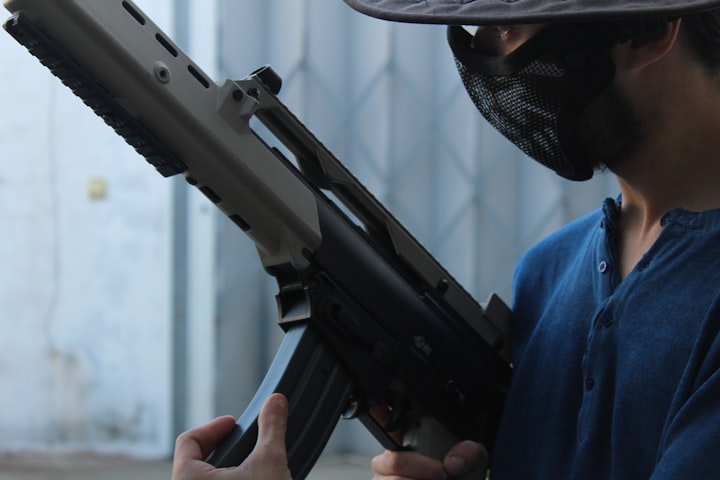
I. Introduction to Paintball Pistols Definition and Purpose Paintball pistols, also known as paintball markers, are specialized air-powered devices used to propel spherical projectiles filled with paint. These compact and maneuverable firearms are primarily designed for recreational paintball games and competitions.
By Mai Sophia2 years ago in Geeks
A Knight of the Seven Kingdoms Series Review (Season 1)
As one of the biggest properties in fantasy, A Song of Ice and Fire remains immensely popular with audiences. After reaching far into the past with House of the Dragon, a second spin-off was on the cards. A Knight of the Seven Kingdoms serves up a bite-sized slice of action and drama, but it still claims a spot among the best small-screen titles.
By Robert Cain5 days ago in Geeks
SpongeBob Review
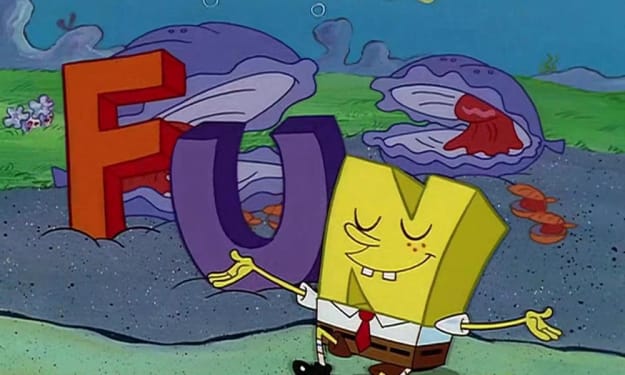
The episode "F.U.N." unfolds as a masterclass in character-driven comedy and narrative irony, centering on Plankton’s most hilariously transparent scheme to date. From the opening moments, the Chum Bucket’s oppressive gloom is a stark, almost visceral contrast to the sun-drenched, vibrant chaos of the Krusty Krab, a visual metaphor for the fundamental conflict between cynical ambition and joyful innocence. Plankton, tiny and vibrating with a fury that seems to distort the very air around him, constructs his "Friendship, U & Me, and Anywhere and Anytime" acronym not as a genuine olive branch but as a convoluted trap, his every syllable dripping with insincerity. The scene is a tightly wound spring of tension, as we, the audience, are complicit in the joke, watching SpongeBob—radiating pure, unadulterated optimism—plunge headfirst into the obvious snare with a trusting eagerness that is both exasperating and profoundly endearing.
By Forest Green8 days ago in Geeks
I was in a Toxic Relationship, with my Workplace
“You got that?” My ex yelled. His hands were balled into fists at his side. At six foot three, he towered over me. A normal person would have been afraid, but I looked up a video of George Lopez repeatedly saying, “I got this,” and showed it to him. I had grown used to this treatment, so much so that I didn’t blink when he ripped the phone from my hand and threw it across the room.
By Jade M.6 days ago in Confessions


Comments (1)
Amazing piece