
Can I Delete Delivery Optimization Files? If Yes, How?
This story elaborates the definition and storage location of Windows 11/10 delivery optimization files, as well as the feasibility, reasons, proper time and methods to delete these temporary files.

When you find your PC is running out of space and intend to clean some storage space on the drive, you may see there are a bundle of huge files named delivery optimization files. How does these unfamiliar files come about? Is it safe to delete them for freeing up space? If yes, should I just manually delete them or do it in a specific way? Land on this page, here’s everything you need to know about delivery optimization files.
What are delivery optimization files?
Introduced by Windows 10, delivery optimization files, also known as DO files, are temporary files created by Windows operating system during the process of downloading and installing updates, apps, or other data. To put it simply, these files are mainly designed to enable your computer to get or send updates and contents more efficiently to the neighboring computers or the devices sharing the same network.
How does this work? The Delivery Optimization feature works via downloading files from Microsoft servers and other machines on your local network, to speed up the download process. The DO files are used to store these cached files temporarily, allowing your computer to access them faster when needed.
Where is delivery optimization files location?
Delivery optimization files are typically stored in the following location on a Windows 11/10 system:
C:\Windows\SoftwareDistribution\DeliveryOptimization
Can I delete delivery optimization files?
Yes, you can.
If behaving properly, you can clean up delivery optimization files without negatively impacting the Windows system’s performance and functionality.
Why should I delete delivery optimization files?
Since delivery optimization files can be beneficial in terms of faster downloads, why would you consider deleting them? Here are a few reasons to clear delivery optimization files:
- Reclaim storage space
Delivery optimization files accumulate over time and take a large amount of disk space. By clearing them, you can free up storage for saving more important files and installing new programs.
- Enhance system performance
Too-full disk space caused by DO files can contribute to performance issues, such as slow system response, instability, even crashes or freezes. Deleting these files can ensure your computer runs more smoothly.
- Reduce privacy and security concern
Delivery optimization files might contain sensitive information related to the files you have downloaded. Deleting them can help when you want to make sure that no traces of your activities remain on your PC. Moreover, removing unnecessary files can reduce the risk of security vulnerability associated with unused files.
When can I safely delete delivery optimization files?
It is generally safe to delete delivery optimization files as long as they are not in use. In other words, you need to wait until all the necessary app, program and system updates are completed, since delivery optimization files are still needed during updating.
Tips: In the event of accidental deletion of useful data while deleting delivery optimization files on Windows, you are recommended to adopt a 3-rd party data retrieval tool like Cisdem Data Recovery, which covers every data loss scenario where recovery is possible.
How to delete delivery optimization files?
Now that you have understood why and when you should delete delivery optimization files, it’s time to discuss how you can go about doing it. You’re not suggested to remove them from the Delivery Optimization folder directly. Never delete system files manually, unless you really know what you are doing. In the following part, I will share 3 options to safely clean up delivery optimization files on Windows 11 or 10.
#1 Delete delivery optimization files in Disk Cleanup
- In the search bar next to Windows icon, type Disk Cleanup and open it.
- Scroll down to tick Delivery Optimization Files and click OK.
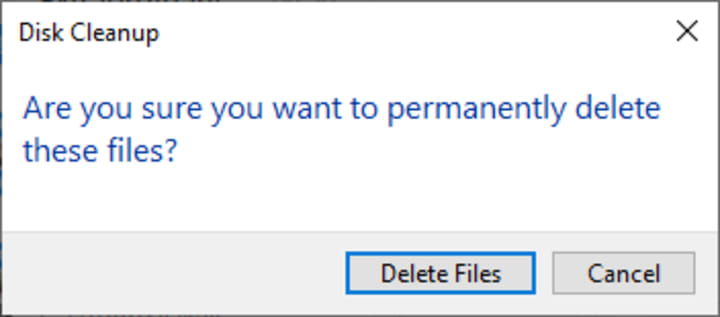
3. From the pop-up window, choose Delete File button to clear the DO files.
#2 Delete delivery optimization files in Settings
- Press Windows+I to launch Windows Settings.
- Go to System > Storage, click the Temporary files on your main drive (usually C:).
- Check the box of Delivery Optimization Files, and click Remove files button to delete them.
#3 Delete delivery optimization files in CMD
- Run Command Prompt utility as administrator.
- Type cleanmgr /sageset:100 and press Enter.
- A dialog will show up. Check Delivery Optimization Files box and click OK to close the dialog. This is the cleanup setup phase.
- Now back to your admin CMD, type cleanmgr /sagerun:100 and press Enter to delete the delivery optimization files.
This is the end of this story. If you have found it helpful, please keep following me for more useful tips and tricks in the future.
About the Creator
ConnieY
Everyone is an expert at something, and for me, I've learned/tested/known a lot about IT solutions regarding data recovery & productivity. As AI is set to revolutionize our digital world, we still have a lot to explore.
The Rachels - 2025
Much to my surprise, I have kept a list of the films I‘ve seen this year. I daresay it isn’t complete. There will be films that snuck in on a late night in front of the TV that I would’ve forgotten to note. Or others, that I went to watch at the cinema, but then had a red wine and promptly forgotten about. But it’s not a bad approximation of the films I’ve seen this year. In total, there are 53 films listed, so an average of one a week and one for good luck.
By Rachel Robbins28 days ago in Geeks



Comments
There are no comments for this story
Be the first to respond and start the conversation.