
How to Save OLED Monitor from Burn-In: Complete Guide for Long Life
Learn how to save OLED monitor from burn-in with easy tips, tricks, and best practices. Protect your OLED screen, extend its lifespan, and enjoy vibrant colors without worry.

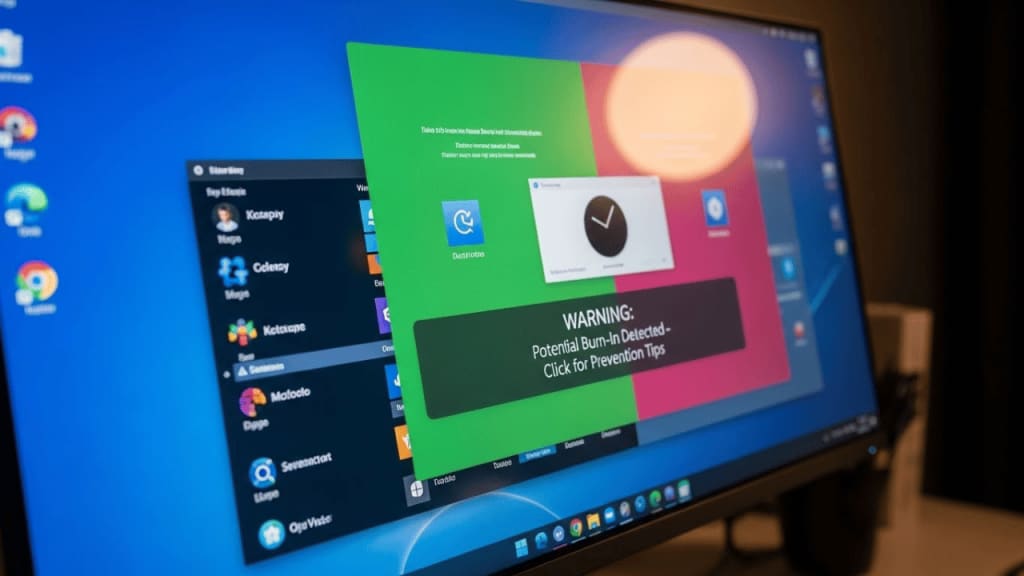
How to save OLED monitor from burn-in is a question many people ask when they invest in these beautiful displays. OLED monitors are known for their deep blacks, bright colors, and amazing contrast. However, they also face one common issue: burn‑in. Burn‑in happens when static images stay on the screen for too long, leaving faint marks that do not go away.
In this guide, we will explain what burn‑in is, why it happens, and most importantly, how to save your OLED monitor from burn-in. By the end, you will know simple steps to protect your screen and keep it looking new for years.
What is Burn-In on OLED Monitors?
Burn‑in is when a ghost image or shadow remains on the screen even after the content changes. For example:
- If you keep a news channel logo on the screen for hours, the logo may leave a faint mark.
- If you play a game with a health bar always in the same spot, that bar may stay visible even when you switch to another program.
This happens because OLED pixels wear out unevenly. Pixels that display the same color for a long time age faster than others. As a result, the screen shows permanent marks.
Why Does Burn-In Happen on OLED Monitors?
To understand how to save OLED monitor from burn-in, you need to know why it happens. Burn‑in occurs because:
- OLED pixels are organic. They use organic compounds that light up when electricity passes through. Over time, these compounds degrade.
- Static images cause uneven wear. If one part of the screen shows the same image for hours, those pixels wear out faster.
- High brightness speeds up aging. The brighter the screen, the faster the pixels degrade.
- Long usage without breaks. If you keep your monitor on all day without rest, the burn‑in risk increases.
How to Save OLED Monitor from Burn-In: Best Practices
Now let’s dive into the main part: how to save OLED monitor from burn-in. These tips are simple, practical, and easy for anyone to follow.
1. Use Screen Savers
A moving screen saver prevents static images from staying too long. Choose one with motion, like bubbles or slideshows.
2. Enable Pixel Refresh Features
Most OLED monitors, like those from LG or Dell, have built‑in pixel refresh tools. These tools run automatically or manually to balance pixel wear.
3. Lower Brightness Levels
High brightness looks good, but it wears out pixels faster. Keep brightness at a comfortable level, not maximum.
4. Avoid Static Content
Do not leave logos, toolbars, or game HUDs on the screen for hours. Switch content often or use full‑screen modes.
5. Use Dark Mode
Dark mode reduces bright areas and helps pixels last longer. Many apps and operating systems now support dark themes.
6. Turn Off the Monitor When Not in Use
If you are not using your monitor, turn it off. This simple habit saves energy and reduces burn‑in risk.
7. Move Taskbars and Icons
Change the position of taskbars or desktop icons from time to time. This prevents one area of the screen from aging faster.
8. Update Firmware Regularly
Manufacturers often release updates to improve burn‑in protection. Keep your monitor’s firmware up to date.
How to Save OLED Monitor from Burn-In While Gaming
Gamers love OLED monitors for their fast response and vivid colors. But games often have static elements like health bars, maps, or ammo counts. Here’s how to protect your screen:
- Use HUD‑less modes when possible.
- Change HUD positions if the game allows.
- Take breaks between long sessions.
- Lower brightness during gaming marathons.
How to Save OLED Monitor from Burn-In for Office Work
Office work often involves static images like toolbars, spreadsheets, or browser tabs. To avoid burn‑in:
- Use auto‑hide taskbars.
- Switch between apps often.
- Use dark themes in Word, Excel, or Google Docs.
- Set a short screen saver timer (like 5 minutes).
How to Save OLED Monitor from Burn-In When Watching TV or Movies
TV channels often have logos in the corner. Streaming apps may show pause screens for hours. To protect your OLED monitor:
- Avoid leaving paused videos for long periods.
- Use apps that hide logos or change positions.
- Watch varied content instead of the same channel all day.
Advanced Tips: How to Save OLED Monitor from Burn-In
If you want extra protection, try these advanced methods:
- Automatic Brightness Limiter (ABL): Many OLEDs have ABL to reduce brightness in static areas. Keep it enabled.
- Pixel Shifting: This feature moves the image slightly to spread wear evenly.
- Use External Tools: Some software can dim static areas automatically.
- Calibrate Colors: Balanced colors reduce strain on specific pixels.
Myths About Burn-In
When learning how to save OLED monitor from burn-in, you may hear myths. Let’s clear them up:
- Myth 1: Burn‑in happens in weeks. Truth: It usually takes months or years of poor usage.
- Myth 2: Pixel refresh fixes burn‑in completely. Truth: It helps reduce risk, but cannot reverse permanent damage.
- Myth 3: OLED is not good for gaming. Truth: OLED is excellent for gaming if you follow protection tips.
Real Examples of Burn-In
- LG OLED TVs: Many users reported channel logos leaving marks after years of use.
- Dell OLED Monitors: Some gamers noticed faint HUD shadows after long sessions.
- Smartphones like the Samsung Galaxy: Status bars sometimes leave marks if the brightness is high.
These examples show why learning how to save OLED monitor from burn-in is important.
Conclusion
Learning how to save OLED monitor from burn-in is not difficult. With simple habits like lowering brightness, using screen savers, and avoiding static images, you can protect your OLED monitor for years. OLED technology is beautiful, and with care, you can enjoy its deep blacks and vivid colors without worrying about ghost images.
By following these steps, you extend the life of your monitor, save energy, and keep your viewing experience perfect. Remember: prevention is always easier than repair.
FAQ: How to Save OLED Monitor from Burn-In
Q1: Can OLED burn‑in be fixed? No, permanent burn‑in cannot be fully fixed. Pixel refresh may reduce temporary image retention, but prevention is the best solution.
Q2: How long does it take for OLED burn‑in to happen? It usually takes months or years of static content at high brightness.
Q3: Do all OLED monitors face burn‑in? Yes, all OLEDs are at risk, but modern models have strong protection features.
Q4: Is OLED good for gaming despite burn‑in risk? Yes, OLED is excellent for gaming if you use features like pixel shifting and take breaks.
Q5: Does dark mode really help? Yes, dark mode reduces bright areas and slows down pixel wear.
About the Creator
Perfect Tech Views
Welcome to Perfect Tech Views—your go-to source for clear, unbiased, and insightful tech knowledge. Whether you're a pro, a beginner, or just exploring gadgets, we've got you covered with expert guidance!
Keep reading
More stories from Perfect Tech Views and writers in Gamers and other communities.
How to Fix Black Lines on Monitor: Easy Step-by-Step Guide
How to fix black lines on monitor is a question many people ask when their computer screen suddenly shows strange horizontal or vertical lines. These lines can be annoying, distracting, and sometimes make it hard to use your device. But don’t worry—this guide will explain why black lines appear, how to fix them, and what you can do to prevent them in the future.
By Perfect Tech Views2 months ago in Gamers



Comments