
How to Fix Black Lines on Monitor: Easy Step-by-Step Guide
Learn how to fix black lines on monitor with simple steps. Discover causes, solutions, and FAQs to restore your screen.

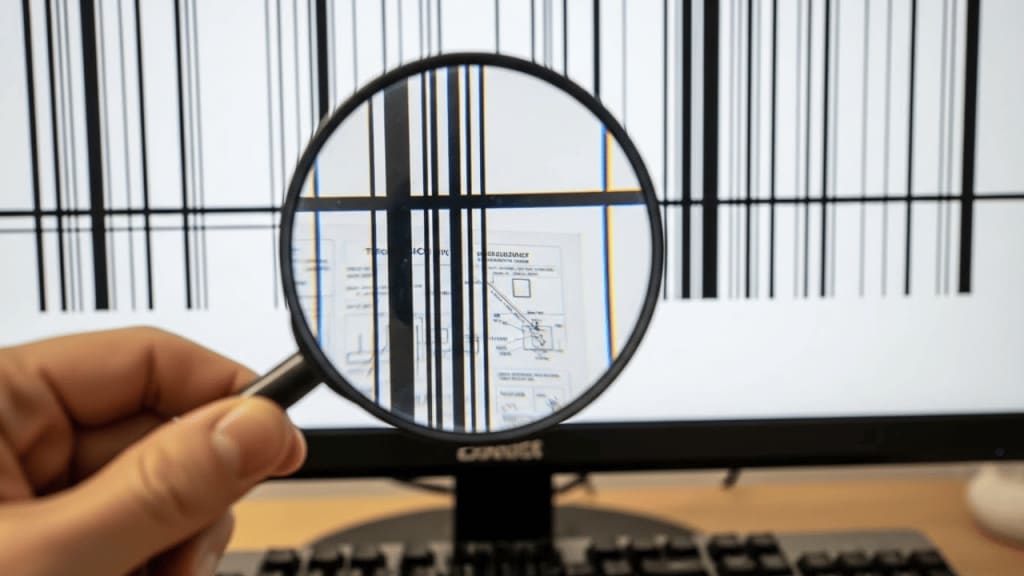
How to fix black lines on monitor is a question many people ask when their computer screen suddenly shows strange horizontal or vertical lines. These lines can be annoying, distracting, and sometimes make it hard to use your device. But don’t worry—this guide will explain why black lines appear, how to fix them, and what you can do to prevent them in the future.
📌 Why Do Black Lines Appear on a Monitor?
Understanding the cause is the first step in learning how to fix black lines on monitor.
- Loose or damaged cables – HDMI, VGA, or DisplayPort cables may be bent or not connected properly.
- Graphics card issues – A failing GPU or outdated drivers can cause display problems.
- Monitor hardware problems – Internal damage, dead pixels, or faulty circuits may create black lines.
- Software glitches – Operating system bugs or incorrect display settings can also be responsible.
- Overheating – Excess heat inside your computer or monitor can damage components.
🔧 How to Fix Black Lines on Monitor: Step-by-Step
1. Check the Monitor Cables
Loose or damaged cables are one of the most common reasons.
- Turn off your computer and monitor.
- Unplug the cable and check for bent pins or frayed wires.
- Reconnect firmly or replace the cable if needed.
2. Restart Your Computer
Sometimes, a simple restart clears temporary glitches.
- Save your work.
- Restart the system and check if the black lines disappear.
3. Update Graphics Drivers
Outdated drivers often cause display issues.
- Go to Device Manager on Windows.
- Find your graphics card under “Display adapters.”
- Right-click and select Update driver.
4. Test with Another Monitor
To confirm if the issue is with your monitor or computer:
- Connect your PC to another monitor.
- If the lines disappear, your original monitor may be faulty.
- If the lines remain, your graphics card or software may be the problem.
5. Adjust Display Settings
An incorrect resolution or refresh rate can cause black lines.
- Right-click on your desktop.
- Select Display settings.
- Adjust resolution and refresh rate to recommended values.
6. Clean the Monitor Screen
Dust or dirt can sometimes look like black lines.
- Use a soft microfiber cloth.
- Avoid harsh chemicals.
- Gently wipe the screen.
7. Run Hardware Diagnostics
Many brands like Dell, HP, and Lenovo offer built-in diagnostic tools.
- Open the tool from BIOS or support software.
- Run a test to check for hardware issues.
8. Replace the Monitor
If none of the above works, your monitor may be failing.
- Consider replacing it with a new one.
- Brands like Samsung, LG, Dell, and ASUS offer reliable options.
🖥️ Common Causes Explained in Detail
Loose Cable Connections
When cables are not properly connected, signals get interrupted. This often results in flickering or black lines.
Graphics Card Problems
A failing GPU can cause artifacts, lines, or even crashes. Updating drivers or replacing the card may solve the issue.
Monitor Hardware Failure
If the internal circuits or pixels are damaged, black lines may appear permanently.
Software Bugs
Operating systems like Windows 11 or macOS Ventura sometimes have bugs that affect the display. Keeping your system updated helps.
🛡️ Preventing Black Lines on Monitor
- Keep your monitor in a cool, dry place.
- Use a surge protector to avoid electrical damage.
- Regularly clean cables and ports.
- Update drivers and operating systems.
- Avoid dropping or hitting the monitor.
📊 How to Fix Black Lines on a Monitor in Different Situations
On a Windows PC
- Update drivers via Device Manager.
- Run Windows Troubleshooter.
On Mac
- Go to System Preferences > Displays.
- Adjust resolution and refresh rate.
On Gaming Monitors
- Check GPU performance.
- Lower refresh rate if overheating occurs.
🧩 Advanced Solutions
- Reset BIOS settings – Sometimes, incorrect BIOS configurations cause display issues.
- Replace GPU – If your graphics card is old or failing, a new one may be required.
- Professional repair – If you are not comfortable opening hardware, take it to a repair shop.
📚 Real-World Examples
- A student in New York University reported black lines after dropping his laptop. The solution was to replace the LCD panel.
- A gamer in Tokyo noticed black lines during gameplay. Updating the NVIDIA driver fixed the issue.
- An office worker in London solved the problem by replacing a faulty HDMI cable.
✅ Conclusion
Learning how to fix black lines on monitor is important because these lines can make your computer hard to use. Most of the time, the issue is simple—like a loose cable or outdated driver. However, sometimes it may be a bigger problem, such as a failing monitor or graphics card. By following the steps in this guide, you can troubleshoot effectively and decide whether you need a repair or replacement.
Taking care of your monitor, keeping your system updated, and handling cables properly will help prevent black lines in the future. If nothing works, professional help or a new monitor may be the best solution.
❓ FAQ: How to Fix Black Lines on Monitor
Q1: Why are there black lines on my monitor? Black lines usually appear due to loose cables, faulty graphics cards, or monitor damage.
Q2: Can software cause black lines? Yes, outdated drivers or operating system bugs can cause display issues.
Q3: How do I know if my monitor is broken? If black lines remain even after testing with another computer, your monitor may be faulty.
Q4: Can cleaning the screen fix black lines? If the lines are caused by dirt or dust, cleaning may help. Otherwise, it won’t fix hardware issues.
Q5: Should I replace my monitor if black lines appear? If all troubleshooting steps fail, replacing the monitor is often the best solution.
About the Creator
Perfect Tech Views
Welcome to Perfect Tech Views—your go-to source for clear, unbiased, and insightful tech knowledge. Whether you're a pro, a beginner, or just exploring gadgets, we've got you covered with expert guidance!
Keep reading
More stories from Perfect Tech Views and writers in Gamers and other communities.
20 Horror Game Masterpieces to Play Before You Die
Horror games have a unique ability to evoke fear and adrenaline, making them a beloved genre among gamers. However, there are some horror video games that will blow your mind, and you should play them to experience the sensations they offer. For this reason, I asked the AI about the best horror video games available, since I find it difficult to choose among so many options.
By Ninfa Galeano5 days ago in Gamers
10 Things Cloud Computing Solutions Simplify Server Control
Managing physical servers often feels like a never-ending battle against tangled wires and heat. You spend hours monitoring blinking lights in a cold room. Traditional setups demand constant attention and manual updates. Cloud computing solutions change this entire dynamic for modern businesses. It moves your digital assets to a flexible virtual space. This shift grants you total authority without the physical burden. The cloud transforms complex technical chores into simple clicks. It allows you to focus on growth rather than hardware maintenance.
By Arthur Leo5 days ago in Gamers



Comments