
How to Put a Motherboard in the Corsair 4000D Case – Easy Guide
Learn how to put a motherboard in the Corsair 4000D case with this simple, beginner-friendly guide. Step-by-step instructions, FAQs, and tips for a smooth PC build.

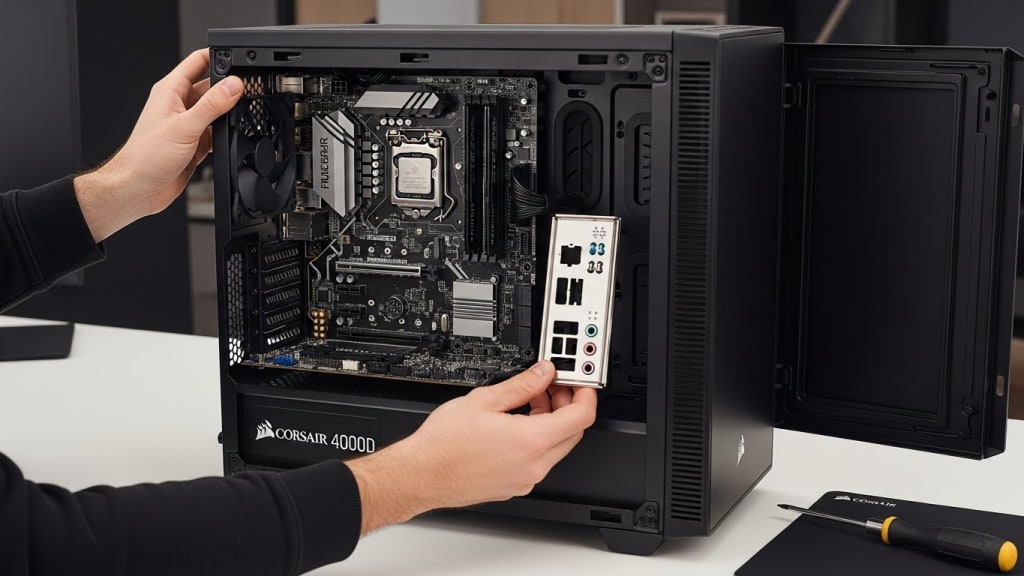
If you are building your first computer, you may wonder how to put a motherboard in the Corsair 4000D case. This case is one of the most popular mid‑tower PC cases because it is stylish, spacious, and easy to work with.
Installing a motherboard inside it may sound tricky at first, but with clear steps, anyone can do it. In this guide, we will walk through the process step by step, using simple language that even a beginner can understand.
Why Choose the Corsair 4000D Case
- 🖥️ Modern design: The Corsair 4000D has a clean look with tempered glass.
- 🌬️ Great airflow: It comes with fans and space for more cooling.
- 🔧 Easy building: The case has cable management channels and tie points.
- 📏 Compatibility: It supports ATX, Micro‑ATX, and Mini‑ITX motherboards.
Because of these features, many PC builders prefer this case. Therefore, learning how to put a motherboard in the Corsair 4000D case is a valuable skill.
Tools You Need Before Starting
Before you begin, gather these tools:
- A Phillips screwdriver
- Anti‑static wrist strap (optional but recommended)
- Your motherboard (ATX, Micro‑ATX, or Mini‑ITX)
- CPU, RAM, and cooler (installing them before mounting the motherboard is easier)
- Corsair 4000D case with side panels removed
Step 1: Prepare the Corsair 4000D Case
Preparation
First, place the case on a flat surface. Remove the tempered glass side panel carefully. Then, take off the back panel to expose the cable management area.
Inside the case, you will see pre‑installed standoffs. These are small raised screws that hold the motherboard in place. If your motherboard is ATX, most standoffs will already be in the correct position. However, if you are using Micro‑ATX or Mini‑ITX, you may need to adjust them.
Step 2: Install the I/O Shield
I/O Shield
The I/O shield is a thin metal plate that comes with your motherboard. It fits into the rectangular opening at the back of the case. Push it firmly until it clicks into place. This step is important because it aligns the motherboard ports with the case.
Step 3: Place the Motherboard
Positioning
Now, gently lower the motherboard into the case. Align the ports with the I/O shield. Make sure the holes on the motherboard match the standoffs inside the case.
Once aligned, hold the motherboard steady. Insert screws into the standoff holes. Tighten them with a screwdriver, but do not overtighten. The motherboard should sit flat and secure.
Step 4: Connect Power Cables
Power Setup
Next, connect the 24‑pin ATX power cable from the power supply to the motherboard. Then, attach the 8‑pin CPU power cable near the top of the board. These cables provide electricity to your system.
Step 5: Connect Case Cables
Case Connections
The Corsair 4000D has front panel cables for USB ports, audio, and power buttons. Plug these into the correct headers on the motherboard. The motherboard manual will show you exactly where they go.
Step 6: Install Other Components
Final Components
After the motherboard is secure, you can install:
- Graphics card (GPU)
- Storage drives (SSD or HDD)
- Additional fans or liquid cooling
Each part connects to the motherboard, so installing them after the board is mounted makes the process easier.
Cable Management Tips
- Route cables through the back panel for a clean look.
- Use the tie points and Velcro straps included with the Corsair 4000D.
- Keep airflow clear by avoiding cable clutter near fans.
Common Mistakes to Avoid
- Forgetting to install the I/O shield before the motherboard.
- Overtightening screws can damage the board.
- Not connecting the CPU power cable.
- Blocking airflow with messy cables.
Conclusion
Learning how to put a motherboard in the Corsair 4000D case is easier than it seems. With patience and the right steps, you can build a clean and powerful PC. The Corsair 4000D makes the process simple because of its design and cable management features. By following this guide, you will avoid common mistakes and enjoy a smooth building experience.
FAQ – How to Put a Motherboard in the Corsair 4000D Case
Q1: Can the Corsair 4000D fit an ATX motherboard? Yes, it supports ATX, Micro‑ATX, and Mini‑ITX motherboards.
Q2: Do I need to install the CPU before mounting the motherboard? It is easier to install the CPU, RAM, and cooler before placing the motherboard inside the case.
Q3: How many fans can the Corsair 4000D hold? It supports up to six fans or liquid cooling radiators.
Q4: What tools do I need? A Phillips screwdriver is enough for most steps.
Q5: Is cable management important? Yes, good cable management improves airflow and keeps your PC looking neat.
About the Creator
Perfect Tech Views
Welcome to Perfect Tech Views—your go-to source for clear, unbiased, and insightful tech knowledge. Whether you're a pro, a beginner, or just exploring gadgets, we've got you covered with expert guidance!
Keep reading
More stories from Perfect Tech Views and writers in Gamers and other communities.
How to Flash B650 Pro Motherboard – Step-by-Step Guide
Quick Answer: To flash a B650 Pro motherboard, you need to download the latest BIOS file from MSI’s official website, prepare a USB drive formatted to FAT32, copy the BIOS file, and use either the Flash BIOS Button or the M-FLASH utility inside the BIOS menu.
By Perfect Tech Views2 months ago in Gamers
Rachel Reviews: The Spiral Archive by Pieter Hendrik
It's difficult for me to know where to start with a review of this book as it was, for me, an entirely unique experience and one that I'll probably never have again. I don't want that to be interpreted as unenjoyable but it has left me scratching my head a little and ruminating on its content, its themes and its characters.
By Rachel Deemingabout 18 hours ago in BookClub




Comments