
How to Fix Roblox Error Code 262: 7 Methods
Learn how to fix Roblox Error Code 262 with 7 ways. Get back to gaming quickly with these easy steps.
Roblox Error Code 262 can be a frustrating roadblock, especially when you’re in the middle of a game. This error usually points to issues with connecting to Roblox servers, but there are several steps you can take to resolve it. Below, we’ll explore 7 practical solutions that go beyond the basics, offering a comprehensive approach to getting you back into the game.
What Is Roblox Error Code 262?
Error Code 262 typically occurs when there’s a disruption in your connection to Roblox servers. This could be due to server-side issues, problems with your internet connection, or even something on your device that needs fixing.
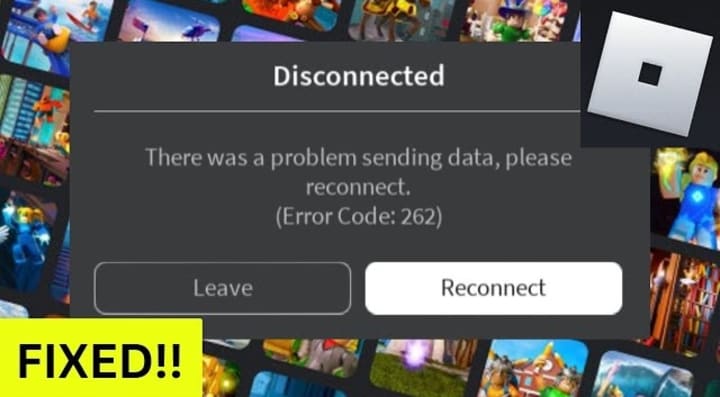
Step-by-Step Solutions to Fix Roblox Error Code 262
Understanding the root cause is key to applying the right solution. Now let's check the detailed guide on how to fix Roblox error code 262. 100% working. Check them out!
1. Check Roblox Server Status
Before diving into troubleshooting, it’s worth checking if the problem is on Roblox’s end. Server maintenance or outages can trigger Error Code 262, and if that’s the case, all you can do is wait until the issue is resolved.
Visit the Official Roblox Status Page: Start by checking the Roblox server status on their official website. This page provides real-time updates on any server issues.
Monitor Social Media: Follow Roblox’s official Twitter account for announcements regarding server downtime or maintenance.
2. Restart Your Router
Network issues are often at the heart of Error Code 262. A simple router restart can refresh your connection and potentially resolve the error.
Turn Off Your Router: Unplug your router for at least 30 seconds.
Reconnect and Power On: Plug it back in, wait for it to reboot, and check your connection.
Test Roblox: Try launching Roblox again to see if the error persists.
3. Clear Roblox Cache
Sometimes, corrupted cache files can cause connectivity issues. Clearing the Roblox cache can help eliminate any corrupted data that might be causing Error Code 262.
Close Roblox: Ensure the game is completely closed before proceeding.
Locate the Cache Folder: On your computer, navigate to the Roblox cache folder (usually found in the AppData directory).
Delete Cache Files: Select all files within the cache folder and delete them.
Restart Roblox: Open the game and check if the issue is resolved.
4. Update Network Drivers
Outdated network drivers can lead to connection problems. Updating your network drivers ensures that your device is equipped to handle the latest network protocols.
Open Device Manager: Access Device Manager by right-clicking the Start menu and selecting it from the list.
Find Your Network Adapter: Expand the “Network Adapters” section.
Update the Driver: Right-click on your network adapter, select “Update driver,” and follow the prompts.
Restart Your Computer: Reboot your system to apply the changes.
5. Reinstall Roblox
If other solutions haven’t worked, reinstalling Roblox might be necessary. This can resolve issues related to corrupted files or improper installations.
Uninstall Roblox: Go to your system’s Control Panel, find Roblox in the list of installed programs, and uninstall it.
Delete Remaining Files: After uninstalling, check the AppData folder for any leftover Roblox files and delete them.
Download the Latest Version: Visit the official Roblox website to download and install the latest version of the game.
Launch Roblox: After installation, try running Roblox again to see if the error is fixed.
6. Switch to a Wired Connection
Wi-Fi connections can sometimes be unstable, leading to connectivity issues. Switching to a wired Ethernet connection can provide a more reliable connection.
Plug in an Ethernet Cable: Connect your device directly to the router using an Ethernet cable.
Disable Wi-Fi: Turn off Wi-Fi on your device to ensure it’s using the wired connection.
Retry Roblox: Launch Roblox and see if the problem has been resolved.
7. Adjust DNS Settings
Incorrect DNS settings can also cause connectivity problems. Adjusting these settings to use a reliable DNS server can sometimes fix the issue.
Open Network Settings: Right-click on the network icon in your system tray and select “Open Network & Internet settings.”
Change Adapter Options: Select “Change adapter options.”
Select Your Network: Right-click your active network connection and choose Properties.
Set DNS Manually: Select “Internet Protocol Version 4 (TCP/IPv4)” and choose to use the following DNS server addresses: Google’s DNS (8.8.8.8 and 8.8.4.4).
Restart Your Device: Reboot your computer and try connecting to Roblox again.
Conclusion
Roblox Error Code 262 can be caused by a variety of factors, from server issues to problems with your internet connection or even your device. By following these steps, you can troubleshoot and resolve the error, getting back to enjoying your game. Whether it’s checking server status, restarting your router, or updating your network drivers, these solutions cover all bases to ensure you can fix the issue effectively.
About the Creator
Keep reading
More stories from Morris Joy and writers in Gamers and other communities.
How to Play Music while Playing Roblox on Mobile 2024
How to play music while playing Roblox on your phone? Playing Roblox on your mobile device is a fun way to enjoy gaming on the go. But what if you could make it even better by listening to your favorite music while you play? In this guide, we’ll show you simple guide on how to listen to music while playing Roblox, helping you get the most out of your gaming sessions. Whether you prefer streaming apps, headphones, or even Discord bots, we’ve got you covered. Let’s see how you can enhance your Roblox experience with the perfect soundtrack!
By Morris Joy2 years ago in Gamers
Slay the Spire 2 Review: A Worthy Sequel That Builds on a Legendary Roguelike
If you’re a fan of deck-building roguelikes, chances are you’ve already heard about Slay the Spire 2. The sequel to the beloved Slay the Spire has been one of the most anticipated strategy games in recent years, especially among players who love card-based combat systems mixed with roguelike progression.
By Bella Anderson6 days ago in Gamers
Top tipple tricks
Been thinking a lot about drinking, lately. Not least because of a recent episode of over-indulgence and the inevitable after effects. Some readers may recall the earlier articles I wrote about beating the booze. Here I set out an experiment in techniques for cutting down on my alcohol intake. The experiment was successful, the techniques worked, and I have armed myself with an arsenal of weapons in the war against the demon drink. I have yet to fire the first round however. It's all a question of timing (perhaps procrastination).
By Raymond G. Taylor3 days ago in Psyche



Comments
There are no comments for this story
Be the first to respond and start the conversation.