
How to Play Music while Playing Roblox on Mobile 2024
How to listen to music while playing Roblox? Learn how to play Roblox and listen to music with streaming apps, headphones, and Discord bots.
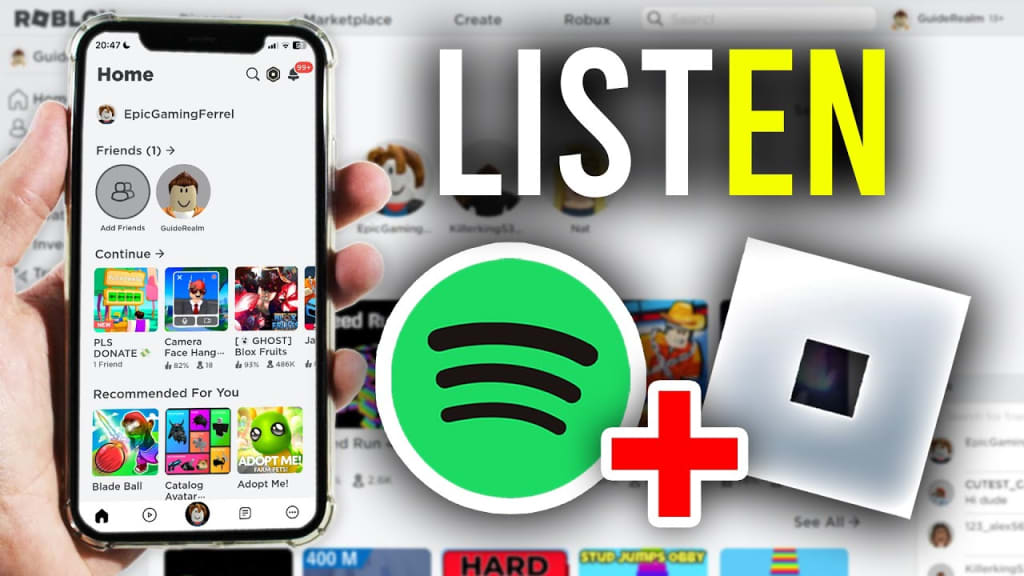
How to play music while playing Roblox on your phone? Playing Roblox on your mobile device is a fun way to enjoy gaming on the go. But what if you could make it even better by listening to your favorite music while you play? In this guide, we’ll show you simple guide on how to listen to music while playing Roblox, helping you get the most out of your gaming sessions. Whether you prefer streaming apps, headphones, or even Discord bots, we’ve got you covered. Let’s see how you can enhance your Roblox experience with the perfect soundtrack!
Method 1: Use Roblox In-Game Music Features
Some Roblox games come with built-in music that can enhance your experience. Here’s how you can make the most of it:
Step 1: Start the Game
Open the Roblox game you want to play. Keep in mind that not all games include music, so this works best with those that do.
Step 2: Access the Game Menu
Look for the settings menu, typically represented by a gear icon or a music note, often found in the upper corner of your screen.
Step 3: Enable or Disable Music
Find the option to toggle the music. If the game includes its own soundtrack, you can turn it on to listen as you play. If you prefer silence or your own music, you can turn it off.
Method 2: How to Listen to Music and Play Roblox with Music Streaming App
If you prefer your own playlist, you can easily stream music while playing. Here’s how to play Roblox while listening to music:
Step 1: Open Your Music App
Launch your favorite music streaming app, such as Spotify, Apple Music, or YouTube Music. Choose the playlist, album, or song you want to listen to while gaming.

Step 2: Play the Music
Start playing your selected music. Adjust the volume so that it’s comfortable, but make sure you can still hear the game sounds if you want to.
Step 3: Open Roblox
With the music playing in the background, open Roblox on your mobile device. The music will continue playing as you play your game, letting you enjoy both at the same time.
Using a streaming app gives you full control over what you listen to, whether it’s your favorite songs, a podcast, or even ambient sounds. This method works well if you want a personalized soundtrack while you play.
Method 3: Use Bluetooth or Wired Headphones
Listening to music while playing Roblox mobile can be more enjoyable with headphones, giving you better sound quality and control. Here’s how to use Bluetooth or wired headphones for the best experience:
Step 1: Connect Your Headphones
If you’re using Bluetooth headphones, make sure they’re paired with your mobile device. To do this, turn on Bluetooth in your phone’s settings, find your headphones in the list of available devices, and select them. If you’re using wired headphones, simply plug them into your device’s headphone jack or port.
Step 2: Start Your Music
Open your music streaming app and choose the song or playlist you want to listen to. Start playing the music, and adjust the volume to your liking. With headphones, you’ll get clearer sound, and you can easily control the volume without disturbing others.
Step 3: Open Roblox and Start Gaming
With your music playing, open the Roblox app and start your game. Your headphones will allow you to hear both the music and the game sounds, giving you a fully immersive experience. Most Bluetooth headphones also have controls on the earpiece, allowing you to pause, skip tracks, or adjust the volume without needing to switch apps.
Using headphones is a great way to keep your music and game audio separate, especially in noisy environments. It also helps you stay focused on your game without outside distractions.
Method 4: Integrate Discord Bots for Music
If you’re playing with friends or just prefer using Discord, you can set up a music bot to play your favorite tunes while you game. Here’s how to do it:

Step 1: Join or Create a Discord Server
To use a music bot, you’ll need to be part of a Discord server. If you don’t already have one, you can create a server in the Discord app by clicking the “+” icon and following the prompts. If you’re already in a server, make sure you have permission to add bots.
Step 2: Invite a Music Bot
There are many music bots available, such as FredBoat, Groovy, or Rythm (depending on availability). To invite a bot, go to the bot’s website, click on the “Invite” or “Add to Server” button, and select your server. Follow the instructions to authorize the bot.
Step 3: Set Up the Music Bot
Once the bot is added to your server, you can use commands to play music. For example, with FredBoat, you can type !play [song name or link] in the chat, and the bot will start playing the music in a voice channel. Make sure you’re in the same voice channel as the bot.
Step 4: Play Roblox While Listening to Music
With the music bot playing in Discord, open Roblox on your mobile device. Keep Discord running in the background, and you’ll be able to hear the music while you play. You can also control the music through Discord, allowing you to pause, skip, or change the song without leaving the game.
Using a Discord bot for music is especially useful if you’re gaming with friends. Everyone in the voice channel can enjoy the same music, and you can easily chat and coordinate during gameplay. This method gives you flexibility and social interaction, making your Roblox experience more enjoyable.
How to Solve Common Issues
When playing music while gaming on Roblox mobile, you might run into a few issues. Here’s how to solve common problems:
- App Crashes: If either Roblox or your music app crashes, try closing both apps completely and reopening them. Ensure that your device’s software is up to date, as this can prevent compatibility issues. Clearing the cache for both apps might also help if they are slow or unresponsive.
- Music Interruptions: Sometimes, notifications or incoming calls can pause your music. To prevent this, enable Do Not Disturb mode on your device before you start gaming. This will block most interruptions, allowing your music to play continuously.
- Sound Mixing Issues: If the game sounds overpower your music, or if there’s audio distortion, adjust the volume settings within Roblox or your music app. Balancing these volumes ensures you can enjoy both without one interfering with the other.
- Battery Drain: Running multiple apps at once can quickly drain your battery. Use a power-saving mode and close any unnecessary background apps. Consider having a portable charger handy if you’re gaming on the go.
Bonus Tip: Enhance Your Roblox Experience with Blox World
If you’re looking for more ways to enhance your Roblox gaming experience, consider trying Blox World. It offers a variety of fun games that can help you earn free Robux rewards. You can use these rewards to purchase items and customize your avatar, all without spending any real money.
Conclusion
Learning how to play music while playing Roblox can greatly enhance your gaming experience. Whether you’re using built-in app features, Bluetooth headphones, or a Discord bot, there are various methods to keep your favorite tunes playing in the background. Try these different options to find what works best for you. With the right setup, you can enjoy immersive gaming sessions paired with the perfect soundtrack.
About the Creator
Keep reading
More stories from Morris Joy and writers in Gamers and other communities.
How to Change Your Username in Roblox for Free 2024
Changing Roblox username is a common desire among players. Whether you've outgrown your old name or just want a fresh start, updating your username can feel like a necessary step. Normally, Roblox requires 1,000 Robux for this change, which can be a barrier for many players. However, there are some alternative methods to change your username without spending any money. This article will guide you through the updated strategies on how to change your username in Roblox for free in 2024.
By Morris Joy2 years ago in Gamers
Casino Game Trends and Player Favorites in 2026
The casino gaming landscape has continued to evolve in recent years, influenced by technology, player preferences, and shifting entertainment habits. In 2026, casino-style games remain a popular form of entertainment across both digital platforms and traditional venues. Rather than focusing solely on wagering, many discussions about these games now center on gameplay experience, design innovation, and the social elements that attract players worldwide.
By Shabbir Ahmadabout 8 hours ago in Gamers
Rsvsr Robo Royale: Governor of Poker 3’s Latest Event You Can’t Miss
Mobile games often rely on limited-time events to keep players engaged, and collectible challenges have become one of the most popular formats. A recent example can be found in Governor of Poker 3, where the Robo Royale event introduces a themed collection system that adds a different layer of progression to the traditional poker experience.
By Dangyc Ding2 days ago in Gamers
Worth the Wait: Puerto Viejo, Costa Rica
Beach bumming in a small Caribbean beach town sounded like a perfect way to end our 6-month trip through Mexico and Central America. Or so we thought. The foul, fishy stench of rotten seaweed hit our nostrils as we stepped from the cramped bus and looked out at a rather depressing, empty, and underwhelming black sand beach. It was pouring with rain, and we had to quickly fish out our ponchos. We thought, this couldn’t be it, could it?
By Sh*t Happens - Lost Girl Travel6 days ago in Wander



Comments (1)
Thanks for sharing