
A Beginner's Guide | How to Backup Gmail Emails in Multiple Formats
Learn how to backup Gmail emails in multiple formats like PST, MBOX, EML, and PDF. A simple beginner’s guide with step-by-step methods for safe email storage.

Both personal and professional lives heavily rely on email. One of the most widely used services, Gmail frequently contains year worth of priceless discussions, attachments, and significant documents. It might be distressing to lose access to this data. Making a backup of your Gmail emails is, therefore, a wise move.
This tutorial will show you how to easily backup your Gmail emails in a variety of formats. Being extremely technical is not necessary. You will know which techniques work best for you in the end.
Why Backup Gmail Emails?
Before using the procedures, it is vital to understand the benefits of maintaining a backup.
Accidental deletion- Emails may be accidentally deleted.
Hacking or illegal access- Data loss may result from security lapses.
Service problems- Although they are uncommon, outages and account lockouts do occur.
Storage management - Data security and space optimization are achieved through backups.
Peace of mind comes from having a copy saved locally or in another format.
Different Formats for Gmail Backup
Gmail emails can be stored in a variety of file types. Each has a distinct function.
PST- Microsoft Outlook is used.
MBOX- Thunderbird and other email clients are compatible.
EML- Stores every email as a separate file that is simple to transfer or share.
PDF- Ideal for legal documents and records.
MSG- Saves individual emails with attachments, particularly to Outlook.
How you intend to use or access your emails in the future will determine which format is best for you.
Manual Ways to Backup Gmail Emails
Google Takeout
Google Takeout is the official Google data exporting tool. You can download your emails in MBOX format by choosing Gmail.
Actions to take-
Visit Google Takeout
Choose Gmail.
Select the MBOX export format.
When the archive is available, download it.
Limitation- All you receive are MBOX files, which can only be opened with compatible email applications.
Save Emails as PDFs
Emails in Gmail can be manually opened and then saved as PDFs using the print option.
Actions to take-
Launch Gmail and open the email.
Select the printer icon.
Select Save as PDF.
Put it on your PC.
Limitation - Only individual emails are compatible; bulk backups are not.
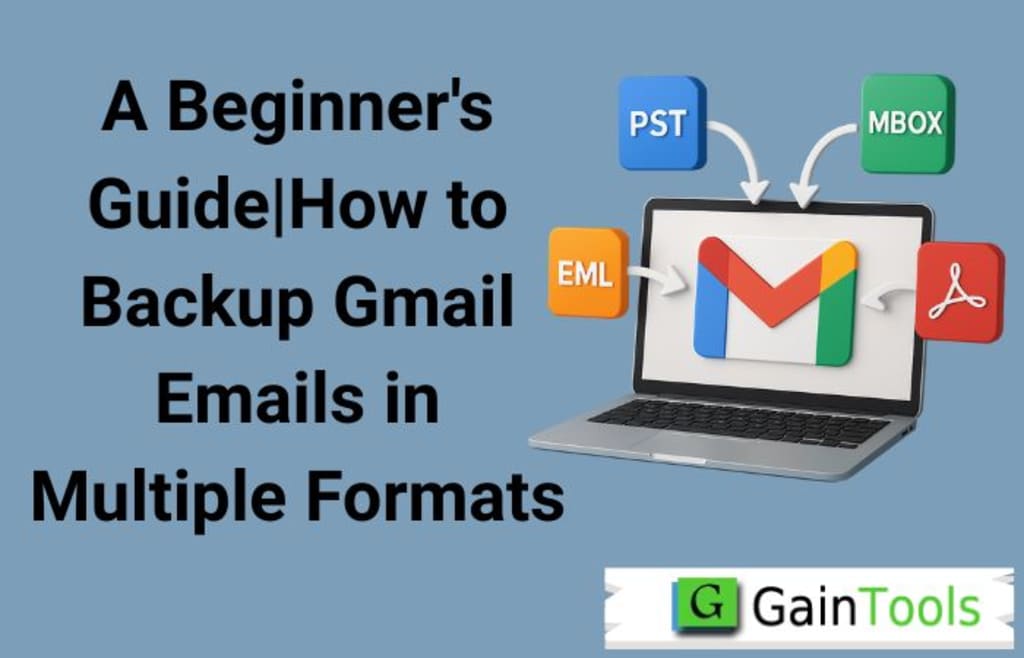
Smarter Option-Backup Gmail Emails in Multiple Formats
A specialized Gmail backup solution is something to think about if you want multiple formats without complicated tasks. For instance, you can easily download Gmail emails in PST/MBOX/EML/MSG or PDF formats with an application like GainTools Gmail Backup. All you have to do is select your format, log in, and export. Additionally, it enables selective backups, allowing you to preserve particular folders or time periods rather than the entire thing at once.
This method is less error-prone/quicker and easier to use. Because it saves time and allows for control over data storage, many novices prefer it.
How to Backup Gmail Emails in Multiple Formats
- Download the application Gmail Backup.
- Enter the login credentials.
- Add the Files or Folders.
- Pick the output format like PST/MSG/EML/MBOX and more.
- Decide on the location where you will save it.
- Hit the Backup Now Tab.
Sum up
Gmail email backup does not have to be difficult. Whether you use Google Takeout, an email client, or a backup solution to safeguard your data, the goal is always the same. Using a Gmail backup tool can save you time and effort if you want simplicity and different formats.
Your mailbox is important. Take good care of it now so you do not have to worry about losing it later.
About the Creator
Alexis Matthew
Hi am content writer
Keep reading
More stories from Alexis Matthew and writers in Futurism and other communities.
How to Save Google Workspace Emails to Thunderbird Securely
Many use Google Workspace formerly G Suite for emails. It is simple and dependable. Still, occasionally you want a backup. Perhaps you wish to change to another email program such as Mozilla Thunderbird. Alternatively, perhaps you simply wish to have a copy of your emails securely.
By Alexis Matthew9 months ago in Futurism
About Binding Prometheus
I want to start actively advocating on behalf of my own work, and the most valuable part of my canon is, without a doubt, Binding Prometheus, the play I have been working on since 2019 and only finished in 2023 as part of my MA. The play itself is an amalgamation of a million different inspirations. On one end, it evokes the Ancient Greek myth-play, deriving its own title from the earliest extant work of Western drama we have, Aeschylus’s Prometheus Bound. On the other end, it borrows significantly from the sci-fi bulwarks from over the years, namely Mary Shelley’s Frankenstein and Karel Capek’s Rossum’s Universal Robots. The play could be an episode of Black Mirror, I fear. I don’t know. I’ve only ever seen one episode of Black Mirror.
By Steven Christopher McKnight17 days ago in Futurism
Global Toys Market Size and Forecast 2025–2033
Introduction: A Market Powered by Play and Innovation The Global Toys Market is set to record significant growth, surging from US$ 112.78 billion in 2024 to US$ 202.51 billion by 2033, expanding at a CAGR of 6.72% from 2025 to 2033, according to Renub Research. This impressive trajectory highlights the continued relevance of toys in a rapidly evolving digital world. Rising consumer spending, the increasing demand for educational and interactive products, and the growing integration of technology into play experiences are reshaping how children—and increasingly adults—engage with toys.
By Aaina Oberoi6 days ago in Futurism
How to Succeed at the Benson Directory®
Congratulations and welcome to the Benson Directory® employee #22391! As our newest call handler, you will have the privilege of speaking with dozens of unique and interesting people on a daily basis as well as the opportunity to earn bonuses for high performance. Contained within this handbook you will find a set of ease to follow instructions designed to help you settle in to your new role and begin paving the way to success.
By S. A. Crawforda day ago in Fiction


Comments
There are no comments for this story
Be the first to respond and start the conversation.