
Are Desktop Computers Wireless?
Everything You Need to Know in 2025

Introduction
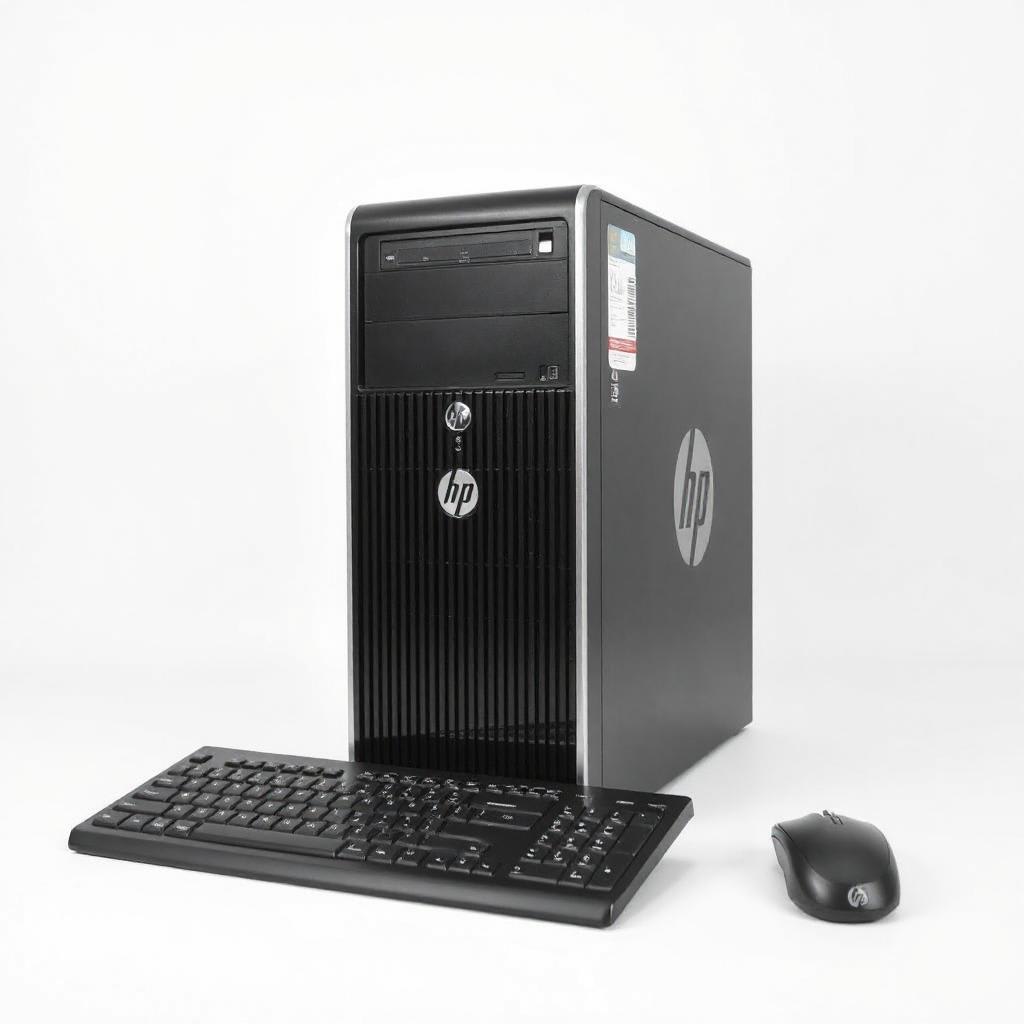
With a wireless device in seemingly every nook and cranny, one has to wonder if the desktop computer follows suit. The desktops of the past were powerful, performance-driven machines that called for the required maze of cables to connect to, thereby tying the user to the wall and desk. However, recent advances in technology have given desktop computers the ability to be more wireless than ever before. If you have ever wandered how wireless functionality in desktops works, and if that same untethered experience you get with laptops and tablets, the answer is here.
Don't miss out on this opportunity to transform your workspace!
We progress from the world of desktop computers-from mere Wi-Fi and Bluetooth integrations to a completely wireless setup. By the end, you shall have an idea of how "wireless" a desktop actually can get and a few more tips to make your own desktop more wireless-friendly.
1. The Core of Wireless Connectivity in Desktop Computers
For desktop computers, "wireless" does not really mean free of wires. Whereas laptops are designed to be portable, until recently, desktops' power and processing needed, for both reliability and speed, to be tethered to wires. However, the majority of new desktop computers are now being equipped with at least the standard wireless features like Wi-Fi and Bluetooth that make them less cord bound.
Wi-Fi for Accessing the Internet
Most modern-day desktops come equipped with Wi-Fi, so you won't have to mess with Ethernet cables. This is a definite plus if you want to keep a clean desk or if you happen to not have a router close to your desktop. If your computer does not have built-in Wi-Fi, there are a variety of external Wi-Fi adapters available that can give them an internet connection.
Examples include the Dell XPS and Apple iMac, desktop models that sport Wi-Fi and Bluetooth, allowing connectivity online and to wireless peripherals without additional accessories.
Bluetooth for Peripherals and Accessories
With Bluetooth coming in most new desktops, you could connect peripherals such as keyboards, mice, headphones, and speakers wirelessly. Bluetooth provides a seamless connection with decent range that cleans up and opens your workspace for more flexible use.
Pro Tip: While these Bluetooth connections are in one sense convenient, they may lag just a tad behind their wired brethren-a fact noticeable in gaming or other high-speed tasks. For general use, however, Bluetooth is sufficient.
2. Fully Wireless Desktops: Fact or Fiction?
While desktops are inching toward a wireless experience, a fully wireless desktop is more of a wish than reality for now. A look at what holds it back and how you could get close to a wireless setup:
Power Dependency
Unlike laptops, which have batteries, desktops require constant power, so there has to be at least one cable—the power cord. No desktop computer is sold today that does not depend upon being plugged in to a power source.
Display Connectivity
Unless you have an all-in-one desktop that includes a built-in display, you'll also need a cable that connects your computer to an external monitor. With technologies such as wireless HDMI, they do exist, but these usually introduce latency issues, which is not ideal for tasks like video editing or gaming, when you want quick responsiveness.
How Close Can You Get?
While entirely wireless isn't achievable, you can get close with minimal cabling. A good example:
Wi-Fi and Bluetooth are wireless, cancelling out an Ethernet connection and freeing the space for a wireless accessory.
The rest of the wired connections can be centralized into one or two cables by means of docking stations; therefore, cable management is a bit easier and cleaner.
3. How to Make Your Desktop More Wireless
If you're committed to a cleaner, more wireless setup, there's steps you could take to make your desktop as wireless as possible. First and foremost:
Step 1: Upgrade to Wi-Fi and Bluetooth Capabilities
Most desktops, especially older ones, do not have any form of Wi-Fi and Bluetooth. Of course, this can be remedied by buying a USB adapter: such devices plug right into your computer's USB port and allow you to connect to wireless networks and Bluetooth devices. You can also install PCIe cards internally; these offer faster speeds and are often more reliable.
Popular Choices:
Wi-Fi Adapters: TP-Link Archer T9UH, Netgear Nighthawk AC1900
Bluetooth Adapters: ASUS BT500, TP-Link UB400 Step 2: Switch to Wireless Peripherals Ditching traditional wired keyboards, mice, and headphones for wireless ones cleans up the mess and gives you more space to set up your workspace. Today, there are plenty of fine wireless peripherals that offer almost lag-free performance, hence great even for professional work and gaming.
Top Brands: Logitech, Razer, Microsoft, and Apple make some of the best wireless peripherals compatible with nearly all types of desktop computers.
Step 3: Consider Your All-in-One Desktop
AIO desktops house both the computer and monitor in one unit. The result is far fewer required cables since the monitor and system are combined, and most AIOs also come with Wi-Fi and Bluetooth built in. They can be a perfect solution for those who require a powerful machine that depends minimally on cables.
The Apple iMac, Microsoft Surface Studio, and HP Envy AIO: sleek and wireless, which manages your desk space neat and clean.
4. Common Misconceptions About Wireless Desktops
Among many, one such myth is that "wireless desktops" would mean zero cables. Well, not quite. Some common misconceptions include the following:
Myth #1: Desktops Can Run Without Power Cords
Myth #1: Desktops Must Be Wired
Desktop computers are powered devices that, if not for some revolutionary changes in battery technology, will require a power cord for a very long time in the case of desktop variants.
Myth #2: Wireless Means Impaired Performance
Generally speaking, wired connections are far more predictable when it comes to speed. Still, with recent enhancements to Wi-Fi technology, such as Wi-Fi 6 and soon-to-be-deployed Wi-Fi 7, the difference in performance between wired and wireless is significantly lessened.
Myth #3: Only Gaming/High-End Desktops Will Feature Wireless
Of course, wireless capabilities are no longer confined to the higher-end models. Instead, most budget and mid-range desktops boast standard Wi-Fi and Bluetooth.
5. Assessing Whether a Wireless Desktop Setup Is for You
Again, it is not recommended that every user upgrade to a wireless setup. While wireless options eliminate clutter and allow flexibility, they may also imply lowered reliability and speed, insufficient for the heavy processing of challenging work. However, consider upgrading to wireless:
You prefer a tidy workplace: The fewer wires, the neater your desktop.
Your Setup Requires Flexibility: When one frequently has to reorganize their desk, then wireless connections make it easier to move components around easily.
Your Work Doesn't Require the Highest Speeds Available: So when it comes to general use-such as browsing, streaming, and office work-wireless is best. When hardcore gaming or if one needs to transfer huge files, wired systems remain unmatched.
However, for gamers, video editors, or users of data-intense applications, the best option would still be sticking to some forms of wired connections if peak performance is desired.
6. Up-and-Coming Technologies in the Wireless Desktop Arena
As technology keeps getting better, so do options for making desktops wireless. Following are what can be expected:
Wi-Fi 7: Said to arrive pretty soon, the Wi-Fi 7 offers even higher speeds and more stability, hence pushing the possibilities of wireless Internet on desktops.
Wireless Charging: Although not yet mainstream for desktops, some manufacturers are experimenting with wireless charging technologies in devices that might come in the near future. If ever perfected, that could kill the requirement of the power cord on desktops.
Ultra-wideband: UWB technology presents an option for wireless a lot faster and a lot more stable compared to Bluetooth. The latency is much lower, which may lead to peripherals that are better in the years to come.
Don't miss out on this opportunity to transform your workspace!
Conclusion
Although desktops are not completely wireless yet, the latest strides taken in wireless technology bring them closer to a no-mess setup than ever. Incorporating Wi-Fi and Bluetooth into one's desktop, opting for wireless peripherals, and even considering an All-in-One will take one a step toward minimizing dependency on cables. While there may not be any total avoidance, particularly with power wires, today's desktop computers can still impressively be made wireless with just a couple of tweaks.
In the future, wireless innovations will continue to redefine the desktop computing space and provide even more ways to create an untethered workspace with no hit on power or performance. For now, you can have a semi-wireless experience that balances convenience with the robust functionality that desktops have been known for.
This article contains affiliate links, if you make a purchase I may make a small commission.
About the Creator
Karl Jackson
My name is Karl Jackson and I am a marketing professional. In my free time, I enjoy spending time doing something creative and fulfilling. I particularly enjoy painting and find it to be a great way to de-stress and express myself.
Keep reading
More stories from Karl Jackson and writers in Families and other communities.
Are Security Cameras Wireless?
Introduction Are security cameras wireless? One of the biggest questions most people are asked when it comes to protecting their home, the answer is yes-but not so fast. Many cameras are wireless, but there's a little more to it than that. "Wireless," thanks to the magic of technology, has taken on various meanings depending on the type of camera and the features it may or may not have.
By Karl Jacksonabout a year ago in Families
📢 Raise Your Voice Thread: 03/05/2026
Our “Raise Your Voice Threads” are hosted most alternating Thursdays at 12PM ET to offer creators more avenues to uncover exceptional stories on Vocal. As we are continuously searching for fresh creators and inspiring stories, this thread provides an opportunity to exchange and discuss the stories that have moved and motivated us on Vocal.
By Raise Your Voice by Vocal7 days ago in Resources




Comments
There are no comments for this story
Be the first to respond and start the conversation.