
Why Can’t I Go Live on Instagram? Here’s What’s Blocking You (And How to Fix It)
Instagram Hacks

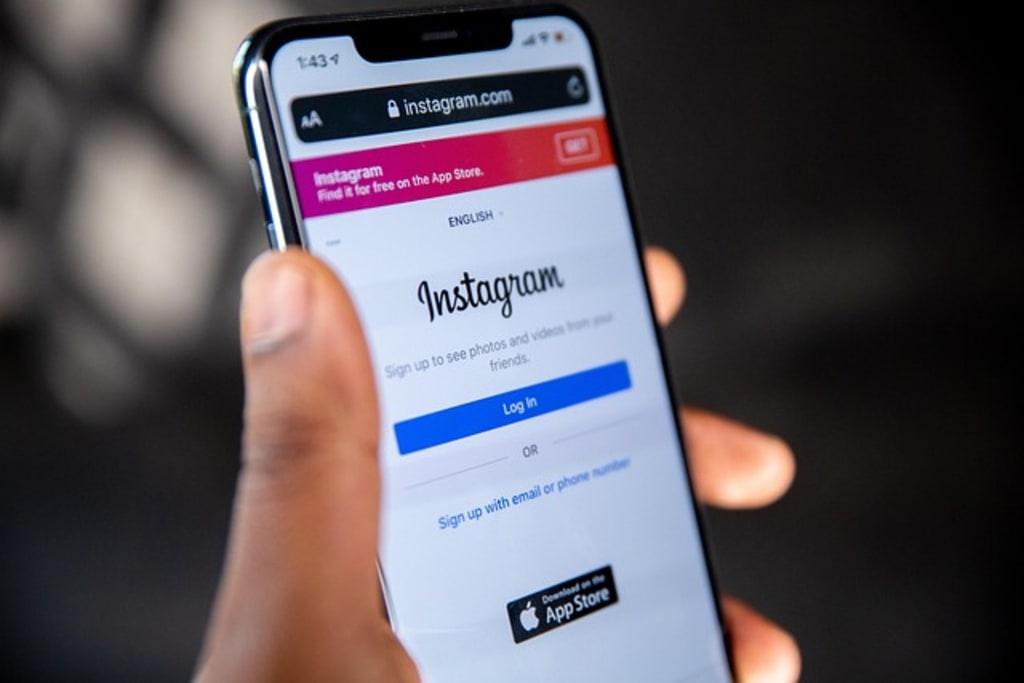
I remember the first time I tried to go live on Instagram. I was buzzing with excitement, ready to chat with my followers about blog monetization tips, only to hit a wall: the “Live” button was nowhere to be found. No error message, no explanation—just pure frustration. Sound familiar? If you’re wondering, “Why can’t I go live on Instagram?” you’re not alone. From technical glitches to sneaky account restrictions, there are several reasons Instagram might be blocking your broadcast. Let’s dive into the most common culprits and how to fix them, so you can start streaming like a pro.
1. Your Account Doesn’t Meet Instagram’s Live Requirements : Instagram Live is open to most users, but there are a few boxes to check first. Your account must:
- Be at least 30 days old to ensure you’re not a spam bot. New to Instagram? Patience is key—wait it out.
- Have camera and microphone access enabled. Go to your phone’s Settings > Instagram and toggle both to “On.”
- Be a personal or professional account, not a restricted one (more on that later).
Fix It: Check your account age (visible in your profile settings). If it’s under 30 days, mark your calendar. For permissions, head to Settings > Privacy > Camera/Microphone and enable access. If you’re still stuck, switch to a professional account (free!): Profile > Settings > Account > Switch to Professional Account.
2. You’ve Been Temporarily Blocked for Guideline Violations
Instagram’s Community Guidelines are strict. If you’ve posted content or interacted with accounts that violate rules (e.g., spammy comments, copyrighted music), Instagram might temporarily block your Live feature. I once got flagged for playing a song in the background—lesson learned!
Fix It: Check for notifications in your app (Profile > Settings > Account > Account Status). If blocked, the restriction usually lifts in a few days. Avoid risky actions like mass-following or using banned hashtags. If you see an error like “You cannot go live,” wait 24-48 hours and try again. Worst case, contact Instagram’s Help Center: Settings > Help > Report a Problem.
3. Technical Glitches or Outdated App
Nothing’s worse than a glitchy app. An outdated Instagram version, piled-up cache, or shaky internet can hide the Live button. I’ve had my share of “Why is this not working?” moments, especially with spotty Wi-Fi.
Fix It:
- Update Instagram: Go to App Store (iOS) or Google Play (Android), search “Instagram,” and hit Update.
- Clear Cache: On iPhone, Settings > General > iPhone Storage > Instagram > Offload App. On Android, Settings > Apps > Instagram > Storage > Clear Cache.
- Check Internet: Use Wi-Fi or 4G/5G with strong signal. Test with a speed checker app (aim for 5 Mbps+).
- Reinstall: Delete and reinstall Instagram if issues persist.
4. Regional Restrictions or Device Issues
In rare cases, Instagram Live is restricted in certain countries (e.g., North Korea, some Middle Eastern regions) due to local laws. Device problems, like an incompatible phone or disabled camera, can also block you.
Fix It: If you’re in a restricted region, try a legal VPN to change your IP (check Instagram’s terms first). For devices, ensure your phone’s OS is updated (iOS 15+ or Android 10+ recommended). Test Live on another device to rule out hardware issues.
5. You’re Using the Wrong Camera or Settings
This one’s a sneaky gotcha. If you’re accidentally on the back camera or have settings misconfigured, Live won’t work. I once spent 10 minutes wondering why my screen was black—yep, wrong camera.
Fix It: Open Instagram, swipe to Stories, select “Live,” and tap the camera flip icon to use the front camera. Also, check Live settings (wheel icon in Live mode): ensure “Hide Offensive Comments” and “Live Moderator” options aren’t causing conflicts.
6. Error Messages Like “Rights to Content May Belong to Someone Else”
If you end a Live and see this red-bar error, it’s likely due to copyrighted content (e.g., music, branded visuals). Instagram flags these, preventing you from saving or sometimes starting Lives.
Fix It: Avoid playing copyrighted music or showing branded items during Lives. If flagged, wait a few days for restrictions to lift. Use royalty-free music from Instagram’s library or Epidemic Sound.
Bonus Tip: Prep for a Flawless Instagram Live
Once you’re unblocked, make your Lives shine:
- Test in Practice Mode: Instagram’s Practice Mode lets you rehearse without broadcasting. Swipe to Live, toggle Practice Mode, and test.
- Promote in Advance: Announce your Live on Stories with countdown stickers or cross-post on TikTok/X. I saw 2x turnout after teasing my blog tips Live!
- Optimize Timing: Use Instagram Insights (Professional Account > Insights) to find when followers are active (e.g., 7-8 PM Sundays).
- Engage Fast: Greet viewers by name and answer comments to boost engagement, which Instagram’s algorithm loves.
Why Instagram Live Matters for Creators
Instagram Live isn’t just fun—it’s a growth hack. Posts with high engagement, like Lives, get 30% more reach, and Lives leap to the front of Stories feeds, notifying followers instantly. Whether you’re sharing tips or building your brand, it’s a must for creators. Want to monetize your Lives? I share proven strategies in my guide on the best ad networks for small publishers—perfect for bloggers starting out. Check it out to boost your Instagram game! Still Stuck? Don’t Panic
If none of these fixes work, reach out to Instagram’s support team via Settings > Help > Report a Problem. Be patient—response times vary. Meanwhile, test Live from another account or device to narrow down the issue. You’ve got this!
What’s your Instagram Live goal? Drop a comment below, and I’ll share tailored tips to make your next stream a hit!
About the Creator
Sadique Mannan
Sadique Mannan, founder of BeingOptimist. Passionate about tech, travel, and learning. Sharing insights and expertise on technology, education, and product reviews to help others thrive in the digital world.
Keep reading
More stories from Sadique Mannan and writers in Education and other communities.
Top Islamic Schools in RT Nagar, Bangalore
RT Nagar in Bangalore is home to several reputed Islamic schools that blend academic excellence with strong moral and ethical values. For parents looking to provide their children with an education that aligns with Islamic teachings while ensuring a well-rounded curriculum, this guide highlights some of the best options in the area.
By Sadique Mannan10 months ago in Education
Striking the Right Balance: Modern Tech and the Human Touch in Harmony
As technology continues to reshape every corner of business and daily life, the balance between innovation and personal interaction becomes increasingly important. Automation, artificial intelligence, and digital communication have allowed companies to operate faster, smarter, and more efficiently. These tools improve productivity and offer consumers greater convenience, transforming how services are delivered and experiences are shaped.
By Ian Schenkel Haliburtona day ago in Education



Comments
There are no comments for this story
Be the first to respond and start the conversation.