
What and Whys of Navisworks
Manage your designs and BIM clash coordination with Navisworks

Bringing a long list of efficient tools and features to the table is Autodesk Navisworks – a popular working platform for AEC professionals. While initially it was developed as a substitute for Lightwork Design, now it is primarily adopted to complement the 3D designs with upgrades offering clash detection and a plethora of potential features.
Professionals in the AEC sector are proactively using the platform to deliver efficient results and manage the data effortlessly.
Being among top BIM Service Providers in Florida successfully delivering number of clash coordination projects for number of ENR listed General Contractors, we thought of sharing how Navisworks helps AEC professional around the globe, hence let’s dive deep into the software and learn all about it.
Navisworks and the 3 File Formats
From project scheduling to BIM clash coordination, there is a wide range of features offered by Navisworks. These are available in the three different versions of Naviswork.
1. Navisworks Simulate
This version of Navisworks proves to be cheaper than the entire version but it isn’t equipped with a few of the complicated working tools like clash detection.
2. Navisworks Manage
Navisworks Manage is the complete version offering the most extensive set of tools. This is the most expensive version as it enables everything from construction simulation to clash detection.
3. Navisworks Freedom
Navisworks Freedom is the basic version without complex tools. One of the major advantages of opting for this version is that it’s free of cost and lets you view NWD files.
From Revit architecture modelling to basic CAD files, Navisworks is compatible with a wide range of file formats. And just like other software, it has its file types as well. The three different types of file formats are:
● .nwc
It is the cache file for Navisworks that gets generated when you export a 3D or 2D view from Revit. This file type consists of the snapshot of the current project. Items hidden during export do not show when viewing in navis, hence, make sure to keep right elements visible which are needed to be seen in the navis file.
● .nwf
It is the standard file format that can be used to view the current project. It is dependent on the cache file, thus, if no .nwc is linked with the file, then nothing won’t be seen. NWF file supports quick viewing of changes made in revit model .i.e. if a revised nwc file is generated and appended in the existing project nwf then changes made in model will reflect immediately which is not the case with nwd file type.
● .nwd
.nwd file format is created by saving the .nwf file as .nwd. This file type is free of any links to other navis file types .i.e. nwc and is in a simple format that can be shared with the client. However, changes made in the .nwc file will not reflect in the .nwd file on its own. Thus, one needs to again create .nwf linking the latest nwc and then re-save it as a .nwd file.
Key Tools offered with Navisworks
1. Clash Coordination
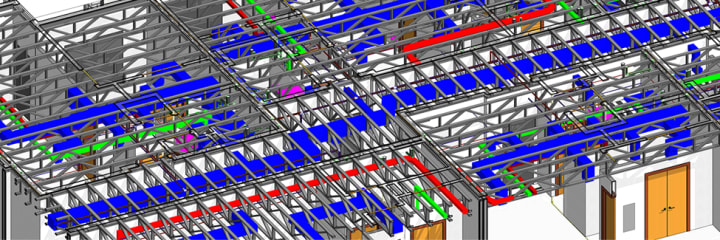
BIM clash coordination has proved to be extremely useful for the AEC industry as it enhances efficiency and saves time. Navisworks offers clash detection and coordination that promises smooth working on-site. Teams can generate Viewpoints highlighting the clashes. There’s also an option of adding tolerance in order to filter the running clash report.
2. 4D Construction Simulation
Navisworks is known for 4D construction simulation that helps in depicting how the construction will progress with time and helps in analyzing if the construction is on track with the timelines. It gives an idea of the objects and the space needed to construct them. The project schedule, in this case, helps in representing the schedule for the project. The schedule can further be linked with the navis model which can be seen in the simulation in a Navisworks file.
About the Creator
RB
AEODC is a global hub advancing the AEC industry through cutting-edge BIM and virtual Design & Build tech, connecting all stakeholders to foster innovation, collaboration, and efficiency across every project stage.
How Learning About Global Health Gives Early Impacts to Medical Students
Medical students begin forming their professional identities long before they enter residency, and early exposure to global health giving plays a decisive role in shaping those identities. While traditional training emphasizes diagnostics and clinical precision, global learning encourages students to understand the broader human context behind every medical decision.
By Dr. Seth Eidemiller5 days ago in Education
Why Do We Dream?
In the third millenium BCE, Mesopotamian kings recorded and interpreted their dreams on wax tablets. A thousand years later, Ancient Egyptians wrote a dream book listing over a hundred common dreams and their meanings. And in the years since, we haven't paused in our quest to understand why we dream. So, after a great deal of scientific research, technological advancement, and persistence, we still don't have any definite answers, but we have some interesting theories. We dream to fulfill our wishes.
By Munesh Yadav3 days ago in Education



Comments
There are no comments for this story
Be the first to respond and start the conversation.