
Resume Format PDFs for Every Job Seeker: Download Now
Resume format to edit and download

In today’s competitive job market, a well-crafted resume is one of the most important tools in securing an interview. Whether you’re just entering the workforce, looking to change careers, or hoping to advance in your current field, having the right resume format can make all the difference. In this article, we’ll provide a comprehensive guide on resume format PDFs, including downloadable templates, tips on creating a standout resume, and much more.
What is a Resume Format?
A resume format refers to the structure and layout of the document that summarizes your professional experience, education, skills, and qualifications. The format is crucial because it impacts how easily hiring managers can scan and evaluate your qualifications. A well-structured resume helps you stand out, making it easier for recruiters to quickly see your value.
There are different resume formats that cater to various career stages and experiences. Each format emphasizes different aspects of your background to better align with the job you’re applying for.
Why You Need a Resume Format PDF
Using a Resume Format PDF ensures that your resume appears professional and retains its formatting across various devices and platforms. PDFs are universally accepted and easy to share, making them an ideal choice for job seekers.
Benefits of a Resume Format PDF:
• Universal compatibility: PDFs can be opened on any device without altering the formatting.
• Professional appearance: A PDF file appears clean and polished.
• Easy to share: Emailing a resume in PDF format is straightforward and efficient.
• Security: PDFs can be password protected or encrypted for added privacy.
Types of Resume Formats
There are several types of resume formats to choose from. Below is a table that highlights the most common formats and when to use them:
Resume Format Best For Key Features
Chronological Resume Those with steady work experience Lists work history in reverse chronological order. Ideal for those with a stable career path.
Functional Resume Those with gaps in employment or changing careers Focuses on skills and qualifications rather than work history. Perfect for job changers or those with limited experience.
Combination Resume Those with diverse skills and experience Merges elements of both chronological and functional resumes. Great for experienced professionals with varied skills.
Choosing the Right Resume Format for You
Selecting the appropriate resume format depends on several factors, including your experience, the job you're applying for, and your career objectives. Here are a few guidelines:
Chronological Resume Format
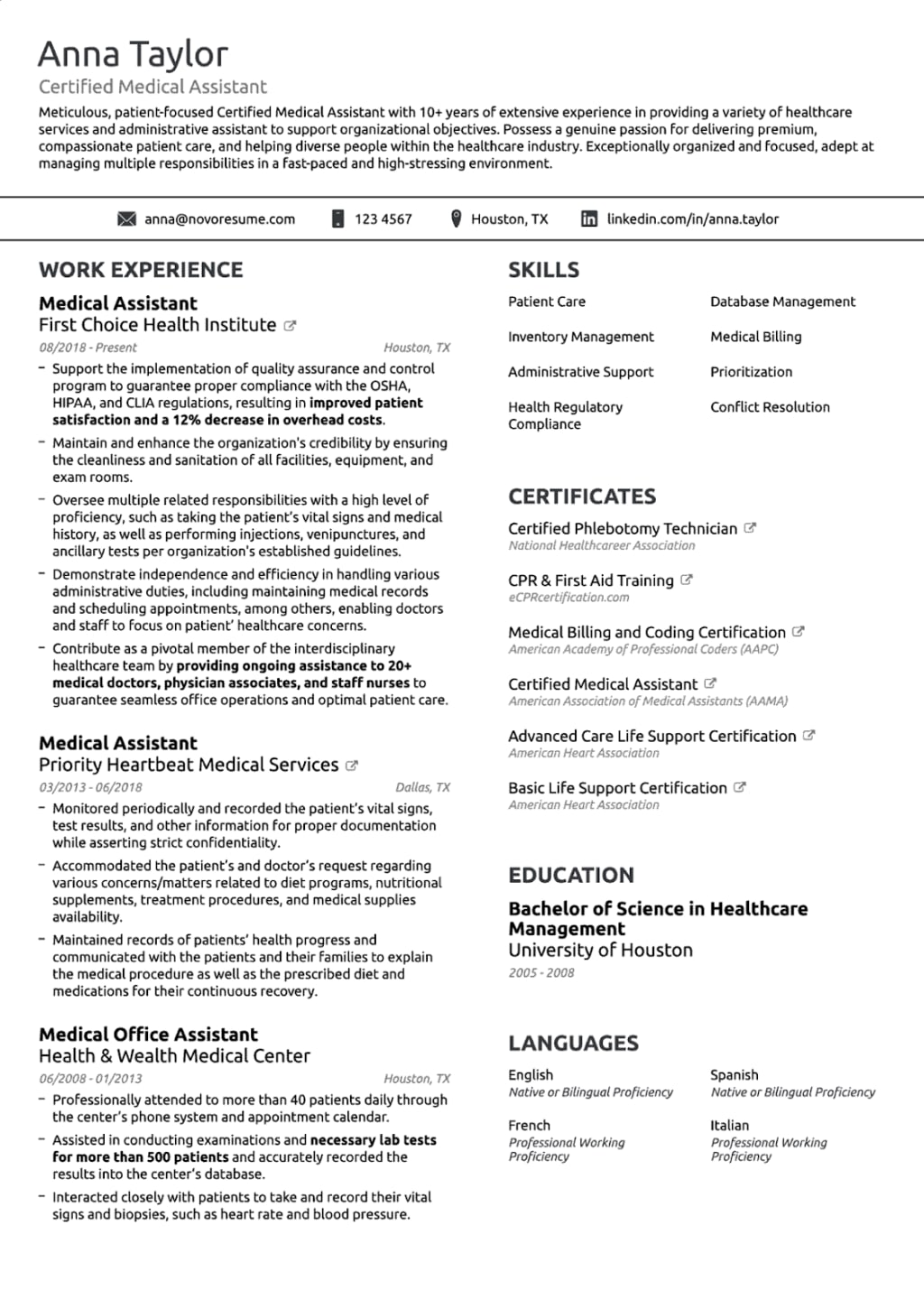
The chronological resume format is the most commonly used format by job seekers. This format focuses on your work history, listing positions in reverse chronological order (most recent job at the top). It is ideal for individuals with a consistent work history in a particular field.
Key Features:
• Emphasizes work experience
• Suitable for those with a solid and continuous career path
• Focuses on job titles, companies, and dates of employment
Functional Resume Format
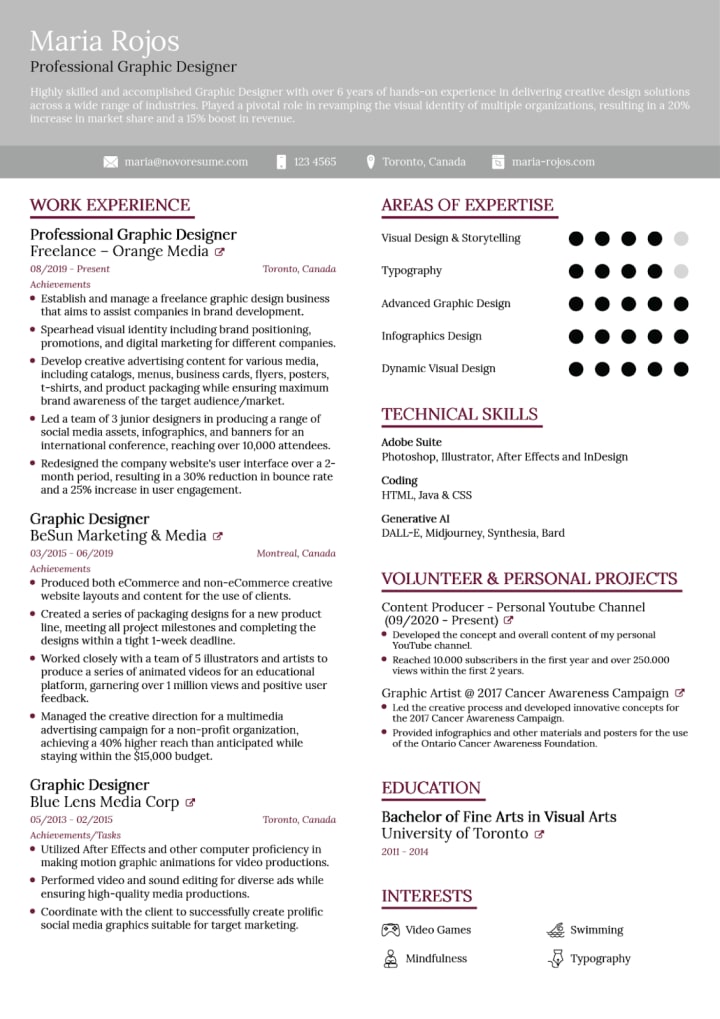
The functional resume format is best for job seekers who may have gaps in employment or are changing careers. It focuses more on your skills, abilities, and accomplishments rather than job history. This format helps highlight transferable skills for positions outside of your current field.
Key Features:
• Focuses on skills and qualifications
• Great for career changers or individuals with inconsistent work history
• Less emphasis on job titles and employment dates
Combination Resume Format
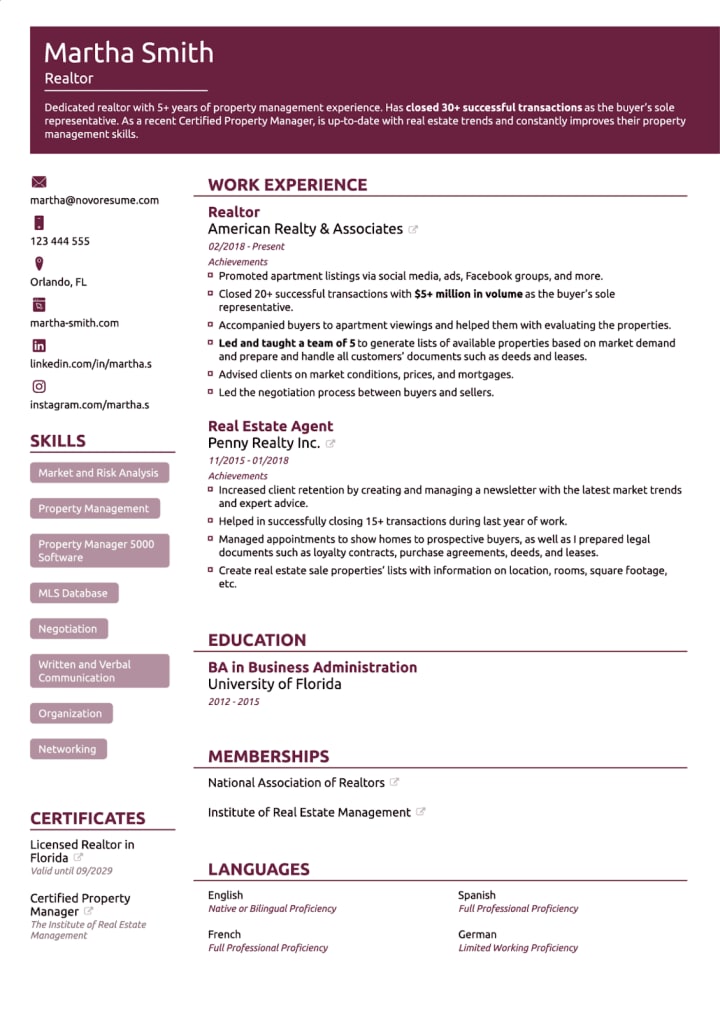
The combination resume format blends the best aspects of both the chronological and functional formats. It highlights your skills and qualifications at the top of the resume, followed by a detailed work experience section. This format works well for experienced professionals who want to showcase their skills while still providing a clear career history.
Key Features:
• Highlights both skills and work experience
• Useful for individuals with diverse experiences
• Shows versatility and proficiency in multiple areas
Resume Format PDF Templates for Every Job Seeker
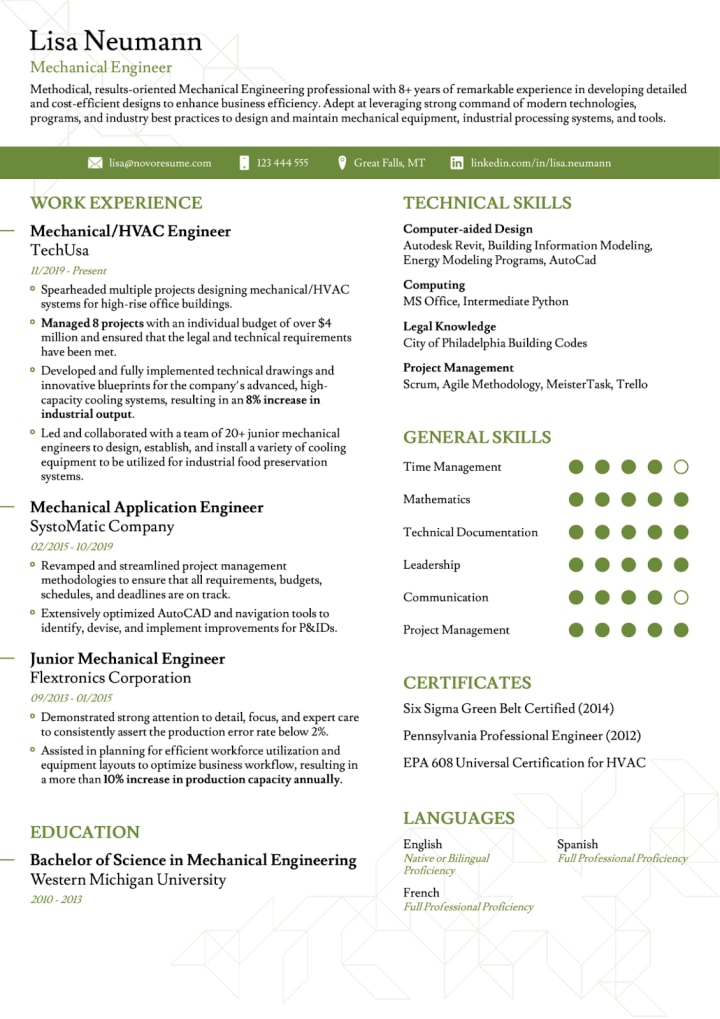
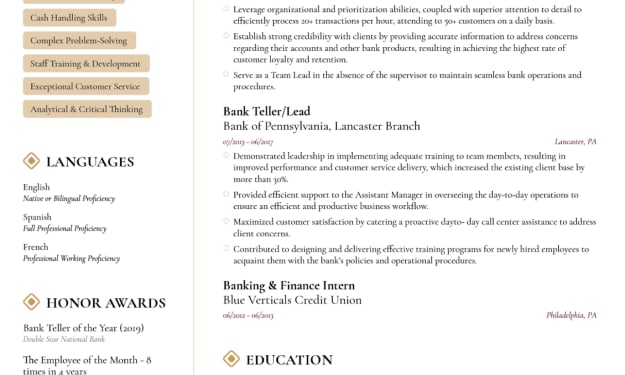
Below are some downloadable Resume Format PDFs for different job seekers. You can download these templates and easily personalize them for your needs.
How to Use a Resume Template
Using a resume template can save you time and effort. Here’s a step-by-step guide to using a template:
1. Download the Template: Choose the template that fits your experience and career goals.
2. Customize the Content: Replace the placeholders with your personal information, such as your contact details, work experience, education, and skills.
3. Edit and Proofread: Make sure the content is clear, concise, and free of errors. Hiring managers appreciate attention to detail.
4. Save and Convert to PDF: Once you're satisfied with your resume, save the document in PDF format to preserve its layout and appearance.
Key Takeaways:
• Choosing the Right Format: Your choice of resume format should reflect your career path, whether you have steady work experience, are changing careers, or have a unique mix of skills.
• Professional Appearance: Using a Resume Format PDF ensures that your resume appears professional and retains its formatting across different platforms.
• Customizable Templates: Resume templates save time and help you create a polished document. Select the one that best suits your experience and the job you're applying for.
Here’s a refined version of your section with examples for each tip:
________________________________________
Tips for Writing an Effective Resume
To ensure your resume stands out and gets noticed by hiring managers, follow these expert tips:
1. Use Action Verbs
Starting each bullet point with an action verb adds energy to your resume and demonstrates your achievements clearly.
Example:
o Led a team of five in a successful project to improve customer retention by 15%.
o Coordinated the launch of a new marketing campaign, increasing website traffic by 30%.
2. Tailor Your Resume to the Job
Customize your resume to align with the specific job you’re applying for. This helps highlight the skills and experience that are most relevant to the position.
Example:
o If applying for a Sales Manager position, emphasize your leadership and sales achievements:
“Increased sales revenue by 25% within one year through targeted strategies.”
o If applying for a Marketing Specialist position, focus on your marketing skills:
“Developed digital content that increased social media engagement by 40%.”
3. Keep it Concise
Ideally, your resume should be no longer than one or two pages. Be concise and focus on your most impactful accomplishments.
Example:
Instead of listing all job responsibilities, focus on achievements:
“Increased customer satisfaction by 20% by implementing a customer feedback system.”
Instead of listing every task, highlight only key contributions.
4. Highlight Key Achievements
Employers want to see how you’ve added value in your previous roles. Don’t just list job duties—show how you’ve excelled. Include specific numbers or examples to quantify your impact.
Example:
o “Improved employee productivity by 30% by introducing a new training program.”
o “Reduced operational costs by 15% in the first quarter by negotiating better supplier contracts.”
5. Use a Professional Font
A clean, easy-to-read font is essential for ensuring your resume is both professional and legible. Stick to classic fonts like Arial, Calibri, or Times New Roman. Avoid using flashy or overly decorative fonts.
Example:
o Use Arial (size 10-12) for body text and bold for headings.
o Avoid fonts like Comic Sans or anything too fancy that can distract from the content.
6. Proofread
Before submitting your resume, review it several times to catch any typos, grammatical errors, or formatting issues. A resume with errors can create a poor first impression.
Example:
Before submitting:
o Mistake: “Managed a tea of 10 employees” (incorrect spelling of "team").
o Corrected: “Managed a team of 10 employees.”
Take the time to read your resume aloud to ensure it’s error-free.
________________________________________
By following these tips and incorporating examples of your work accomplishments, your resume will be clear, concise, and more likely to grab the attention of hiring managers.
Certainly! Below are more detailed answers to the FAQs:
________________________________________
Frequently Asked Questions (FAQs)
Q1: Why is it important to use a Resume Format PDF?
A1:
Using a Resume Format PDF is essential for several reasons. First and foremost, it ensures your resume maintains its original layout, formatting, and appearance across various devices and platforms. PDFs are universally compatible, meaning whether the hiring manager opens it on a desktop, tablet, or phone, your resume will look the same.
Another key benefit is that PDFs help retain the integrity of your content. Unlike Word documents or other formats, PDFs can’t easily be altered or edited by others, ensuring that your resume remains unmodified when shared. This adds a level of professionalism, showing you understand the importance of maintaining a polished, unchangeable document when presenting your qualifications. Moreover, many employers specifically request resumes in PDF format because it is more secure and easier to print or distribute without distortion.
________________________________________
Q2: What should I include in my resume?
A2:
A well-rounded resume should include the following key sections:
• Contact Information: This includes your name, phone number, email address, and LinkedIn profile or portfolio link (if applicable). Make sure your email address is professional and current.
• Summary or Objective Statement: This is optional but highly recommended. It should briefly summarize who you are, what you offer, and what your career goals are. A well-crafted summary or objective statement helps hiring managers quickly understand your professional identity and what you’re looking for in a job.
• Work Experience: List your previous roles in reverse chronological order (starting with your most recent position). Include your job title, company name, dates of employment, and key responsibilities. It’s crucial to highlight achievements or results to demonstrate the impact of your work.
• Education: This section should include your highest level of education, the name of the institution, and your graduation year. You can also list any relevant certifications or courses you have completed.
• Skills: A concise list of your hard and soft skills that are directly relevant to the job. Focus on technical skills (such as software or industry-specific knowledge) and soft skills (like communication or leadership).
• Certifications and Awards: If you have any certifications, licenses, or significant awards, include them in a separate section. These show your commitment to professional growth and expertise.
• Achievements: Include measurable accomplishments that make you stand out. These might include sales targets you've met or exceeded, cost reductions you've implemented, or successful projects you've led.
Including these elements will give a complete picture of your professional background and ensure your resume is comprehensive and well-rounded.
________________________________________
Q3: How long should my resume be?
A3:
The length of your resume typically depends on your experience and career level:
• For Entry-Level Candidates: If you are just starting your career or have limited experience, a one-page resume is usually sufficient. Focus on your academic achievements, internships, volunteer work, or any relevant projects or skills you’ve developed. Be sure to emphasize transferable skills, such as communication, problem-solving, and teamwork.
• For Experienced Professionals: If you have 5-10 years or more of experience, you may need a two-page resume. Use the extra space to detail your work history, achievements, and skills. It’s important to keep the content relevant and focused on your most significant contributions. Employers are generally looking for concrete examples of how you’ve added value, and two pages allow you to include those details.
Regardless of your experience level, remember that brevity is key. Hiring managers typically spend only a few seconds reviewing each resume, so make sure every word counts. Avoid unnecessary details and focus on accomplishments that directly relate to the job you’re applying for.
________________________________________
Q4: Should I use a resume template?
A4:
Yes, using a resume template is highly recommended, especially if you are new to resume writing or want to save time. A template provides you with a well-organized, professional layout, making it easier to structure your information. Templates can help ensure consistency and readability, which are crucial for making a great first impression.
However, simply using a template is not enough—customization is key. Tailor the template to fit your unique experience, skills, and career goals. Remove any generic content, replace it with your information, and make sure the layout fits the job you’re targeting. For example, if you’re applying for a creative position, you may want to choose a more visually dynamic template, while a corporate role might call for a cleaner, more traditional design.
Using a template also helps you avoid common formatting mistakes, such as inconsistent fonts or misaligned text, and ensures your resume is both professional and polished.
________________________________________
Q5: How do I convert my resume to a PDF?
A5:
Converting your resume to PDF is a straightforward process. Most word processing software, such as Microsoft Word and Google Docs, has an option to save or export documents as PDFs. Here’s how you can do it:
• In Microsoft Word:
1. Open your resume in Word.
2. Click on the File tab in the upper left corner.
3. Select Save As.
4. In the dialog box that appears, choose the location where you want to save the file.
5. From the "Save as type" dropdown menu, select PDF.
6. Click Save.
• In Google Docs:
1. Open your resume in Google Docs.
2. Click on the File menu.
3. Hover over Download.
4. Select PDF Document from the dropdown options.
• ResumeEra.xyz:
When you use Resumeera , you will not need to convert resume in pdf because resumeera give you always pdf format in readymate. When you download the resume its automatic download in pdf
PDFs are often preferred by employers because they preserve your formatting and are universally accessible. By converting your resume to PDF, you can ensure that your resume will be displayed correctly, regardless of the software or device used to view it.
Conclusion
Creating a standout resume is an essential step in the job search process. With the right resume format PDF, you can ensure that your resume is not only professional but also accessible and easy to read. Whether you're using a resume template or crafting your own from scratch, remember to tailor it to the job you're applying for, keep it concise, and proofread for errors.
The downloadable templates provided in this article are a great starting point for job seekers at all stages of their careers. Take advantage of these resources to create a resume that will help you get noticed by hiring managers and land your next job.
About the Creator
Shahrukh Mirza
my name is sharukh khan. and i am a content writer to resume and career advice .
i have a website to create resume for free
To create Resume online and abolutely Free:- https://resumeera.xyz
Keep reading
More stories from Shahrukh Mirza and writers in Education and other communities.
Resume Format PDFs for Every Job Seeker: Download Now
In today's competitive job market, having a well-organized and professionally designed resume is crucial to standing out from the crowd. One of the most effective ways to create a resume that showcases your skills and experience is by using a resume format PDF. With the right resume format, you can ensure that your resume is easy to read, visually appealing, and tailored to the job you're applying for. This article will explore everything you need to know about resume formats, including tips, templates, and how to optimize your resume for success.
By Shahrukh Mirzaabout a year ago in Education
The Impact of Virtual Reality on Healthcare Innovation and Medical Practice
Virtual reality is steadily transforming the healthcare industry by offering immersive digital environments that support medical education, treatment planning, and patient care. Unlike traditional tools, VR allows healthcare professionals to interact with highly detailed simulations that replicate real medical situations. These interactive experiences provide opportunities for learning and preparation that were previously difficult to achieve through conventional training methods.
By Alex Kipman4 days ago in Education
Why the Sun Will Become a Red Giant: The Future of Our Solar System Explained
Every morning, the Sun rises as it has for billions of years, bathing Earth in light and warmth. To us, it feels permanent and unchanging. Yet in the vast timeline of the universe, the Sun is only halfway through its life.
By shahkar jalal2 days ago in Education



Comments
There are no comments for this story
Be the first to respond and start the conversation.