
Making a simple calculator on C#
Calculator using Windows Form Application C#


So you are new to programming and you want to make a simple calculator using C# Windows Form Application, here you can learn it easily and brag among your friends that you know how to code :) Making calculator is very easy, you just need to have Visual Studio installed. It is a step by step guide to develop a calculator using C# Win Form App.
Here, we will make a simple calculator on Windows Form Application in C#. The tutorial provided here is very easy step by step and you will most probably easily understand.
Following are the steps to make a Calculator in Windows Form:
• First of all, open Microsoft Visual Studio, we are using Visual studio 2019. It will be open like this.
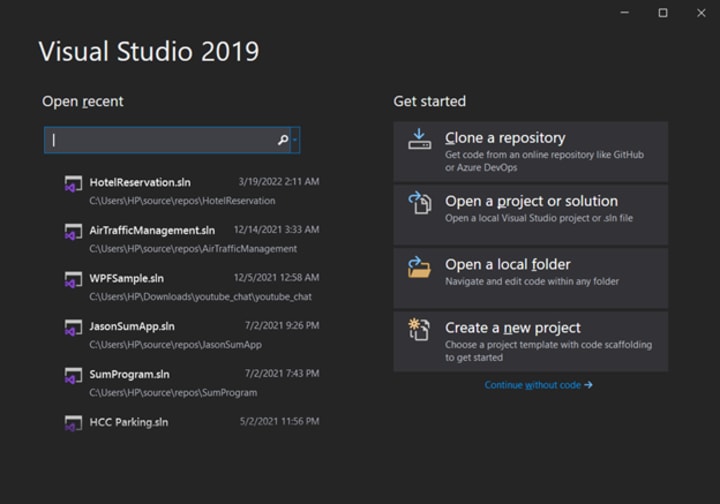
• Then click on “Create a new project” button.
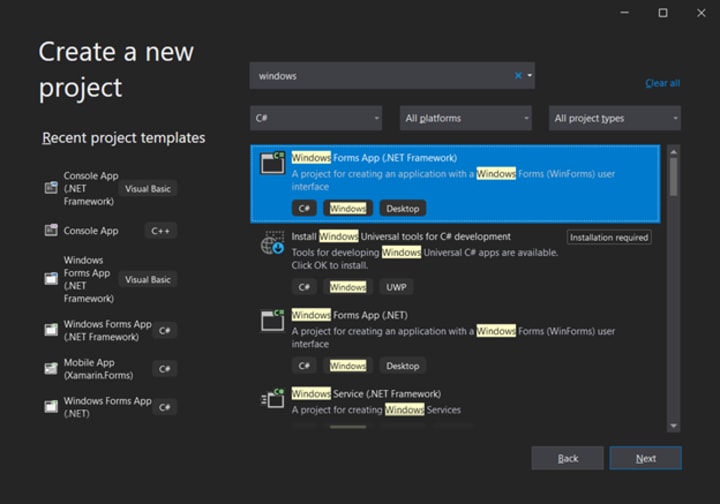
• Then select Windows Form App and press next
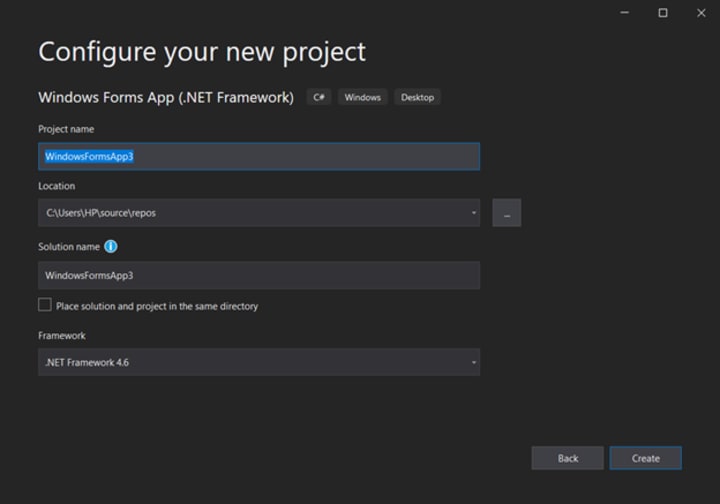
• Input Name of your project, location to save project, .Net Framework and press next
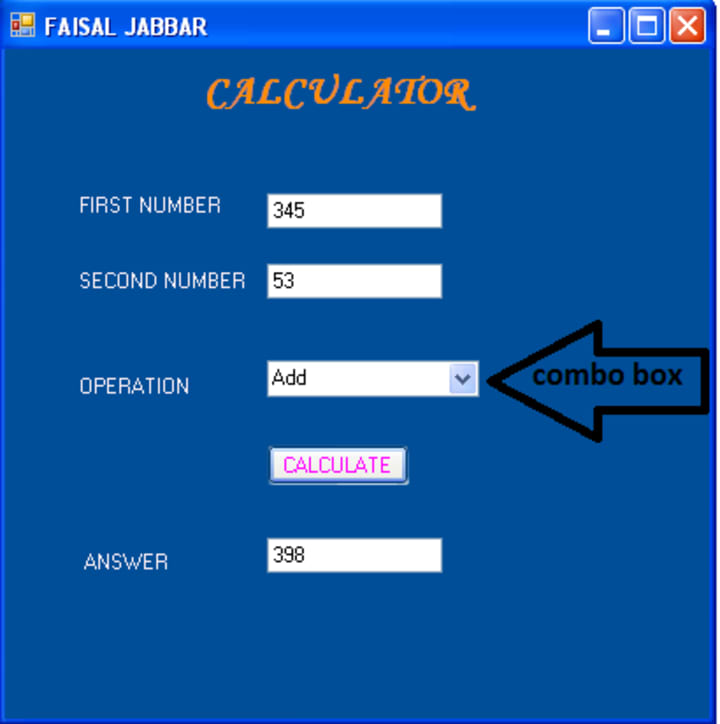
• Design the Form using Buttons , Combo boxes and Text boxes, as given below, Add Items to the Combo Box. You can simple drag and drop them from toolbox.
• Now go to the code, which you can get by double clicking on any Button, When you do double click on any element of the Form like button on combo box, its event is made in the code class, for example, double click on a button and a method or event will be made in code class and the write the code what you want your application to do when you click on that specific button.
• We are writing our code below but our advice is to do not copy paste it and write the code in appropriate event.
Code :
using System;
using System.Collections.Generic;
using System.ComponentModel;
using System.Data;
using System.Drawing;
using System.Linq;
using System.Text;
using System.Windows.Forms;
namespace WindowsFormsApplication2
{
public partial class Form1 : Form
{
public Form1()
{
InitializeComponent();
}
private void button1_Click(object sender, EventArgs e)
{
double mul, div, sub, add; // initializing variables
int num1 = Convert.ToInt32(textBox1.Text); // reading number from text box
int num2 = Convert.ToInt32(textBox2.Text);
string op = this.comboBox1.SelectedItem.ToString(); // reading selected item from Combo Box
mul = Calmul(num1, num2); // Calling Method of miltiplication
div = Caldiv(num2 , num1); //
sub = Calsub(num2, num1);
add = Caladd(num1, num2);
if (op == "Add")
{
textBox3.Text = add.ToString(); // Writing Answer on text box
}
else if (op == "Subtract")
{
textBox3.Text = sub.ToString(); // Writing Answer on text box
}
else if (op == "Divide")
{
textBox3.Text = div.ToString(); // Writing Answer on text box
}
else if (op == "Multiply")
{
textBox3.Text = mul.ToString(); // Writing Answer on text box
}
}
public static double Caladd(int a, int b) // Method to add two numbers
{
double z = 0;
z = a + b;
return z;
}
public static double Calmul(int a, int b) // Method to multiply two numbers
{
double z = 0;
z = a * b;
return z;
}
public static double Caldiv(int a, int b) // Method to divide two numbers
{
double z = 0;
z = a / b;
return z;
}
public static double Calsub(int a, int b) // Method to subtract two numbers
{
double z = 0;
z = a - b;
return z;
}
}
}
Output:
The output is already given above in the picture of form.
If you want to want any post about something else, or you want to update it, Kindly Contact us.
Thank You for reading this, Like this if you understood, It helps a lot to make us motivated.
About the Creator
Faisal Jabbar
I am a software engineer and blogger. I used to have my own blog but not I am on Vocal and Quora only.
Keep reading
More stories from Faisal Jabbar and writers in Education and other communities.
Role of Technology in Modern Islamic Education
Islamic education has always been a cornerstone of Muslim life, guiding children and adults alike in spiritual, moral, and academic growth. Traditionally, learning took place in mosques, madrasas, or homes with direct guidance from teachers.
By Arslan Shahbaz4 days ago in Education
7 Business-Boosting Benefits of an HCI Solution
A hyperconverged infrastructure solution is a modern way for businesses to run their computer systems and data centers. In simple terms, it combines computing power, storage, and networking into a single easy platform. Many companies worldwide are choosing HCI solutions to make their work faster, easier, and cheaper.
By Amelia Hebrewabout 18 hours ago in Education
Five—One Grounding
Five—Locked in a perpetual battle against my failing senses and reason, I fight to survive, to get through; I am afraid of... nothingandeverythingallatonce—...—my mouth is dry, and my muscles seize up... what can I see? I can see the birdcage and birds; I can see the watercolour my beautiful wife painted many years ago and unlocked her journey into art; I can see the empty mug of tea as it sits perilously on the arm of the sofa; how many is that now? Three down, two to go; I can also see a jackdaw on the roof of our neighbour's house across the road and a bookcase of potential—Five things you can see.
By Paul Stewart7 days ago in Poets



Comments
There are no comments for this story
Be the first to respond and start the conversation.