
How To Use Xbox One Controller As Mouse?
Discover how to use your Xbox One controller as a mouse on your PC, with simple steps and software recommendations for seamless navigation.

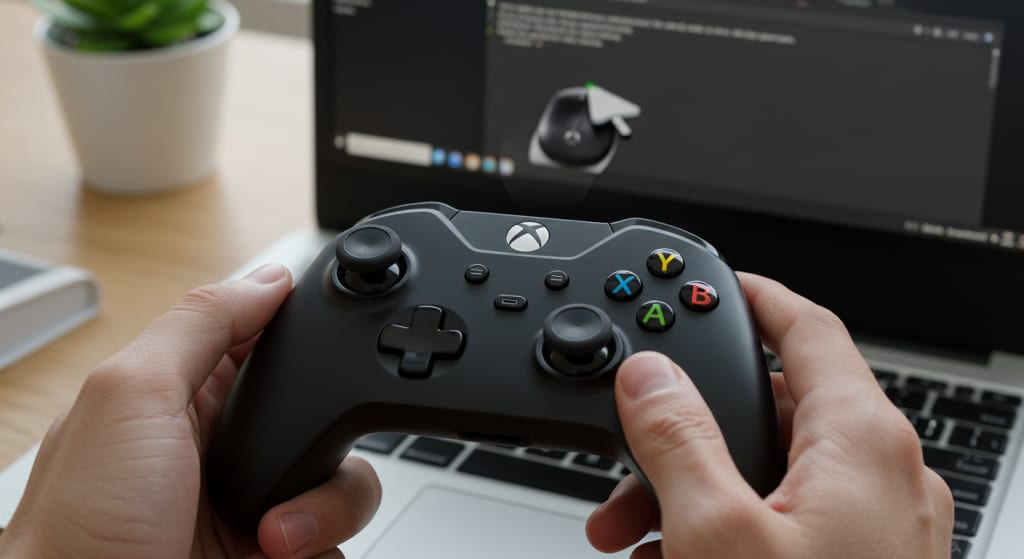
Among the most well-liked game controllers on the market is the Xbox One controller because of its ergonomic design and extensive interoperability with various gaming systems. Unbeknownst to many, it can also be used as a computer mouse.
If you're playing PC games that support controllers or if you just want an other method to navigate your system, using an Xbox One controller as a mouse can be useful.
This blog entry will take you through the setup procedure and offer suggestions for enhancing your experience.
Why Would You Use the Xbox One Controller's Mouse?
You may wish to utilize your Xbox One controller as a mouse for the following purposes:
Comfort: Certain people believe controllers to be more comfortable than a traditional mouse and keyboard setup.
If you play games with a controller and want to easily transition to mouse-like navigation without changing devices, this is the ideal solution.
Accessibility: This configuration may be helpful to people with mobility issues who find a controller simpler to use.
Stuff You'll Need
Just the following will be needed to start:
One Xbox One controller, connected or wireless
A Windows machine (other operating systems may call for different procedures; this tutorial is exclusive to Windows)
If you're mapping controllers with software (such as Steam's Big Picture Mode, AntiMicro, or reWASD), you'll need a wireless adapter or a suitable USB cord.
Using an Xbox One Controller as a Mouse
Connect Your Xbox One Controller and Computer
If your PC has a USB port, just plug the wired Xbox One controller into it. It ought to identify it by itself and let Windows install the necessary drivers.
Wireless: If your controller and PC support Bluetooth, you can connect that way or, if you're using a wireless controller, using an Xbox Wireless Adapter. To create a Bluetooth connection, press and hold the pairing button on your controller, then choose the controller in the Bluetooth settings on your PC.
Choose Your Controller Mapping Software
Controller mapping software lets you change the behavior of your controller's buttons and analog sticks. Popular options include the following:
reWASD: A very customizable controller mapping software with a wealth of features.
Basic open-source software called AntiMicro allows you to set keyboard and mouse behaviors according to controller inputs.
Steam's integrated Big Picture Mode, which features mouse emulation, allows you to personalize your controller if you play games on Steam.
Set the Controller to act as a Mouse
Utilising the program of your choosing, map the inputs from the Xbox One controller to simulate mouse clicks and movements. That ought to operate as follows:
Control mouse movement with the left analog stick. Most software let you adjust the sensitivity to ensure smooth movement.
The buttons for A, B, X, and Y can be operated with left- and right-clicking. Your preferences will determine which role each button serves.
One may configure the left and right bumpers to react to various mouse buttons, including the middle mouse button or other special commands.
Triggers: You can map certain mouse motions to them or use them to scroll.
D-Pad: Additional mouse functions and arrow key navigation can be configured here.
Assess and Tailor
After mapping the controls, verify that everything is working as it should. Explore your desktop, open programs, and try a few things to be sure the setup is to your liking. Edit the mapping and sensitivity as needed.
Optional Automated Startup
If you plan to use your Xbox One controller a lot like a mouse, you should consider setting your controller mapping program to launch automatically.
In this way, your controller will be ready for use as a mouse the instant your computer starts up.
Suggestions for an Enhance Experience
Test Out A Little Sensitivity To find the best speed to accuracy ratio, change the sensitivity of the analog stick.
Using Shortcuts If your mapping program lets you, make shortcuts to easily change between different setups for different jobs.
Individualised Profiles Create separate profiles for your desktop and gaming use so you may easily move between them based on your current task.
Analyze More Elements Some programs allow you to map intricate tasks to the click of a single button or build macros, which increases your versatility even further.
Overview
Moving about your PC with an Xbox One controller as a mouse can be both entertaining and practical.
Regardless of your interest—gaming, accessibility, or simply trying something new this guide should get you started.
After some experimentation and the right setup, you will have a unique and practical way of communicating with your PC.
About the Creator
Laptopflora
Welcome to Laptopflora, where laptops meet expertise and your tech decisions are made easier. Our journey began with a single mission: to create a trusted platform that provides clear, actionable, and insightful information about laptop.
Keep reading
More stories from Laptopflora and writers in Education and other communities.
How To Use Chromecast On Laptop?
Stream media from a range of devices to your television or monitor using Google Chromecast. Though it's mostly used with tablets and smartphones, Chromecast may also be used to mirror or project material from a laptop onto a bigger screen.
By Laptopflora10 months ago in Education
Spain's Hospitality Market: Projected Growth Amid Tourism Boom and Changing Travel Trends 2026-2034
The Spanish hospitality market is poised for steady growth, driven by a combination of booming tourism, rising government support, and evolving consumer preferences. According to recent projections from IMARC Group, the market size of Spain’s hospitality sector is expected to grow from USD 61.6 million in 2025 to USD 84.1 million by 2034, marking a Compound Annual Growth Rate (CAGR) of 3.52% over the next decade (2026-2034).
By Neeraj kumar6 days ago in Education
Bridging Strategy and Growth: The Synergy of Financial Planning and Investment Management
Achieving long-term financial security requires more than simply saving money or picking promising stocks. It demands a thoughtful strategy that connects day-to-day financial decisions with long-term aspirations. Financial planning and investment management represent two essential pillars of this strategy. When they work together, they create a cohesive framework that supports sustainable wealth-building.
By Winston Feng6 days ago in Education




Comments
There are no comments for this story
Be the first to respond and start the conversation.